Start your 3-day free trial
Sign up to experience all premium features at no cost.
*Available only to new users. Each user is limited to one trial.
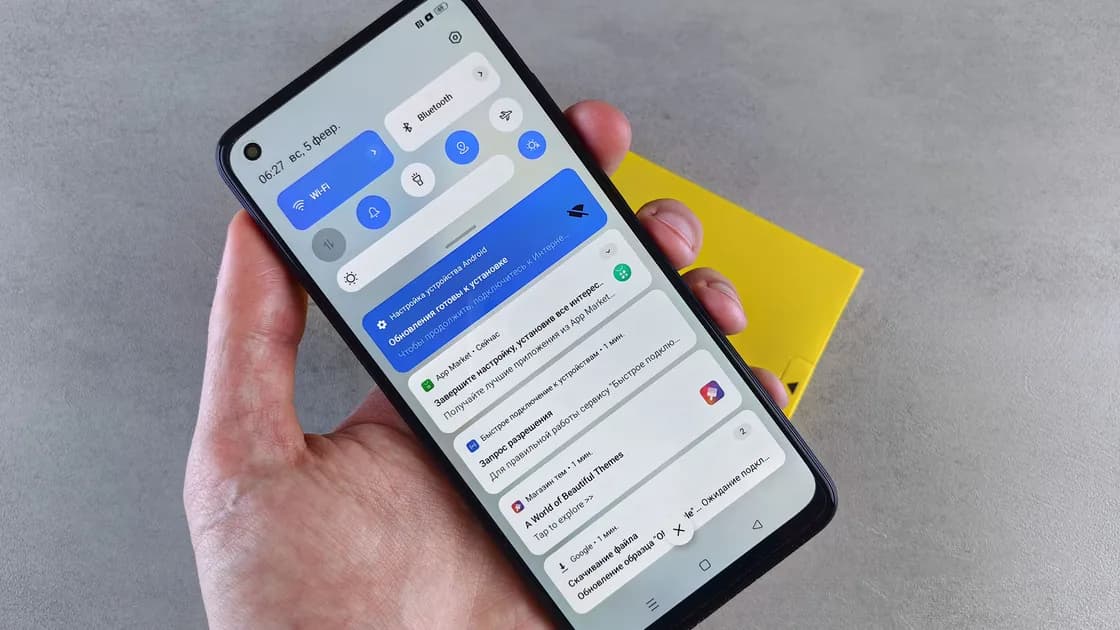

If you are not receiving notifications on your Android phone, the cause usually sits in one of four layers: the app’s switch or notification category is off or silent, a Mode such as Do Not Disturb is filtering it, battery or background limits are delaying the app, or the app never generated the alert because of an account, service, or network problem. To fix Android notifications, use one known test event and check those layers in order. Android menus vary by manufacturer, so follow the setting’s purpose rather than forcing a Pixel or Samsung path onto every phone.
Key Takeaways
- Notification history can distinguish a generated alert from one that was dismissed or delivered silently, when the phone supports it.
- Check both the app-wide switch and the specific notification category used by the missing event.
- Review Do Not Disturb, Bedtime, Driving, and their automatic rules before changing battery controls.
- Do not globally disable battery optimization or clear app data before protecting local data and sign-in recovery.
Use the Device and App Troubleshooting Guide to separate app, account, network, permission, and device-wide faults.
Trigger a harmless event whose sender and time you know. Leave the target app closed and the phone locked. Then check the notification shade and, if available, Settings > Notifications > Notification history.
Google notes that some devices do not have notification history and that menu details vary. Where available, history can show snoozed, recently dismissed, and recent notifications.[1] Use the result as evidence:
| Observation | Likely branch | Next check |
|---|---|---|
| The event is in history but not visible now | Dismissed, snoozed, silent, or hidden | Category, sound, Lock Screen, and Mode |
| Only one category is absent | Category-specific control | App’s notification categories and in-app types |
| Only one conversation is absent | Conversation or person rule | Muted thread and Mode filters |
| One app has no event anywhere | App, account, service, or background branch | Sign-in, sync, update, and battery restriction |
| Several apps fail together | Device-wide rule or connectivity | Modes, restart, system update, and network |
If the app shows the new item only after you open it, record that fact. It suggests the event was not received or generated in the background, rather than a banner simply being hidden.
Keep a one-event test record before editing settings. Note the event time, app account, notification category, whether the phone was locked, whether history recorded it, and whether opening the app made it appear. Repeat the same kind of event after each change. Do not compare two different senders, conversations, or alert categories: an app may deliver direct messages correctly while a transaction, call, or promotional category remains disabled. This record also helps distinguish a local phone change from a service-side recovery that happened at the same time.
When the service has an official status page, compare the incident window with the recorded event instead of assuming a settings change repaired it.
Long-press a recent notification and open its settings, or find the app under Settings > Notifications > App notifications. Confirm the app-wide switch, then inspect the category that matches the missing event. Android apps can separate messages, calls, transactions, downloads, promotions, and other events, and each category may be alerting or silent.
Review sound or vibration, pop-on-screen behavior if offered, Lock Screen visibility, and sensitive-content previews. Also open the app’s own settings: an allowed Android category cannot create an alert that the service or the app has disabled.
If the phone has a work profile or multiple app copies, confirm which copy and account generated the test. Personal and work instances can have separate categories, Modes, battery policies, and administrator controls even when their icons look similar. Stop instead of changing managed settings when the work profile reports that the organization controls notifications or background behavior.
Do not expose message contents on the Lock Screen merely to test delivery. A generic indicator can prove the path while preserving privacy.
Open Quick Settings to see whether Do Not Disturb, Bedtime, Driving, or another Mode is active. Google’s current Android guidance says Modes can filter people and apps and can turn on through schedules or other conditions.[2] Names and availability vary by Android release and manufacturer.
Inspect the active Mode’s notification filters, people, apps, conversations, repeat-caller exception, and automatic rules. Turn the Mode off for one controlled test, then repair the specific rule. Do not permanently allow every app or disable all Modes, especially when they protect sleep, driving, medical, security, or two-factor authentication workflows.
If the event appears immediately when the app opens but is delayed while closed, check Battery Saver and the target app’s background or battery setting. Treat the phone manufacturer’s documentation as authoritative for its menu.
For example, Google says Pixel Battery Saver can prevent background work and delay low-priority notifications.[3] That is a Pixel example, not proof that every Android phone has the same controls. Change only the affected app’s restriction for one test if the app genuinely needs timely background delivery. Do not globally disable optimization for all apps; it can increase battery use and remove useful safeguards.
If notifications fail only on mobile data, use the Android mobile data guide. If the symptom tracks Battery Saver, compare it with the Android battery guide.
If only one app remains affected:
For download or update failures, use the Google Play download guide. Stop if the device is managed, the missing alert is safety-critical, or you cannot recover local data or the account.
Close the app, lock the phone, and repeat the original event. Confirm its category, time, sound or vibration, Lock Screen behavior, and entry in history when supported. Then test an unrelated app. The repair is complete only when the original event works without disabling all Modes, all privacy previews, or global battery controls.
A Mode, app category, service delay, background restriction, or Battery Saver may be involved. Test whether the event arrives as soon as the app opens.
The category may be silent, the app’s sound may be disabled, the phone may be in a Mode, or the event may be configured for the notification shade only.
No. Google explicitly notes that some devices do not have it and settings vary. Use a recent test and the manufacturer’s documentation if history is absent.
Apps often use separate categories for messages, calls, transactions, and promotions. The app can be allowed while one category remains silent or off.
No. Test only the affected app and only when the symptom points to background delivery. Global changes can increase battery drain without fixing the actual category or Mode.
Not necessarily. Pixel documentation explains Pixel behavior. Use the equivalent manufacturer page and setting purpose on another device.
No. Clearing storage/data can remove local files, accounts, and preferences. Read the confirmation and secure recovery details first.
The alert was probably not generated for this phone. Check history for the test event, confirm the app’s own settings send that alert type to this device and account, compare Wi-Fi with mobile data, then follow the single-app steps above.
When a repeatable event fails for one app after its settings, account, update, restart, and service status are checked. Include exact times and notification-history evidence.
Disclaimer: Android menus and notification behavior vary by manufacturer, version, app, account, device management, and network. Preserve safety-critical alerts and follow current device and app documentation.
Sources:
Sources checked 4 October 2026.
Related Articles:
Sign up to experience all premium features at no cost.
*Available only to new users. Each user is limited to one trial.