Start your 3-day free trial
Sign up to experience all premium features at no cost.
*Available only to new users. Each user is limited to one trial.

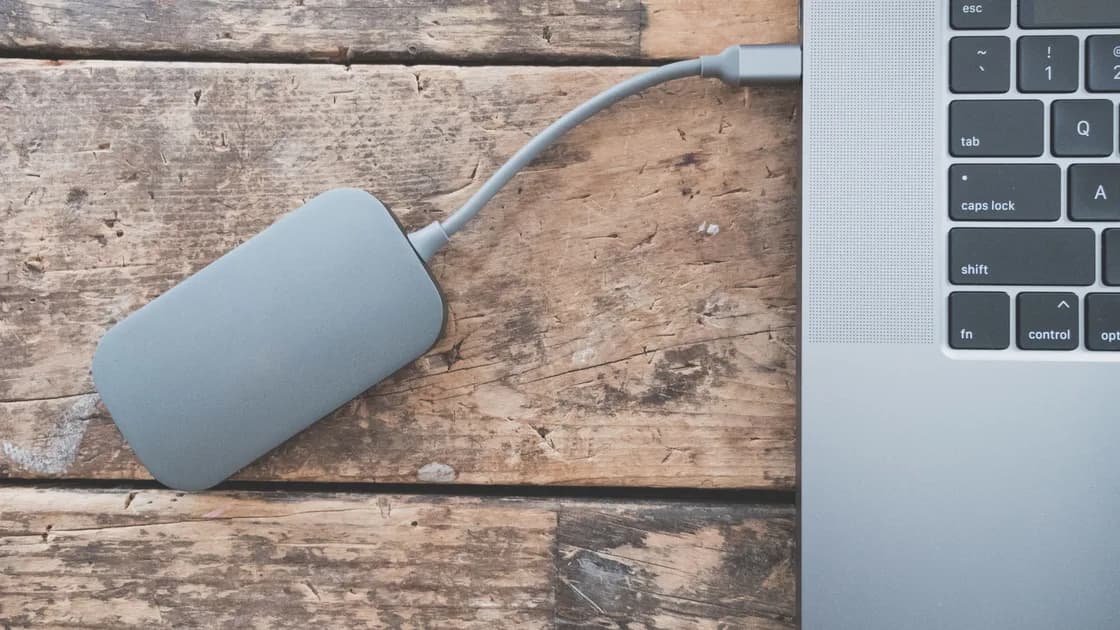
In exFAT vs APFS vs NTFS, choose APFS for a Mac-only drive, NTFS for a Windows-only drive, and exFAT for a removable drive that must be written by both current Macs and Windows PCs. That short answer changes when you need snapshots, permissions, encryption, very large volumes, or recovery after an interrupted write, so decide from the devices and workload before you format anything.
Key Takeaways
- APFS is the native modern choice for Mac storage, especially SSDs and Apple workflows.
- NTFS is the native general-purpose Windows choice and supports Windows security and recovery features.
- exFAT prioritizes broad exchange between operating systems, not the richer protection of a native system disk format.
- A partition scheme and a file system are different decisions.
- Reformatting erases the selected volume; verify a separate backup before changing formats.
Start with the device and app troubleshooting guide if you have not yet identified whether the problem is the device, connection, volume, or application. This comparison is for choosing a format before use. It does not repair a missing, damaged, or read-only drive.
A file system defines how a volume names, organizes, stores, protects, and retrieves files. APFS, NTFS, and exFAT can all hold ordinary documents and large files, but they were designed around different operating-system relationships.
| Decision factor | APFS | NTFS | exFAT |
|---|---|---|---|
| Native environment | Current Apple platforms | Windows | Cross-platform removable storage |
| Normal read/write on current macOS | Yes | Reading may be available; normal native writing is not the default | Yes |
| Normal read/write on current Windows | Not natively | Yes | Yes |
| Journaling or copy-on-write protection | Copy-on-write metadata design | Journaling | No comparable journal |
| Native permissions and advanced metadata | Apple-oriented | Windows-oriented | Limited compared with native desktop formats |
| Built-in platform encryption path | APFS encrypted volumes | Windows can use BitLocker on supported editions and devices | Depends on a separate cross-platform plan |
| Best fit | Mac startup/data volumes and Mac-only SSDs | Windows system/data volumes and Windows-only disks | Exchange drives used by both Mac and Windows |
Apple identifies APFS as the default file system for macOS 10.13 and later and describes exFAT as Windows-compatible for volumes larger than 32 GB.[1] Microsoft’s feature comparison shows that NTFS provides capabilities such as metadata journaling, access control lists, encryption, quotas, and sparse files that exFAT does not provide in the same way.[2]
Compatibility in this table means supported ordinary use, not that every television, camera, game console, router, phone, or NAS accepts the format. Embedded devices often publish a much narrower compatibility list. Check the exact model before formatting a drive intended for one of them.
Choose APFS when every computer that must write the drive is a supported Mac and the drive is part of an Apple-centered workflow. It is usually the clearest choice for a Mac startup disk, a Mac-only external SSD, and applications that rely on macOS metadata or cloning behavior.
APFS supports containers that can share free space among volumes. Its copy-on-write design and snapshot capabilities are useful foundations, but they are not substitutes for backup. A deleted file, failed device, stolen Mac, damaged enclosure, or corrupted account can still make the only copy unavailable.
Before selecting an APFS variant, decide whether the volume needs encryption and whether case sensitivity is required. Case-sensitive APFS treats Report.txt and report.txt as different names. Some applications assume case-insensitive behavior, so do not choose the case-sensitive variant merely because it sounds stricter.
APFS is a poor exchange choice when Windows PCs must write the disk without special software. Third-party drivers add another compatibility and support boundary. If cross-platform exchange is the actual job, exFAT is usually simpler; if the files are important, pair that convenience with a verified backup.
Choose NTFS for a Windows system drive, a Windows-only data drive, or storage that depends on Windows permissions, compression, quotas, links, or other NTFS behavior. Microsoft describes NTFS as the primary file system for current Windows and Windows Server releases.[3]
NTFS is also a better fit than exFAT for an always-attached Windows data disk where unexpected shutdowns and multi-user permissions matter. Journaling helps the file system recover its metadata after interruption, although it cannot guarantee that an application’s unfinished document or database transaction is complete.
A Mac may display files from an NTFS volume, but that does not make it a dependable two-way exchange format. Do not plan a shared workflow around unverified third-party write software, especially for the only backup. Driver updates, operating-system updates, encryption, hibernation, and unsafe removal can all change whether a volume mounts or writes correctly.
BitLocker and NTFS are separate layers. NTFS organizes the files; BitLocker can encrypt a supported Windows volume. Before moving an encrypted external drive between computers, confirm the receiving computer, account, edition, password, and recovery-key process.
Choose exFAT for a removable SSD, USB drive, or memory card that must be written by both a current Mac and a current Windows PC. It supports large files and volumes without the 4 GB single-file limit associated with FAT32. Microsoft publishes the exFAT on-disk specification, which is one reason vendors can implement it across device classes.[4]
The compromise is resilience and metadata. exFAT lacks the richer journaling, permission, snapshot, and platform-specific metadata features of APFS or NTFS. A cable pull, power loss, unstable enclosure, or forced shutdown during a write can therefore be especially costly. Eject the volume cleanly on every system and keep another copy of important data.
Do not assume exFAT is accepted by every older appliance. Some cameras, televisions, consoles, car systems, and firmware updaters require FAT32 or a vendor-specific layout. Others support exFAT only up to a stated capacity. Use the device manual as the authority.
For a drive that stays attached to one computer, native APFS or NTFS is normally preferable. Cross-platform compatibility is valuable only when the drive really crosses platforms.
List the actual writers, not every device that might read the disk someday. Then classify the workload.
Performance claims need context. Interface, enclosure, controller, queue depth, file sizes, encryption, free space, and operating-system caching can outweigh the format in a casual benchmark. Do not reformat important data merely because an isolated speed chart showed a small difference.
Formatting is destructive to the selected volume. Slow down and identify the target by model, capacity, connection, current volume name, and a file you recognize. Disconnect unrelated removable disks when practical so a similar name cannot be selected accidentally.
Use this pre-format checklist:
GUID, Master Boot Record, and Apple Partition Map are partition schemes, not file systems. The partition table describes volumes on a disk; APFS, NTFS, or exFAT describes how files live inside a volume. A device may require a particular combination.
If the drive is already read-only, use the USB write-protection guide. If it is absent from storage tools, use the external-drive visibility guide. For an unrecognized memory card, use the SD-card guide. Do not format merely to make an error dialog disappear when the data matters.
Neither is universally better. exFAT is simpler for Mac-and-Windows exchange; NTFS is richer and more resilient for Windows-native storage. Choose from the writers and workload.
Do not assume full native write support. A Mac may read an NTFS disk, while dependable writing often depends on additional software. Test the supported workflow before trusting important data to it.
Windows does not provide ordinary native APFS access. If Windows must write the same removable disk, exFAT is usually the simpler supported choice.
It can store backup files, but compatibility is not the same as recoverability. Use the backup application’s supported destination format, keep another copy, eject cleanly, and test restoration.
APFS is normally best for a Mac-only external SSD. Choose exFAT only when supported Windows computers also need to write it, and accept the reduced native feature set.
Formatting replaces the selected volume’s filesystem structures and makes existing data unavailable through normal access. Treat it as destructive and verify a separate backup first.
Only when the workload explicitly requires it and every application supports it. General Mac use is usually safer with the standard case-insensitive APFS option.
Yes, a partition scheme can define multiple volumes with different file systems. That increases planning and recovery complexity, so document the layout and keep backups before resizing or repartitioning.
Sources checked 6 September 2026.
Sign up to experience all premium features at no cost.
*Available only to new users. Each user is limited to one trial.