Start your 3-day free trial
Sign up to experience all premium features at no cost.
*Available only to new users. Each user is limited to one trial.

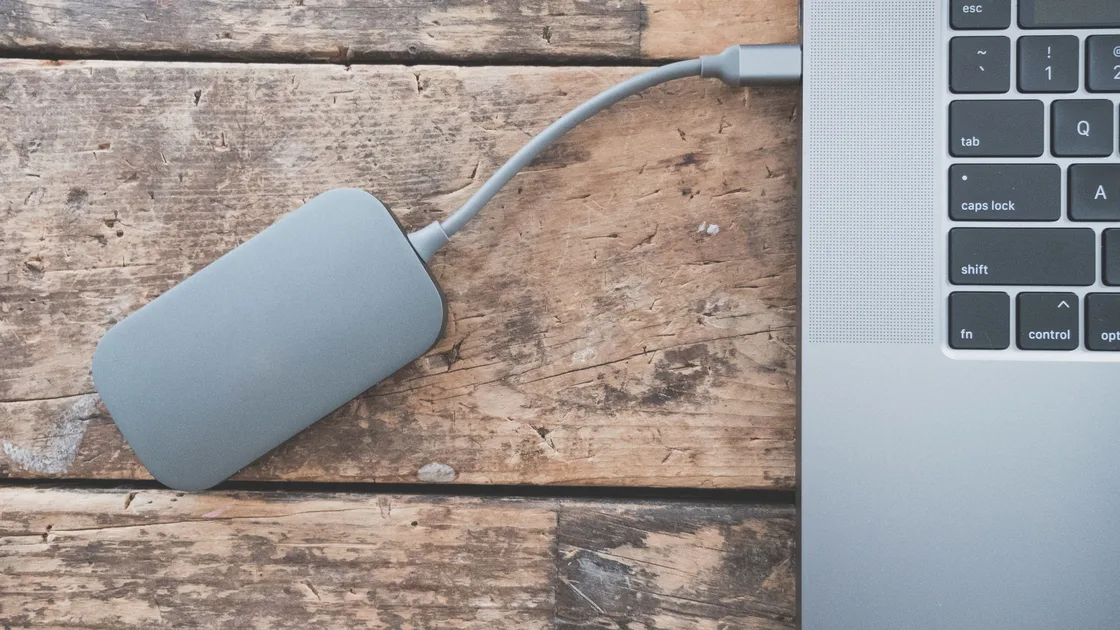
File Explorer keeps freezing most often because it is waiting on something: a cloud, network, or external location such as a USB drive you just plugged in, a folder whose thumbnails or metadata are slow to read, a shell extension, or a large copy that is still running. To find which, compare a known local folder with Home, the problem folder, and that location. The result shows whether Explorer itself is unstable or one location is holding the window.
Before restarting Explorer, check whether a copy, move, rename, extraction, or deletion is still active. Ending the shell can interrupt the operation and leave you unsure which files completed.
Key Takeaways
- Establish a baseline with Windows+E and a known local folder.
- Separate Home, one folder, cloud, network, and external-drive symptoms.
- Protect active copy or move operations before restarting Explorer.
- Update and restart Windows before considering recovery options.
- Escalate repeated storage, account, or managed-session failures with evidence.
Use the device and app troubleshooting guide if other applications or system controls also freeze. It helps determine whether this is one window, one account, or the whole device.
Press Windows+E and wait for the first window to settle. Then open a small folder with only a few ordinary files that you have confirmed is on the Windows drive, is not cloud-backed or network-redirected, and is not on an external drive. Compare that result with Home and the original problem location.
| Observation | Stronger branch |
|---|---|
| Home freezes but a known local folder opens | Home, Quick access, recent items, or cloud integration |
| One folder freezes every time | Contents, preview, metadata, permissions, or that storage location |
| Every local folder freezes | Explorer session, account, update, or local storage |
| Only a network share freezes | Network path, server, credentials, or availability |
| Only a cloud-backed folder freezes | Sync client, placeholder, account, or service |
| Only an external drive freezes | Device, cable, file system, or media condition |
Microsoft describes File Explorer as the Windows tool for finding, opening, organizing, and managing files on the PC and in the cloud. It can be opened from the taskbar, Start, or Windows+E.[1] Those paths can reach the same process, so opening from a different icon alone is not a sufficient comparison; the destination folder matters.
If the window opens but search results are missing or incorrect, follow the Windows Search guide. If an external drive is absent rather than merely slow to open, use the external-drive detection guide. Do not merge those symptoms into an Explorer reset.
A window marked Not Responding is not always permanently stuck. Explorer can be waiting for a slow device, calculating a large selection, extracting an archive, reading metadata, or completing a copy. Look for a progress dialog, storage activity, and changes in the destination before ending the process.
If a copy or move is still advancing, let it finish when the source and destination are trusted and the device is stable. Do not unplug the drive, disconnect the network, or force-close Explorer just because the window does not repaint for a moment.
For a copy that appears stalled, record the current file name, source, destination, elapsed time, and whether the byte count changes. If the operation involves irreplaceable data, stop experimenting and confirm a separate backup before retrying.
Do not start the same move again into the same destination while the first operation may still exist. That can create duplicate names, conflicts, or partial copies that make diagnosis harder. After the operation ends, compare file counts and sizes through a responsive path before deleting either copy.
If disk activity remains saturated across the system, follow the Windows 100% disk usage guide. Explorer freezing during broad storage pressure is different from one folder triggering a repeatable hang.
File Explorer Home can combine pinned Quick access folders, recent items, favorites, and cloud content. Microsoft notes that Windows 11 places known folders in Home and Quick access and can search content from the PC and cloud.[1] A stale network or cloud destination can therefore affect Home even when a direct local folder works.
Open the problem folder through its direct local path if you can do so without using Home. If that works, note which pinned, recent, network, or cloud item may be unavailable. Unpin only a known broken shortcut; do not clear every history item or delete folders as a first step.
If one local folder freezes, change the view only after the window is responsive enough to do so. A folder full of large images, videos, archives, or malformed files can spend time reading thumbnails or metadata. Test a simple view and disable the preview pane temporarily as a comparison, then restore the original setting if it does not help.
Avoid deleting thumbnail databases, editing Registry handlers, or installing a context-menu cleaner from an unknown publisher. If right-click alone triggers the freeze, record which file type and whether the same action works in a small local folder. A recently installed, trusted application may have added a shell extension, but removal should use that application's supported uninstaller.
If only cloud-backed files are affected, verify their sync status and web copy before changing local placeholders. Use the cloud storage sync guide to protect the server and local copies.
Restart Explorer only after important file operations have finished or you have accepted the interruption risk. Save work in other applications because the desktop and taskbar also use the Explorer shell.
Press Ctrl+Shift+Esc, find Windows Explorer in Task Manager, and use Restart. Wait for the desktop and taskbar to return, then repeat the same local-folder and problem-location tests. Do not change the folder view or reconnect devices at the same time.
If Task Manager cannot restart Explorer, sign out through Ctrl+Alt+Delete after saving work. Signing out closes applications for that account. A normal Windows restart is the next step and can complete pending updates.
Microsoft's current File Explorer troubleshooting advises checking for updates and restarting the device when Explorer will not open or start, with PC reset presented as a later recovery option.[2] A reset is not an appropriate first response to one slow folder or a stalled network share.
If Explorer works after restart but freezes again at the same location, preserve that repeatable path. If it freezes after a random interval across all locations, record the time, storage activity, recent software, and whether other shell components fail.
Install supported updates offered by Windows Update and complete the required restart. Do not use a third-party driver or registry updater. If Windows Update is itself stuck, keep its repair sequence separate so you can tell which change affects Explorer.
Check free space on the Windows drive and the destination drive. A nearly full volume can prevent temporary files, extraction, thumbnail generation, or copy completion. Remove only files you recognize and have backed up; do not run an aggressive cleaner while troubleshooting a storage symptom.
Disconnect a recently added external device only after its write operations have finished and the system says it is safe. Test the same known local folder with the device absent. If the external device is the trigger, preserve its data and follow the device-specific path rather than formatting it.
For a network location, confirm whether another authorized device or user can open the same share. Do not repeatedly submit credentials, map the share under different names, or store a password in an unknown prompt. A server outage or expired permission cannot be repaired by resetting local Explorer.
For an account-specific symptom, compare another authorized Windows account only if one exists or support requests it. A working comparison account points toward profile or integration state; it does not justify manually copying hidden profile databases or deleting the affected account.
Escalate when a trusted local folder repeatedly produces storage errors, files become unreadable, a drive disconnects, or multiple applications report corrupted files. Preserve a backup and stop repeated writes to a device that may be failing.
On a work or school device, report paths using the organization's approved redaction rules. A network share, cloud integration, endpoint security extension, or policy can deliberately control Explorer. Do not disable security software, remove device management, or bypass access rules.
Microsoft documents a specific provisioning issue in which Explorer, Start, Settings, the taskbar, and Windows Search can fail on a limited number of enterprise or managed Windows 11 version 24H2 and 25H2 systems, especially non-persistent virtual desktops. Microsoft says it is very unlikely on personal devices and that updates released from 23 June 2026 (KB5095093) address it, with the fix rolling out gradually.[3]
If those components fail together in a newly provisioned or recurring virtual session, send the Windows version, installed update, sign-in type, and component list to IT. Do not apply the KB's AppX or PowerShell workaround to an ordinary personal PC; Microsoft aims it at IT administrators whose devices still run an update released before late July 2026.
Recovery or reset should be discussed only after the device has a current backup, recovery credentials, and a clear statement of what apps and settings may change. A repeatable network-share hang does not become a local PC recovery problem.
Collect the smallest reproducible sequence:
Do not send full personal paths, filenames, server names, account identifiers, or screenshots of private documents unless support specifically requires them and you can redact them. A neutral test folder can reproduce many shell problems without exposing personal data.
Stop if your evidence suggests drive failure, data corruption, repeated disconnects, or irreplaceable files without a backup. Protecting the data is more important than making the Explorer window respond immediately.
Home can include Quick access, recent items, cloud content, and unavailable locations. Test a direct local folder, then identify one stale pinned or cloud location instead of clearing everything.
Its files, thumbnails, metadata, permissions, storage device, or network path may be the trigger. Compare a simple local folder and note whether preview or right-click causes the freeze.
Only after checking whether the copy is still progressing and accepting the interruption risk. Ending Explorer can leave a partial destination and make it harder to know what completed.
Yes. A placeholder, sync client, account, service, or unavailable network can delay the folder. Confirm the web or server copy before removing local files or unlinking the account.
A file type, metadata handler, or shell extension can affect the context menu. Test the same action on a simple local file and remove only known recent software through its supported uninstaller.
It is a narrow shell restart, but it can close Explorer windows and interrupt file operations. Save work and finish or pause copies before using Task Manager's Restart action.
Not for an early or location-specific symptom. Check updates, restart, space, storage, network and account scope, then confirm a backup and recovery impact before considering reset.
Suspect it when files become unreadable, the device disconnects, errors recur in multiple apps, or every folder on that volume fails. Stop repeated writes, preserve data, and seek device support.
Sources checked 4 October 2026.
Sign up to experience all premium features at no cost.
*Available only to new users. Each user is limited to one trial.