Start your 3-day free trial
Sign up to experience all premium features at no cost.
*Available only to new users. Each user is limited to one trial.
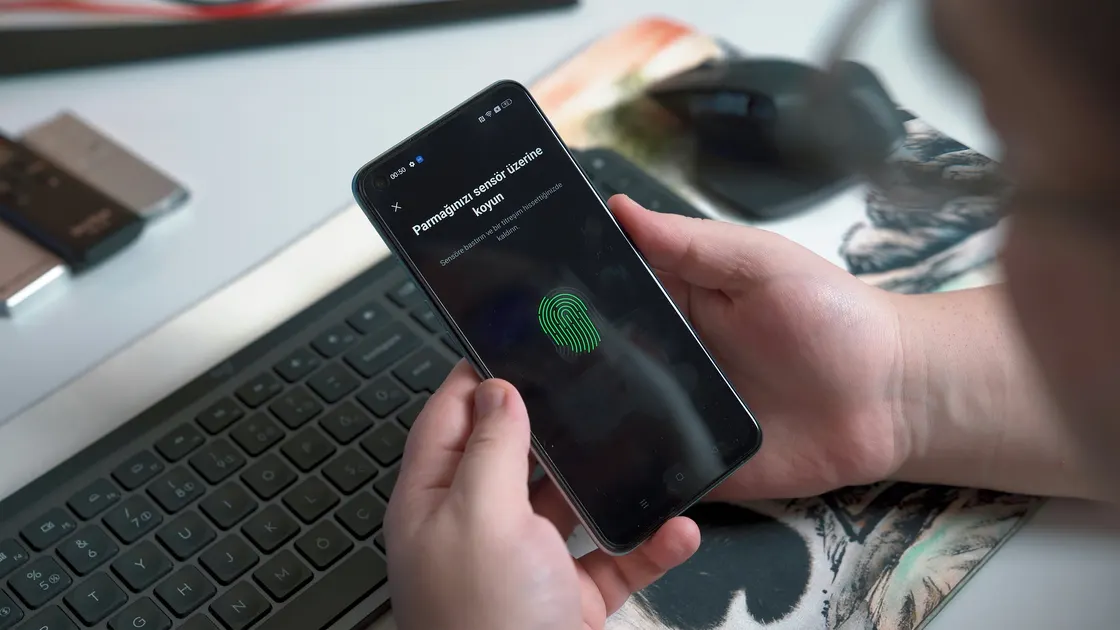

With fingerprint or face unlock not working, use the PIN, passcode, or password the device offers first, then check the sensor, app, and policy before re-enrolling. Restarts, repeated unsuccessful attempts, policy changes, and protected account actions can require that fallback once before biometrics become available again, so the request alone does not mean the sensor failed. On Windows, a “face, fingerprint, PIN, or security key” prompt that seems stuck usually needs the PIN or the method it is waiting for.
Confirm that you know the fallback credential and can access the account's recovery route before deleting fingerprints, resetting face data, or changing security settings.
Key Takeaways
- A required PIN, passcode, or password can be expected security behavior.
- Separate device unlock from one app's biometric approval.
- Clean and uncover the correct sensor or camera without weakening security features.
- Check updates, policy, and supported hardware before re-enrolling.
- Delete biometric data only after confirming the fallback credential and recovery access.
The device and app troubleshooting guide can help when camera, account, and sign-in symptoms overlap.
Read the exact message. “Enter PIN to continue,” “Passcode required,” and “Fingerprint sensor unavailable” describe different states. Do not keep presenting a finger or face after repeated failures; use the supported fallback when the device requests it.
Biometrics usually supplement a secret you know. The secret remains necessary after certain events because it can re-establish trust without accepting a possibly stale or ambiguous biometric match. Common triggers include a restart, several failed matches, a security-setting change, a long period without the fallback credential, or an administrator requirement. Exact rules vary by platform and version.
On Windows, Windows Hello can require the PIN even when a face camera or fingerprint reader is configured. Microsoft recommends checking for updates, improving lighting or sensor contact, and resetting the recognition data only when narrower checks do not help.[1]
Apple documents situations in which Face ID or Touch ID requires the device passcode, including after a restart and when the biometric match has not been used successfully under defined conditions.[2][3] Entering the passcode once in such a state is not evidence that the sensor is broken.
Do not share the PIN or passcode with a remote helper and do not type it into a website that claims it can test biometrics. Device biometrics are enrolled and evaluated through supported system controls, not a browser form.
Test the narrowest safe scopes:
| Result | Check next |
|---|---|
| Device unlock and all approvals fail | Sensor, camera, system setting, policy, or enrollment |
| Device unlock works but one app fails | App permission, app account, or app-specific biometric switch |
| Fingerprint works but face does not | Camera, lighting, appearance, or face enrollment |
| Face works but fingerprint does not | Sensor surface, finger condition, case, or fingerprint enrollment |
| One enrolled finger fails | Skin condition, angle, injury, or that fingerprint record |
| Work profile fails but personal profile works | Organization policy or managed-app configuration |
An app can require you to sign in with its password before it re-enables biometric approval. Banking, password-manager, and work apps may also disable biometrics after an update, session expiry, account recovery, or device-security change. Use the app's official sign-in path rather than changing device-wide biometrics for a one-app problem.
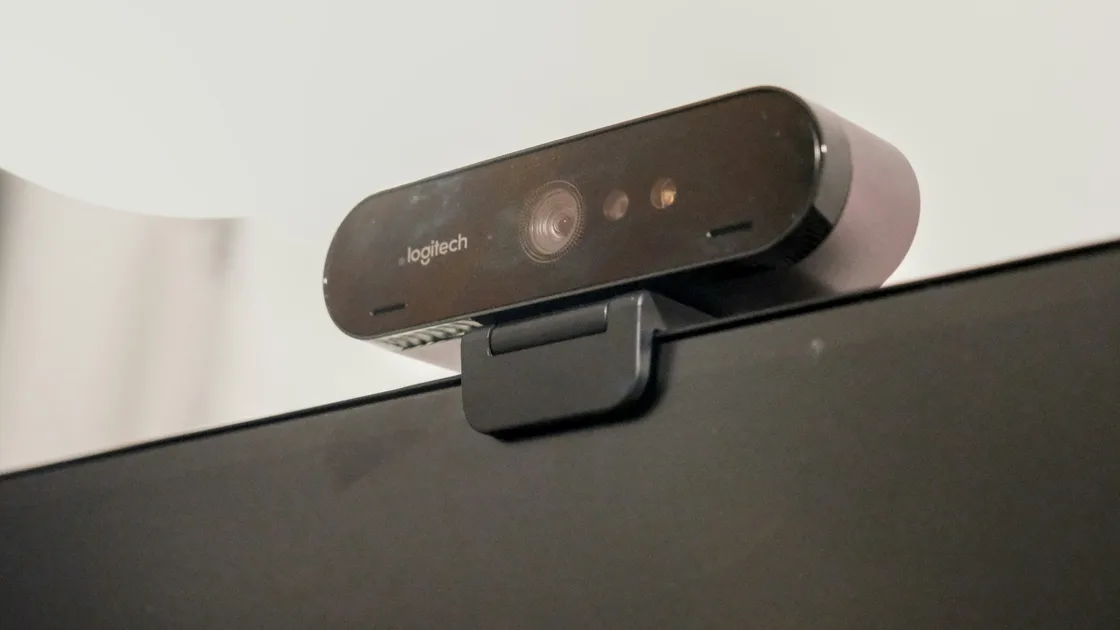
If password suggestions are the failed part, follow the password autofill guide. If an ordinary camera app cannot see an image, use the webcam troubleshooting guide. Face recognition uses dedicated hardware and security processing on many devices, so a working video camera does not prove face unlock is healthy.
Clean the fingerprint sensor or camera area with a soft, dry, lint-free cloth. Remove moisture, lotion, dirt, and condensation. Dry your finger and try the same natural position used during enrollment; pressing too hard or using only an edge can reduce the readable area.
Check whether a case, screen protector, camera cover, keyboard skin, or dock blocks the actual sensor. On phones with an under-display fingerprint reader, a replacement screen protector can change optical or ultrasonic contact. Follow the phone maker's compatibility and re-enrollment guidance rather than increasing pressure.
For face unlock, uncover the camera system and use balanced light. Avoid shining a bright lamp directly into your eyes or the sensor. Hold the device at its normal supported distance and orientation. Masks, very dark glasses, hats, major appearance changes, and some accessibility settings can affect recognition differently by platform.
Apple's Face ID guidance recommends checking that nothing covers the TrueDepth camera, that the face is unobstructed, and that the device is held in a supported orientation and distance.[2] Its Touch ID guidance similarly calls for a clean, dry finger and unobstructed sensor.[3]
Google's Pixel fingerprint guidance distinguishes sensor types and includes cleaning, supported screen-protector, press-duration, and re-enrollment checks.[4] Use the exact device maker's instructions because rear, side-button, under-display optical, and ultrasonic readers behave differently.
Stop if the device is cracked, swollen, unusually hot, wet, or physically damaged around the sensor. Do not apply solvents, abrasive cleaners, heat, or pressure to force a match.
On Windows, open the supported sign-in options and confirm that Windows Hello still lists the configured face or fingerprint method. Install Windows and device-maker updates through official channels. For face recognition, confirm the exact computer has a Windows Hello-compatible infrared camera; a normal webcam alone may not qualify. For fingerprint, inspect the device entry and manufacturer support without installing a generic biometric driver.
If the Windows Hello option says it is managed, unavailable, or blocked by policy, capture the message and contact the organization administrator. Do not remove work management, weaken sign-in requirements, or alter security policy to regain convenience.
On iPhone or iPad, confirm Face ID or Touch ID is enabled for the intended action, then enter the passcode if requested. Test device unlock separately from purchases, password autofill, and individual apps. Apple provides separate switches because a successful device unlock does not automatically grant every app or purchase use.[2][3]
On a Mac with Touch ID, confirm the intended user account and action are enabled. Some operations still require the account password, and a restart requires password sign-in before Touch ID resumes. Use the Mac's built-in settings and Apple support path rather than deleting system keychains.
On Android, menu names and supported face-unlock strength vary by manufacturer. Check the device maker's Security or Biometrics settings, apply official system updates, and confirm whether the intended app accepts that device's biometric class. A face-unlock method that can open the phone may not be approved for high-security app authorization.
Managed devices can apply stricter timeouts, require a stronger unlock method, or prohibit a biometric method. That behavior belongs to the policy owner, not a third-party unlock utility.
Windows shows this prompt when a website, an app, or Windows itself asks you to confirm your identity with Windows Hello or a security key, for example during a passkey sign-in. A prompt that seems stuck is usually waiting for one specific method or has opened behind another window.
If the prompt belongs to a work account or says a method is blocked by policy, stop there and contact the administrator rather than changing sign-in settings.
Update the operating system and official device firmware, restart once, enter the fallback credential, and retest. If one fingerprint fails, try another already-enrolled finger before deleting anything. If the sensor works intermittently, add a supported alternate appearance or another finger only when the platform allows it and the account remains secure.
Before re-enrolling, confirm:
Then remove and re-add only the failed biometric method using system settings. Enroll in the normal position and environment in which you use the device. Do not enroll another person's finger or face as a workaround, and do not duplicate the same finger many times merely to lower matching quality.
Re-enrollment cannot repair a disconnected sensor, incompatible replacement display, failed infrared camera, or damaged secure hardware. If setup itself cannot detect the sensor or repeatedly aborts at the same point, preserve the error and move to model-specific support.
Contact the administrator when the message mentions organization policy, Windows Hello for Business, a managed profile, or a required security method. An administrator may need to refresh a credential, certificate, or policy; the user should not remove management.
Arrange manufacturer service when:
Back up important data before service. If biometrics remain unavailable, continue using the supported PIN, passcode, password, or security key. Do not weaken the fallback credential simply because you must enter it more often.
Platforms require the fallback credential after certain security events, including restarts. Enter the supported PIN or passcode once; this does not by itself mean the fingerprint reader failed.
The app may require a fresh password sign-in, may disable biometrics after an update, or may require a stronger biometric method. Check that app's official security settings.
It can affect an under-display reader if it is incompatible, thick, damaged, or installed with bubbles. Follow the exact phone maker's protector and re-enrollment guidance.
Moisture, dryness, a cut, wear, angle, or an old enrollment can affect one record. Clean and dry the sensor and finger, then re-enroll only after confirming the fallback credential.
No. Secure face recognition may use infrared cameras, depth sensors, and protected processing that an ordinary video camera does not provide.
No. First use the fallback credential, check the environment, updates, app scope, and policy. Delete only the failed method after confirming recovery access.
Yes. An organization can require stronger authentication, shorter timeouts, or approved biometric hardware. Contact the administrator instead of removing management or bypassing policy.
Seek service when enrollment cannot detect the hardware, the option disappears after damage or repair, the sensor is physically affected, or official updates and re-enrollment do not change the same failure.
Sources checked 4 October 2026.
Sign up to experience all premium features at no cost.
*Available only to new users. Each user is limited to one trial.