Start your 3-day free trial
Sign up to experience all premium features at no cost.
*Available only to new users. Each user is limited to one trial.


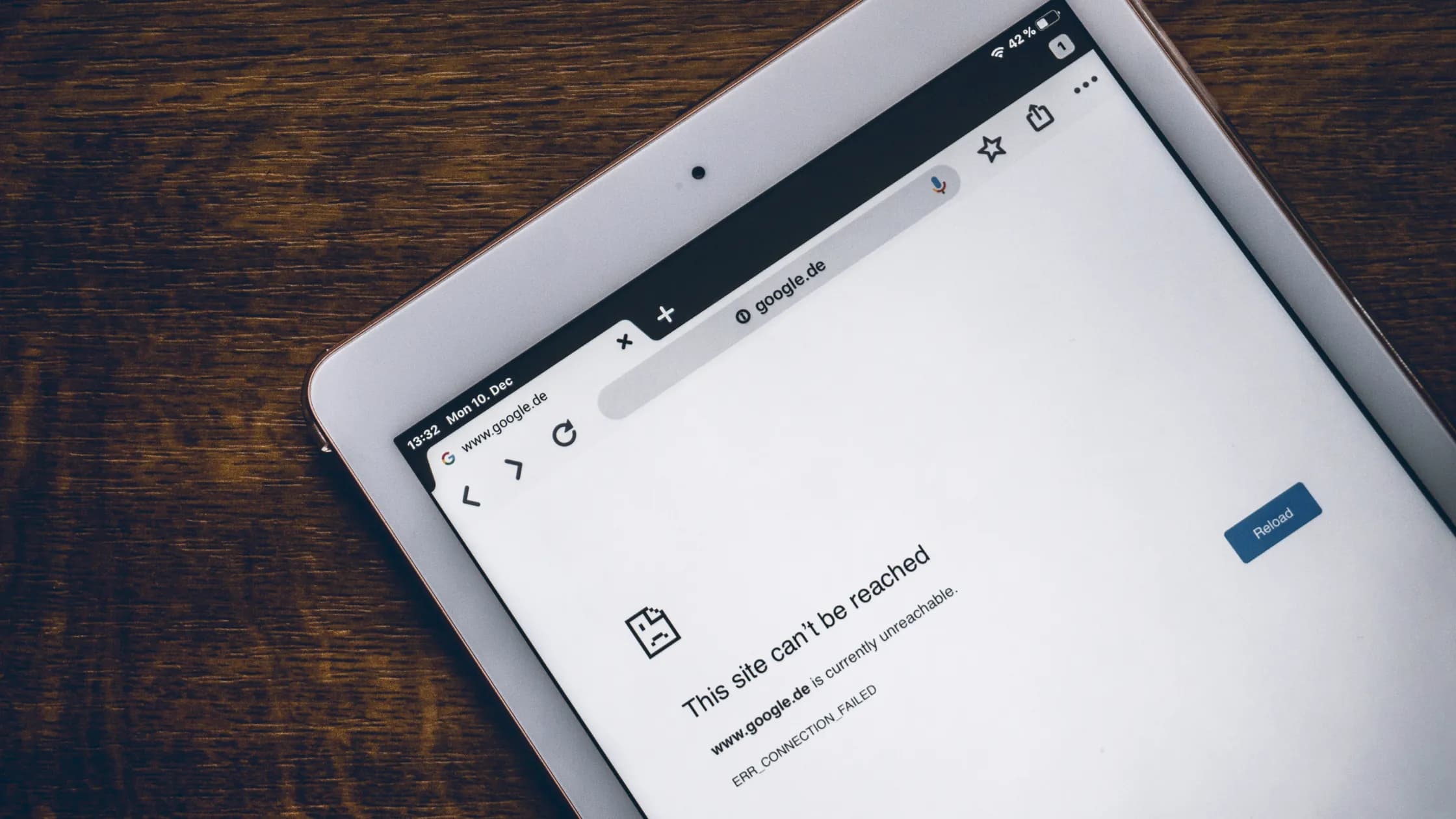
Seeing your iPhone connected to Wi-Fi but no internet, or a no-internet warning under the network name, means the local Wi-Fi link works while something further along blocks traffic. The blue checkmark only confirms that local link; the router, a public network's login page, DNS, a VPN, or the upstream service can still be blocking internet access. Use the checks below to identify which layer is failing before you reset anything.
Key Takeaways
- Test a browser and a second app, then compare another device on the same Wi-Fi and your iPhone on another network.
- Restart and rejoin the network before removing profiles or resetting network settings.
- A VPN, content filter, security app, proxy, or captive portal can block traffic even while Wi-Fi looks connected.
- Reset Network Settings is a last step because it removes saved Wi-Fi, cellular, VPN, and APN settings.
- If every device on the network fails, contact the ISP or network owner instead of changing your iPhone repeatedly.
Start with a small comparison table. Open a normal HTTPS website in Safari, try a second app, and note whether only one service fails. Then test another device on the same Wi-Fi and connect the iPhone to a different trusted network or a personal hotspot.
If cellular data is also failing, switch to the iPhone cellular data troubleshooting guide. This article focuses on the Wi-Fi path; the cellular guide starts with the carrier, SIM/eSIM, and mobile-data line.
| Test | Likely direction |
|---|---|
| Only one app fails | App account, app outage, cache, or permission. |
| Every app fails on one Wi-Fi, but another device also fails | Router, captive portal, ISP, or network outage. |
| Other devices work, but this iPhone fails on that Wi-Fi | iPhone network profile, VPN/security software, DNS, or device state. |
| The iPhone fails on every Wi-Fi | Device settings, software, or hardware; escalate after safe checks. |
Apple’s current Wi-Fi guidance also recommends checking other devices, the router, and another location before escalating.[1] If the wider pattern points to a general device issue, use the device and app troubleshooting guide to keep account, permission, and network changes separate.
Do not toggle several filters or delete a profile at once. A controlled change tells you whether the symptom is caused by that setting.
Open Settings → Wi-Fi, tap the network, and confirm the password if the iPhone asks again. If the network uses a captive portal, wait for its sign-in page or open a browser and use the network owner’s official login address. Complete that authentication before testing a VPN.
If the network remains stuck, tap the information button next to it and choose Forget This Network. Confirm that you know the password and any enterprise or school instructions first. Rejoin the network from the Wi-Fi list and test Safari before opening other apps.
For a home network, restart the router and modem using the manufacturer’s instructions. Apple suggests checking that other devices connect, updating router firmware, confirming the router is in range, and restarting the router when needed.[1] Avoid factory-resetting the router until you have recorded its ISP, Wi-Fi, and administrator settings.
Yes. Apple says that VPN and third-party security software can potentially block connections needed to access the internet or communicate with other devices.[2] The category includes VPN apps, firewalls, antivirus tools, parental controls, content blockers, and configuration profiles.
Use a safe isolation test:
VPN, profile, firewall, or filter and note any managed item.Do not assume that a VPN is the cause just because it is installed. If Wi-Fi fails while the VPN is disconnected, focus on the router, DNS, captive portal, or iPhone profile instead.
Check the network-specific settings before a full reset. In Settings → Wi-Fi, review whether the network uses a manual proxy or an unusual DNS configuration. If you did not configure it, ask the network owner before changing it. A hotel, school, or company network can intentionally apply a proxy or certificate.
Try the following sequence, one item at a time:
If your iPhone works on a hotspot but not on a home network, give the ISP or router administrator the SSID, the time of the failure, and the result from another device. Do not share the Wi-Fi password publicly.
Use this step only after the comparisons above point to an iPhone-side network state. Apple’s path is Settings → General → Transfer or Reset iPhone → Reset → Reset Network Settings.[1]
This action removes saved Wi-Fi networks and passwords, cellular settings, and VPN and APN settings. It does not erase photos or apps, but you must reconnect to networks and recreate approved VPN or APN configuration afterward. If a school or business configures the network, Apple advises consulting its IT or network administrator before you reset.[1]
After the reset, join one trusted network, test Safari, and then restore required profiles one at a time. If the iPhone connects to Wi-Fi but still cannot access the internet, Apple recommends contacting the ISP or Apple Support depending on whether the problem affects one network or every network.[1]
Public networks in hotels, airports, and cafés usually require a captive-portal sign-in before they allow normal traffic. Disconnect any VPN or private relay feature temporarily, reconnect to the official SSID, and open a browser to trigger the portal. Do not enter payment details into a page reached from an unverified network name; confirm the SSID with staff or the network owner.
If you were online earlier and the connection stopped, the portal session may have expired or hit a time or device limit; rejoin and sign in again. If the network still refuses the iPhone, Apple suggests installing the latest software update and trying again before you decide whether to turn off Private Wi-Fi Address for that network, using the info button next to its name.[3]
If the portal works on another device but not the iPhone, forget and rejoin the network, then check for a content blocker or managed profile. If no device can reach the portal, the network owner may need to reset the access point.
Contact the ISP or network owner when all devices lose internet, the router shows an outage, or the problem occurs only on that network. Contact Apple when the iPhone cannot join any Wi-Fi network after safe checks, or when the Wi-Fi switch is disabled or remains gray. A managed device should go to its administrator first.
Share the iOS version, exact error, time, affected SSID, and your comparison results. Remove private SSIDs, passwords, device serial numbers, and account screenshots before sending evidence.
The router may lack upstream service, a captive portal may be waiting for login, DNS may fail, or a VPN/security profile may block traffic. Compare another device and another network.
The iPhone may have a stale network profile, VPN, filter, proxy, DNS setting, or software issue. Forget and rejoin the network, then test a different network before a reset.
Use the VPN app’s disconnect or pause control as a temporary diagnostic test. If the connection works only while it is disconnected, contact the provider or administrator rather than deleting a required configuration.
Reconnect to the official network, complete any sign-in notification, and open Safari. If the page does not appear, forget and rejoin the network and check for filters or profiles that intercept the portal.
No. It removes that network’s saved credentials and profile. You still need the password, and an enterprise or school network may require additional configuration.
It removes saved Wi-Fi networks and passwords, cellular settings, and VPN and APN settings. It does not erase personal photos or apps, but you must reconnect and restore approved configurations.
That pattern points toward the home router, ISP, DNS, captive portal, or network policy. Test another device at home and give the network owner the comparison results.
Restart the iPhone, install available updates, and perform the safe checks. If it cannot connect anywhere or the Wi-Fi control is disabled, contact Apple Support; do not keep deleting profiles at random. A VPN cannot repair an iPhone's Wi‑Fi radio, captive login, or invalid local address; verify plain internet access before assessing the VPN connection.
Disclaimer: This article is for general informational purposes only and does not constitute legal, technical, or other professional advice. We make no guarantees regarding the accuracy, completeness, or timeliness of the content.
Sources:
Sources checked 4 October 2026.
Related Articles:
Sign up to experience all premium features at no cost.
*Available only to new users. Each user is limited to one trial.