Start your 3-day free trial
Sign up to experience all premium features at no cost.
*Available only to new users. Each user is limited to one trial.
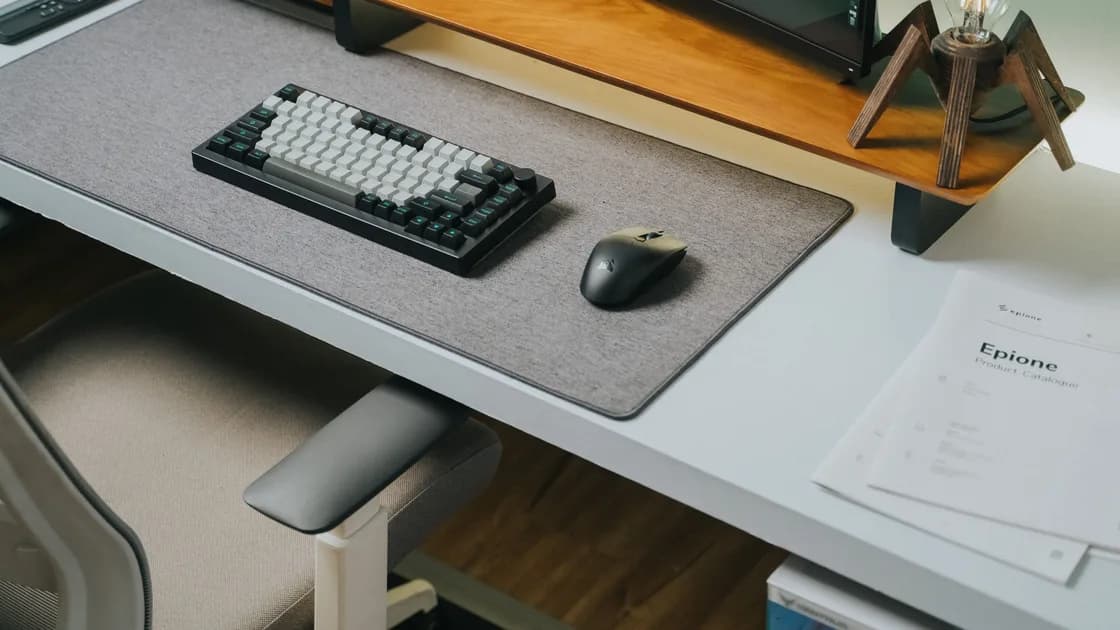

When a keyboard or mouse keeps disconnecting, and especially when the keyboard drops and the mouse follows while everything else keeps working, suspect the link the two share: one receiver, hub, dock, port, or Bluetooth radio. Identify whether each device uses a USB cable, a dedicated 2.4 GHz receiver, or Bluetooth, and note whether failures follow sleep, load, or distance. Check power, the physical path, receiver placement, interference, and another input before removing pairings or changing drivers.
Key Takeaways
- A USB receiver is not automatically Bluetooth; use the correct repair path.
- Protect access to the computer: prepare a tested wired device or built-in keyboard/trackpad before removing the only working pairing.
- Test one device directly, close to the computer, without a hub.
- A failure after sleep is different from a constant cable or radio failure.
- Re-pairing, receiver reset, power-policy edits, and firmware belong near the end.
If several peripherals fail together, use the device and app troubleshooting guide to find their shared port, hub, receiver, dock, radio, power event, or computer.
Look at the actual connection rather than the product name.
| Connection | What links it to the computer | Useful first test |
|---|---|---|
| Wired USB | Cable and USB port | Connect directly and gently check cable movement |
| 2.4 GHz wireless | Dedicated USB receiver, sometimes paired at the factory | Move the receiver closer and remove the hub |
| Bluetooth | Computer’s Bluetooth radio and saved pairing | Check battery, other remembered hosts, and pairing state |
| Multi-mode | Switch selects cable, receiver, or Bluetooth channel | Confirm the selected mode and host channel |
A tiny receiver may support a proprietary radio rather than Bluetooth. Removing the device from the Bluetooth list will not repair that path. Conversely, a Bluetooth model can work without its optional receiver. Read the label, mode switch, and exact model documentation.
Record whether the keyboard, mouse, or both disconnect; whether the device disappears from system settings; whether lights go off; and whether the failure follows sleep, charging, gaming, a large USB transfer, or moving the receiver. Those details separate power, physical connection, radio interference, and host state.
Two inputs failing seconds apart, while the display, speakers, and other USB devices stay connected, rarely means two peripherals broke at once. Compare what stays connected with what drops:
Move the shared receiver or both cables to a port on the computer itself, remove the hub, and repeat the activity that triggered the drop. If the pattern stops when one device moves to its own connection, the shared path was the cause. Keep a laptop's built-in keyboard or a spare wired input available, because this pattern removes both inputs together.
Before turning Bluetooth off, removing a pairing, resetting a receiver, or changing USB settings, connect and test a fallback input. A laptop’s built-in keyboard and trackpad may be enough. A desktop should have a known-good wired keyboard or mouse connected directly.
Do not remove the only keyboard and mouse together. If a pairing dialog needs a code, you must still be able to type it. Apple’s guidance for wireless input devices similarly assumes that you can use a built-in or alternative input during connection work.
Also save work before testing sleep, ports, or power. An intermittent input can make it difficult to close applications cleanly or respond to a security prompt.
For wireless devices, replace disposable batteries with known-good ones or charge the device long enough to rule out low power. Confirm the physical power switch and the selected device channel. A battery percentage reported by software can be stale after a disconnect.
For wired USB:
If several devices fail on one hub but work directly, the hub, upstream cable, power supply, or shared computer port is the stronger lead. Add devices back one at a time instead of replacing every driver.
Stop using a device with a swollen battery, liquid damage, burning smell, excessive heat, or an exposed cable. Hardware safety is more important than completing a software test.
For a 2.4 GHz receiver, distance from the peripheral matters more than distance from your chair to the computer. A receiver behind a metal desktop, next to a dock, or beside busy USB 3 storage can have a poor radio environment even when the keyboard is nearby.
Use a short passive extension supplied or permitted by the manufacturer to place the receiver in clear view, or move it to a front/side port. Keep it away from high-traffic USB devices, wireless adapters, and dense cable bundles. Test with optional USB storage disconnected.
This does not prove that every USB 3 device causes interference. It is a controlled comparison: if the input stabilizes only when the receiver is moved or a nearby device is removed, the physical radio environment affects the result.
Do not stack multiple receivers on an unpowered hub and do not place a loose receiver where it can be struck. If the keyboard and mouse share one supported receiver, follow the manufacturer’s pairing tool for that exact receiver family.
Multi-device keyboards and mice may remember several computers or tablets. Check the selected channel and temporarily disable Bluetooth on other remembered hosts. A device that immediately reconnects elsewhere can look as though it disconnects from the computer under test.
For failures after sleep:
Microsoft and Ubuntu both provide general input and wake troubleshooting, but device support varies. Avoid registry-based USB power changes or broad kernel parameters as a first response. They can affect every port and obscure the original symptom.
For wired or receiver devices, test a direct USB port and another input. For Bluetooth, open Settings > Bluetooth & devices and confirm the exact device. Microsoft’s mouse and keyboard guidance covers connection, batteries, USB receivers, and device testing before deeper changes.[1]
If all Bluetooth accessories fail, use the Windows Bluetooth guide. Do not delete every HID or USB controller because one mouse drops.
Use a built-in trackpad/keyboard or tested wired input before changing Bluetooth. Check the device in System Settings > Bluetooth and verify its battery and selected channel. Apple documents pairing Magic accessories over a cable or through Bluetooth settings, and using a built-in or already connected input during setup.[2]
If Bluetooth itself is unstable across devices, move to the Mac Bluetooth guide. Avoid deleting preference files or resetting unrelated controllers for a receiver-based mouse.
Test a wired or receiver device directly, then restart the Chromebook and install normal updates. Google’s hardware troubleshooting separates keyboard, touchpad, and system recovery steps.[3] A managed Chromebook may restrict Bluetooth or external devices.
Do not powerwash for one intermittent mouse before testing a second device, direct port, guest session where appropriate, and administrator policy.
Test direct USB, another input, and behavior before and after suspend. Ubuntu’s mouse troubleshooting recommends checking connection, testing another mouse, and distinguishing wake behavior.[4]
If multiple Bluetooth devices fail, use the Ubuntu Bluetooth guide. Avoid broad module, autosuspend, or kernel changes until the failure is reproducible and linked to that layer.
Re-pair a Bluetooth device only after battery, channel, other hosts, range, and fallback input are ready. Remove only the affected pairing, restart the device, and follow the exact model’s pairing sequence. The Bluetooth headphone guide explains the same host-switching principle for another accessory type.
A dedicated receiver may have a manufacturer pairing utility or may be permanently paired. Do not run a tool for another receiver family. A factory reset can erase every host, custom key map, pointer setting, macro, accessibility option, and onboard profile, so it is not a first step.
Use firmware only from the manufacturer for the exact model and receiver. Ensure stable power and a fallback input before an update. Do not interrupt a documented receiver or firmware update merely because the pointer pauses temporarily.
Cross-test in both directions:
If the same device drops on two hosts while a known-good device is stable on the original, suspect the peripheral, battery, cable, or receiver. If several inputs fail only on the original computer, investigate its port, hub, radio, policy, or supported system driver. If both keyboard and mouse fail together through one shared receiver, that shared path deserves attention before two simultaneous hardware replacements.
Identify cable, dedicated receiver, or Bluetooth first. Preserve a working input, then check battery, mode, direct connection, receiver placement, interference, other hosts, and sleep timing. Use the short platform branch only after those facts are known. Remove one pairing or use an exact receiver tool near the end; avoid broad USB power changes and factory reset until cross-testing identifies the failing side.
Not necessarily. Many keyboards and mice use a proprietary 2.4 GHz receiver. Check the model and mode switch before using Bluetooth steps.
They may share a receiver, hub, port, dock, radio environment, or sleep event. Test the shared component before assuming two devices failed.
The device, receiver, Bluetooth session, USB path, or system wake state may not resume correctly. Reproduce once with a fallback input before changing power policy.
No. First check battery, channel, receiver placement, other hosts, and direct connection. Prepare a working fallback input before removing any pairing.
The local radio environment can matter. Move the receiver away and disconnect optional high-traffic USB devices as a controlled comparison rather than assuming a universal cause.
Not as a first step. It is broad, platform-specific, and can affect unrelated devices. First prove a repeatable sleep or power-path failure.
It may be on another saved channel or reconnecting to a remembered Bluetooth host. Select the intended channel and disable other hosts during the test.
Contact support when the device, cable, or exact receiver fails on two compatible hosts, cannot charge or power on, or has physical damage or overheating.
Sources checked 4 October 2026.
Sign up to experience all premium features at no cost.
*Available only to new users. Each user is limited to one trial.