Start your 3-day free trial
Sign up to experience all premium features at no cost.
*Available only to new users. Each user is limited to one trial.
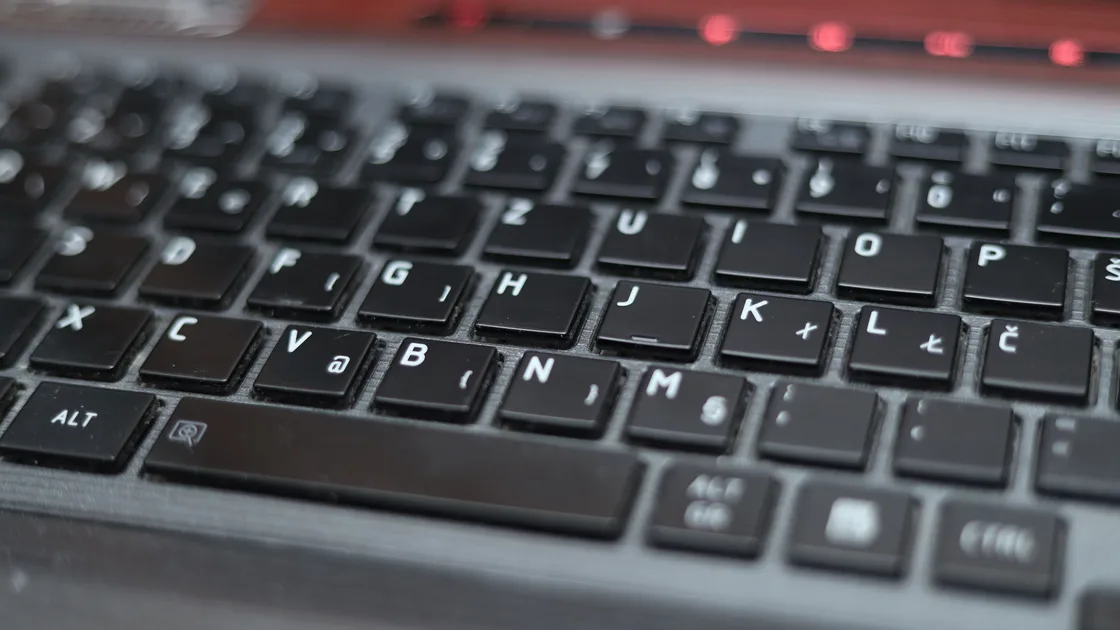

Keyboard shortcuts not working usually points to something narrower than a broken keyboard: the app changed or disabled the command, the wrong window has focus, the layout or Fn mode changed, an accessibility setting alters key presses, or another program captures the combination. Run a quick key test first, then decide whether one command, one app, or every shortcut fails. This avoids resetting the operating system when the real cause is a reassigned shortcut or a remote-session boundary.
Key Takeaways
- Separate one shortcut, one modifier, one app, and the whole system.
- Confirm the command shown in the current app instead of relying on memory.
- Test modifier and letter keys independently with a neutral local application.
- Check layout, Fn behavior, remapping, accessibility, and global conflicts.
- Save custom mappings before resetting settings or removing utilities.
Use the device and app troubleshooting guide for the wider evidence-first process. This article does not diagnose a disconnected keyboard or keys that consistently type the wrong characters.
Choose three familiar commands in a trusted local app, such as Copy, Paste, and Save. Open the app's menu and confirm that each command is available and which shortcut is displayed. Then test the menu action and the shortcut separately with a harmless document.
| Observation | Most likely boundary |
|---|---|
| Menu command works; one shortcut fails | Key combination, focus, remapping, or conflict |
| Same shortcut works in another app | App-specific mode, shortcut, or preference |
| All shortcuts using one modifier fail | Modifier key, layout, accessibility, or remapping |
| Function-row shortcuts behave differently | Fn lock or hardware function mode |
| Built-in keyboard fails; external keyboard works | Built-in key or hardware path |
| Local shortcuts work; remote session fails | Redirection or host/guest key capture |
Microsoft describes keyboard shortcuts as alternatives to actions normally performed with a mouse and notes that applications may change the behavior of some shortcuts.[1] Apple likewise states that every app can have its own shortcuts and that a shortcut working in one app may not work in another.[2] A menu comparison is therefore evidence, not a cosmetic check.
If the entire keyboard disconnects, repeats, or stops appearing in the system, use the keyboard and mouse disconnection guide. If keys produce stable but wrong symbols, use the wrong-character keyboard guide.
A key test separates hardware input from shortcut handling. Open a plain-text editor, type each letter, number, and punctuation key used in the failing combination on its own, then press Shift with a letter to confirm that a modifier reaches the system.
On a Mac, Keyboard Viewer shows an on-screen keyboard, and Apple's key-press troubleshooting also says to make sure Mouse Keys is off, because that feature uses keys to move the pointer.[3] On Windows, the On-Screen Keyboard in the accessibility keyboard settings lets you click Ctrl or another modifier and then press the physical letter key, which shows whether the letter half of the chord works.
Online key testers are a quick comparison, but a browser page only sees keys that the operating system and other apps pass to it. A system combination, such as one using the Windows key, may never reach the page, so a blank result is not proof of a dead key. Do not type passwords or private text into a third-party tester.
If a key fails this test in every app, use the disconnection or wrong-character guide above. If every key registers but the combination still fails, continue with the app, modifier, and conflict checks below.
Confirm that the intended window and field have focus. A shortcut may belong to the active document, panel, browser tab, terminal, or dialog rather than the window you can see behind it. Pressing Escape once can close a transient menu, but do not discard unsaved dialogs just to regain focus.
Inspect the app's current menu and shortcut preferences. Editing tools, terminals, games, accessibility apps, and browser extensions often define their own key maps. A command may be disabled because nothing is selected, the document is read-only, or the app is in a mode that gives the keys another purpose.
Create a new blank document or workspace in the same app. If the shortcut works there, the original document, view, extension, or mode is involved. If the menu command is also disabled, keyboard troubleshooting will not enable an action that the app currently considers unavailable.
Quit and reopen only the affected app after saving work. If the issue began after changing the app's key map, export or photograph the custom assignments before restoring its shortcut defaults. Do not delete the whole user profile or reinstall the operating system for a single application command.
Test the left and right Ctrl keys independently where possible. In a plain-text editor, verify that the letter key types normally without Ctrl, then use the menu to prove that Copy or Paste itself is available. If one Ctrl key fails across apps while the other works, the evidence points toward the key or a mapping rather than the clipboard.
Check the active keyboard layout and input language. A layout change can move punctuation or letter positions used by a shortcut, especially on international keyboards. If ordinary typing also produces unexpected characters, move to the dedicated wrong-character guide rather than changing every application shortcut.
Review Sticky Keys, Filter Keys, Slow Keys, and other accessibility options. These features are valuable and may have been enabled intentionally; inspect their current state and shortcuts instead of disabling accessibility wholesale. A feature that changes simultaneous, repeated, brief, or delayed key presses can explain why a chord behaves differently.
Check known remapping and automation utilities, keyboard vendor software, game overlays, screen-capture tools, and launchers that register global shortcuts. Record each custom binding, then quit one known utility for one test. Do not install registry cleaners, driver bundles, or “hotkey repair” programs.
Apple documents Command, Option, Control, Shift, Fn, and other modifier symbols, and notes that Windows-designed keyboards may map keys differently when used with a Mac.[2] Confirm which physical key macOS treats as Command and Option, especially after connecting an external keyboard or changing modifier-key settings.
Test both Command keys and one standard shortcut shown in the app menu. If menu Copy works but Command-C does not, inspect the modifier mapping, keyboard viewer, input source, and app shortcut settings. If Command-C works but a custom shortcut fails, look for a duplicate assignment or an unsupported command.
Input-source shortcuts can conflict with other combinations. Apple specifically documents that Spotlight or input-source combinations may change and links to the keyboard-shortcut conflict setting.[2] Use System Settings to identify the duplicate; do not remove all input languages to free one shortcut.
For function keys, check whether the top row controls brightness, media, or standard F1–F12 actions. Apple explains that Fn or Globe may be required to use standard function keys, depending on the keyboard settings.[2] A changed Fn mode is not the same as a failed key.
Slow Keys adds a delay before macOS accepts a key press. If a quick chord appears ignored, hold each key longer than usual for one controlled test before changing the accessibility setting.[3]
Use a controlled checklist:
The key test above is a diagnostic comparison, not proof that the hardware is healthy. If a key works intermittently, after pressure, or only at one angle, stop software resets and arrange hardware inspection.
Do not pry off laptop keycaps, spray liquid under keys, or keep using a device with impact damage, liquid exposure, a swollen battery, unusual heat, or a burning smell. Shut down and obtain qualified service when physical safety is involved.
Global shortcuts can be registered by screen-capture tools, launchers, password managers, communication apps, games, and accessibility software. If one combination opens the wrong app or never reaches the foreground app, list the utilities that start automatically and inspect their shortcut settings. Change one binding at a time and keep a record.
For screenshot commands, first determine whether the shortcut failed or whether the image was captured to a different destination. The screenshots not saving guide covers that distinction. For Copy and Paste, use menu commands to separate clipboard state from keyboard input in the clipboard troubleshooting guide.
Remote Desktop, virtual machines, browser consoles, and game-streaming sessions divide keyboard ownership between host and guest. Test the same shortcut locally on the host and locally inside the guest. If both work but the boundary does not, review the session's key-combination and redirection settings or ask the administrator.
Managed devices may reserve or prohibit shortcuts. Do not remove management profiles, disable endpoint controls, or use automation software to bypass a policy. Report the exact combination, foreground app, host/guest location, and expected command.
Restart the affected app first, then restart the operating system after saving work. Install operating-system, application, and keyboard-firmware updates only from official channels and for the exact model. If the problem started immediately after a documented setting change, reverse that one change rather than rolling back unrelated updates.
Before resetting shortcut preferences, export the app key map or record custom assignments. Before removing a keyboard utility, confirm how to restore device-specific functions. A clean test account can help isolate user preferences, but it should not be used to move or expose private work data.
Seek hardware service when the same physical key fails in firmware or sign-in screens, an external keyboard consistently works while the built-in one does not, or the device has damage. Seek administrator help when policy, remote redirection, or organization software owns the shortcut. Provide a short matrix of apps, combinations, menu results, and keyboards tested.
The command may be disabled, reassigned, captured by another app, or dependent on the current focus. Inspect the app menu and custom bindings before changing system settings.
Apps can define different shortcuts and operating modes. Confirm the command shown in each app and whether the active document allows the action.
Test left and right modifiers, use an on-screen keyboard or keyboard viewer, and compare an external keyboard. Consistent failure of one physical key across apps points away from the command itself.
Yes. Layouts can move the letters or punctuation used in a combination. Check the active input source, especially after switching languages or connecting a different keyboard.
They can change how simultaneous, repeated, or brief key presses are interpreted. Slow Keys specifically requires a key to be held longer before macOS recognizes it. Review the current settings respectfully; do not disable accessibility features without understanding why they are enabled.
That comparison suggests a built-in key, cable, firmware, or hardware-path problem. Stop repeated software resets and seek service if the device also has physical damage or intermittent keys.
The host may capture the combination, or the session may not redirect it to the guest. Test locally on both sides and review the session's documented keyboard settings.
Only after saving custom mappings, checking focus and conflicts, restarting, and applying official updates. Reset the smallest relevant preference set before reinstalling anything.
Sources checked 4 October 2026.
Sign up to experience all premium features at no cost.
*Available only to new users. Each user is limited to one trial.