Start your 3-day free trial
Sign up to experience all premium features at no cost.
*Available only to new users. Each user is limited to one trial.
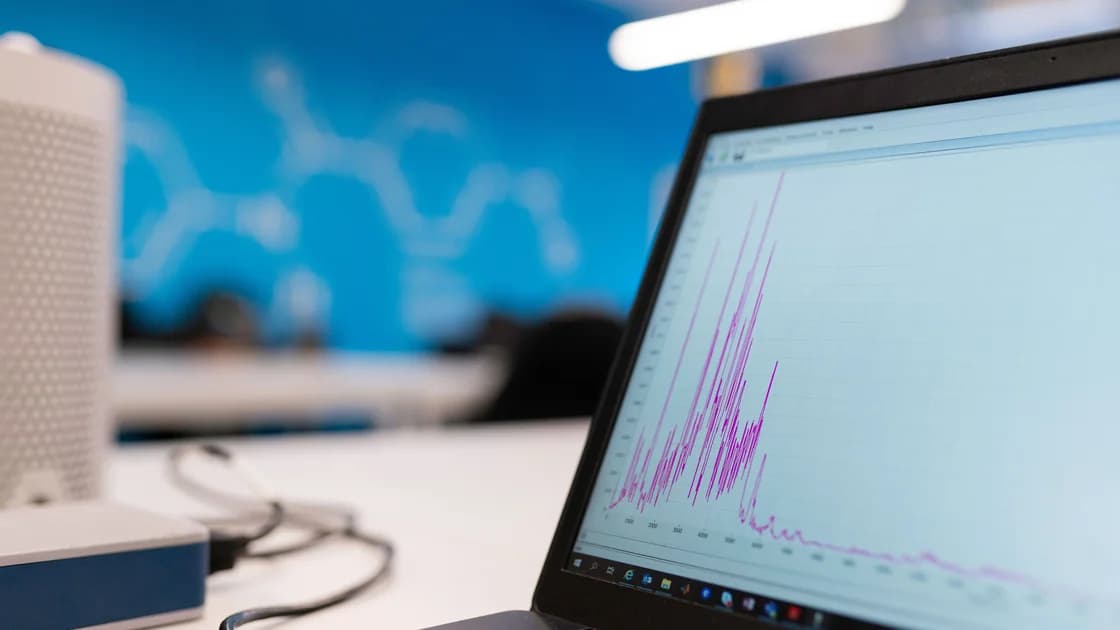

Laptop CPU usage is high at idle when processor activity remains elevated after the computer has finished starting and you have stopped active work. Give the laptop a defined settling period, then use its built-in monitor to identify the process responsible instead of treating one brief spike as a fault. The useful question is not whether the number ever rises, but whether the same workload persists and returns under controlled conditions.
Key Takeaways
- Let startup, updates, indexing, and cloud synchronization settle before measuring.
- Record both total CPU use and the process that remains near the top.
- Compare the same process after closing its app, restarting, and testing another user session.
- Do not disable security software or unknown system services simply to lower a percentage.
- Escalate persistent system-process activity with timestamps, versions, and a repeatable baseline.
Start with the device and app troubleshooting guide if several resources are abnormal at once. This guide covers sustained processor activity after a stable idle window; a laptop fan that keeps running loudly can have thermal or airflow causes even when CPU use is normal.
Define “idle” before comparing numbers. Restart normally, sign in, connect the usual power source, and wait 10 minutes without opening work apps. Keep the lid open and avoid installing updates during the observation. Record the CPU percentage at one-minute intervals for another five minutes, along with the top three processes.
Short peaks are normal. A search indexer may scan new files, a photo library may analyze imports, a browser may restore tabs, and an update service may finish maintenance. A more useful signal is a process that stays high through most samples, keeps returning after it finishes, or consumes CPU while its associated app appears closed.
Processor percentages are presented differently across systems. Windows Task Manager reports CPU use and lets you sort processes; Microsoft describes it as the built-in monitor for CPU, memory, disk, and network consumption.[1] On macOS, Activity Monitor separates System, User, and Idle percentages and can show current or recent CPU activity.[2] ChromeOS Diagnostics can report CPU consumption, current usage, temperature, and speed, although its CPU tests deliberately stress the device and are not idle measurements.[3]
Do not compare one operating system's number directly with another's. Core count, update interval, power mode, and whether a tool reports one core or total capacity can change the display. Compare the same laptop, same tool, and same conditions.
Open the built-in monitor before launching anything else. In Windows, open Task Manager and sort the Processes or Details view by CPU. On a Mac, open Activity Monitor, choose CPU, and sort by the % CPU column. On a Chromebook, use the system task manager for active browser and app processes; use Diagnostics for broader hardware context rather than running a stress test.
Write down the exact process name, publisher if shown, percentage range, and how long it stays active. Expand grouped applications so a browser, collaboration suite, or helper service is not hidden behind a parent row. If the process changes every few seconds while total use falls, the laptop is probably completing ordinary work rather than showing one persistent offender.
Map the process to an owner before ending it. A recognizable browser renderer may belong to one tab or extension. A cloud client may be reconciling a large folder. A system update, search, backup, antivirus, or device-management process may be expected and should not be force-quit without checking its status.
If the name is unfamiliar, inspect its file location, digital publisher, application entry, and official vendor documentation. Do not download a “CPU fixer,” delete files from system folders, or assume an unfamiliar name is malicious. This article isolates resource ownership; it is not a malware diagnosis.
Use time and progress to separate expected work from a loop. Check whether an operating-system update, app update, backup, file synchronization, photo import, search indexing, or development build is in progress. Expected work usually has a reason, shows progress, and eventually releases CPU.
Keep a simple observation table:
| Observation | More consistent with expected work | More consistent with a fault |
|---|---|---|
| Start time | Follows sign-in, update, or new files | Appears without a matching event |
| Process | Known updater, indexer, backup, or app | Unknown helper or repeated crash process |
| Progress | Item count, download, or scan changes | No visible progress for repeated windows |
| End state | CPU falls when work completes | CPU returns immediately or never falls |
| Reproduction | Tied to one deliberate action | Returns after a quiet restart |
Allow legitimate maintenance to finish while the laptop is powered and ventilated. Do not interrupt firmware updates. For a managed work or school laptop, background inventory, encryption, compliance, or endpoint protection may be controlled by an administrator; record the process and contact that administrator rather than disabling it.
If the same ordinary app remains high with no work open, save anything important and quit the app normally. Reopen it without restoring every document or tab. If CPU use returns only after opening one project, webpage, extension, or file, you have a narrower reproduction case.
Change one variable at a time. First close the suspected app normally and observe for five minutes. Next restart the laptop and repeat the same 10-minute settling window. Then update that app and the operating system through their official channels, restart if required, and repeat the baseline.
For a browser, compare a private window with extensions disabled only through the browser's supported controls. Open tabs in small groups until the load returns. A web app can continue calculating, rendering, decoding media, or retrying a task even when its tab is not visible.
For a desktop app, test an empty document or a small known-good project. Pause only optional synchronization through the app's documented control, then turn it back on after the comparison. Never delete a sync database or backup catalog as a first test.
If the process is tied to the user profile, compare another local account where policy permits. A quiet second account points toward login items, extensions, caches, or per-user application state. High usage in every account points more strongly toward a system service, driver, device helper, or machine-wide application.
Disconnect nonessential peripherals after safely ejecting storage and stopping transfers. A faulty device helper can retry continuously, but the 100% disk usage guide is the better path when storage, not CPU, is the sustained bottleneck. Keep power mode and charger constant so the comparison is not distorted by a performance-profile change.
Do not disable every startup item, service, security control, or scheduled task at once. That destroys the evidence and can make the laptop unsafe or unbootable. Microsoft specifically warns that System Configuration can affect stability and startup if used incorrectly.[1] Begin with the owning app's normal quit, update, reset, or uninstall path instead.
Do not force-quit kernel, window-management, encryption, update, or security processes because they appear high for one sample. Do not edit the registry, remove system files, flash firmware, or reset the operating system to chase an idle percentage. Those actions are disproportionate before a repeatable process-level case exists.
Avoid running a CPU benchmark while measuring idle behavior. ChromeOS warns that its CPU tests stress the device and can make normal use difficult.[3] A stress test answers whether the CPU can sustain load; it does not prove why background use is high.
Temperature and fan speed are supporting observations, not substitutes for process evidence. If the case is unusually hot, swollen, smells burnt, or shuts down, stop using it and seek service. If only the fan is loud while CPU activity is low, use the dedicated fan and airflow path.
Update the responsible application first when the load is isolated to that app. Preserve its settings or project data, then use the vendor's documented repair or reinstall procedure only if a clean restart and supported update do not help. A reinstall is not useful when a specific document, extension, or remote workload recreates the same demand.
Escalate a system process when it remains high after two controlled restarts, no update or index job is active, and the same behavior appears in another permitted user account. Capture the laptop model, operating-system build, process name, publisher, percentage range, timestamps, power mode, connected devices, and what changes the result.
Seek hardware service when the laptop also has abrupt shutdowns, repeated hardware diagnostic failures, abnormal heat, battery swelling, burning odor, or visible damage. CPU usage by itself does not prove hardware failure. Preserve a verified backup before repair, reset, or storage replacement.
No. A short burst can be expected during compilation, updates, media work, or diagnostics. It becomes an idle problem when sustained use continues after a defined quiet period without matching work.
Ten minutes after sign-in is a practical first baseline, followed by five minutes of samples. Wait longer when an official update, backup, or index operation shows real progress.
Startup apps, updates, security scans, indexing, cloud synchronization, and restored browser tabs may all run then. If the load persists, use the slow-startup guide to separate boot timing from steady idle behavior.
Yes. Scripts, video, ads, extensions, and retry loops can continue when a tab is hidden. Compare a private window and restore tabs in small groups.
No. Identify its owner and purpose first. Force-ending a system, update, encryption, security, or management process can lose work or destabilize the computer.
Not necessarily. Many legitimate tasks use CPU. Use trusted security tools and official support if other evidence is suspicious; an unfamiliar name alone is not a diagnosis.
The background task may have finished, changed priority, or been intermittent. Record several timed samples and reproduce the same startup conditions instead of relying on one view.
Contact IT for managed-device services or policies you cannot change. Contact the maker when sustained system activity survives controlled tests or appears with shutdowns, diagnostic failures, heat, swelling, odor, or damage.
Sources checked 10 September 2026.
Sign up to experience all premium features at no cost.
*Available only to new users. Each user is limited to one trial.