Start your 3-day free trial
Sign up to experience all premium features at no cost.
*Available only to new users. Each user is limited to one trial.


If a Mac uses Wi-Fi instead of Ethernet while an Ethernet cable is connected, first prove that both network services are active, then place Ethernet above Wi-Fi in the current network location. The service order tells macOS which active connection to try first; it does not repair a dead Ethernet link, override every app route, or move a VPN below ordinary interfaces.
Key Takeaways
- Confirm Ethernet has a valid local address and can reach the router before changing priority.
- Move Ethernet above Wi-Fi in the service order for the network location you actually use.
- Verify the path with interface details and a controlled Wi-Fi-off comparison.
- Treat DNS, a failed adapter, network locations, and VPN routing as separate layers.
- Restore the original order if the change does not affect the measured path.
Use the device and app troubleshooting guide when several network functions fail together. This article assumes Ethernet and Wi-Fi both appear on the Mac; if Ethernet says connected but cannot reach anything, start with the Ethernet connected with no internet guide.
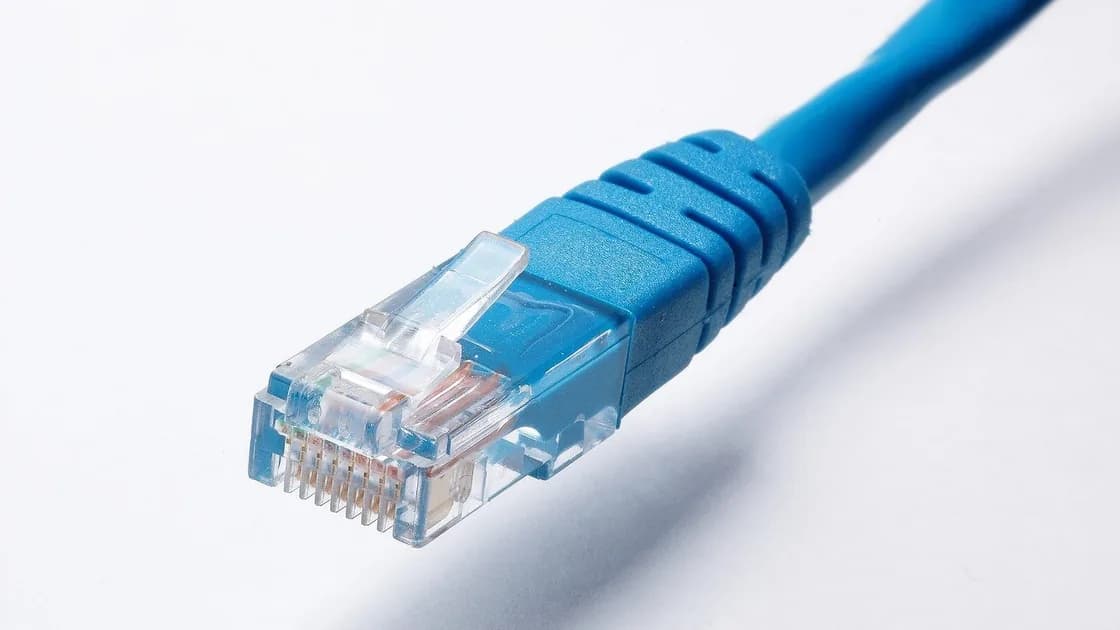
Connect the cable directly or through the normal dock, then open System Settings > Network. Record the exact service names, status, IP address, router address, and whether Ethernet shows connected. A green status alone is insufficient: a self-assigned address beginning with 169.254, an address from the wrong subnet, or a missing router value means the wired path is not ready to become the preferred route.
Compare the Ethernet address with another working device on the same router. It should normally share the network prefix while keeping a unique host address. Do not copy another device's address. If the Mac has no suitable lease, reseat the cable, try a known-good router port and cable, and bypass the dock once. Keep those tests separate so you know which component changed the result.
Temporarily turn Wi-Fi off only after recording the state. Open the router's local page or another known local device, then test a normal website. If both fail over Ethernet alone, ordering cannot solve the problem. Restore Wi-Fi and follow the dedicated Ethernet path before continuing.
If local access works but names do not resolve, compare an address-based local test with a hostname. That points toward DNS rather than interface priority; use the Mac DNS guide instead of repeatedly rearranging services.
Apple documents that network service order controls which connection macOS tries first when several services are active.[1] In current macOS releases, open System Settings > Network, use the action menu, choose Set Service Order, then drag Ethernet above Wi-Fi and select OK. Wording and placement can vary by macOS release, so use the built-in search or Apple's guide if the action is not visible.
Move only the two services needed for this comparison. Photograph or write down the original list first. Do not delete Wi-Fi, remove configuration profiles, or recreate every service. Leaving Wi-Fi enabled is useful for continuity if the cable is unplugged; service order determines preference while both paths remain healthy.
The label may be USB 10/100/1000 LAN, Thunderbolt Ethernet, a dock name, or a vendor adapter rather than simply Ethernet. Match the service by its connected hardware and IP details. Moving an unused Ethernet service will not affect traffic through the active adapter.
After applying the order, disconnect and reconnect the Ethernet service from System Settings or reseat the cable once. Do not repeatedly reboot the router. Reopen the service-order panel to confirm the order was saved.
macOS network locations store groups of network settings for different places or configurations. Apple says each location can use its own service order.[2] If you switch between Automatic, Office, Home, or another named location, a change made in one location may not appear in the other.
Open the network action menu and note the selected location. If another location is active, either switch back to the intended location or set the same deliberate order there after reviewing its settings. Do not delete old locations until you understand why they exist; managed Macs, studios, labs, and travel setups may rely on distinct proxies, DNS servers, or interfaces.
If the order reverts after sign-in, record the location before and after the change. A configuration profile, device-management policy, login utility, dock application, or network extension may own the setting. On a work or school Mac, stop and ask the administrator rather than removing management controls.
The menu-bar Wi-Fi icon shows that Wi-Fi is enabled or associated; it does not prove that ordinary internet traffic is leaving through Wi-Fi. Keep both services on and compare evidence before and after the order change.
First record the IP and router shown for Ethernet and Wi-Fi. In Terminal, route -n get default can show the interface used by the current default route. Commands and output are diagnostic only; do not paste unknown commands with administrator privileges. You can also open Network Utility equivalents provided by your organization or inspect the router's client list.
Run three controlled checks: both interfaces enabled with Ethernet first, Wi-Fi off with Ethernet alone, and Ethernet disconnected with Wi-Fi alone. Use the same destination and note whether local access, name resolution, and internet access succeed. A successful Ethernet-only test plus an Ethernet default route when both are enabled is stronger evidence than the menu-bar icon.
Some applications keep existing connections open. Quit and reopen the test browser or app after changing the order. Large downloads, video calls, and remote sessions may not migrate cleanly between interfaces, so save work and avoid treating an established session as a fresh routing test.
Apple notes that VPN connections already take priority over non-VPN connections and cannot be reordered in the same service-order list.[1] A connected VPN may therefore show a tunnel interface as the route for protected destinations even when Ethernet is the underlying physical link. That is expected and does not mean macOS ignored Ethernet.
Disconnect a VPN only when policy permits and only for a short diagnostic comparison. Never disable a required work tunnel or security control. If Ethernet becomes the default underlay while the VPN is disconnected but traffic uses the tunnel when it reconnects, the two observations are consistent.
Static routes, virtual machines, content filters, iCloud Private Relay behavior, per-app VPNs, and corporate proxies can also select paths for particular destinations. Service order supplies a general preference; more-specific routes and managed policies can legitimately win. Record the destination, app, active tunnel, and route instead of assuming one global interface must carry everything.
AethoVPN can protect supported traffic over the active network path, but changing its connection state does not repair an Ethernet adapter or replace macOS service-order settings.
Return to the evidence. If Ethernet lacks a valid address, drops under load, or fails with Wi-Fi off, troubleshoot the cable, adapter, dock, DHCP lease, and router port. If Ethernet works alone but the default route still names Wi-Fi, confirm you reordered the active service in the active location and that no management process restored the list.
If only hostnames fail on Ethernet, compare DNS servers and search domains. If only one app uses Wi-Fi or a tunnel, inspect that app's network extension, proxy, or established session. If performance is the concern rather than routing, measure the same local transfer and internet test on each interface; the Ethernet versus Wi-Fi guide explains why the theoretically faster medium may not win in a particular setup.
Restore the original order if the change creates no measurable difference. Escalate with the Mac model, macOS version, adapter or dock model, service names, network location, IP/router values, route output, and results with each interface alone. That evidence distinguishes a preference issue from a link, DHCP, DNS, tunnel, or policy problem.
Usually no. You can leave Wi-Fi available for continuity while Ethernet is first in service order. Turning Wi-Fi off briefly is useful as a diagnostic proof that Ethernet works alone.
The icon reports Wi-Fi association, not the route used by every connection. Check the default route and compare an Ethernet-only test.
No. It changes preference among active services. Cable quality, adapter capability, router ports, congestion, and the internet connection still determine performance.
Each macOS network location can store a different service order and other settings. Confirm the active location before editing.
Not through the ordinary service-order control. Apple states that VPN connections take priority over non-VPN connections and cannot be reordered there.
It usually means the Mac did not receive a normal DHCP address. Fix the wired link or address assignment before expecting Ethernet to carry internet traffic.
Applications can retain established connections. Quit and reopen the app, then start a new controlled request after the order change.
Contact IT when profiles or policies restore the order. Contact the hardware maker when a known-good cable and port work with another adapter but this adapter remains unstable.
Sources checked 12 September 2026.
Sign up to experience all premium features at no cost.
*Available only to new users. Each user is limited to one trial.