Start your 3-day free trial
Sign up to experience all premium features at no cost.
*Available only to new users. Each user is limited to one trial.
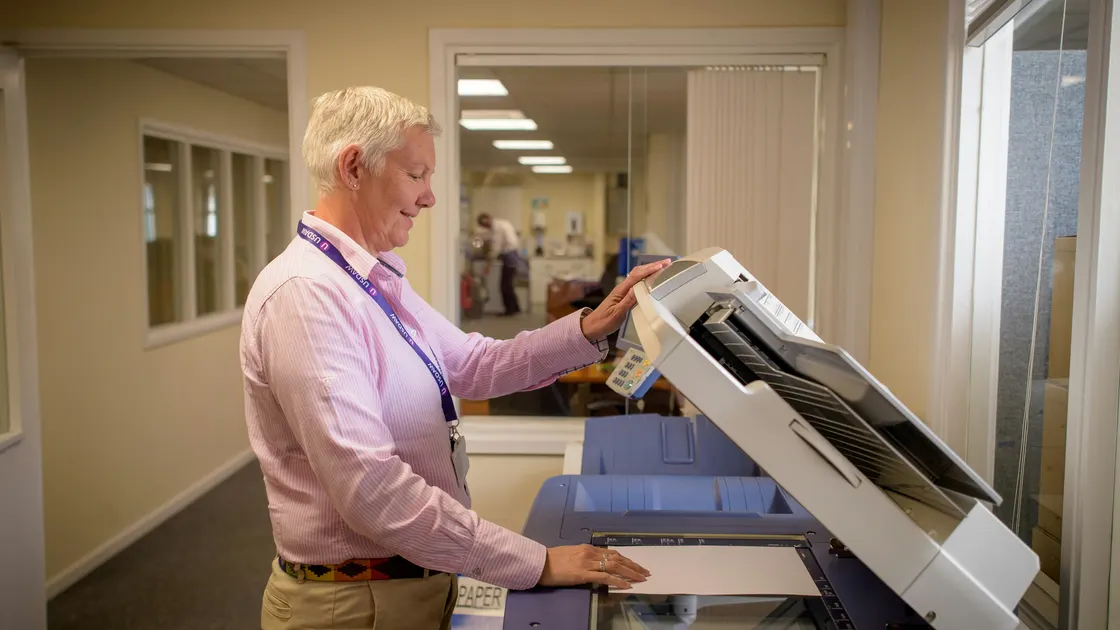

When a printer prints blank pages, first decide whether the page is completely blank, only one color is missing, the output is very faint, or extra blank sheets appear between normal pages. Then print a built-in test or configuration page directly from the printer. That single comparison separates a document or driver problem from a printer, ink, toner, or imaging problem.
Do not run cleaning cycles repeatedly or touch printhead and toner contacts at random. Use the exact model's maintenance instructions after the test page identifies the failing side.
Key Takeaways
- Compare completely blank, missing-color, faint, and extra-page symptoms.
- Check the document and print preview before changing the printer.
- A built-in printer test page is the most useful dividing line.
- Follow separate inkjet and laser maintenance paths.
- Limit cleaning cycles and stop for leaks, damage, heat, or persistent blank self-tests.
For a broader fault-isolation method, use the device and app troubleshooting guide.
Look at the sheet under normal light and describe what remains. A page with a faint header, one missing color, white bands, a blank back side, or an extra separator sheet is not the same as a completely blank page.
| Output | Most useful next check |
|---|---|
| Every part of every page is blank | Built-in test page, consumable installation, imaging system |
| Black is missing but colors appear | Black cartridge, nozzle, printhead channel, or black-only setting |
| Colors are missing but black appears | Color cartridges, color setting, or color printhead channels |
| Output is extremely faint | Ink or toner level, density, paper type, economy mode, imaging component |
| Normal pages are followed by an extra blank sheet | Document page breaks, separator page, driver, or firmware |
| Only one document is blank | Document content, layers, font, transparency, or app print path |
Confirm that the sheet came from the intended printer. In a home or office with several devices, a print job may be sent to a different queue. If the printer is offline or the job never leaves the queue, use the Wi-Fi printer offline guide or stuck printer-queue guide. This article begins after paper is actually fed.
Check for error messages on the printer, computer, or app. Low ink or toner estimates are useful evidence but not a perfect measurement. Record the exact message instead of dismissing it or repeatedly opening the consumable door.
Open Print Preview. Confirm that the intended pages contain visible text or graphics, the page range is correct, and the application is not sending an intentionally blank page. Check for an extra page break, an empty final sheet, hidden layers, white text on a white background, or content outside the printable area.
Print a simple one-page test from a different trusted application. Use plain black text and a small color shape if the printer supports color. Do not use a confidential document for diagnosis. If the simple file prints correctly, the printer can produce output and the scope returns to the original document, app, font, or export path.
For a PDF, try the system's supported viewer rather than an unknown conversion website. For a spreadsheet, verify the print area and selected sheets. For labels or specialty media, return temporarily to plain paper and the matching plain-paper setting unless the manufacturer instructs otherwise.
Check these job settings:
HP's current blank-page guidance separates completely blank output from extra blank pages and includes checking color, paper type, paper size, quality settings, and the file itself.[1] Change one setting at a time and keep a known-good test file.
Use the printer's control panel or documented button sequence to print a status, configuration, nozzle-check, print-quality, or user-settings page without sending a job from the computer. The name and sequence vary by model, so use the manual or official support page.
Interpret the result:
HP explicitly uses a printer-generated test page to decide whether an inkjet needs printhead cleaning or whether the user should continue to print-setting checks; it applies a similar split to LaserJet cleaning and cartridge checks.[1] Brother's blank-page procedure likewise begins with an error check and a User Settings List, then continues to the toner and drum path only if that list is blank.[2]
Keep the test sheet if service may be needed. It is more useful than a photo of an application preview because it demonstrates what the printer produced independently.
Confirm that every required cartridge or ink tank has usable ink and is installed in the correct position. A recently installed cartridge may still have protective tape, a vent seal, or shipping material in place. Follow the model's illustrated setup instructions; do not puncture vents or remove labels that the guide does not identify.
For a refillable tank printer, check that the correct ink is in the correct tank and that transport or ink valves are in the operating position where the model uses them. If ink was added to the wrong tank, stop and contact the manufacturer rather than running cleaning cycles that move contamination through the system.
Run a nozzle check or print-quality report. If it shows missing lines or colors, use the printer's built-in printhead or cartridge cleaning function. HP advises up to a limited number of additional cleaning cycles in its current generic inkjet procedure, not endless repetition.[1] Cleaning consumes ink and fills maintenance components, so stop at the manufacturer's limit.
Do not wipe nozzle plates or electrical contacts unless the exact support instructions tell you what material and method to use. Never use tap water, alcohol, needles, compressed air, or household cleaner as a generic printhead repair.
If a cartridge is new, verify that it is the correct model, seated fully, and recognized without an error. Avoid turning a diagnosis into a brand-authenticity claim: follow the printer maker's compatibility and warranty guidance, but do not assume every third-party consumable is the cause without the self-test evidence.
Check toner level messages, cartridge installation, shipping locks, seals, and the drum or imaging unit where it is user-replaceable. A new cartridge can feed paper normally while producing no image if a protective seal remains or the cartridge is not seated.
Do not touch the drum surface, expose it to bright light for an extended period, or shake leaking toner. Toner is a fine powder; follow the safety instructions for spills and consumable handling. Let a hot printer cool before accessing areas near the fuser, and never reach into a marked hot zone.
Print the model's cleaning page or quality report if the manual provides one. HP's generic LaserJet blank-page path checks toner, prints a test page, then uses a model-specific cleaning page before cartridge replacement or support.[1] Brother's procedure uses the printer-generated User Settings List to distinguish computer-side output from a blank internal print, then checks the toner and drum assembly.[2]
Some laser printers have separate toner and drum units; others combine them. Replace only the component identified by the model's procedure and evidence. Do not buy a full set of parts merely because paper is blank.
If the built-in test page is normal but computer jobs remain blank, restart the printer and computer once, then remove and re-add only the intended printer through the supported operating-system path. Install the current driver or printer app from the operating system or printer manufacturer. Do not use a third-party driver-download site.
Check printer firmware only through the manufacturer's supported utility or control panel. Keep power stable during an update. Firmware can address job processing or extra blank pages, but it cannot fix an empty cartridge or damaged printhead.
Arrange service when:
Keep the model number, error message, consumable details, and printer-generated test page. Do not continue consuming paper, ink, toner, or maintenance capacity after the evidence consistently points to hardware.
Paper transport can work while the image path fails. A built-in test page will show whether the remaining scope is the printer and consumables or the computer's document and driver path.
The black cartridge, ink channel, nozzle, or black-only setting may be affected. Print a nozzle or quality report and follow the model's black-channel instructions.
Yes. It may have a protective seal, blocked vent, incorrect model, poor seating, or recognition error. Recheck the illustrated installation steps without forcing the cartridge.
Only the number allowed by the printer maker's procedure. Cleaning consumes ink and maintenance capacity; if the documented limit does not improve the test pattern, stop and escalate.
The file may contain unusual layers, fonts, transparency, or an empty print range. Compare Print Preview and a trusted system PDF viewer before changing printer hardware.
Check document page breaks, separator pages, duplex or booklet settings, driver state, and firmware. An extra sheet after normal output is different from a completely blank self-test.
Only if the printer's built-in test page is normal and several computer applications still print blank. Use the operating system or manufacturer source, not a generic driver site.
Service is appropriate when the built-in test remains blank after correct installation and the documented maintenance path, or when there is a hardware error, leak, heat, odor, or damage.
Sources checked 30 August 2026.
Sign up to experience all premium features at no cost.
*Available only to new users. Each user is limited to one trial.