Start your 3-day free trial
Sign up to experience all premium features at no cost.
*Available only to new users. Each user is limited to one trial.
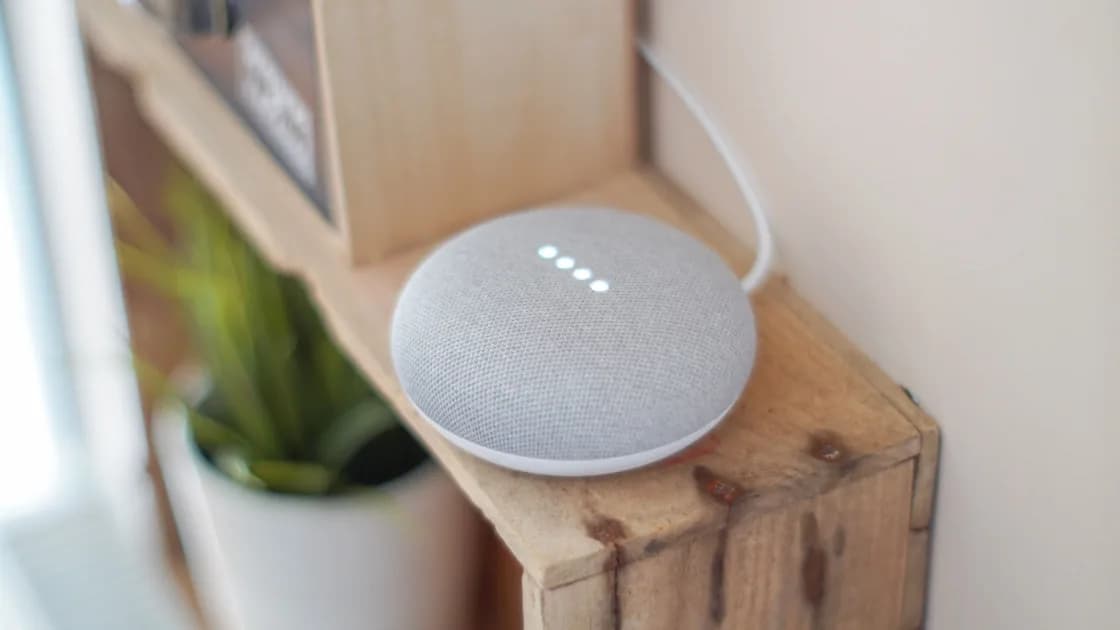

To review smart speaker privacy settings, inspect both the physical device and the account behind it: microphone controls, activation indicators, activity history, saved audio, personalization, household permissions, linked services, purchases, communications, and device-removal options. Deleting one type of record does not automatically delete transcripts, third-party activity, or data stored under another household member's account.
Key Takeaways:
- Check the hardware microphone control before opening account settings.
- Review recordings, transcripts, activity, and retention as separate data categories.
- Personal results and voice recognition matter most on shared speakers.
- Remove obsolete skills, services, residents, and purchasing permissions.
- Before selling a speaker, unlink it from the home and account, then follow the official reset process.
This is a settings audit, not a claim that one platform is universally private. For the wider network and account threat model, read Smart Home Privacy Risks.
List every speaker, smart display, home, account, and household member involved. A speaker in a private office has a different exposure than one in a kitchen used by residents, children, visitors, cleaners, or short-term guests.
Record these facts first:
Do not assume the companion app is the only control surface. Some settings live in a general account privacy page, some in the device tile, and some in a third-party service.
Find the model's physical microphone control and learn what its indicator means. Google says compatible speakers and displays can mute the microphone with a hardware switch, and that an indicator shows when Assistant has activated.[1] Apple similarly states that HomePod shows a light after recognizing its activation phrase or a touch-and-hold request.[2] Amazon explains that Echo devices provide a visual or audible indication when the wake word causes audio to stream to the cloud.[3]
Those descriptions are platform-specific. A light proves only what the manufacturer documents for that model; it does not prove that every microphone, camera, linked service, or local sensor is disabled.
Use this physical review:
Do not cover ventilation openings or improvise a physical modification that could damage the speaker.
Open the platform's official activity or privacy page. Review a representative range of recent items, including unexpected activations, and note which records contain audio, text, responses, device information, or linked-service actions.
Google allows users to review or delete Assistant activity and choose automatic deletion in the relevant account controls. Amazon's Review Alexa History can include voice recordings, transcripts, typed requests, and responses; its privacy controls also manage how recordings are used. These categories and menu names can change, so use the current official page for your account.
| Data or control | What to verify | What it does not automatically prove |
|---|---|---|
| Saved audio recording | Whether audio is stored and for how long | That transcripts or derived activity are gone |
| Text transcript | Whether recognized text remains | That third-party actions were deleted |
| Assistant activity | Which requests and responses appear | That linked music or shopping history was removed |
| Auto-delete period | Which product activity it covers | That older exports, backups, or other accounts follow it |
| Voice profile | Who is recognized | That all historical recordings are erased |
Google warns that turning off future voice-and-audio saving does not delete recordings already stored, and that audio may exist in other places depending on other settings.[4] Amazon notes that deleting certain history or declining recording storage can reduce personalization and may affect features such as voice identification. Review the consequence before changing a control, but do not let a convenience tradeoff hide the data boundary.
After deleting a test item, refresh the history page and confirm the result in the correct account. Do not claim that one successful deletion proves immediate removal from every backup or third-party system.
Personal results can expose calendars, contacts, reminders, shopping information, photos, or messages to someone who can activate a shared speaker. Review whether voice recognition is required, what happens when a voice is not recognized, and whether personal results should be enabled in that room.
Google's guest guidance notes that people near a connected home device may interact with it and that activity can be associated with the device owner's account when multi-user recognition is not configured.[5] Google Guest Mode can prevent activity from being saved to the owner's account for supported interactions, but third-party services may still save their own activity.[6] That last boundary is important: a platform privacy mode is not a universal privacy switch for every service it can call.
Audit each resident and guest:
Account access is as important as the speaker. Use a unique account password, multifactor authentication where supported, and a recovery method that still belongs to the owner.
Open the platform's list of skills, actions, apps, services, and account links. Remove anything you no longer use, especially services with access to calendars, contacts, home controls, cameras, shopping, or health information.
Then review high-impact actions:
The companion app's permissions also matter. The app permissions guide explains how microphone, contacts, location, Bluetooth, and local-network access can extend beyond the speaker itself.
Do not assume unlinking a skill deletes the provider's account or history. Open the provider's privacy controls when you need to delete information held there.
A smart speaker needs local-network access to discover and control devices. Place it only on a network design that preserves required local communication without exposing unrelated personal devices more broadly than necessary.
A guest or IoT network can help separate device groups, but client isolation may also prevent discovery or control. The guest Wi-Fi guide explains that tradeoff. Do not move a speaker to an isolated network without checking how its hubs, phones, displays, and accessories communicate.
Review the room itself:
Privacy settings should match where the device actually sits, not just who originally configured it.
First remove the device from routines, speaker groups, intercom groups, and linked smart-home controls. Confirm whether it is a home hub or Thread border router whose removal will affect other accessories.
Then use this order:
Do not treat a button reset alone as proof of account removal. Conversely, removing a device from an app does not prove that its local storage was erased. Complete both platform steps when the manufacturer requires them.
Review after adding a resident, changing accounts, moving the speaker to a shared room, enabling a new service, or preparing the device for transfer. A periodic check is also useful because platform menus, retention defaults, and linked-service permissions change.
Use a short written record of the decisions that matter: which account owns the home, who has access, whether personal results are enabled, what activity is retained, and which high-impact services remain linked. Do not record passwords, recovery codes, or private voice-history contents in that checklist.
Smart speakers generally monitor locally for an activation phrase, but the exact processing and indicators are platform-specific. Read the manufacturer's privacy explanation and use the hardware mute control when you do not want voice activation.
No. A hardware mute control affects future microphone use; it does not delete previously stored audio, transcripts, or activity. Use the account's privacy controls for historical data.
It depends on the platform and selected deletion scope. Confirm whether the control covers audio, recognized text, typed requests, responses, and associated activity.
They may be able to request personal results or trigger services depending on voice recognition, room settings, and the platform. Review guest mode, personal results, and household permissions together.
Remove services you do not use and scrutinize those with sensitive access. A necessary service can remain when you understand its permissions, account security, and separate data-retention controls.
Not necessarily. Google explicitly notes that other providers' apps and actions may still save activity related to their services. Review those providers separately.
No. Isolation can reduce unwanted device-to-device access but may also break discovery, casting, hubs, or local control. Design the network around the speaker's documented communication needs.
Remove it from the owner account and home, then perform the model-specific reset. Verify both account removal and local reset instead of assuming either one covers the other.
Sources checked 28 August 2026.
Sign up to experience all premium features at no cost.
*Available only to new users. Each user is limited to one trial.