Start your 3-day free trial
Sign up to experience all premium features at no cost.
*Available only to new users. Each user is limited to one trial.
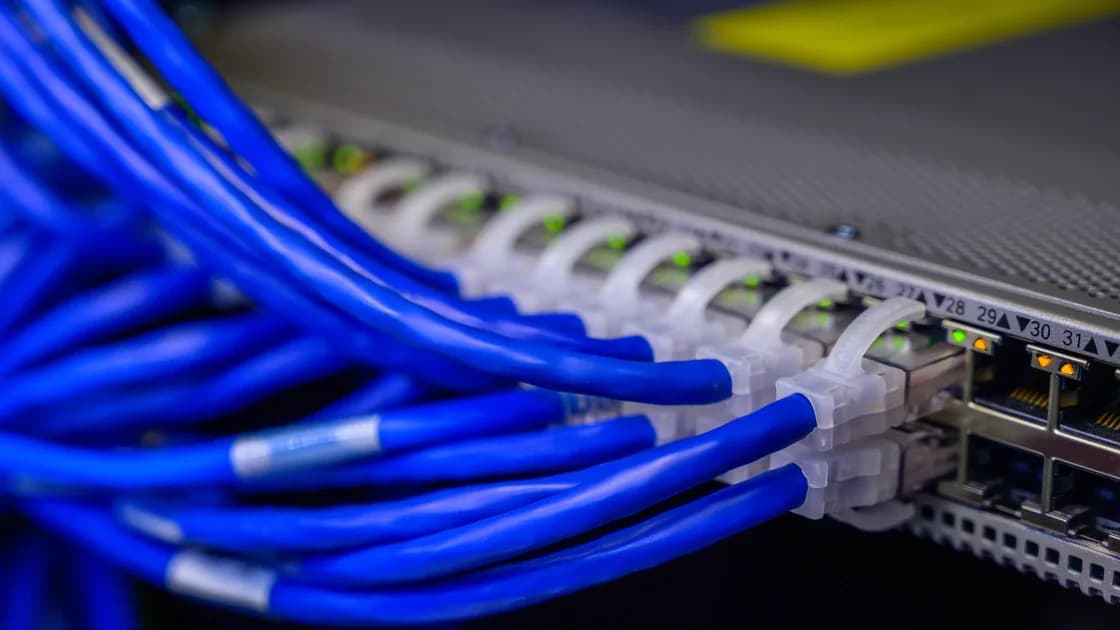

When router DNS settings revert after reboot, record the exact model, firmware, operating mode, page, and values before editing again. Then determine whether you changed WAN resolver settings, LAN DHCP-distributed DNS, or a setting owned by an ISP or mesh controller. Apply the change once, confirm it survives a page reload, make one controlled reboot, and compare the same fields. Repeated resets obscure the evidence.
Key Takeaways
- WAN DNS and LAN DHCP DNS are different scopes and may have different owners.
- Confirm Apply or Save succeeded before testing a reboot.
- Check mesh, ISP, cloud-management, and access-point modes for an upstream owner.
- Export a recoverable configuration and record ISP parameters before firmware or reset work.
- One controlled reboot distinguishes a temporary display issue from an actual persistence failure.
Use the device and app troubleshooting guide to preserve a baseline. If you cannot reliably open the settings page, first use the router admin page guide; an unreachable interface is not evidence that DNS reverted.
Photograph the label without exposing passwords or serial numbers, and write down the exact model, hardware revision, firmware version, and current operating mode. Router, access point, bridge, repeater, mesh satellite, and ISP-gateway modes do not own the same settings. A satellite or access point may display DNS information while the main gateway controls it.
Before changing anything, record the current WAN IP, gateway, WAN DNS fields, LAN subnet, DHCP range, and LAN DHCP DNS fields. Mask public addresses if sharing the record. Note whether each field says automatic, ISP, obtain from WAN, advertise router, manual, or custom. The visible DNS on a client may be the router's LAN address even when the router forwards to an upstream resolver.
Identify the intended outcome. If the router itself should query a chosen resolver, the relevant page is usually WAN or Internet DNS. If clients should receive specific resolver addresses in their DHCP leases, the relevant page may be LAN, DHCP Server, or DNS advertisement. Changing only one scope and checking the other can look like a revert.
Manufacturer menus are examples, not universal instructions. TP-Link documents selecting custom DNS addresses, saving, and rebooting on specified models.[1] ASUS documents turning off automatic WAN DNS assignment, entering server addresses, and selecting Apply.[2] Use the manual for the exact model and firmware rather than copying labels from another brand.
Enter the intended resolver addresses carefully. Preserve any required domain, IPv6, DNS-over-TLS, or ISP fields already present. Select Apply or Save and wait for the interface to report completion. Do not close the page during a progress indicator or power-cycle the router while it writes configuration.
Reload the page, sign out and back in if necessary, and reopen the same scope. If the values have already returned, the reboot is not the cause. Check validation errors, read-only mode, a missed Apply button, browser autofill, unsupported address format, duplicate IPv4 and IPv6 fields, or an upstream controller immediately overwriting the entry.
Use a second browser only as a display comparison, not as a way to bypass warnings. Clear one stale page through normal reload controls. If the admin UI shows a success message but a fresh session shows old values, capture both timestamps and messages.
Test a newly renewed client lease only when LAN DHCP DNS was changed. Existing clients can retain old lease data until renewal; that is not router persistence failure. Likewise, cached DNS answers can remain after resolver settings change. Compare the configuration page first, then the lease, then actual query behavior as separate evidence.
Many ISP gateways receive provisioning from the provider. Mesh systems may have a primary node or cloud app that is the configuration source. A router operating as an access point may defer DHCP and DNS to the upstream gateway. If you edit a secondary interface, the true owner can restore its configuration within seconds or at boot.
Open the vendor's supported controller or main-node page and identify which device supplies DHCP and the default gateway. Do not disable remote management or remove the device from a mesh merely to win a settings race. Ask the ISP whether custom DNS is supported on the supplied firmware and whether provisioning restores defaults.
Observe the timing. An immediate revert after Apply suggests validation, permission, or controller ownership. A revert only after the WAN reconnects suggests ISP provisioning or automatic WAN configuration. A revert only after a full reboot, while unrelated settings also disappear, suggests configuration-storage or firmware trouble.
If parental controls, security filtering, guest networking, or a local DNS service is enabled, document it. Those features may deliberately replace advertised resolvers. Do not turn off a security control on a managed household or office network without the owner's approval.
Before rebooting, export the router configuration through the supported interface if the vendor provides that function. Store it securely and record the ISP connection type, VLAN identifiers, PPPoE credentials location, telephone settings, mesh roles, Wi-Fi names, and any essential reservations. Do not assume an export from different firmware can be restored safely.
Take a final screenshot of the saved DNS page and note the time. Use the router's normal Restart or Reboot action; do not pull power unless the vendor specifically requires it. Wait for status lights and the admin page to stabilize. Avoid repeated restarts, which can interrupt updates or make timing ambiguous.
Sign in, confirm the model, firmware, operating mode, and selected configuration scope, then read the DNS fields before editing. Check whether unrelated harmless settings—such as a description or reservation you already know—also reverted. Do not create risky test rules solely for this comparison.
If only DNS reverted, look for feature conflicts, automatic ISP assignment, or unsupported fields. If several recent settings vanished, save a new harmless supported setting and reload before considering storage or firmware failure. Preserve logs and screenshots before any upgrade or reset.
Check the vendor's support page for the exact hardware revision and current firmware release notes. Do not install firmware from a search result, another regional model, or a similarly named device. Verify backup compatibility and power stability before an official upgrade.
A factory reset is a last resort because it erases network identity, ISP access, reservations, security rules, and remote-management settings. Use the reset router without losing settings guide to build a recovery record first. Never repeatedly reset a provider-managed gateway; contact the provider.
Escalate with model and hardware revision, firmware, operating mode, configuration owner, exact scope, values before Apply, after reload, and after one reboot, plus whether other settings persist. That package lets the vendor distinguish UI caching, rejected input, provisioning, and nonvolatile-storage failure.
AethoVPN may use DNS and network routes while connected on a supported device, but it cannot make router firmware persist settings or override an ISP or mesh controller that owns the gateway configuration.
A router can retain its settings while one device continues using cached, encrypted, VPN-provided, manual, or enterprise-managed DNS. Renew the client's lease and inspect its current resolver only after the router's saved state is proven. The Mac DNS guide covers client-specific configuration.
Conversely, a client can keep a manual resolver even when the router reverts. Do not use one successful lookup as proof of router persistence. The decisive evidence is a fresh read of the same router fields after restart, followed by newly leased client values where applicable.
It may advertise itself to LAN clients and forward queries upstream. That can be normal even when WAN resolver fields contain external addresses.
Not necessarily. The computer may retain an existing DHCP lease, manual setting, encrypted DNS profile, or cache. Read the router page first.
No. One controlled reboot with before-and-after evidence is enough. Repetition adds risk and makes controller timing harder to interpret.
The primary controller commonly owns DHCP and DNS. A satellite may display information but not preserve independent values; follow the exact vendor architecture.
Possible causes include invalid input, wrong scope, read-only mode, feature conflict, or an upstream controller. A reboot is irrelevant until reload succeeds.
No. Preserve configuration and ISP details, identify ownership, and check official firmware guidance before considering a reset.
No. A VPN can influence DNS for supported traffic on a connected client, but it does not write or repair the router's configuration storage.
Provide exact model and revision, firmware, mode, page and scope, screenshots after Apply/reload/reboot, ownership details, and whether other settings survive.
Sources checked 12 September 2026.
Sign up to experience all premium features at no cost.
*Available only to new users. Each user is limited to one trial.