Start your 3-day free trial
Sign up to experience all premium features at no cost.
*Available only to new users. Each user is limited to one trial.

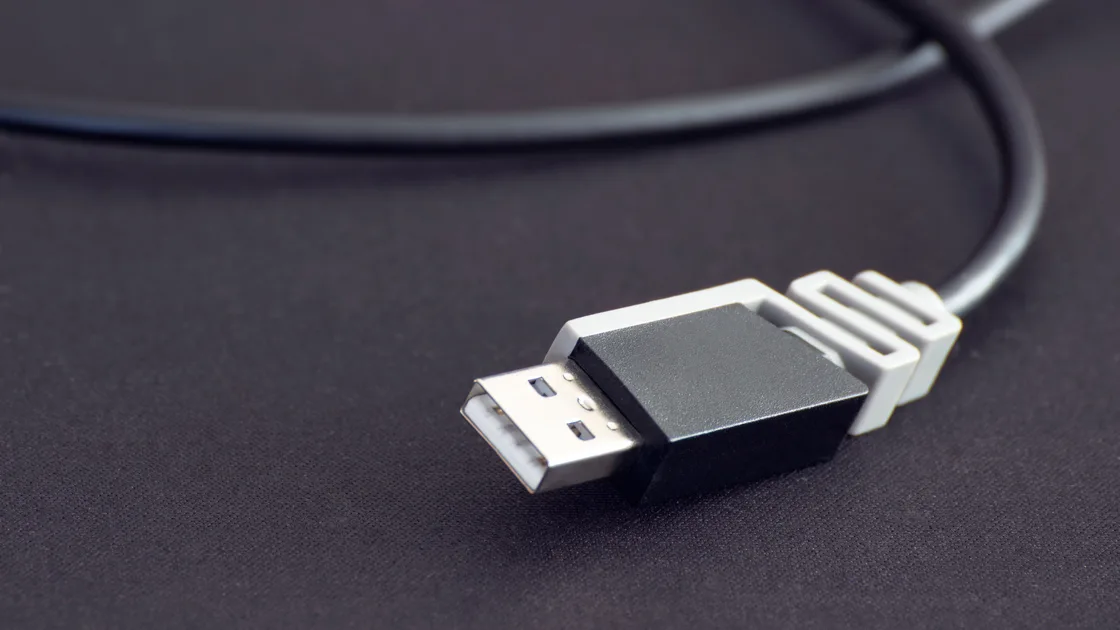
When you get “scanner not detected” or your scanner is not appearing, the cause usually sits in one of four layers: power, the USB or network link, whether the operating system lists the scanner, or which device the scanning app has selected. First identify whether it is a USB scanner, a network scanner, or the scan function inside a multifunction printer. Then compare three layers: whether the device has power, whether the operating system lists a scanner, and whether one scanning app can select it. That sequence prevents a print-queue problem, a paper-feed problem, or a bad scan from being mistaken for discovery failure.
Do not start by deleting every printer, installing an unknown driver package, or resetting the network. Make one reversible change at a time and test with a non-confidential sheet.
Key Takeaways
- Separate USB, network, and multifunction-device paths before changing settings.
- Confirm power and the physical or network link before reinstalling software.
- Check operating-system recognition separately from one app's scanner list.
- Use the manufacturer’s official driver or scan app only after simpler tests.
- Preserve presets and network details before removing a scanner or resetting anything.
For the general order of safe checks, see the device and app troubleshooting guide.
Write down the exact symptom before changing the setup. “Scanner not showing up” can mean several different things:
| Observation | Likely layer to check next |
|---|---|
| No lights, display, motor, or startup sound | Power, outlet, adapter, switch, or hardware |
| USB connection sound occurs, but no scanner is listed | Cable, port, system device record, or driver |
| Device appears in system settings but not in one app | App selection, permissions, compatibility, or app state |
| Printer works but its scanner is absent | Separate scan component, vendor app, or multifunction registration |
| Network scanner appears on one computer only | Local firewall, network segment, discovery, or saved address |
| Scanner is selectable but the scan fails or looks wrong | Scan job, feeder, permissions, or image-quality path—not discovery |
Try the same scanner from one other trusted scan app. On Windows, the built-in Scan app is a useful comparison after the scanner is installed; Microsoft says the desired device should appear in the Scanner menu.[1] On Mac, Image Capture or Preview can provide the comparison. Apple specifically recommends trying an app rather than only the scanner’s physical button.[3]
If one app sees the device and another does not, stop changing cables and network settings. Record the working app, failing app, exact message, and whether the problem began after an app or operating-system update. If no app and no system panel sees the scanner, continue with the connection path.
Apple’s current Mac troubleshooting starts with power, secure cable connections, and a direct Mac USB connection when an intermediary device is involved.[3] Microsoft likewise begins a local Windows installation with the scanner powered on and connected by USB.[1]
Look for evidence rather than assuming a cable is good because it charges another product. A charging-only USB cable cannot carry scanner data. A multifunction device may print over Wi-Fi while its USB scan interface remains disconnected, or print over USB while network scanning is configured separately.
If the scanner repeatedly powers off, smells hot, makes grinding sounds, has liquid damage, or uses a damaged adapter or cable, stop. Disconnect it safely and follow the manufacturer’s service guidance. Software reinstallations cannot make unsafe hardware suitable for use.
On Windows 11, open Settings > Bluetooth & devices > Printers & scanners. Wait for the list to finish loading. Microsoft notes that an all-in-one scanner may appear under its printer name; opening that device should expose scanner settings when Windows recognizes the scan component.[1] Use Add device only once and allow the search time to finish.
On Mac, open System Settings > Printers & Scanners. A multifunction product may have printing and scanning functions under one device record. In Image Capture, check the Devices or Shared area as well. Apple’s setup guidance adds a scanner with Add Printer, Scanner or Fax in Printers & Scanners, notes that a printer you already set up may provide its scan features without extra setup, and points to the maker’s documentation when the scanner is not listed.[2]
For a minimal cross-test:
If another computer recognizes the scanner with the same cable, focus on the first computer’s device record, permissions, driver, or managed-device policy. If neither computer recognizes it, the evidence points more strongly to the scanner, cable, power, or a model-specific setup requirement.
Do not troubleshoot a stuck print queue as scanner discovery. Printing and scanning can use different services even on the same all-in-one device. Use the stuck printer-queue guide only when a print job is actually blocked, and the USB device guide when the wider USB bus does not recognize several devices.
Windows Fax and Scan and some older scanning apps show “No scanners were detected. If a scanner is installed, make sure that it is powered on and connected to the computer, and then try again.” It means that app found no scanner Windows can use right now. It does not prove the scanner is broken, and the printer side of an all-in-one device may still work.
Work through it in this order:
Confirm the scanner’s own network status from its display, status page, or manufacturer-supported app. Record the current Wi-Fi network name or wired address without publishing it. A network scanner can remain powered while disconnected from Wi-Fi, joined to a guest network, or assigned a new address after a router restart.
Microsoft says a wireless scanner and Windows computer should be on the same wireless network or SSID for normal discovery.[1] “Same Wi-Fi name” is a helpful starting point, not proof: guest isolation, client isolation, VLANs, enterprise policy, and some mesh configurations can still prevent local discovery.
Use this reversible comparison:
If the scanner works by address but not by automatic discovery, preserve that evidence for the network administrator or vendor. Do not factory-reset the router or scanner merely to restore discovery; that can erase credentials, address reservations, scan destinations, and administrator-managed settings.
Open one supported scanning app and verify the selected device. A saved scanner with a similar name may be offline while the current one is available. For an all-in-one device, choose the scan source—not the print queue—and select Flatbed, Feeder, or Auto only after discovery succeeds.
On Windows, Microsoft’s Scan workflow distinguishes the scanner selection from the source selection and file destination.[1] On Mac, Apple suggests Image Capture or Preview when a physical scan button does not work.[3] This distinction matters: a feeder error, unavailable save folder, or app permission prompt can happen after the scanner has already been detected.
Check whether the app is allowed to access the local network, removable devices, files, or the destination folder where the operating system exposes those permissions. In a managed workplace or school, do not bypass policy. Ask the administrator whether the scanner, driver, local discovery, or vendor extension is approved.
Test with a plain, non-sensitive sheet and save to a local folder you can access. Avoid uploading private documents to an unknown “scanner fixer” or online converter. If preview works but saving fails, troubleshoot the destination and permissions rather than removing the scanner.
Install software only after power, connection, system listing, and app selection have been checked. Prefer the operating system’s built-in driver or the exact model’s official manufacturer page. Confirm the operating-system version and processor architecture. Avoid generic driver sites, bundled “updaters,” and utilities that request unrelated access.
Before removing a device, record:
Apple recommends deleting and adding the scanner or multifunction printer again if a previously available scan option disappears.[3] That is a later step because removal can discard a working print queue or saved configuration. Remove only the affected record, restart once if requested, then add it through the operating system or official installer.
Do not clear application data, reset network settings, or factory-reset the scanner before backing up reproducible settings and checking vendor support. A factory reset may erase Wi-Fi credentials, email or SMB destinations, certificates, address books, and access controls. In an office, those settings may belong to an administrator.
Escalate with the model, serial number if requested privately, connection type, operating-system version, exact error, working cross-tests, and whether the system ever lists the scan component. Arrange service if the device fails its own startup or self-test, is unsafe, or is not recognized on any compatible computer with known-good power and connection.
A USB scanner does not use the computer’s network route, so a VPN cannot replace its missing scan component or repair its power supply. For a network scanner, VPN routing or filtering can sometimes affect local discovery; a full tunnel does not by itself prove that local traffic is blocked.
If AethoVPN is already connected and the scanner’s own status page shows it online, record that connection state before one comparison on the same computer. On your own device, or with administrator permission, briefly pause the connection and use the same scanning app, scanner and non-sensitive test page. Compare three separate results: whether the scanner appears in the list, whether the official tool can reach its known address when that feature is supported, and whether a preview actually completes. Restore the original connection after the test.
A changed result helps locate a discovery or access difference; it does not repair a missing driver, feeder fault or permission to save files. Keep the working print queue and saved destinations intact, and use the recorded results when asking the administrator or vendor about an approved local-network configuration.
An all-in-one device can use separate print and scan components, services, permissions, or network paths. Check whether the operating system exposes scanner settings under the printer record and whether a supported scan app can select it.
The app may have a saved offline device, lack local-network or file permission, or not support the scanner interface. Compare a built-in scan app before reinstalling the device.
No. A power-only cable cannot carry scanner data. Use the correct data-capable cable and a direct computer port for the test.
It may still have the old Wi-Fi credentials or a changed address. Confirm its own network status and reconnect it to the intended trusted network before adding it again.
Do not disable it permanently. Use a documented local-network permission or brief controlled test only when policy allows, then restore protection and keep the result as evidence.
Not always. Start with operating-system recognition and a built-in app. Install the exact model’s official app only when it supplies a required driver, extension, or feature.
It might, but it can erase Wi-Fi credentials, destinations, certificates, and address books. Back up the configuration and follow model-specific support guidance first.
Use service when power is unstable, the device reports a hardware error, it is unsafe, or no compatible computer recognizes it with known-good power, cable, and connection.
Sources checked 4 October 2026.
Sign up to experience all premium features at no cost.
*Available only to new users. Each user is limited to one trial.