Start your 3-day free trial
Sign up to experience all premium features at no cost.
*Available only to new users. Each user is limited to one trial.

USB tethering not working usually comes down to one of five causes: an unsupported phone-computer pairing, a charge-only cable or hub, an unanswered trust prompt, a carrier plan that blocks tethering, or a missing network service on the computer. Check the pairing first, before resetting anything. Android officially supports USB tethering to Windows, but Google's instructions say Mac computers cannot tether from Android by USB.[1] iPhone Personal Hotspot can connect by USB to a Mac or Windows PC; Windows needs the current Apple Devices app or iTunes, and both platforms require the device, cable, trust, and cellular connection to be recognized.[2] Then classify whether the cable only charges, the switch is unavailable, the phone is visible without a network service, the computer connects without internet, or the link repeatedly drops.[3]
Key Takeaways
- Check the support matrix first; Android-to-Mac USB tethering is not supported by Google's official procedure.
- Use a cable and port that carry data, not a charge-only cable or unreliable hub.
- Unlock the phone and respond only to expected accessory and trust prompts on devices you control.
- Confirm cellular data and the carrier plan allow tethering before changing computer networking.
- Avoid USB debugging, random drivers, root or jailbreak, and third-party tethering tools.
This guide covers a direct USB connection for internet sharing. It does not require a screenshot, special command, or unofficial driver.
| Phone | Computer | Official USB path | Required software or boundary |
|---|---|---|---|
| Android | Windows | Supported by Android tethering instructions | Windows must recognize the phone and USB network interface |
| Android | Mac | Not supported by Google's USB tethering instructions | Use a supported Wi-Fi or Bluetooth method instead |
| iPhone | Mac | Supported through Personal Hotspot over USB | Trust/accessory approval and an iPhone USB network service |
| iPhone | Windows | Supported through Personal Hotspot over USB | Apple Devices app or iTunes, plus trust/accessory approval |
Google explicitly states that Mac computers cannot tether with Android by USB. Do not work around that boundary with USB debugging, developer tools, kernel extensions, random network drivers, or third-party sharing utilities. Use Android Wi-Fi hotspot, Bluetooth tethering if supported, or another approved network path.
Apple documents USB as one way to connect a Mac or Windows device to iPhone Personal Hotspot. On Windows, Apple requires Apple Devices or iTunes. Support still depends on the phone model, OS versions, computer, cable, and carrier service.
USB cannot share a cellular connection that is unavailable on the phone.
Google notes that some mobile operators limit or charge extra for tethering. Apple likewise advises confirming Personal Hotspot is enabled by the carrier and supported by the plan. Do not change the APN to values from an unrelated operator or forum. Use only carrier-approved settings.
If cellular data fails directly on the phone, use the iPhone cellular data guide or Android mobile data guide before troubleshooting USB.
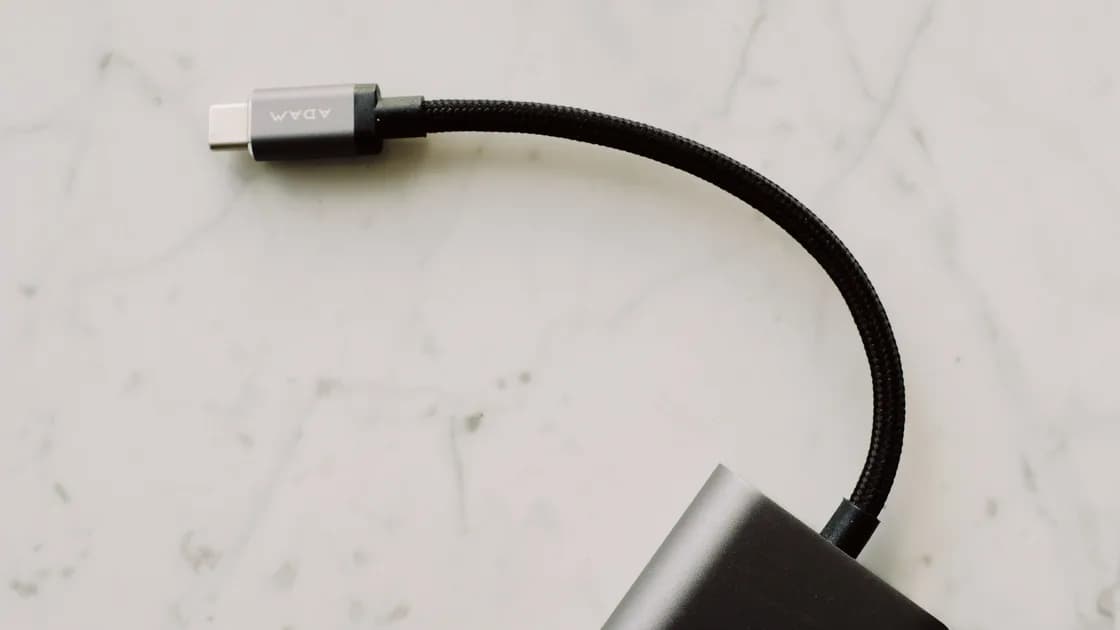
A cable can provide power while its data conductors are missing, damaged, or unsupported. “It charges” does not prove it can tether.
If the phone appears nowhere as a data device, stay at the USB layer. Restart the phone and computer, apply official OS updates, and retest. Do not install a generic USB driver pack. For Android-to-Windows, use Windows Update and the exact phone or PC manufacturer's official support if a device-specific driver is required.
If the connection repeatedly appears and disappears, remove hubs and gently test without moving the cable. Intermittent power or data contact can look like a network failure but must be fixed as hardware first.
USB tethering may not become available until the phone permits a data relationship.
For iPhone:
Apple's connection and troubleshooting documents require trusting the computer and checking that the device is recognized. Do not approve trust on a public, borrowed, or unknown computer. Trust can expose device information and synchronization capabilities beyond network access.
For Android, unlock the phone and use the normal USB/tethering settings supplied by the manufacturer. A USB mode notification may distinguish charging from data functions. USB debugging is not required for ordinary tethering and should remain off.
If a prompt never appears, do not repeatedly reset privacy settings as a first step. Verify the cable and software recognition, restart both devices, and follow the phone manufacturer's current instructions.
Google's current instructions start from Quick Settings: after you connect the cable, a notification appears, then you touch and hold Hotspot and turn on USB tethering. Device makers may rename or move the switch, so follow your phone maker's current path if Hotspot is missing from Quick Settings. If the toggle is grayed out, first confirm the USB data connection, cellular data, and carrier permission.
Apple advises turning off Personal Hotspot when it is not needed to avoid unnecessary cellular data charges.
This is primarily a USB data problem. Use a known-good data cable, connect directly, unlock the phone, check trust/accessory prompts, and confirm the phone appears in Finder or Apple software. Do not change DNS or reset network settings while the computer cannot recognize the device.
Confirm cellular data works, the plan permits tethering, the cable has established a data connection, and the phone is unlocked. On a managed device, policy may disable sharing. On Android, some manufacturers expose USB tethering only after a compatible USB connection exists.
On Windows with iPhone, verify Apple Devices or iTunes is current. On Mac, inspect System Settings > Network for the iPhone USB service. Apple says that if iPhone USB is missing on Mac, add the service through the Network actions menu, select iPhone USB, and create it. If the service exists but is inactive, reconnect after confirming trust.
For Android on Windows, check Device Manager only to identify the exact device state; do not remove unrelated USB controllers or install random drivers. Use official support for the precise phone and Windows version.
Retest cellular data on the phone. Confirm the correct SIM or eSIM and tethering plan, then disconnect and reconnect the USB link. Test multiple unrelated destinations. If every destination fails, the cellular upstream or carrier policy is more likely than a single website.
DNS changes are not a default tethering repair. Do not replace resolver settings unless evidence specifically isolates name resolution and you have recorded recovery values.
Connect directly without a hub, try another data cable and port, keep the phone and computer powered, and avoid moving the cable. Watch whether cellular service drops at the same time. Heat, a damaged connector, power instability, OS sleep, or carrier transitions can all interrupt the link.
If the disconnect affects only one computer, compare another supported computer. If it follows the phone and cable, focus on those. Record timestamps and whether the device disappears from Finder, Apple Devices/iTunes, or Windows device lists when the network drops.
Start with what changed since the last good connection. After a phone or computer update, unlock the phone, answer the trust prompt again if it appears, and confirm Apple Devices or iTunes is still current on Windows. A cable that has been bent at the connector for months can lose data contact while it still charges. A new plan, SIM swap, or roaming change can also remove tethering permission, so recheck cellular data and the plan before changing computer settings.
For iPhone on Windows, update Windows and the official Apple Devices app or iTunes, restart both devices, and verify trust again. Do not download an Apple USB driver from a third-party archive.
For iPhone on Mac, update macOS and iOS, confirm the iPhone is visible in Finder, and verify the iPhone USB network service. Apple also suggests disabling and re-enabling that service as a supported check. Preserve other Network services.
For Android on Windows, update Android, Windows, and manufacturer-supported software. Check whether the phone is recognized as a data device before treating the issue as networking.
For Android on Mac, stop: Google's official support matrix does not provide USB tethering. Use a supported alternative rather than modifying macOS network internals.
If other connections on the same computer fail too, not only USB tethering, step back to the broader device and network troubleshooting checklist to separate the device, app, and network layers.
If you need to share a Windows upstream with multiple clients, use the Windows Mobile Hotspot guide. For Mac connection forwarding, use the Mac Internet Sharing guide. Once the computer is online through the phone, check where your VPN actually runs: a tunnel on the phone may not carry the computer's traffic, so run the VPN on the computer doing the sensitive work.
Network reset can erase saved Wi-Fi networks and passwords and reset cellular, VPN, and APN-related settings. Apple lists Reset Network Settings late in Personal Hotspot troubleshooting and describes this wider impact. Windows reset can reinstall adapters and affect VPN or virtual-network software.
Before any reset, record Wi-Fi credentials, APN information supplied by the carrier, VPN and managed-device requirements, and custom network services. Do not reset when the unresolved evidence still says “charge-only cable” or “unsupported Android-to-Mac pairing.” A reset cannot add missing data conductors or change the support matrix.
Never root or jailbreak a phone, enable USB debugging, install third-party tethering tools, or bypass carrier restrictions to make this procedure work. Those actions expand security and support risk beyond ordinary troubleshooting.
USB tethering depends on a supported phone-computer pairing, working cellular service, an allowed plan, a real data cable, trust or accessory approval, device recognition, and the correct phone and computer network service. Android-to-Windows and iPhone-to-Mac/Windows have official paths; Android-to-Mac USB tethering does not. Diagnose charging, recognition, network, and upstream failures separately, and reserve network reset for the end.
Not through Google's supported USB tethering procedure. Google states that Mac computers cannot tether with Android by USB. Use a supported Wi-Fi or Bluetooth method instead.
Yes, according to Android's tethering instructions, if cellular service, plan permission, a data-capable cable, and Windows device recognition are in place.
Yes. Install the current Apple Devices app or iTunes, connect with a data cable, unlock the iPhone, approve the accessory, and trust the computer.
It may be charge-only, damaged, or connected through an incompatible hub or port. Use a known-good data cable directly and confirm the phone appears as a data device.
No. Ordinary USB tethering uses normal Android settings. Leave USB debugging off.
The phone may not have a recognized USB data connection, cellular data may be unavailable, the plan may restrict tethering, or device policy may disable it.
Open System Settings > Network. If iPhone USB is absent after the phone is trusted and connected, Apple documents adding it as a network service.
Only after supported pairing, plan, cable, trust, recognition, and service checks fail. Record Wi-Fi, cellular, APN, VPN, and managed settings first because reset has wider effects. AethoVPN cannot make a phone appear as a USB network adapter when the cable, trust prompt, carrier plan, or driver prevents tethering.
Sources checked 4 October 2026.
Sign up to experience all premium features at no cost.
*Available only to new users. Each user is limited to one trial.