Start your 3-day free trial
Sign up to experience all premium features at no cost.
*Available only to new users. Each user is limited to one trial.
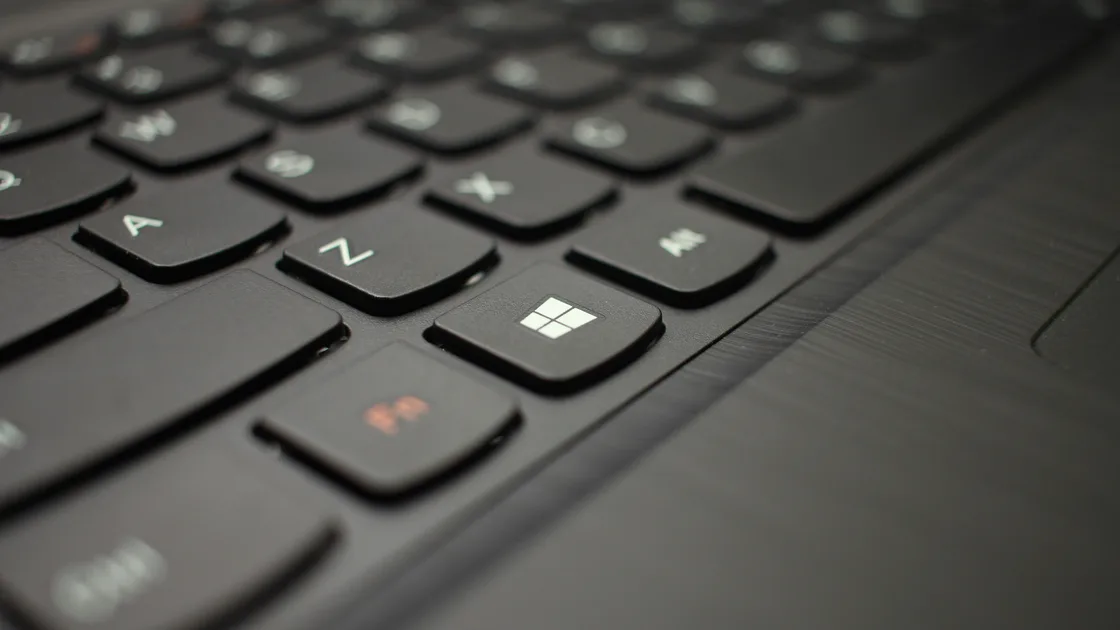

When you find the Windows Start Menu not working, first compare the Start button with the Windows key and confirm whether the failure is limited to the menu. A blank menu, a menu that closes immediately, broken search results, and an unresponsive taskbar can look similar but lead to different repair paths.
Save open work before restarting Windows Explorer or signing out. Those actions can close File Explorer windows and interrupt an unfinished file operation, even though they are much narrower than resetting Windows.
Key Takeaways
- Test both the Start button and the Windows key before changing settings.
- Separate Start, Search, the taskbar, and the wider Windows shell.
- Save work before restarting Explorer or the sign-in session.
- Install supported Windows updates before attempting recovery options.
- Treat shared failures on managed or virtual desktops as an IT issue.
For a broader diagnostic method, start with the device and app troubleshooting guide. It helps you record the first symptom and compare one account, device, and session without changing several variables at once.
Run four simple tests close together. Click the Start button, press the Windows key, click a pinned taskbar app, and open File Explorer with Windows+E. Record exactly which actions work.
| Result | Most useful branch |
|---|---|
| Windows key opens Start, but clicking does not | Pointer, taskbar surface, or input path |
| Both inputs open a blank or closing menu | Start or the current shell session |
| Start opens, but typed queries are wrong or empty | Windows Search rather than Start |
| Start, taskbar icons, and system tray all ignore input | Wider taskbar or shell failure |
| Only one pinned app fails | That app or shortcut rather than Start |
Microsoft describes Start as a menu containing Search, pinned items, installed apps, recommendations, account controls, and power controls.[1] One missing section is therefore different from the entire menu failing to open. For example, an empty Recommendations area can be a personalization choice, while a Start surface that never appears is a shell symptom.
If Start opens normally but search results do not, follow the Windows Search troubleshooting guide. If the full bar is missing or not responding, use the Windows taskbar checks. Keep these branches separate so a search-index problem does not trigger a shell repair.
Also test an external mouse only if one is already available and trusted. If the Windows key works but every pointer action fails across apps, the Start button is not the only affected control. Do not install a third-party Start replacement to hide an unresolved input or shell problem.
A Start menu can fail in several distinct ways. Write down the closest description instead of saying only that it is broken:
Microsoft documents the taskbar as separate areas for Start, Search, Task view, applications, and the system tray.[2] That division is useful evidence. A frozen system tray with a working Start menu points away from a Start-only failure, while a working application button with a dead Start surface narrows the scope.
Check whether the problem began after a Windows update, a new sign-in, display docking, a shell customization tool, or a policy change. Record the update name or time if visible, but do not uninstall updates at random. A restart may complete a pending update and change the symptom before any repair is necessary.
On a work or school PC, note whether settings are labeled as managed. Missing power actions, fixed pins, or a locked layout can be intentional policy. Do not remove a management profile, edit Group Policy, or delete provisioned packages to make the menu resemble a personal PC.
You do not need a working Start menu for every safe comparison. Use only built-in paths you recognize:
These are access paths, not proof that Windows is healthy. If Ctrl+Alt+Delete works but the desktop does not, the secure screen and the user shell are behaving differently. Save documents from responsive apps before restarting anything.
Avoid copying commands from an unknown repair page into PowerShell, Command Prompt, or Registry Editor. A command that removes and re-registers packages can affect more than Start, and its assumptions may not match your Windows build or device-management state.
If you cannot reach any built-in path and the entire desktop is frozen, wait briefly for disk or update activity to settle. A forced power-off can lose unsaved work and should be reserved for a machine that cannot respond to normal restart controls.
Restarting Windows Explorer can rebuild the current desktop shell without rebooting the entire computer. First finish or pause file copies, save documents, and close File Explorer windows that contain unsaved rename or move operations.
Open Task Manager with Ctrl+Shift+Esc. If Task Manager shows Windows Explorer, select it and use its Restart action. The taskbar and desktop may disappear briefly, then return. Retest the Start button and Windows key before changing another variable.
If Explorer is not listed, Task Manager does not respond, or restarting it changes nothing, use Ctrl+Alt+Delete and sign out. Signing out closes applications in that account, so confirm the work is saved. Sign back in and repeat the four baseline tests.
A full Windows restart is the next reversible step. It also completes some pending update work. Do not treat a temporary recovery after restart as a permanent diagnosis: note whether Start fails again after sleep, docking, opening a particular utility, or signing into the same account.
If only one user account is affected and a separate authorized account works, the evidence points toward that user profile or its shell state. Do not create accounts repeatedly or move the user profile folder manually. Preserve data and ask support to evaluate the account-specific evidence.
After a restart, open Windows Update through a working Settings path and install supported updates offered for the device. Keep the computer connected to power and allow the required restart to finish. If Windows Update itself is stuck or failing, use the dedicated Windows update troubleshooting sequence instead of mixing update repair with Start repair.
Remove or disable a recently installed third-party shell customization tool only through its supported uninstall or settings path, and only after preserving its configuration. Do not delete its files from Windows directories. If the problem began after endpoint or management software changed, contact the administrator rather than disabling protection.
Windows recovery options are an escalation, not a first response. Before considering repair installation, system restore, or reset, confirm a current backup, recovery credentials, BitLocker recovery information where applicable, and the effect on installed apps and settings. A Start-only symptom does not justify erasing a PC.
The goal of each check is to produce evidence: did the issue affect one session, one account, or every account; did it begin after a specific update; and did Explorer restart change the result? That evidence is more valuable than running a long list of commands without retesting.
Microsoft documents a specific issue in which Explorer, Start, Settings, the taskbar, and Windows Search can fail on a limited number of enterprise or managed Windows 11 devices, particularly around provisioning and non-persistent virtual desktop sign-ins. Microsoft also says this scenario is very unlikely on personal devices.[3]
That distinction matters. If a newly provisioned work PC or virtual desktop shows several of those components failing together, capture the Windows version, update, sign-in type, time, and affected components, then send them to IT. The administrator can compare the environment with the applicable Microsoft resolution.
Do not apply the KB's manual package-registration or PowerShell workaround to an ordinary personal PC. It is designed for a narrow deployment scenario and can be inappropriate when the actual cause is a user profile, incomplete update, input problem, or unrelated shell extension.
Escalate immediately if policy prevents updates, the issue repeats on every fresh virtual session, several users receive the same failure, or the administrator controls the Windows image. Your useful contribution is a clean symptom matrix, not an attempted policy bypass.
Before any destructive recovery, record:
Do not send screenshots containing account names, organization details, file paths, or notifications unless support needs them and you have removed private information. Exact text from an error is usually more useful than a full desktop capture.
Stop local experimentation if the menu failure is accompanied by storage errors, repeated profile-loading errors, a BitLocker prompt you cannot satisfy, or signs of hardware trouble. Preserve the backup and let the device owner or manufacturer choose the recovery path.
The keyboard path can reach Start while pointer input or the taskbar surface is failing. Test pointer actions in other apps and the rest of the taskbar before treating the Start menu as the only problem.
The shell panel may open before its content loads, or the current session may be incomplete. Restart Explorer after saving work, then sign out or restart Windows if the blank panel persists.
A session problem, focus change, shell customization, or wider shell fault can interrupt the menu. Record what was opened just before it closes and compare a clean sign-in before removing software.
No. If Start opens and its other areas work but typed results are missing or wrong, the failure belongs to Search. Use the dedicated search guide rather than resetting the shell.
It is narrower than restarting the PC, but it can close File Explorer windows and interrupt unfinished file operations. Save documents and finish or pause copies before using Task Manager's Restart action.
The update may still need a restart, a third-party shell tool may be incompatible, or a managed deployment may have a known issue. Record the update and retest after a normal restart before uninstalling anything.
Only use another authorized account if it already exists or support asks for a controlled comparison. A difference between accounts is evidence; it is not permission to delete or manually rebuild the affected profile.
Not as an early step. Confirm the scope, restart the shell and session, install supported updates, preserve a backup and recovery keys, and obtain support guidance before any reset.
Sources checked 31 August 2026.
Sign up to experience all premium features at no cost.
*Available only to new users. Each user is limited to one trial.