Start your 3-day free trial
Sign up to experience all premium features at no cost.
*Available only to new users. Each user is limited to one trial.
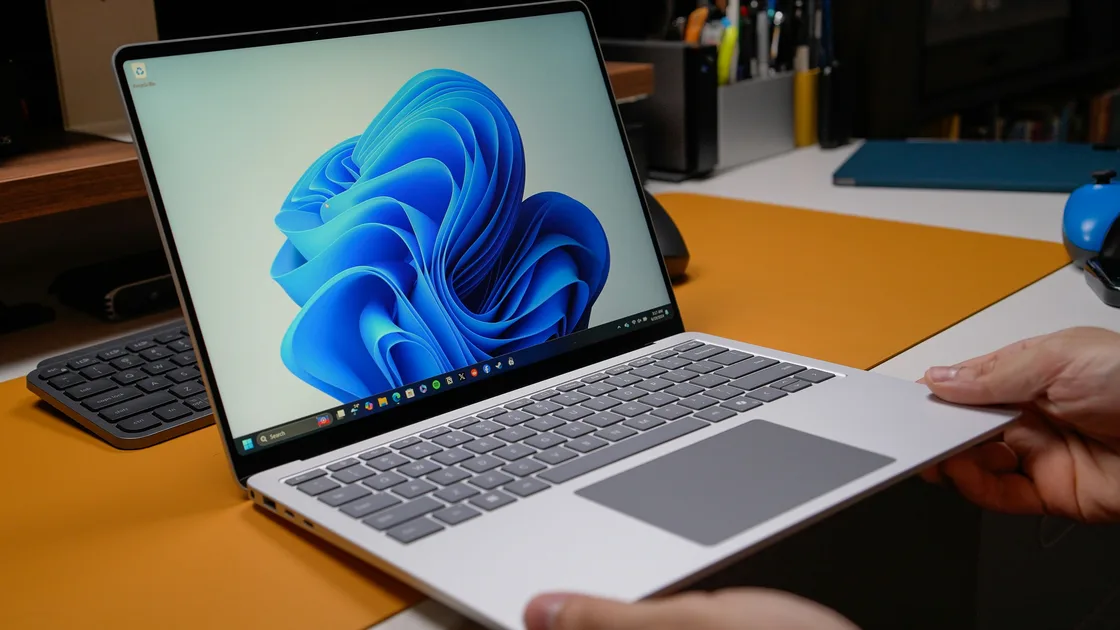

When you find the Windows taskbar not responding or not working, first rule out auto-hide, a full-screen app, or another display, then save your work and restart Windows Explorer from Task Manager. If the same controls still fail, sign out, restart Windows, and install supported updates before any system repair. Along the way, note whether the bar is hidden, visible but not clickable, limited to one icon, or broken across Start, open apps, and the system tray, because each pattern points to a different cause.
Save documents and finish important file operations before restarting Windows Explorer, signing out, or restarting the PC. A taskbar repair should not create a separate data-loss problem.
Key Takeaways
- Classify the taskbar as missing, covered, frozen, or partly working.
- Check auto-hide, full-screen apps, and every connected display.
- Separate one broken icon from the entire Windows shell.
- Restart Explorer only after saving work and noting the baseline.
- Escalate shared managed or virtual-desktop failures to IT.
Use the device and app troubleshooting guide if other system features are also failing. It provides a reversible comparison method before you change the sign-in session or system state.
Move the pointer to each screen edge and press the Windows key. Then press Alt+Tab and Windows+T. These tests help distinguish a hidden surface from a taskbar that is visible but cannot receive input.
| Observation | Likely branch |
|---|---|
| Taskbar appears when the pointer reaches an edge | Auto-hide behavior or delayed reveal |
| Taskbar exists on another monitor | Display arrangement or multi-display setting |
| Alt+Tab changes apps but the bar stays covered | Full-screen or always-on-top window |
| One icon ignores clicks but other icons work | Shortcut, app, or notification state |
| Start, app buttons, and system tray all fail | Explorer session or wider shell |
| Windows key opens Start normally | Taskbar surface may be narrower than Start |
Microsoft describes the taskbar as several areas: Widgets, Start, Search, Task view, applications, and the system tray.[1] Test at least one control in each relevant area. One stale notification icon does not prove that the application buttons or Start are broken.
If the Start menu alone does not open, use the Start menu troubleshooting guide. If the bar works but search results fail, use the Windows Search guide. Keeping those boundaries clear prevents an index problem from being treated as a display or shell failure.
Auto-hide can make a healthy taskbar look missing. Move the pointer slowly to the edge where the bar normally appears, press Windows+T, and exit full-screen mode in the current app. If the bar returns only after leaving one application, record that application and display rather than changing global taskbar settings immediately.
On a computer with more than one monitor, check every screen. Disconnect and reconnect a dock only after saving work and only if it can be done safely. A display arrangement can change which screen is primary or where the taskbar appears.
When Settings is reachable, review Personalization > Taskbar > Taskbar behaviors. Microsoft documents taskbar alignment, auto-hide, and multi-display behavior in this area, though exact options differ between Windows 10 and Windows 11.[1] Change one setting, retest, and restore it if the result does not improve.
Do not drag or resize the desktop blindly, install a taskbar replacement, or edit the Registry to force a position. If the behavior is intentional on a work or school device, a policy may restore the setting after every sign-in.
Also check pointer input outside the taskbar. If buttons in every app ignore the mouse but keyboard shortcuts work, investigate the input device rather than the shell. Conversely, if pointer input works everywhere except the bar, the shell surface remains the stronger branch.
Test Start, one running app button, one pinned but closed app, and one system tray control such as volume or the clock. Record the smallest set that fails.
A single pinned icon can point to an outdated shortcut or an app that has moved. Open the same app through an existing alternative such as File Explorer or a desktop shortcut. If the app itself will not start, follow the app launch troubleshooting guide rather than rebuilding the entire taskbar.
If an app opens but its taskbar button displays the wrong window, hangs on a badge, or stops updating a progress indicator, close the app normally and reopen it. Do not unpin and repin until you know whether the shortcut or the running application is the affected layer.
A system tray control can have a separate service or permission state. Check whether the clock, network, volume, notifications, and hidden-icons panel behave the same way. Avoid disabling audio, networking, or security services merely because their tray icons are stale.
Microsoft also documents Start as a menu with apps, settings, files, Search, account controls, and power controls.[2] That relationship explains why Start sits on the taskbar but still deserves its own symptom test. A working Start menu is useful evidence that not every shell surface has failed.
Before restarting Explorer, save open documents and confirm that no important copy, move, rename, or archive operation is still running in File Explorer. Restarting the shell can close Explorer windows and interrupt visible progress.
Press Ctrl+Shift+Esc to open Task Manager. Find Windows Explorer and use its Restart action. The desktop and taskbar may disappear briefly. Wait for them to return, then repeat exactly the same Start, app-button, and system-tray tests.
If Windows Explorer is not shown or Task Manager is inaccessible, press Ctrl+Alt+Delete. From the secure screen, sign out only after saving work; signing out closes applications for that account. Sign back in and retest before trying a full restart.
Restart Windows normally if the session remains inconsistent. A normal restart can finish pending update work and rebuild the user shell. Hold the power button only when normal controls cannot respond, because a forced shutdown can lose unsaved data or interrupt storage activity.
Write down whether the fix lasts. A taskbar that fails again only after sleep, connecting a dock, starting one customization tool, or opening a full-screen app provides a much stronger clue than a one-time restart result.
Install supported updates offered through Windows Update, then complete any required restart. If the update process itself is stuck, keep that work in the Windows update troubleshooting path rather than mixing two repair sequences.
If a known third-party taskbar or shell customization tool was installed just before the problem, use its supported settings or uninstaller. Preserve its configuration first, and do not delete files from Windows system folders or run an unknown cleanup utility.
Compare another authorized account only if one already exists or support requests it. If the taskbar works there, preserve the affected account's files and report an account-specific shell symptom. Do not rename the profile directory, copy hidden profile databases, or delete the account to force a rebuild.
On managed devices, check whether pins, visibility, widgets, or system tray options are controlled by the organization. A locked or restored setting can be expected policy. Capture the policy message and contact IT rather than removing management or disabling endpoint protection.
Recovery options such as system restore, repair installation, or reset should be considered only after a current backup and recovery path are confirmed. A single stale icon or auto-hide problem is not a reason to reset Windows.
Microsoft documents a narrow problem affecting Explorer, Start, Settings, the taskbar, and Windows Search on a limited number of enterprise or managed Windows 11 devices. It is associated particularly with provisioning before first sign-in and non-persistent virtual desktop environments, and Microsoft says it is very unlikely on ordinary personal devices.[3] Microsoft says the issue is addressed starting with Windows updates released on 23 June 2026, with the fix rolling out gradually, so ask IT to confirm the device has the latest monthly update before any manual workaround.[3]
If several shell components fail together on a newly provisioned work machine or every fresh virtual desktop session, send IT the Windows version, installed update, provisioning or sign-in type, affected components, and first failure time. The administrator can apply the current enterprise resolution for that environment.
Do not copy the KB's manual AppX registration or PowerShell commands onto a personal computer. Those steps assume a specific package-provisioning failure and can obscure the evidence or change unrelated shell packages.
The same restraint applies to online scripts claiming to reset the taskbar, reinstall Start, or remove built-in packages. If the source is not the device owner or current official guidance for the exact environment, do not grant it administrative access.
Create a short evidence note containing:
Do not include private notifications, organization names, account identifiers, or full desktop screenshots unless the support owner requests them and you have removed sensitive information. An exact sequence of tests is more useful than a generic screenshot of a frozen bar.
Stop troubleshooting locally if the issue comes with repeated profile errors, storage failures, a recovery-key prompt you cannot satisfy, or hardware symptoms. Protect the backup and let the device owner choose the repair path.
Auto-hide, a full-screen or always-on-top window, a display arrangement change, or a shell failure can hide it. Check every display, press Windows+T, and exit full screen before changing system settings; if it still will not reveal, restart Explorer after saving work.
If Task Manager opens as a small window without tabs, select More details at the bottom in Windows 10, or widen the window or open the menu button at the top left in Windows 11. If it does not respond at all, press Ctrl+Alt+Delete and sign out from the secure screen after saving work instead of holding the power button.
The shortcut, pinned item, or app may be stale while the rest of the taskbar is healthy. Open the same app through another supported path before unpinning or repairing the shell.
The tray surface or an individual service may be stale. Test the clock, volume, network, notifications, and hidden-icons panel separately, and do not disable the underlying services just to refresh an icon.
Start is positioned on the taskbar, but a Start-only failure has its own branch. Compare the Windows key, taskbar app buttons, and the system tray, then use the Start guide if the rest works.
It is a supported, narrow comparison, but it can close File Explorer windows and interrupt unfinished file operations. Save work and finish or pause copies first.
The primary-display choice, taskbar multi-display behavior, or a dock reconnect can change its location. Check Settings and the current display arrangement before disconnecting hardware or changing drivers.
Use another authorized account only as a controlled comparison. If it works, preserve the affected account and give support the difference rather than deleting or manually rebuilding the profile.
Sources checked 4 October 2026.
Sign up to experience all premium features at no cost.
*Available only to new users. Each user is limited to one trial.