Start your 3-day free trial
Sign up to experience all premium features at no cost.
*Available only to new users. Each user is limited to one trial.
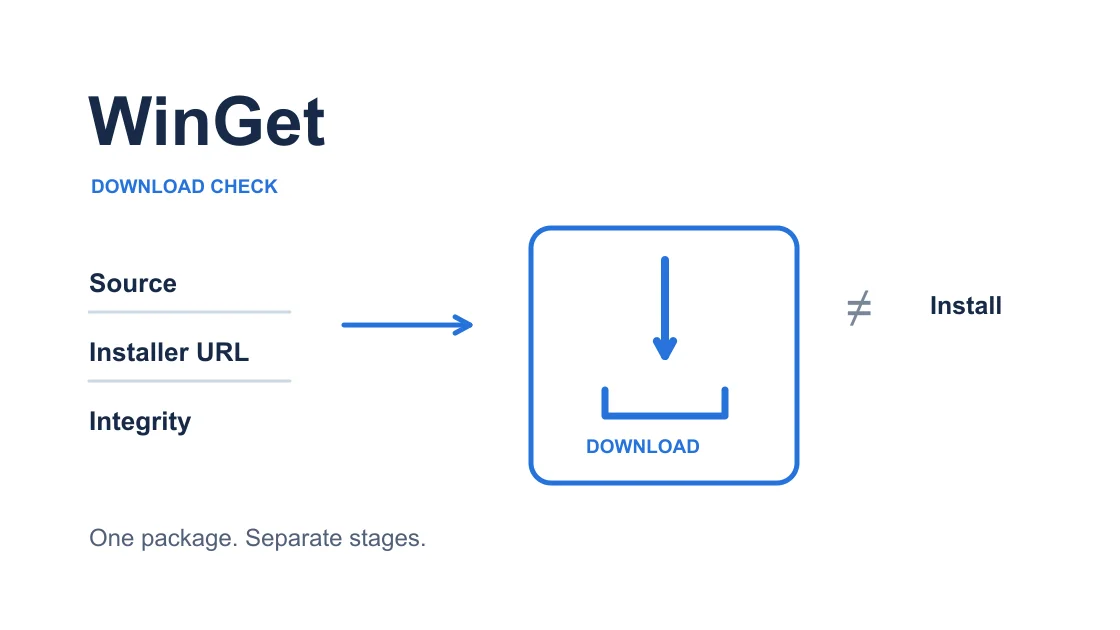

If WinGet download failed after search worked, find the first failed installer request before resetting anything. Search results prove that package metadata was reachable; they do not prove that the publisher's installer or its dependencies downloaded. Keep the package, version, architecture, and source fixed while you compare the failing stage.
Key Takeaways:
- Search, installer download, integrity checks, and installation are separate outcomes.
- Use a download-only attempt to investigate the network without launching the installer.
- Compare one package across approved network paths and retain the original error.
- A vendor refusal, hash mismatch, or installer permission problem needs its own response.
Start with a normal PowerShell or Windows Terminal session under the same Windows account that experienced the failure. Record the command, time, package ID, requested version, architecture, source name, and complete error code. Also note whether the error appeared before any transfer, during the transfer, after verification, or after an installer window opened.
Run winget --version and winget --info to record the client and locate its diagnostic logs. Copy the relevant log before another attempt makes it harder to identify; WinGet has log cleanup behavior. Microsoft documents verbose logging for cases where ordinary output does not identify the failed connection.[1]
A useful baseline is narrow: “this package's x64 installer stopped before download completion on this network.” “WinGet is broken” gives you no matching second attempt. Preserve the surrounding log lines because a later summary error may hide an earlier dependency failure.
Check the current command's --help before using an option shown below. Examples use placeholders, not a recommendation to install a particular program. Replace PACKAGE.ID, VERSION, and SOURCE with values from your actual result; do not paste them unchanged.
If several unrelated apps also fail, first use the device and application troubleshooting sequence to establish whether the whole device has a network problem. Keep the package-specific log for this investigation even if you temporarily follow that broader branch.
Read the output in order. A successful search can still select a different version or architecture from the failed attempt, so inspect the exact match rather than choosing the first similar display name. The official download command supports package ID, exact matching, version, architecture, and source filters.[2]
winget search --id PACKAGE.ID --exact --source SOURCE
winget show --id PACKAGE.ID --exact --version VERSION --source SOURCE
winget download --id PACKAGE.ID --exact --version VERSION --architecture x64 --source SOURCE --verbose-logs
Use x64 only if it matches the original task. Keep another architecture when that was the intended installer. The download command retrieves files without performing the normal install action, but it can retrieve dependencies as well; inspect each failure instead of assuming the main installer caused it.[2]
| Last meaningful result | What it establishes | Next branch |
|---|---|---|
| Source cannot refresh or query | Metadata access has not succeeded | Check the named source and its connection |
| Package appears, installer transfer fails | Metadata and file delivery differ | Identify the installer host and transfer error |
| Dependency download fails | Main package success is insufficient | Investigate the named dependency separately |
| Hash verification fails | Received bytes were not accepted | Stop; preserve the integrity error |
| Installer starts, then fails | Download progressed to execution | Diagnose installation, scope, or permissions |
A WinGet source connection may involve a different service from the installer host. Record hostnames and the selected package identity, but do not publish signed download URLs or request headers. Treat a redirected delivery host in the log as evidence about the original request, not as permission to fetch from an unofficial mirror.
Microsoft Store packaged apps have additional authentication and offline-license requirements for the download command. Do not treat an account or license prompt as an ordinary timeout, and do not add license-skipping options simply to make a network test pass.[2]
Check whether this is a personal device or one managed by an employer or school. On a managed device, ask the administrator about the named source, delivery host, certificate inspection, and approved network path. Do not disable the firewall, change enterprise policy, or install a new trust certificate on advice from an unrelated forum.
For a personal device, preserve the current system proxy and any command-level options before changing them. Follow the Windows proxy checks if an old manually configured proxy remains. If that proxy is required, validate its settings rather than removing it indiscriminately.
Do not change several settings together. A result obtained after changing the source, package version, proxy, and network cannot tell you which change mattered. Return to the original command after documenting any correction and compare the same stage again.
A browser that downloads a file successfully is a useful comparison, but it is not a WinGet reproduction. Browsers may have a different session, proxy configuration, or request identity. Microsoft notes that a vendor may reject WinGet distribution even when browser downloads work.[1]
If the log shows a certificate or trust failure, stop the download experiment and obtain guidance for the actual certificate chain or inspection policy. Turning off validation converts a diagnosable error into an untrusted transfer. It does not establish that the original secure path works.
Use an alternative network only when you are permitted to do so. Save the original result, retain the exact package selection, and avoid launching the installer during this comparison. If the publisher reports a service incident, wait for that incident to resolve before attributing repeated failures to your computer.
For a personal Windows computer, AethoVPN can provide a second route for the installer request. Connect on that computer, enable global mode, and choose a currently available location in the app. Repeat the same winget download command and compare whether the original installer and any required dependencies finish transferring with their checks intact.
This route comparison does not grant distribution permission, repair a bad package manifest, or provide administrator rights. If a 403 response persists, preserve it and follow the vendor branch rather than disguising WinGet's request. To try this comparison as a new user, start the 3-day free Pro trial; it is available once per user.
Record the two attempts separately: time, network path, package identity, first error, and final download result. A transfer that finishes only on the second route supports a path-dependent diagnosis for that package at that time. It does not establish a universal repair or a speed improvement.
Use the VPN connection verification checklist if the VPN connection itself is uncertain, then return to the package download. Opening a homepage or seeing a connected icon is not the acceptance test for this task.
Inspect WinGet's final output and destination directory together. A file appearing in Downloads can be incomplete or left over from a previous attempt; its presence alone is insufficient. Confirm that the command reports completion for the intended package and that no dependency or integrity error remains.[2]
Keep download success separate from installation. Before executing an installer, check that it is the expected publisher's package, retain the normal signature and hash safeguards, and follow the publisher's supported installation instructions. Do not suppress warnings to make the output look clean.
If a WinGet installer download error becomes a hash mismatch after changing paths, stop there. Save the package ID, version, source, and error so maintainers can examine the manifest and delivered file. Repeated downloads with integrity checks bypassed cannot prove a safe result.
Where the publisher offers an official manual download, that can be a separate supported route to obtaining the software. It does not repair the WinGet metadata or reproduce its request. If that official browser download also fails, use the browser transfer troubleshooting steps while preserving the distinction between the two clients.
Stop changing the network when the evidence identifies a different owner: a required account, unavailable version, wrong architecture, organizational restriction, persistent vendor refusal, or installer permission failure. Resolve that named condition before another identical retry. Avoid a bulk upgrade or source reset as a diagnostic shortcut.
For support, provide a sanitized reproduction: client version, Windows version, exact package selection, source, first error, approximate timestamp, and whether a download-only attempt differs between approved paths. Remove usernames, local home-directory details, tokens, private source addresses, and signed URL parameters. Share detailed logs through the appropriate support channel, not in a public screenshot.
If other Windows apps have the same symptom, the Windows application connectivity guide helps you separate a system-level issue from this package's delivery failure. A useful escalation includes both the common symptom and the package-specific evidence.
After testing, restore only settings you deliberately changed and recorded. Retain any approved correction that solved the actual problem, and label your final result as source-query, download, or installation success. These labels prevent a future reader from assuming that a successful package lookup means the application is already installed.
Search retrieves metadata, while the installer may come from the publisher's own delivery host. Check the first failed transfer and its package selection instead of treating search success as proof that every connection works.
A 403 can be a publisher refusal, including a refusal to distribute through WinGet. Record the response and check the publisher's supported route; changing networks does not grant permission.[1]
Keep the hash check enabled and stop using the suspect file. A mismatch needs examination of the selected manifest and delivered artifact, not repeated attempts with integrity safeguards removed.
An official publisher download may be appropriate when the publisher supports it. Keep that result separate from WinGet, because the browser's request and package selection may differ from the failed command.
Start under the original user context and isolate downloading first. Installation permissions are a later question; elevating immediately can change the context and obscure which phase failed.
Do not reset every source just because one installer transfer fails. Confirm whether the named source query actually fails, record custom settings, and use a targeted supported correction when the evidence requires it.
Identify the package source and authentication or license requirement before proceeding. Microsoft Store downloads can require additional account permissions; a VPN connection does not supply those permissions.[2]
Sources checked 6 October 2026.
Sign up to experience all premium features at no cost.
*Available only to new users. Each user is limited to one trial.