Start your 3-day free trial
Sign up to experience all premium features at no cost.
*Available only to new users. Each user is limited to one trial.
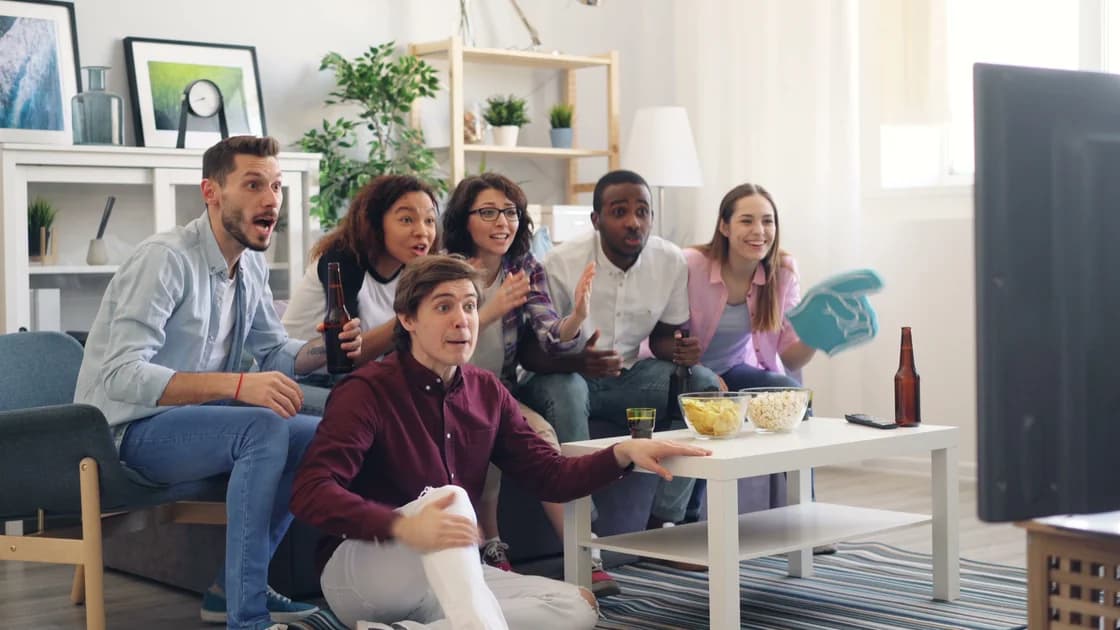

If your sports streaming plan does not include your league or the game you expected, the plan itself can still be active. The usual cause is a mismatch between the product you bought and the channel or right that carries that event—not a broken subscription.
Start by identifying the exact event and broadcaster. A league logo in an app does not prove that every game, team, market, or channel belongs to the same package.
Key Takeaways
- Confirm the billed product before buying anything else.
- Find the channel carrying the specific game, not merely the league page.
- Separate base plans, sports add-ons, league products, and team products.
- Local, national, regional, and out-of-market rights can lead to different viewing paths.
- Confirm the game’s channel entitlement and blackout rules with the rights holder before purchasing another plan.
| What you observe | Most likely layer | Best next evidence |
|---|---|---|
| League page opens, but one game is locked | Event or market right | Game detail and broadcaster |
| Sports network is absent from the guide | Package lineup | Membership and channel list |
| Local game appears on another service | Local affiliate right | ZIP-code lineup |
| Away game requires a separate product | Out-of-market package | League product terms |
Write down the league, teams, date, start time, and event page. Capture the full message shown when you press Play. “Unavailable,” “upgrade,” “not in your area,” and “sign in with a provider” point to different control layers.
Do not begin with cache clearing or a new purchase. First check whether another event on the same channel plays. If it does, the account and app are broadly working; the restriction is probably attached to that event or market.
Also distinguish live coverage from highlights, replays, and condensed games. A service may list all of them under one league hub while licensing each format differently.
Open the service's official membership or billing page and record the exact plan name. Confirm whether billing is direct or handled by an app store, mobile carrier, TV provider, or bundle partner. A receipt for “Sports” may identify an app category rather than the specific channel package you assumed.
Check the subscription owner, renewal status, and add-ons. Avoid relying on a home-screen badge or an old confirmation email. The live membership page is stronger evidence because trials, bundles, and promotional packages can change.
If the service shows the wrong tier everywhere, follow the account-restoration path in an active plan that still asks you to subscribe. If the correct tier appears, continue with rights mapping.
Use the league's official schedule or the provider's game detail to identify the network carrying this particular event. Do not assume one network owns every game in a competition. The same league can appear on a national network, local affiliate, regional sports network, digital-only service, or a league-operated product.
Search the plan's channel lineup for that exact network. YouTube TV, for example, describes local and national NFL coverage separately from the out-of-market games supplied by NFL Sunday Ticket.[1] Its general sports guidance also separates national networks, local affiliates, and regional sports networks.[2]
If the broadcaster is not in your lineup, reinstalling the app will not add it. Your decision is then whether an official add-on or another authorized distributor fits your needs.
Open the provider's current add-on list while signed into the billed account. Compare names carefully: a base live-TV plan, a sports-network bundle, a premium channel, and a league pass are different products even when they appear on one checkout screen.
Some add-ons bundle several networks and do not sell each network separately. YouTube TV's Sports Plus documentation, for example, identifies a defined channel package and says some included networks are not available as individual add-ons.[3] That illustrates why the exact lineup matters more than the word “sports.”
Do not purchase an add-on until the missing event's broadcaster appears in its official lineup. Save the lineup page and date because carriage can change.
A national broadcast normally follows the national network included in your plan. A local affiliate depends on the market serving your current or home location. A regional sports network can depend on the provider's home-area rules. An out-of-market product usually covers specified games outside the local market, not every game everywhere.
This classification explains many apparent contradictions. An out-of-market package may exclude a locally televised game because the local affiliate has the right. A national game may be absent from a league package because the national network carries it. A regional channel may exist in one ZIP-code lineup but not another.
Use the provider's official market checker with the legitimate service address. Do not invent a location. Record the resulting affiliate or regional channel so support can reproduce the same entitlement decision.
If you bought directly from a league, read its “what is included” section for live games, audio, replays, playoffs, preseason, and territorial exclusions. A team product may cover only one club, while a league product may omit nationally exclusive or locally carried events.
Check whether the account is signed into the same storefront where the product was purchased. A league add-on bought through a live-TV provider may need to be watched inside that provider rather than the league's standalone app. Conversely, a standalone purchase may not appear as a channel in the live-TV guide.
When the service offers a purchase-restore button, use it once and then re-open the event. Repeated restore attempts do not change the written rights.
If the plan, channel, and account are correct but only one game is unavailable, compare the message with the publisher's blackout or embargo rules. A blackout is a rights decision attached to an event and market, not proof that your entire sports streaming plan failed.
Check whether the game is legally available on a local affiliate, national broadcaster, or after the live window. The provider may offer a replay later even when live viewing is restricted. Our sports blackout guide explains how to document that distinction without treating a location workaround as a fix.
Do not falsify location, account region, or household data. That can breach service terms and still cannot create the underlying distribution right.
Contact the billing party first if the exact purchased product is missing from the membership page. Contact the streaming provider if the product and channel are present but the event remains locked. Contact the league only when its own product or published schedule conflicts with what the app shows.
Include the plan name, billing route, subscription owner, event, broadcaster, ZIP-code lineup, device, timestamp, and exact error. State which other event on the same network plays. This evidence lets support distinguish a catalog mapping error from an excluded right.
Ask one precise question: “Does product X include event Y on network Z in this market?” A written answer is more useful than another generic reboot checklist.
Highlights and live broadcasts can have separate rights. The league hub may aggregate both even when your plan licenses only highlights, delayed replays, or selected live events.
No. An add-on is a defined channel lineup. Even an included channel may not carry every game because other broadcasters can hold local, national, or digital-exclusive rights.
Out-of-market products commonly distinguish games carried in your local market. Check the official local affiliate and the product's territorial terms rather than assuming the package covers every team feed.
Yes. Rights can be split across national networks, local affiliates, regional channels, and league services. Verify the schedule before deciding whether another authorized product is necessary.
Not first. If the official plan lineup excludes the channel, reinstalling cannot change the entitlement. Reinstall only after the written lineup includes it and simpler account refreshes fail.
No. A blackout normally affects a particular event and market. A missing package affects the channel or product entitlement more broadly.
Send the current membership page, billing route, event page, named broadcaster, market lineup, exact error, device, and timestamp. Redact payment details and unrelated personal data.
No. A network connection cannot purchase a package, add a channel, or grant publisher-controlled rights. Use the authorized broadcaster and comply with its location and account rules.
Disclaimer: This article is for general informational purposes only and does not constitute legal, technical, or other professional advice. We make no guarantees regarding the accuracy, completeness, or timeliness of the content.
Sources
Sources checked 12 September 2026.
Related Articles:
Sign up to experience all premium features at no cost.
*Available only to new users. Each user is limited to one trial.