Start your 3-day free trial
Sign up to experience all premium features at no cost.
*Available only to new users. Each user is limited to one trial.
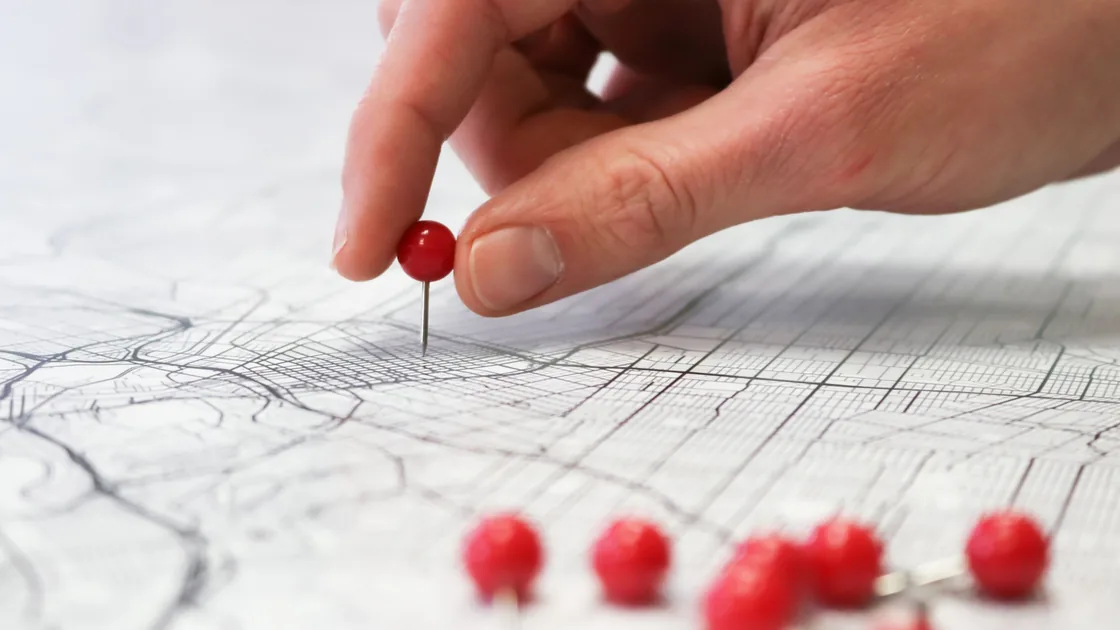

YouTube TV Home Area vs Playback Area is an account-and-location distinction: Home Area is the ZIP code of your residence, tied to local networks and recording rules, while Current Playback Area is where the device is physically being used now and can change while you travel.[2] If your TV sends you to tv.youtube.com/verify, open that official page on a phone near the TV and allow location access to refresh Current Playback Area.[1] Identify which value is wrong before updating anything, and verify the real location rather than trying to make both fields match.
Key Takeaways
- Home Area and Current Playback Area have different purposes.
- Update Home Area only after a genuine move and while physically in the new area.
- Update Current Playback Area when travel or device verification leaves the current location stale.
- A television may need a phone at
tv.youtube.com/verifywith location permission enabled.- Do not use area changes, VPNs, proxies, or altered device settings to falsify eligibility.
The Entertainment troubleshooting hub covers wider streaming issues. This guide does not diagnose an EPG clock offset: if channels are correct but their displayed times are one or more hours wrong, use the live-TV guide time-zone checklist.
Open YouTube TV’s Location section and record both labels exactly: Home Area and Current Playback Area. Note the device, account, family-manager status, real physical city or market, local time, and the message that led you there. Do not post the ZIP code, precise location, or account name publicly.
Use the symptom to choose a branch:
| Symptom | Area to inspect first | Why |
|---|---|---|
| You permanently moved and the home market is old | Home Area | The account’s base local networks need an eligible update |
| You are traveling and see the previous city | Current Playback Area | The device’s current-location verification may be stale |
| TV asks to verify location | Current Playback Area | The TV may need a phone-based location check |
| Guide clock is one hour wrong but channels are correct | Neither initially | Device time zone or EPG conversion is more likely |
| A specific event is unavailable in the correct area | Rights or blackout | Changing area is not the appropriate fix |
| A family member sees a different account location | Account/family context | Verify the signed-in account and manager first |
Changing the wrong field can create a second problem. A traveler normally updates the current playback location, not the household’s permanent Home Area.
Google says what you can watch and record on YouTube TV is based on the Home Area supplied at sign-up, and it may ask for device-location permission to verify the area.[1] Outside that home area, viewers can watch programming local to their current location but cannot record or watch networks local to the home area. That makes Home Area more than a cosmetic ZIP-code label.
Frequent travelers should also understand the return requirement. Google currently says to use YouTube TV at least once every three months in the Home Area so the service can provide the correct local networks.[1] Do not turn that platform rule into a timer workaround; plan a legitimate home-area use or contact support if your living arrangement no longer fits.
The Home Area does not set the device clock, promise every sporting event, or prove family eligibility. If the service names a regional rights restriction while both areas are correct, use the sports blackout explainer instead of changing location fields.
Change Home Area only when you have actually moved and are physically located in the new area. Google’s current help page says you cannot change it if it has already been changed twice in the previous 12 months or if you are not currently in the new Home Area.[1] These are platform eligibility limits, not technical errors to bypass.
Before selecting Update Home Area, confirm the signed-in account, family manager, new physical location, and whether the move is permanent. Record the old value so support can understand an incorrect result. Use the official YouTube TV app or site, and grant the minimum location permission required for the verification.
Do not update Home Area for a weekend trip, airport connection, temporary hotel, or one missing channel. Frequent area changes can consume the allowed updates without solving Current Playback Area. If the option is unavailable despite a genuine move, stop retrying and contact support with the account role and dates, but not your precise location history.
For a smart TV, Google instructs users to open YouTube TV, choose the profile photo, open Location, and select Update beside Current Playback Area. Then, on a mobile device, go to tv.youtube.com/verify and allow the website to access the device location.[1] Use a phone that is physically near the TV and signed into the intended account.
Check that the TV and phone are not using different Google accounts or managed profiles. Keep the verification page open only as long as needed and do not share its prompt, code, location, or account details. If the phone opens a captive portal, complete the network’s legitimate access flow before entering streaming credentials.
After verification, return to the TV’s Location page and read the Current Playback Area again. Test one local channel, but do not treat a channel’s availability as proof that every event or recording right will match the home market.
On mobile, open the YouTube TV Location section and select Update beside Current Playback Area. If the service cannot identify the location, Google may direct the device to tv.youtube.com/verify and ask for location access.[1] Keep system location services and the app or browser permission aligned.
On a computer, go to tv.youtube.com, select your profile photo, then Location, and select Update next to Current Playback Area; the Home Area update starts from the same page.[1] In the browser, inspect the site permission for YouTube TV rather than enabling location globally for every site. Confirm that the operating system allows the browser to request location and that a privacy extension is not silently denying the prompt. Reload the official page once after changing a permission.
Do not alter GPS data, developer-location settings, browser geolocation, ZIP codes, or router information to produce a desired market. The goal is to make the service read the device’s real current location. Falsified values can create inconsistent account and rights signals and may violate platform terms.
Google recommends checking the YouTube TV app’s location permission when verification fails and notes that clearing cache and cookies may help with location issues.[1] Start with the narrowest setting: confirm location access for the YouTube TV app or the specific browser site, then close and reopen the app or tab.
Record the current account and recovery method before clearing anything. Remove only the documented app cache or the site data for YouTube TV; clearing all browser storage or all app data can sign out unrelated services and erase useful evidence. Install normal app, browser, operating-system, and device updates.
Restart the device after updates. Google’s broader streaming troubleshooting also recommends closing and reopening the app, restarting the device or browser, checking updates, checking internet access, and verifying location permission.[2] Those steps support a stale client diagnosis, but they do not override Home Area eligibility.
Google states that YouTube TV and certain restricted YouTube content cannot stream while connected to a VPN or proxy and tells users to disable that layer for related playback errors.[1] If AethoVPN, another VPN, a proxy, or a location-changing network profile is active, pause it during the official location check and retest on the same device and account.
Also check whether the phone and TV are on expected networks. A corporate tunnel, mobile relay, hotel gateway, or managed DNS path can make the apparent network location differ from the physical device. Use the ordinary authorized connection for one verification, but do not expose credentials on an untrusted public network.
Do not search for a server that makes a preferred Home Area appear. This guide does not support location spoofing, blackout avoidance, or access outside subscription eligibility. If the correct direct connection still reports the wrong place, preserve the evidence and let YouTube TV support investigate its location result.
Contact the family manager when you may be signed into the wrong family account, the manager owns Home Area decisions, or different members see inconsistent account context. Use official family-group settings and do not ask another member to share a password or verification code.
Contact YouTube TV support when a genuine move meets the displayed rules but Home Area cannot update, Current Playback Area remains wrong after real-location verification, the account reports an update limit you do not recognize, or supported devices disagree. Prepare:
tv.youtube.com/verify result.Do not send passwords, one-time codes, full location history, payment details, or identity documents through a forum. Ask support to identify whether the blocked field is Home Area eligibility, Current Playback Area verification, family context, or content rights.
Current Playback Area is the device’s present physical location and may change during legitimate travel. Home Area is the ZIP code of your residence, used for local networks and recording rules, and it does not change just because you travel.[2]
Usually no. Update Current Playback Area for the current physical location. Home Area is intended for the household’s permanent market and is subject to change limits and in-area verification.
Google’s current help page tells frequent travelers to use YouTube TV at least once every three months in the Home Area. Check the official page again before relying on that interval because platform rules can change.
It is YouTube TV’s official verification page, used when the television cannot provide enough location evidence itself. Open it on a phone near the TV and allow location access to update Current Playback Area.[1] It is often searched as youtube.tv/verify, so type the address exactly as Google’s help page shows it instead of following a link from a message.
Google currently says Home Area cannot be changed after two changes in the previous 12 months. If a genuine move is blocked, contact support instead of trying to bypass the limit.
No. If the correct channels appear but guide times are offset, inspect device time zone, daylight-saving behavior, and EPG data. Playback Area is more likely when the local market or location verification is wrong.
This guide does not recommend that. Google says VPN or proxy connections can prevent YouTube TV streaming, and location verification should represent the device’s real physical location.
Sources checked 4 October 2026.
Sign up to experience all premium features at no cost.
*Available only to new users. Each user is limited to one trial.