Start your 3-day free trial
Sign up to experience all premium features at no cost.
*Available only to new users. Each user is limited to one trial.


If you are researching a home server, the direct answer is: it is worth it mainly when you have long-term, repeated local sharing or self-hosting needs. If you only move a file between devices once in a while, a cloud drive is usually easier. But if you want to centralize files, run a home media library, back up photos, or manage several home devices, a home server starts to make sense. Microsoft and Apple both document local file and service sharing as normal home-network use cases.[1][2]
The part people underestimate is not whether they can build it. It is that security becomes much more complicated once you want to access it from outside your home network. So this guide separates use cases from the security baseline.
Use the digital privacy guide as the wider checklist: it connects this issue to accounts, devices, identifiers, and data-broker exposure.
If your main concern is the home network itself, start with How to secure your home Wi-Fi: key router and IoT settings.
Key Takeaways
- A home server is most useful for centralized storage, sharing, backups, and device coordination, not performance bragging.[1][2]
- The real dividing line is remote access; once you connect back from the public internet, the security requirements rise.[3][4]
- Router settings, default passwords, remote management, UPnP, and network segmentation are easy to overlook.[3][4]
- Secure the home network and devices before opening ports or setting up remote desktop.[3][4]
- Home servers fit long-term needs, not quick experiments that immediately expose services to the internet.
The simplest definition is: a device at home that stays online and provides files or services to other devices.
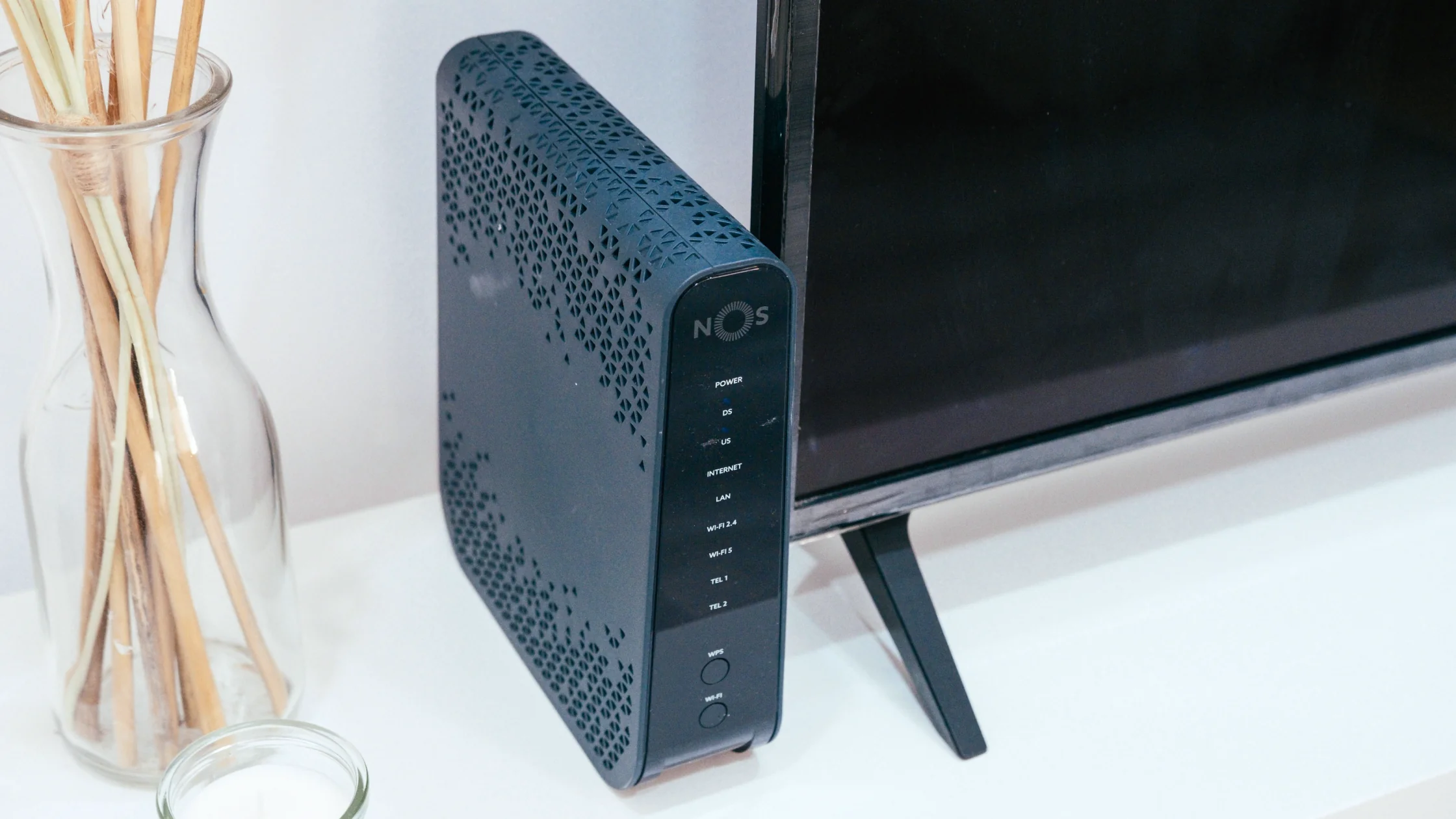
It can be an old PC, a NAS, a mini PC, or a low-power device you dedicate to the role. If it sits on your home network and provides shared services, it functions as a home server.
Microsoft and Apple both support file and service sharing on local networks.[1][2] That is why the idea is not mysterious. It just turns occasional sharing into a stable always-on node.
This is the easiest use case to understand. Files no longer need to be scattered across phones, laptops, desktops, and external drives.
If several devices at home play the same videos, music, or photo library, central storage is easier than copying files around.
Backing up computers or phones to a home server is usually more reliable than copying files manually whenever you remember.
Many connected devices already depend on the local network. If you have many of them, centralized management can keep things clearer.
You can run a test site, notes system, downloader, or development environment. This is a good way to use a home server as a long-term lab machine.
This is the most tempting use case and the riskiest one. With home server remote access, you start dealing with open ports, remote software, account protection, and router configuration.
You probably do not need a home server yet if:
If ports, LAN, public internet, and remote access still blur together, start with What is my port? Separate the port number from the currently open port.
The FTC recommends WPA3 or WPA2, changing default admin passwords, keeping router firmware updated, and turning off features such as remote management, WPS, and UPnP when they weaken security.[3] If this foundation is weak, careful server settings still sit on a weak network.
FTC guidance for internet-connected devices also says default credentials should be changed and not reused across devices.[4] Once a home server is always online, weak passwords become much more costly than they are on an ordinary appliance.
Many people start by opening ports. NSA warns that legitimate remote access software can become an entry point for attackers and recommends establishing a baseline of normal network and software activity to detect misuse.[5] A better order is:
FTC and FBI guidance both recommend segmenting or isolating different classes of connected devices so one compromised device does not easily affect the rest.[3][4][6] If your home server holds important photos, documents, or backups, it should not casually share the same flat network with every IoT device.
Microsoft’s home network sharing model is built around local networks.[1] If your need is only file sharing among devices at home, there is no need to move straight to public exposure.
If this is your first setup, use this order:
No. An old PC, mini PC, or other always-on device can fill the role.
Usually control and maintenance responsibility. You get more of both.
Usually no. Run the LAN use case first, then consider remote access.[3][5]
Review router defaults, replace default administrator passwords, check Wi-Fi encryption, and install supported firmware updates. These controls secure the home network before you expose additional server services.[3][4]
Not always, but it increases exposure, so do it only after you have a clear need and protections in place.
They can, but it is often safer to isolate high-risk IoT devices from devices that hold core data.[4][6]
Disclaimer
This article is for general home network and self-hosting security education. It is not enterprise remote access advice, NAS purchasing guidance, or a recommendation to expose services to the public internet.
Sources
Sources checked 24 September 2026.
Related Articles:
Sign up to experience all premium features at no cost.
*Available only to new users. Each user is limited to one trial.