Start your 3-day free trial
Sign up to experience all premium features at no cost.
*Available only to new users. Each user is limited to one trial.
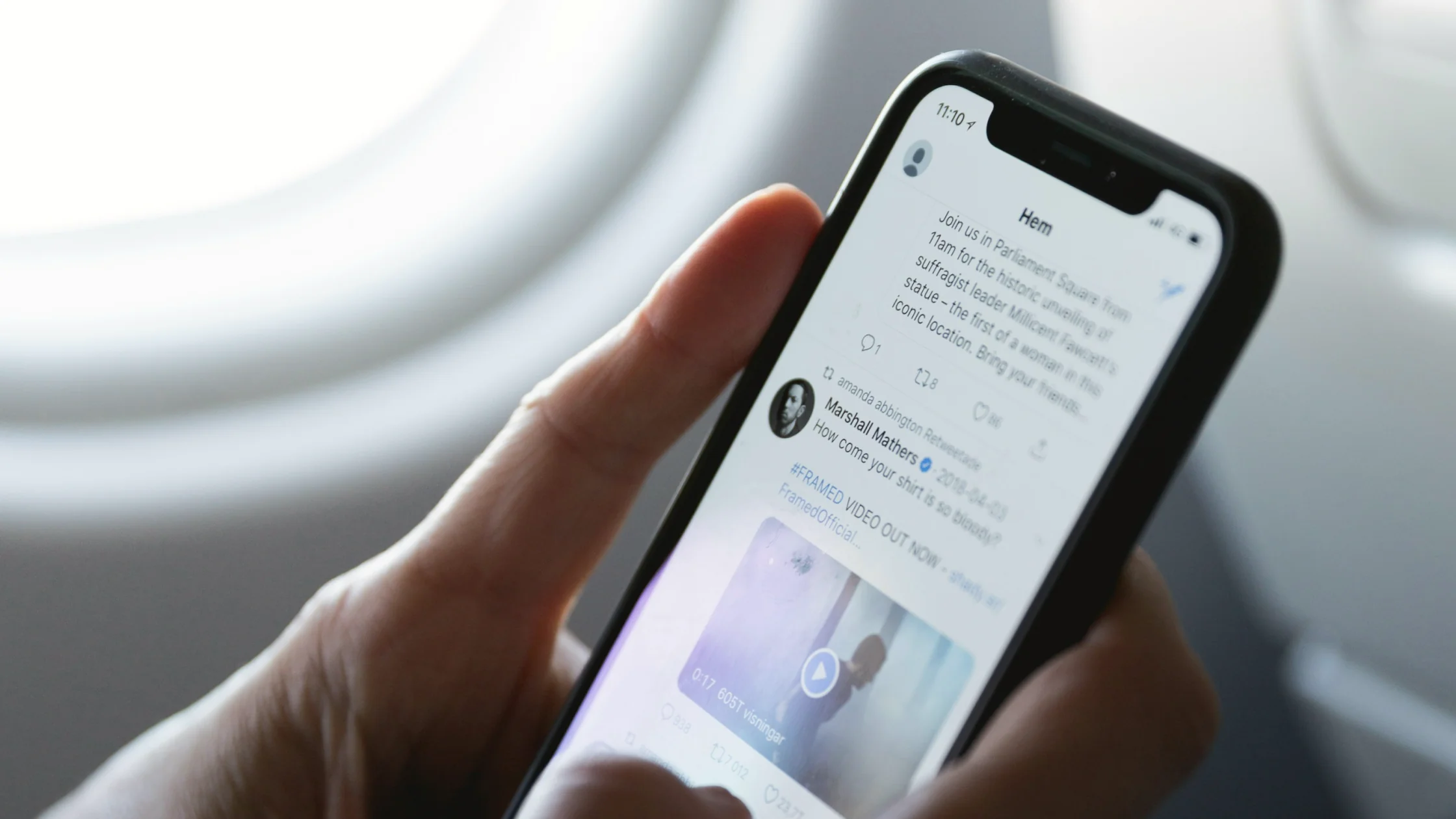

If you want to protect social media accounts, start with a practical truth: most account takeovers do not happen because someone breaks the platform itself. They happen because you clicked a fake login page, reused an old password, skipped MFA, or left the recovery path too loose. In other words, the real problem is usually entry-point management.[1][2][3]
Use the digital privacy guide as the wider checklist: it connects this issue to accounts, devices, identifiers, and data-broker exposure.
A better question than "which platform gets hacked most?" is this: which low-cost paths into my account have I accidentally left open?
For the psychology behind these attacks, read What is social engineering? How scammers get around technical defenses.
Key Takeaways
- The most common causes of social media compromise are phishing pages, reused passwords, weak recovery channels, and missing MFA.[1][2][3]
- Protecting social accounts is mostly about closing entry points before something happens, not only changing passwords afterward.[1][4]
- Email security and social media security are connected because many recovery flows depend on email.[1][4]
- Login alerts, device reviews, and third-party app cleanup are simple controls that keep paying off.[1][5]
- If an account looks wrong, clear sessions, change the password, check email, and warn contacts quickly.[1][4]
This is old advice because it still matters. After one site leaks credentials, attackers try the same email and password on social platforms, email, and payment services.[2][3]
Without MFA, anyone who gets the password has a much easier path in. CISA specifically recommends MFA for email and social media accounts.[3]
Many takeovers begin with phishing. A page can look real and still be the wrong entrance.[2][3]
If your recovery method points to an old number, a dead mailbox, or a device someone else can access, your safety net is weaker than it looks. That matches public account recovery guidance.[1][3]
Phones you sold, tablets you lent out, third-party clients, and old browsers can all leave active sessions behind. Review login activity and remove devices you no longer use.[5]
Old games, automation tools, marketing plug-ins, and campaign pages may still hold permissions. Meta also documents how third-party apps, websites, and business integrations can keep access.[6]
It does not matter whether the person claims to be support, a brand partner, or a platform reviewer. Verification codes should not be sent through private messages. In many attacks, that code completes the attacker's login.
Scammers use platform-shaped language because it works. The closer a message feels to your account status, the more important it is to check the entrance before acting.
This one is easy to underestimate. If email is compromised, social media recovery and password reset flows can be compromised with it.
If you have not checked your inbox security yet, read How to protect your email: 7 settings that matter more than changing addresses.
Do not let "I cannot remember them all" become the reason you keep reusing passwords. A password manager is usually far less painful than an account takeover.[2][3]
My priority order would be email, main social accounts, accounts connected to payments or business tools, and then other high-use accounts.[1][3]
For many people, the first warning is a message about an unfamiliar login. Meta documents login alerts and device review features for this reason.[5][7]
Once a month, check which devices are still signed in, which apps still have access, and whether any location or time looks wrong.
If two or three of these show up together, act now.
Do not follow a panic link from a message. Open the platform directly and use its official recovery flow.[1][2]
Kick out unfamiliar sessions first, then change the password. Doing only one of those is often not enough.[5]
Attackers often touch email before or after social accounts because email controls recovery.[1][4]
This cuts off secondary spread. A lot of damage happens while the attacker is still speaking as "you."
If this started after you clicked something suspicious, read What to do after clicking a phishing link: 6 steps to limit the damage.
You do not need to master security jargon first. Start with the actions that give the highest return: do not log in from messages, enable MFA for email and social accounts, use unique passwords, clean up devices and apps, and check email whenever a social account looks strange.
Phishing links, reused passwords, and missing MFA are still the most common routes.[1][2][3]
Usually not. You should also review old sessions, recovery settings, and the email account tied to the profile.[1][4]
Yes. Many people never clean them up, so the exposure grows quietly over time.
Email is often the recovery and alert channel for social accounts. If email is lost, social accounts become harder to recover.[1][4]
No control is perfect, but MFA raises the bar substantially, especially when the attacker only has a password.[3]
Yes. Scammers may not care about your follower count. They may just want to use your identity to scam contacts, spread spam, or phish more people.
Disclaimer
This article is for general digital security education and does not constitute platform appeal, legal, or enterprise social media security advice. Security options and recovery flows vary by platform.
Sources
Sources checked 8 May 2026.
Related Articles:
Sign up to experience all premium features at no cost.
*Available only to new users. Each user is limited to one trial.