Start your 3-day free trial
Sign up to experience all premium features at no cost.
*Available only to new users. Each user is limited to one trial.
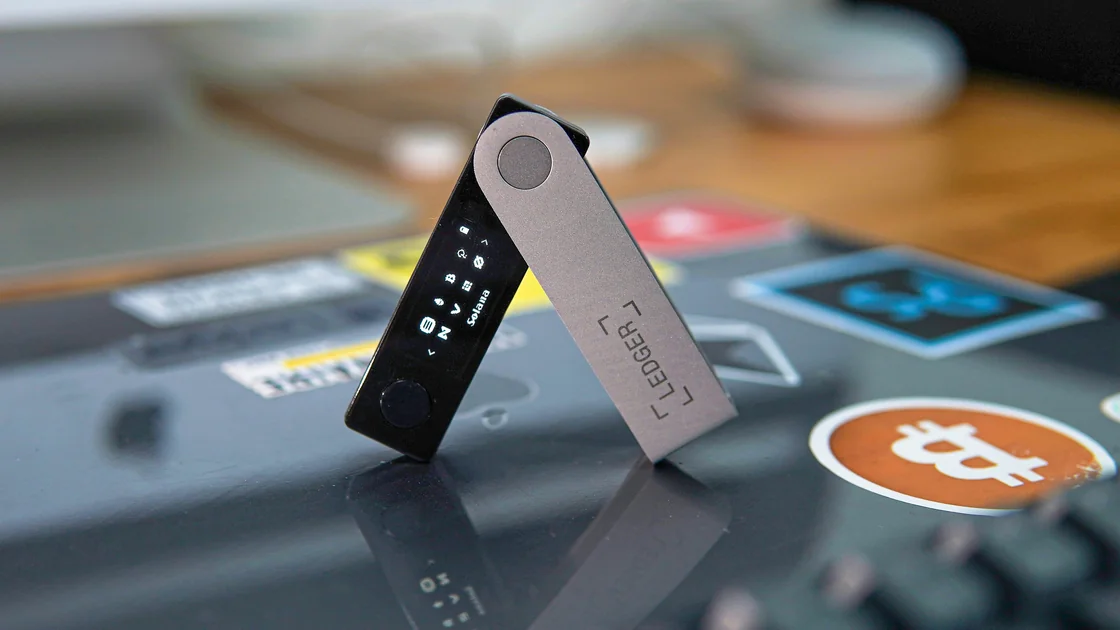

A Ledger Wallet sync error means the app has not finished reading the expected blockchain data; it does not by itself show that a transaction failed or funds disappeared. Check the affected account and backend service first, then compare connection paths without changing account configuration, resetting the device, or signing a test transaction.
Key Takeaways
- Ledger Wallet is the current name of the app formerly called Ledger Live.
- Separate account synchronization, device communication, and pending transactions.
- Wait for a service incident to resolve before using cache-clearing steps.
- A VPN can change a backend access path, but an existing VPN can also be the source of a conflict.
Ledger Wallet retrieves blockchain history to calculate account balances. Temporary network or explorer-service problems can interrupt that reading, so the app's synchronization failure must be distinguished from a change to the underlying blockchain. The official support procedure starts with the current app and service status.[1]
Ledger Live is the former name of Ledger Wallet; a Ledger Live synchronization error can therefore describe the same application family. This is not a reason to install an unofficial “repair edition” or treat an old screenshot as proof of the current interface.[2]
Use the habit of opening trusted security resources independently before following support instructions. A message offering to synchronize your wallet after you enter recovery words is not a legitimate step in this checklist.
| Symptom | Appropriate branch | What it does not prove |
|---|---|---|
| One account cannot refresh its history | That chain's backend and account selection | All accounts or funds are lost |
| Multiple backend tests fail | Local path, proxy, or service availability | A specific network provider caused it |
| App test fails but browser diagnostic passes | Application-specific problem and official support | The account has fully synchronized |
| Device cannot communicate over USB | Separate device-connection guidance | Blockchain synchronization is the cause |
| Transaction is visible but pending | Chain confirmation status | Clearing cache will confirm it |
Open the installed app's version information and reach the official Ledger download or support entry independently. If an update is appropriate, use the official distribution; do not install a package from a private message or an advertisement posing as technical support.
Check Ledger's status page for the affected blockchain explorer component and the incident details. The page reports different services, so a problem with one component need not explain a failure in another. Record the observation time and matching component; a status badge alone is not a diagnosis of your machine.[3]
When an incident matches the failing chain, wait for restoration and then retry synchronization once. Changing accounts, locations, or caches repeatedly during an outage adds variables without restoring the backend. Do not describe a status page checked for this article as evidence of an incident at the reader's later troubleshooting time.
The official synchronization procedure says to retry after service recovery and then clear cache if the issue remains. It also notes that updating Ledger OS or device applications does not necessarily repair app synchronization.[1] Do not start a firmware update or reset merely because the portfolio view is stale.
Read the synchronization notification and open the affected account's normal history view. Write down the asset, exact network, account label, error text, app version, and time. Preserve this locally before retrying; a generic “network error” paraphrase loses useful distinctions.
Check that you are viewing the intended existing account. Accounts on different networks, and multiple accounts for the same asset, can show different data. Keep account configuration unchanged during the comparison; adding an account is a separate operation, not a substitute for diagnosing one that previously synchronized.
Use a transaction hash already available from your records if an independent chain comparison is needed. Open the appropriate explorer independently and inspect only public information. Do not connect the signer, authorize a dApp, or enter a recovery phrase merely to read transaction status.
The checks for an asset missing from the wallet display address account, network, and token identity mismatches. Follow that branch when the backend is reading normally but you selected the wrong asset or account; this article stays focused on interrupted synchronization.
After the matching service is restored and the app is current, use its ordinary synchronization control. Check whether history and balance reading actually advance. An animated refresh symbol can indicate an attempt without establishing that the attempt succeeded.
If synchronization still fails, follow the official cache procedure: open the profile/settings menu, choose Help, find Clear cache, and confirm that specific action. Ledger documents this as a way to rebuild the app's synchronization view after the service problem has resolved.[1] Labels may differ by interface language or release; verify you are in the app's own help settings.
Do not confuse clearing cache with resetting the application, resetting the signer, deleting accounts, removing the recovery phrase, or configuring a new RPC. If the offered action asks to wipe accounts or initialize the hardware device, cancel and return to the official procedure.
If the history becomes readable but one transaction remains pending, consult the difference between confirmations and finality. Synchronization displays chain observations; it does not control when validators or miners include a transaction.
The desktop support guide describes a network diagnostic under the profile's Settings, Help, and Troubleshooting Network controls. It distinguishes the app result from the browser diagnostic and explains that VPNs or proxies can conflict with app access.[4] Use the labels available in your installed version rather than searching for a nonexistent control in an old screenshot.
Record which test fails. If the app fails and the official browser diagnostic succeeds, retain that distinction for support; a successful browser result is not evidence that account scanning or history synchronization finished. If both fail, compare an alternative permitted connection before assuming the application is damaged.
On a managed computer, keep organizational proxy and security requirements intact. Ask the administrator to inspect an application-specific rule or use an authorized personal device/network. This checklist does not advise disabling antivirus, all firewall protection, or TLS validation, even if a generic support page lists broad troubleshooting experiments.
If an existing VPN is active, compare once with it disconnected on a permitted network. If the original account synchronizes then, leave the conflicting VPN out of this task. Record the result and stop; buying another connection is not the next step for that branch.
Use this branch only when the service is available, the client is authentic and current, and observations still indicate that access to the original blockchain backend depends on the network path. Do not apply it to a USB error, incorrect account, service outage, or a pending transaction.
Keep the target account and chain fixed while comparing the existing permitted path with AethoVPN on the same computer. Choose an available nearby position and enable global mode for the backend-access comparison; the product offers Windows installation and a Debian/Ubuntu x64 .deb, while Mac uses the website's configuration guide and a VPN client. Use Pro or Premium for this desktop task; Standard is a mobile-device plan.[5]
Use the application-versus-tunnel verification method to keep the evidence separate. The test is successful only if the previously failing account reads correctly; an IP change alone says nothing about account synchronization.
This method may restore transport access to an available backend, but it cannot correct a backend incident, wrong account selection, unsupported transaction display, or chain confirmation delay. It is a proposed comparison, not a measured repair guarantee. For this backend-reading experiment, create an account for the three-day Pro trial, available once per new user.[5]
If neither route improves the result, retain the original settings and contact Ledger support with the observations. If the VPN introduces the error, disconnect it. Do not keep cycling countries, switch to an unfamiliar RPC, or attempt a transfer to prove that an account works.
Check the exact account and chain that failed. Its synchronization action should finish, the expected existing history should load, and balance reading should be consistent with that account's independently checked chain information. Unrelated live prices or a refreshed chart are not sufficient evidence.
For escalation, provide app/OS versions, affected chain, error wording, time, service component, and route comparison. Redact account addresses, balances, device identifiers, personal paths, and any credentials from logs or screenshots unless a trusted support process specifically needs a particular public field.
Ledger Live is the former name of Ledger Wallet. Reach the official download through Ledger's own site and follow current guidance; do not install an unofficial old-name repair package.[2]
The error alone only shows that the app's data reading failed. Compare the intended account and public chain information separately, and investigate any independent security concern without assuming the screen proves ownership or loss.
No device reset is required for this read-only checklist. App-to-backend reading, hardware communication, and recovery are different operations; follow the branch matching the actual error rather than wiping the signer.
Wait for the relevant service to recover first. The official procedure places retry and cache clearing after restoration; clearing local data repeatedly cannot restore an unavailable blockchain backend.[1]
No. A VPN or proxy can conflict with app access. If the same account reads correctly after disconnecting on a permitted network, keep that result and use the working path instead of adding another route change.[4]
It establishes a useful connection observation, not complete account synchronization. Verify that the original account loads its expected history and balance, and keep pending transactions separate from that test.
Send the app version, affected chain, exact error, time, relevant status component, and the comparison outcomes. Redact sensitive logs and never supply recovery words, private keys, passwords, or a requested test signature.
Disclaimer: This article covers read-only app troubleshooting and does not provide investment advice or guarantee asset safety. Do not move funds, approve signatures, or reset a device to validate these steps.
Sources:
Sources checked 7 October 2026.
Related Articles:
Sign up to experience all premium features at no cost.
*Available only to new users. Each user is limited to one trial.