Start your 3-day free trial
Sign up to experience all premium features at no cost.
*Available only to new users. Each user is limited to one trial.
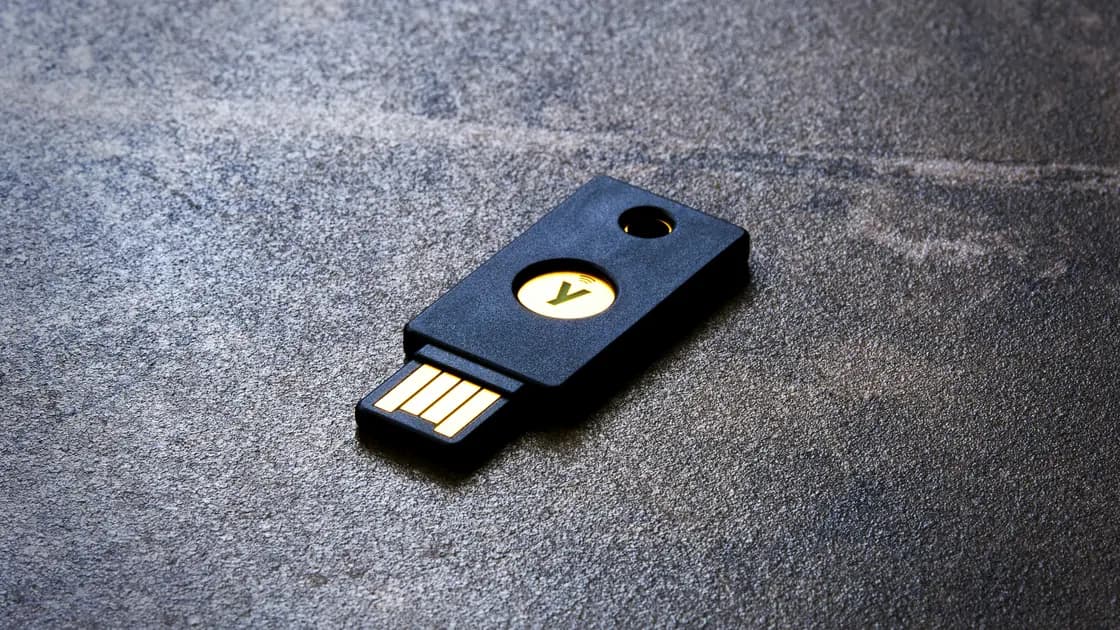

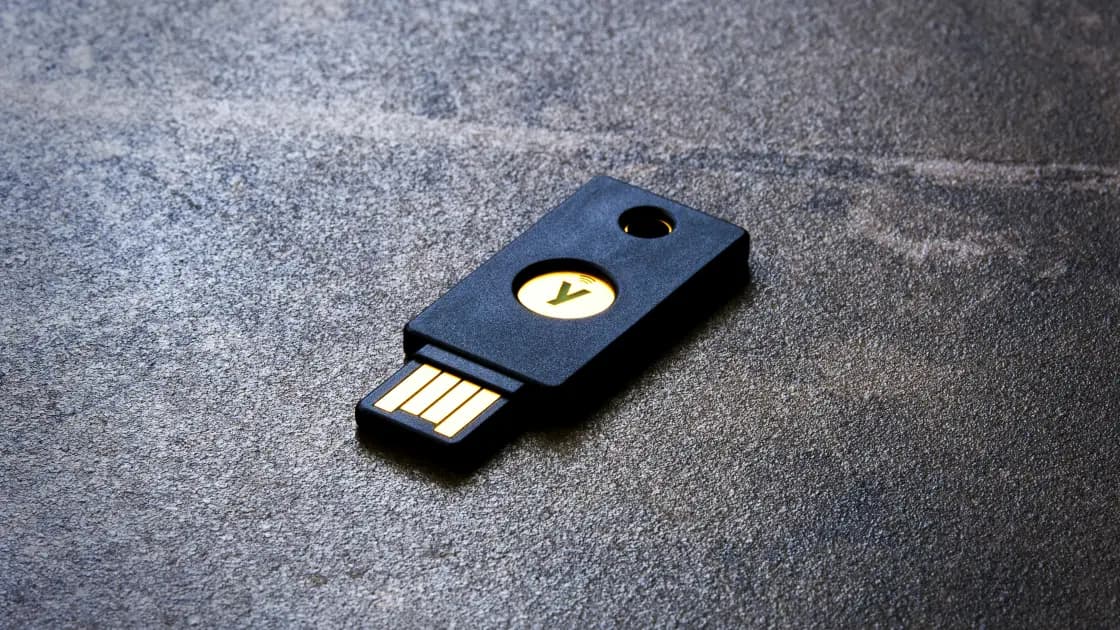
A hardware security key is a physical authenticator used to prove possession during account login. A compatible FIDO key can use public-key credentials instead of a reusable code or shared password alone. Whether it is right for you depends on the service's supported mode, your devices, and the recovery plan you establish before the key is lost.[1][2]
Key Takeaways:
- A physical key is an authenticator, while a passkey is a credential it may hold.
- FIDO authentication differs from typing a temporary code from an app.
- A USB connector or NFC label does not establish compatibility with every account.
- Register a supported backup separately; buying a spare does not register it.
- A hardware key is unrelated to the Wi-Fi password called a network security key.
In a supported public-key flow, the authenticator creates or manages a credential associated with the service. The service retains the public key needed to verify a cryptographic response. The private key is used by the authenticator rather than being submitted as a password to the website.[1][2]
When you sign in, the service sends a challenge through the supported client. You interact with the key as required, such as touching it and completing a PIN or other local verification. The authenticator responds, and the service verifies the result before continuing its account access checks.
A touch often establishes user presence, while a PIN or biometric interaction can establish user verification. These are distinct concepts; not every supported flow demands the same interaction. Follow the service's actual prompt rather than assuming touching a button proves identity in every context.
The diagram describes a supported challenge-response path, not every USB token or product mode. For the broader division of device and account responsibilities, consult the privacy protection framework.
Some products support additional modes such as generating one-time passwords or smart-card functions. A service accepting one mode does not necessarily accept another. The word security key on a product page is not enough to establish which credential and protocol your account will use.
FIDO2 combines standardized web authentication with communication between clients and authenticators. Supported security keys can participate as external authenticators. A service can use such credentials as an additional factor or within a passwordless flow, depending on its implementation and policy.[2]
Do not confuse the object with the credential. A passkey may be held on a physical key, managed by a phone or computer, or synchronized through a supported provider. Our passkey types and recovery explanation compares those credential-management choices.
A network security key is different again: it usually refers to the secret needed to join a Wi-Fi network. The Wi-Fi credential explanation covers that meaning. Buying a FIDO key does not replace the router's Wi-Fi password or change its encryption settings.
When comparing devices, identify the credential mode first, then the transport and account support. Otherwise, you may select a key with the right physical connector that cannot satisfy the account's required policy. Compatibility is a chain of requirements rather than a single logo.
An app producing temporary codes gives you a value to type into the service. A code can be disclosed to a fraudulent site or caller. FIDO authentication instead uses a credential bound to its relying party, which changes how a lookalike site can obtain reusable authentication evidence.[1][2]
Not every authenticator app is limited to codes. Some support passkeys, push-based approval, or organization-specific flows. Compare the actual mode in use rather than claiming every app has the same security properties.
| Option | What you use during login | Key consideration | Recovery dependency |
|---|---|---|---|
| Code-generating app | A temporary code | Codes can be disclosed to an impostor | App backup or registered alternate method |
| Synced passkey | A supported device approves a credential | Provider and ecosystem compatibility | Provider account and other supported devices |
| Device-bound platform credential | The registered device authorizes use | That device must remain available | Separate registered credential or service recovery |
| External FIDO key | A compatible physical authenticator | Service, client, transport, and policy support | Separately registered backup or service recovery |
A physical key can be useful when you want a separate authenticator for high-value accounts or an organization requires it. A synced passkey can be more convenient across supported personal devices. Neither choice eliminates the need for safe recovery, local device protection, and attention to the action being approved.
For people using password-based fallback, the password manager safety guide remains relevant. A stronger primary factor does not make reused fallback passwords or an insecure recovery mailbox harmless.
Confirm the service supports the intended authentication mode. Check its official setup guidance, account eligibility, organizational policy, and supported clients. A key may be compatible with a personal service but prohibited or restricted by an employer's identity policy.
Match the key's transports to the devices you actually use. USB-A, USB-C, and NFC availability differ across hardware; adapters and browser support can also affect the experience. A mobile device's NFC hardware does not by itself guarantee that every app implements the required flow.
Review PIN or biometric requirements and supported credential capacity where relevant. These properties affect use, but their details vary by model and firmware. Consult current manufacturer documentation rather than assuming that two keys with the same appearance behave identically.
| Decision | Verify before relying on the key | Safe acceptance condition |
|---|---|---|
| Service support | Official account setup instructions | Intended mode is explicitly supported |
| Device transport | Connector or wireless interface | Primary and backup devices can complete the flow |
| Organization policy | Administrator requirements | Registration is approved for the account |
| Local verification | PIN or biometric requirement | You understand the prompt and recovery limits |
| Backup access | Alternate credential policy | An independently registered method works |
The Microsoft enterprise guidance is an example of why policy and client support matter: the available authentication methods and restrictions are administered for that environment. It should not be generalized into a claim that every personal website accepts every FIDO key.[2]
Avoid choosing solely on a manufacturer's broad security claim or a list of supported brands. The useful evidence is whether your own account can register and use the intended mode under its current policy. Keep the official support route available if the setup differs from a generic guide.
Register the primary authenticator through the verified service's security settings. Confirm that you are adding a credential to the intended account, and name it descriptively if the interface allows that. The service's procedure determines whether a password, existing factor, or administrator approval is required.
Register the backup separately under the same account's supported process. It is not automatically a copy of the primary key, and purchasing a spare does not grant access. Verify its login path before putting it away; a backup that has never been enrolled cannot resolve a later lockout.
Store the spare independently from the primary device or bag. Losing both together defeats the separation. Keep recovery codes according to the service or organization's instructions, without storing the only copy alongside the object whose loss they are intended to cover.
Test carefully while preserving a working access path. Do not delete the existing authenticator merely to prove the new one works. Record which account has which credential and which verified support channel owns recovery, but do not write private keys, PINs, or recovery codes into an ordinary inventory.
For a VPN account, check its actual supported authentication options before planning to register a key. The VPN account login and recovery checklist helps with that review; network tunneling does not establish support for an external authenticator.
Use an already registered, approved alternate method. Then revoke or remove the lost credential through the service's supported settings or verified administrator. Credential revocation and ending existing sessions are different actions, so examine both when the loss may involve an unlocked device or other account evidence.[3]
A lost object does not automatically prove account compromise. The required PIN, user verification, service mode, and other available information affect what another person can do. Still, do not wait for proof of misuse before following the organization's loss-reporting policy.
The business-trip security key recovery guide covers that incident workflow in detail. This article addresses selection and preparedness rather than repeating the travel-specific response procedure.
If no alternate method exists, follow the service's verified recovery process. Do not bypass identity checks or trust someone selling guaranteed recovery. Recovery may take time because the provider must establish account ownership rather than merely replace a piece of hardware.
An authenticator does not clean malware from your computer or validate every transaction you perform after login. A compromised active session can remain dangerous even when the original authentication was strong. Keep the endpoint supported and review the service's session controls.
Recovery channels can be weaker than the key-based login. Inspect email ownership, backup methods, help-desk identity checks, and notification settings. A strong primary factor should not distract you from an easier alternate path into the same account.[3]
Physical security also matters: protect the key, know its account registrations, and report loss through verified channels. A PIN should be handled as a secret, not attached to the object it unlocks. Strong authentication works best when its lifecycle remains understandable to the person responsible for it.
No. A hardware authenticator participates in account login, while a network security key usually means the Wi-Fi password. They protect different interactions and cannot be substituted for each other.
A service must support the intended authentication mode and client environment. Check official account instructions and organizational policy before assuming a physical connector guarantees successful registration or login.
A touch can demonstrate presence, while a PIN or biometric check can verify the user locally. The required interaction depends on the authenticator and service mode, so follow the verified prompt.
A suitable FIDO authenticator can hold a device-bound passkey. Passkeys can also be managed through platforms or synchronization providers, so the credential and the physical object are distinct concepts.
That depends on the app's actual mode. Code-generating apps, push approval, and passkey-capable apps have different properties, so compare supported flows and recovery rather than the app label alone.
No. The spare must be separately registered with each relevant service under its supported procedure. Test the approved path and store it independently so that one loss does not remove both options.
Loss alone does not establish successful access, but it calls for the approved response. Review authentication requirements, revoke the lost credential, and inspect account activity and sessions where appropriate.
Strong authentication does not remove malware or control every action within an authenticated session. Secure the device, recovery channels, and service authorization as separate parts of the account's protection.
Sources checked 5 October 2026.
Related Articles:
Sign up to experience all premium features at no cost.
*Available only to new users. Each user is limited to one trial.