Start your 3-day free trial
Sign up to experience all premium features at no cost.
*Available only to new users. Each user is limited to one trial.


A good VPN for family travel setup should start with members, devices, networks, and recovery contacts, not a shared password. Each phone, laptop, and tablet has its own owner and connection state. A VPN can protect part of a supported device's network path, but it does not provide mobile data, make every family account safe, or create a single household shield. Keep credentials private and follow the provider's current account rules.
Key Takeaways
- List every traveler, device owner, sensitive task, and fallback contact before departure.
- Install and test the VPN separately on each supported device; one phone's tunnel does not cover another device.
- Do not share an account password with relatives, friends, or travel companions.
- When a device limit is reached, use the provider's official device-management flow instead of borrowing credentials.
- Keep work, school, child, and borrowed devices under their own policies and recovery paths.
Create a small table before the trip:
| Person or role | Device | Owner or manager | Sensitive tasks | Fallback |
|---|---|---|---|---|
| Adult traveler | Phone | Personal | MFA, payments, maps | Another trusted device and recovery contact |
| Child traveler | Phone or tablet | Parent plus platform account | Messaging, school, media | Parent-controlled recovery route |
| Work traveler | Laptop | Employer | Company files and remote access | Employer IT contact and offline work |
| Shared or borrowed device | Any | Another person or organization | Avoid account recovery or banking | Use a personal trusted device |
This is different from the multiple-device travel guide, which focuses on checking each endpoint. This article adds family ownership, consent, support, and recovery responsibilities.
Treat credential sharing as unsupported unless the provider's current official terms explicitly permit it. The account holder should use their own credentials and review the plan's device rules before adding another device. If a plan offers a member or family mechanism in the future, verify that mechanism in the current official terms before describing it as supported.[3]
When a service reports a device connection limit, use its current official device-management flow to review or remove old or lost devices; contact support if the account state remains unclear. Do not log a second person into the account to work around the limit, and do not send passwords or recovery codes in a group chat.[4]
A family travel arrangement works better when each responsibility has one owner. Decide who can approve a new app, who receives a lost-device alert, and who can contact the employer, school, carrier, or VPN provider. Keep those contacts offline, and agree that no one will “fix” another person's account by borrowing a password. After every network or SIM change, each person should confirm their own device, account, and service state before doing sensitive work.
Separate three boundaries when you plan: the account boundary, the device boundary, and the network boundary. An account owner controls credentials and recovery; a device owner controls updates, screen lock, and local data; the network owner controls coverage, captive-portal access, and terms. A VPN can affect part of the network path on one device, but it does not transfer any of those responsibilities to another family member.
For every personal device:
For AethoVPN, count each account holder's own devices before choosing a plan: Pro allows two computers and two mobile devices at once, Premium eight devices of any type, and Standard a single mobile device, with tablets counted as mobile. Sign-in uses an email verification code rather than a password, so step 3 never needs a password in the family chat, and step 4 means connecting on trusted Wi-Fi and then again on cellular data. Install the Windows .exe or Android APK, or use the website setup guide for an iPhone, iPad, or Mac, which needs Pro or Premium. A larger device allowance does not change the account-sharing rules in the official guidance,[3] so compare Pro and Premium device limits against the devices each account holder carries.
For Apple and Android devices, enable the platform's own device-finding and recovery features separately; a VPN does not replace device tracking or account recovery.[5][6]
Work or school devices may require an employer or school VPN, endpoint agent, certificate, or remote desktop. Ask the owner before installing a personal VPN.[2] A child's device may have platform, school, or guardian controls that a personal VPN does not replace.
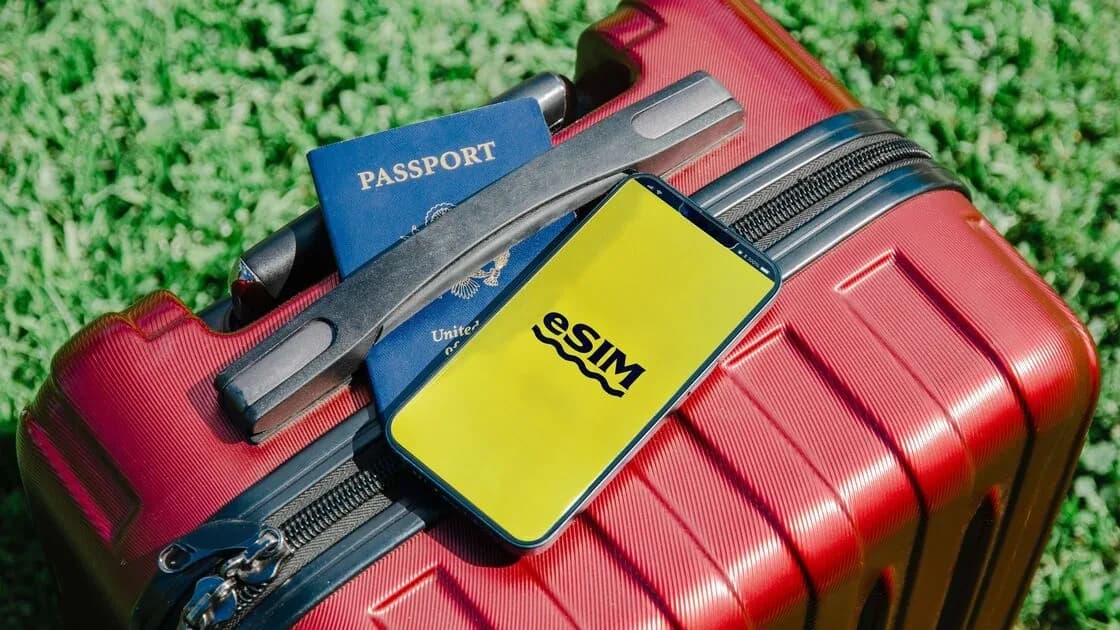
Family members often use different networks at the same time. One phone may use roaming, a tablet may use hotel Wi-Fi, and a laptop may join a personal hotspot. A hotspot changes how devices reach the internet but does not automatically protect each endpoint. An eSIM or roaming plan provides connectivity; a VPN is a separate network-path layer.
When joining hotel, airport, campus, or café Wi-Fi, verify the exact network and complete its captive portal before starting the VPN. Prefer a trusted fallback for sensitive work. Keep offline copies of tickets, contacts, maps, and medical information so a child or adult does not need to log in from an unknown device during a network outage.
Agree on a simple family check-in:
Do not assume that a family member's connected phone proves that the hotel network is genuine or that every other device is protected. Physical security, updates, MFA, and careful account use remain necessary even when the VPN shows a connected state.[1]
Use different recovery paths for different travelers. A child or school-managed device may need a guardian or school administrator; a work laptop may need the employer; a borrowed device may belong to another person or organization. If a device is lost, the owner should revoke sessions and start the official recovery process, while the rest of the family keeps working from their own accounts. Do not turn a shared emergency into a reason to exchange passwords.
For a hotel change, SIM swap, or airplane-mode cycle, make the check individual: verify the network name, confirm ordinary HTTPS, inspect the VPN state, and then open only the service appropriate for that device and task. If a child needs help, the responsible adult can guide the steps without taking over the child's credentials. If a work task fails, the employer's support path takes priority over a family workaround.
The goal is not to make every device identical. It is to make ownership, consent, support, and fallback visible before the family is tired, offline, or dealing with a lost phone. That is safer than assuming one connected device proves that the whole group is protected.
Before leaving, rehearse a five-minute lost-device drill: identify the owner, find the official session-revocation page, locate the recovery contact, and confirm how the rest of the family will stay connected without that device. Do the same for a work or school device with its organization. A short rehearsal exposes missing permissions and contacts while everyone still has a trusted network; it should not require anyone to reveal a password to another traveler.
Do not share credentials. Follow the provider's current account rules and use an official member or family mechanism only if the provider explicitly documents it.
Usually no. A VPN connection normally applies to the device where it is active. Check each device separately unless an officially supported network configuration says otherwise.
No. The carrier or eSIM provides connectivity. A VPN can protect part of the path after a device is online.
Not automatically. Consider the platform account, guardian controls, school rules, device ownership, and recovery path separately.
Use the provider's official device-management instructions to remove an old or lost device, then contact support if the account state is unclear. Never borrow another person's password.
Do not assume that it can or that the VPN provider supports third-party router configuration. Use only a documented, currently supported setup and keep endpoint checks for every device.
Disclaimer: This article is for general information, not legal, technical, financial, academic, or other professional advice. Before planning a VPN across family devices, check the provider's current official account-sharing and device-limit guidance; neither a VPN nor a shared login replaces each person’s recovery access, school or employer rules, or a plan for a lost phone.
Sources:
Related Articles:
Sign up to experience all premium features at no cost.
*Available only to new users. Each user is limited to one trial.