Start your 3-day free trial
Sign up to experience all premium features at no cost.
*Available only to new users. Each user is limited to one trial.
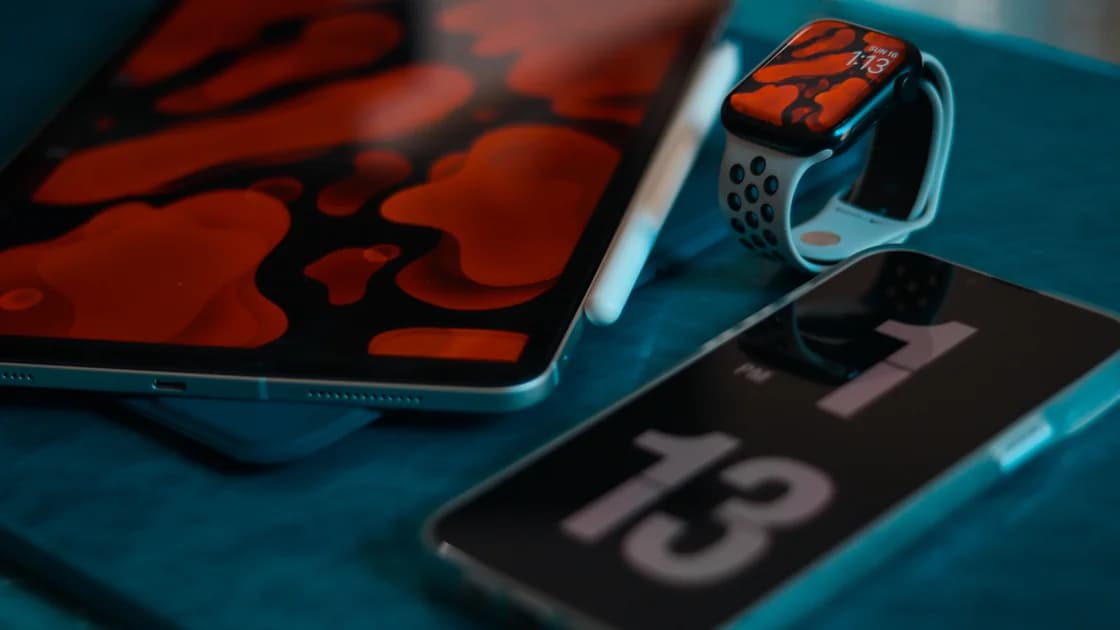

To protect multiple devices while traveling, treat every phone, laptop, and tablet as its own security boundary. A VPN on your phone does not automatically protect a laptop using the same hotel Wi-Fi, and a hotspot changes the underlying connection without securing every endpoint. CISA recommends treating mobile devices as full computers and combining connection care with physical protection.[1]
Key Takeaways
- Make an inventory before departure and assign each device a role, owner, sensitivity, and fallback.
- Install and test the VPN separately on each supported device; do not assume one connected device covers another.
- Prefer a trusted network or personal hotspot, then check the VPN state again after every network change.
- Use one account only for the account holder’s own devices within the applicable plan rules; never share credentials with another person.
- Prepare a lost-device response that includes session revocation, credential changes, backups, and employer or school reporting.
Imagine a phone connected to a VPN while a laptop sends traffic directly through hotel Wi-Fi. The phone’s tunnel may be working perfectly, but it says nothing about the laptop. The same applies to a tablet, e-reader, work computer, or a second phone.
NIST’s remote-access guidance treats the client device, its software, authentication, and the communication path as separate parts of a telework system.[2] A single network decision cannot prove that every endpoint is updated, unlocked, encrypted, or connected through the same route.
| Device | Typical sensitive data | Minimum pre-trip check |
|---|---|---|
| Phone | MFA, messages, maps, payments | Lock screen, updates, recovery, location permissions |
| Laptop | Work files, browser sessions, source code | Encryption, backup, updates, employer access method |
| Tablet | Documents, media accounts, shared family access | Account review, updates, screen lock, VPN test |
| Spare device | Recovery access and emergency contact | Charge, update, sign in, and store securely |
For the underlying connection choice, compare portable hotspot and public Wi-Fi for travel. The hotspot can reduce dependence on venue Wi-Fi, but it does not remove the need to secure each device that joins it.
Personal, employer-managed, school-managed, and borrowed devices may have different controls. An employer may require its own VPN, endpoint agent, certificate, or remote desktop. A school may prohibit personal VPNs on certain systems. A borrowed device may not be safe to use for banking or account recovery at all.
Write down who owns each device and which support channel controls it. Do not install a personal VPN over a managed configuration without permission, and do not move confidential work to a personal tablet merely because it is easier to connect.
List every device you will carry, plus the accounts that matter if it is lost. Remove files and apps you do not need. Update the operating system, browser, password manager, authenticator, collaboration tools, and VPN app before the trip.
Turn on a strong passcode, automatic locking, encryption, device-finding or recovery features, and backups where the platform supports them. Test the backup and recovery path instead of assuming it works. CISA also advises travelers to consider physical security and avoid connecting devices to computers or charging stations they do not control.[1]
Check the official download page for each operating system you will actually carry. Availability can change by platform, store, and release stage, so do not infer support from a marketing tile or from another device. Install only from the official source, sign in with the account holder’s credentials, and test the app on a known-good connection.
Run one short test per device:
The goal is to catch account, device, firewall, and network-switching problems before departure. It is not a promise that every device or every network will behave identically.
An account holder may use a VPN service on their own devices within the applicable plan limits. A plan’s device allowance can change, so check the current account and pricing information when you need an exact answer. Sharing credentials with another person creates a different security and policy problem.
With AethoVPN, the plan decides how many of those devices can be connected at once: Standard covers one mobile device, Pro two computers plus two mobile devices, and Premium eight devices of any type, with tablets counted as mobile devices. Match that against the inventory list, then install the Windows .exe, the Debian/Ubuntu .deb, or the Android APK on each device, or use the website setup guide for an iPhone, iPad, or Mac (Pro or Premium only), and run the five-step test on every one of them. Connecting one device still leaves the others on their own path, so compare the Pro and Premium device limits against your list before you pay.
Keep a simple record of which devices are active and remove old or lost devices through the provider’s official device-management flow. A device limit message is a prompt to review the account state, not a reason to borrow someone else’s password.
When you can, use a trusted residence network or a personal hotspot. If you join hotel, airport, campus, or cafe Wi-Fi, verify the exact network name and complete its captive portal before starting the VPN. VPN captive portal troubleshooting covers why a sign-in page may need to load before a tunnel can connect.
Do not assume that a single hotspot or router makes every device safe. Check the VPN status on the phone, laptop, and tablet independently. If a device cannot connect, pause sensitive work on that device or move it to a trusted fallback rather than treating another device’s status as proof.
Recheck each device after airplane mode, a Wi-Fi change, a sleep/wake cycle, a SIM switch, or leaving a building. Keep work calls and large uploads for a stable connection. A VPN app can remain open while its tunnel has been interrupted.
When the connection is poor, reduce the number of active devices, move closer to the access point, or use a trusted fallback. Changing VPN locations repeatedly may add delay and account checks without fixing an underlying captive portal or coverage problem.
Do not leave a phone charging in a public area, a laptop unlocked in a coworking room, or a tablet visible in a vehicle. Use a bag you can keep with you, privacy-aware screen positioning, and automatic locking. CISA specifically warns against connecting a mobile device to an uncontrolled computer or charging station because the computer may interact with the device in unexpected ways.[1]
Act from another trusted device or contact the relevant support team. Revoke sessions, change credentials that may have been exposed, mark the device as lost, and report an employer- or school-managed device through its incident process. Do not wait to confirm whether the device was online.
If the device contained work or academic data, preserve the time, location, and last known network details. Do not send recovery codes or full passwords in a support message. Use the official account page, support channel, or device-management console.
Review the provider’s official device-management instructions. Remove a device you no longer own or use, and do not share the account with another person to work around a limit. If the account state is unclear, contact support with the minimum necessary information.
Carry a charging plan, offline copies of tickets and essential contacts, and one independent network option. A VPN cannot create internet access when the underlying connection has no coverage or data. The safest fallback may be to postpone the task rather than use a borrowed, unmanaged device.
No. A VPN connection normally applies to the device where it is active. Check the VPN state separately on every phone, laptop, and tablet.
You may use an account on the account holder’s own devices within the current plan rules. Do not share credentials with another person, and check the provider’s current device-management information when a limit is reached.
It can give you more control over the underlying network, but it does not replace a VPN or endpoint controls on each device. It also has coverage, battery, data, and overheating limits.
Only if the employer permits it. A managed laptop may require a company VPN, endpoint agent, or zero-trust client, and a personal VPN can conflict with that setup.
Check that device’s network, captive portal, app state, account sign-in, and updates. Pause sensitive activity on it while you use a trusted fallback or ask official support for help.
Use another trusted device or the official account recovery route to revoke sessions and secure the account. Notify your employer or school if the device was managed, and do not wait for the phone to reconnect.
It may protect part of the network path, but you cannot assume the borrowed device is updated, clean, encrypted, or free of saved credentials. Avoid using an unmanaged borrowed device for sensitive work or recovery when possible.
Disclaimer: This article is for general informational purposes only and does not constitute legal, technical, financial, academic, or other professional advice. Product limits, device support, policies, and local rules can change.
Sources:
Related Articles:
Sign up to experience all premium features at no cost.
*Available only to new users. Each user is limited to one trial.