Start your 3-day free trial
Sign up to experience all premium features at no cost.
*Available only to new users. Each user is limited to one trial.
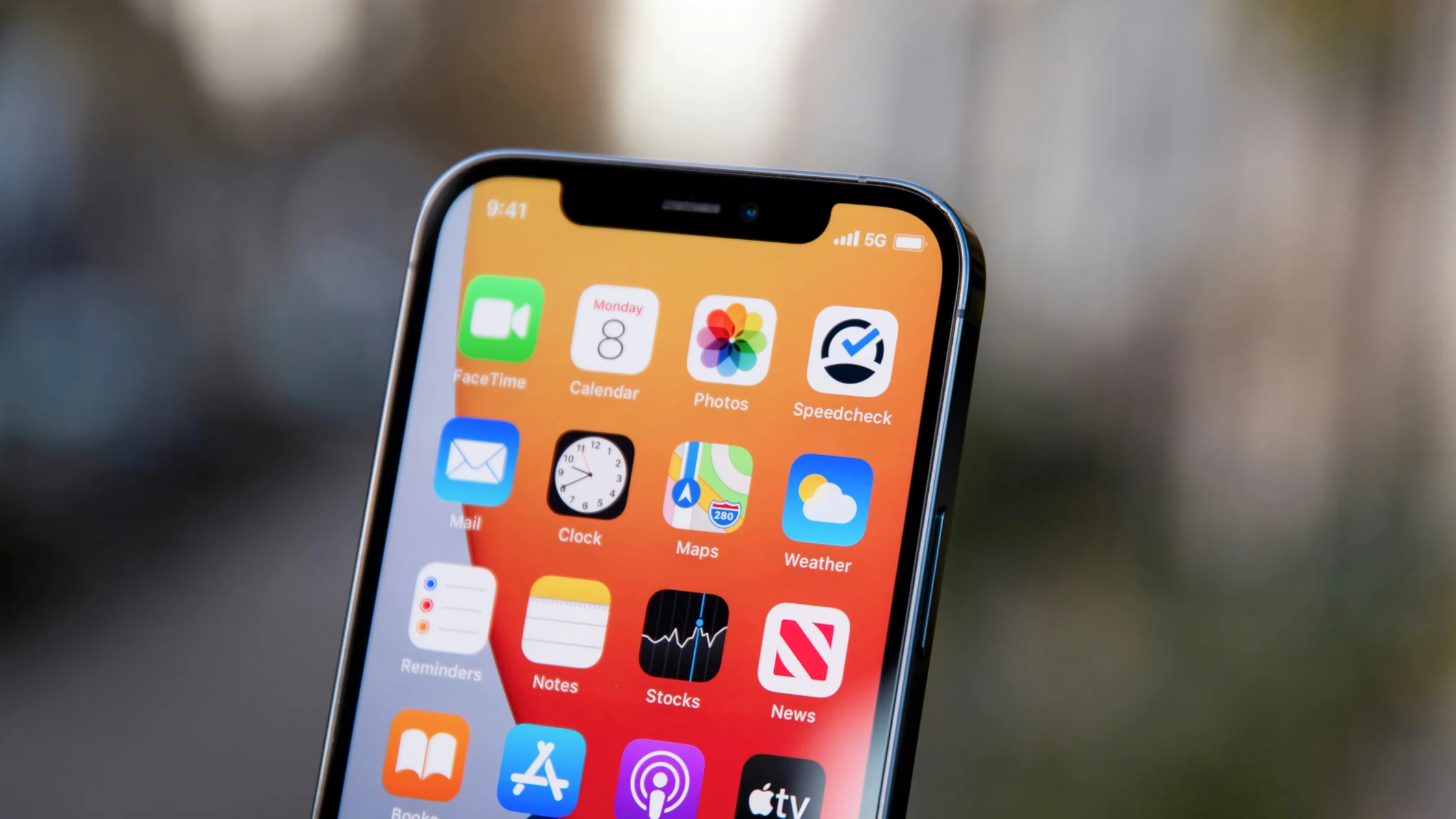

To change your home address on iPhone, edit the record that is actually wrong. For Google Maps, Home lives in your Google Account: open myaccount.google.com, tap Personal info, then Home address, and save. For Apple Maps, edit Home below Places; for Contacts and Safari autofill, edit My Card in Contacts.[1][2][3]
If the networking terms in this article feel abstract, the complete VPN guide explains the tunnel, exit IP, and encryption model before you troubleshoot this specific case.
Those are four separate records: Home in Google Maps, Home in Apple Maps, the address on your contact card, and the address Safari fills in at checkout. Updating one rarely changes the others, which is the most common reason this feels confusing. This guide separates each case so you can update the right place once.[1][2][3]
Key Takeaways
How to change home address on iPhoneis not one setting. It can involve at least four places.[1][2][3]- Apple Maps can keep a Home address that differs from your contact card. Edit it below Places, and turn on Add to Contact Card if you want both to match.[1][3]
- To change Home in Google Maps, you usually need to update the Home address or Work address in your Google Account.[2]
- To change Safari autofill addresses, check your contact card and autofill-related settings.[3]
- If you really want to change the location websites see, that is an IP or location-permission issue, not a home-address setting.[4]
| Your goal | Where to change it |
|---|---|
| Make Apple Maps navigate home correctly | Apple Maps / your contact card[1] |
| Update Home in Google Maps | Home / Work address in your Google Account[2] |
| Change your personal address in Contacts | Contacts app or My Card[3] |
| Change the address used during website checkout | Autofill settings plus contact information[3] |
If you actually want to change GPS, app location, or the region websites see, you need a different guide: changing GPS, App Store, or IP location on iPhone.
Apple’s path can be confusing because Apple Maps can store a Home address that is different from the one on your contact card.[1]
If only the pin is slightly off, touch and hold Home below Places, tap Edit Details, then use Refine Location on the Map. Button labels may vary by iOS version.[1]
If you synced Maps with My Card, Apple notes that a later change in Maps may still need to be made in Contacts too. Update the card like this:
If Apple Maps still shows the old place, close and reopen Maps, then set Home again with Method 1.
If you use Google Maps more often, Home is usually stored with your Google Account’s home/work addresses. It does not automatically equal the address in your iPhone contact card. Google Maps Help for iPhone and iPad also points users through the Google Account address flow.[2]
The official Google Maps path for iPhone and iPad is roughly:
myaccount.google.com and switch to the right Google Account if needed.Home address or Work address.This only affects Home in Google Maps. It does not automatically update Apple Maps, Safari autofill, or your iPhone contact card.
The screenshots below use the current Google Account mobile interface in English with localized guidance around it. The saved Home value is obscured for privacy, while the Work address form is empty.[2]
If your goal is to keep your personal information correct, or to update what other system features reference, change the contact card.
This can affect several system features, including Siri suggestions, Maps behavior, and some autofill cases.
If by “home address” you mean the address that appears during checkout, signup, or payment forms, the focus is not Maps. It is autofill.
Safari fills in contact details from the card you choose in its settings:
Safari then enters the address from that card when you tap AutoFill Contact in a web form. To change the autofill address, edit the home address on that card, or point My Info to the correct card.[3][5]
If webpages still show an old address, try two more checks:
This is the most common cause. Apple Maps, Google Maps, Contacts, and website autofill are four different systems.
Some maps or shopping apps keep local address data. After you update an address, restart the app and try again.
Many people assume the web follows the phone automatically. In reality, many sites store their own addresses inside your account. The phone can autofill forms, but it does not rewrite every site profile for you.
This is especially common. You may want delivery apps, maps, websites, streaming services, or search results to behave as if you are somewhere else. That involves location permissions and IP address, not your home address.[4]
This is the easiest part of this topic to mix up, so it deserves its own section.
“Home address” is a profile-data layer.
“Location permission” is a device layer.
“IP address” is a network layer.
So:
If you are working through those issues now, continue with How to change your IP address: 6 common methods and How to install and set up a VPN.
Home address or Work address in your Google Account.[2]Apple Maps, Google Maps, Contacts, and autofill do not all use the same data source. Updating one does not guarantee the others will sync.[1][2][3]
Not always. Apple Maps can keep its own Home address, and it copies the address to My Card only when you turn on Add to Contact Card. After a later change, check Contacts as well.[1][3]
Usually, no. Home in Google Maps normally needs to be changed through Home address or Work address in your Google Account.[2]
The website may be seeing your IP address or location permission result, not the address stored in your contact card.[4]
Usually, no. You need to manage location permissions or your network exit IP. Those are separate from home address.[4]
Disclaimer: This article is for general iPhone settings and address-management scenarios only. Apple and Google Maps paths are based on public official documentation where possible, but this is not official Apple or Google technical support. Interface details may vary by iOS version, app version, and account sync state. Follow what your device actually shows.
A VPN cannot edit Apple Maps Home, your contact card, Google Maps, or a website’s saved shipping address. Update the specific address source that is wrong; changing network location is a different task.
Sources:
Sources checked 4 October 2026.
Related Articles:
Sign up to experience all premium features at no cost.
*Available only to new users. Each user is limited to one trial.