Start your 3-day free trial
Sign up to experience all premium features at no cost.
*Available only to new users. Each user is limited to one trial.
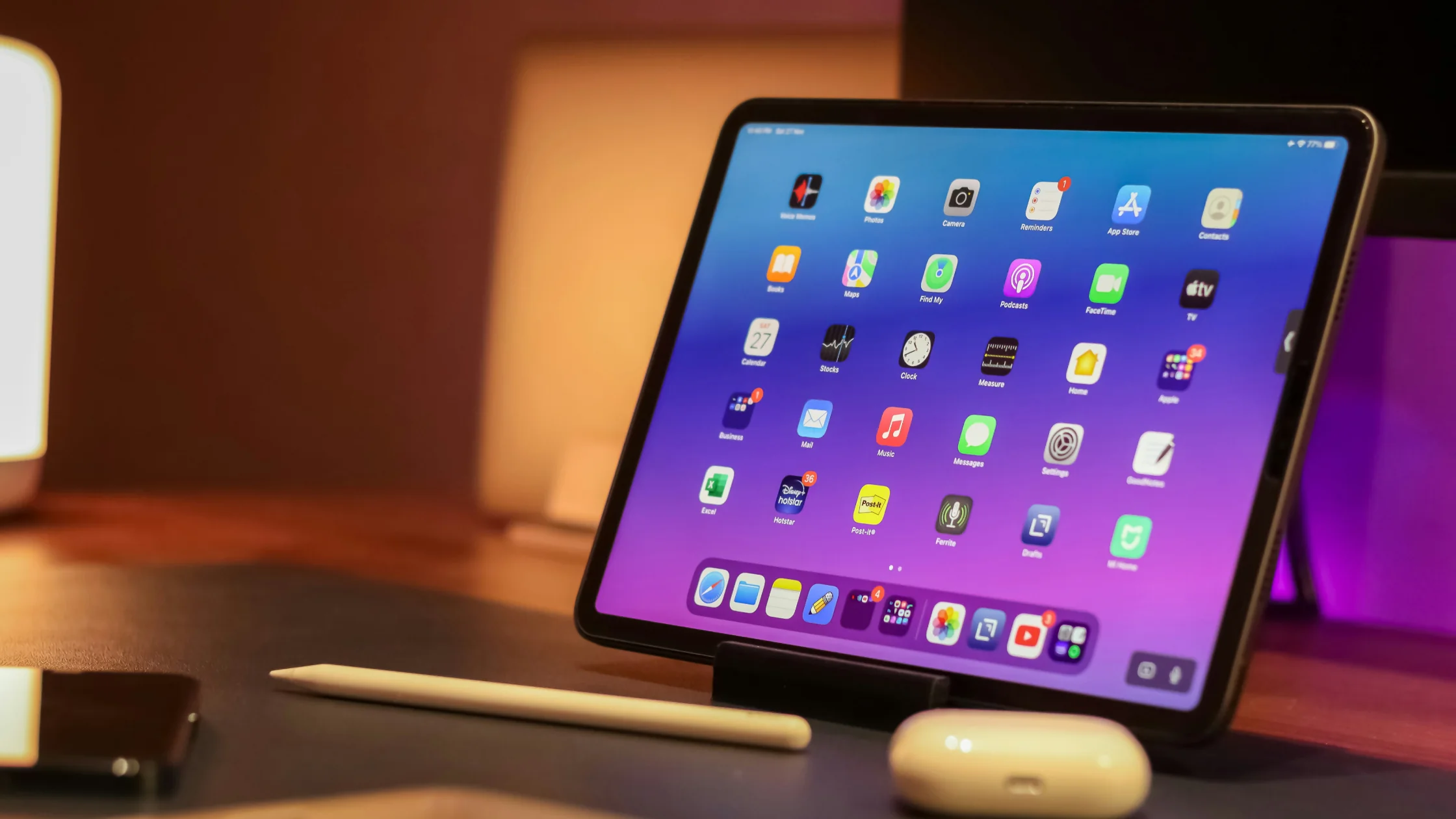

To set up a VPN for iPad, install your provider's VPN client, sign in, allow iPadOS to add the VPN configuration the first time you connect, and confirm the status shows connected. If you were given server details instead, add them under Settings > General > VPN & Device Management.[1][6] Whether you need one depends on the network: it is most useful on airport, hotel, cafe, school, and travel Wi-Fi, and a lower priority if your iPad mostly stays on trusted home Wi-Fi. The value is not “unlock everything by magic”; it is a controlled layer of protection when you browse, sign in, and move between networks.[1][2][3]
Manual configuration is rarely the easiest route. Apple notes that iPadOS supports SSL-VPN through suitable App Store clients alongside built-in IKEv2/IPsec, while stronger controls such as Always On VPN and per-app VPN are usually aimed at managed enterprise devices.[1][2]
Key Takeaways
- An iPad VPN is most useful on public Wi-Fi, during travel, for remote work, and when you need regional or private network access.[1][3]
- For regular users, the fastest setup is the official app, not manual IKEv2 or certificate configuration.[1][2]
- A VPN mainly protects the network transport layer. It does not hide your Apple ID, cookies, account logins, or location permissions.
- iCloud Private Relay does not fully replace a VPN because the two tools cover different traffic.[3][5]
Most people asking this question do not want a lecture on protocols. They want to know whether they personally need one. The fastest way to decide is to map the answer to how you actually use your iPad.
| Your situation | Is an iPad VPN worth using? | Why |
|---|---|---|
| You often use airport, hotel, or cafe Wi-Fi | Yes | The network is not fully under your control, and a VPN adds transport protection[1][3] |
| You travel, work remotely, or switch networks often | Yes | Wi-Fi, cellular, and hotspots change often, which makes risks easier to miss |
| You mostly stream and browse at home | It depends | If the network is trusted and the risk is low, you may not need it always on |
| You need company, school, or region-specific access | Often yes | These scenarios often depend on VPN access or a specific network exit |
The most overestimated promise is “total invisibility.” A VPN is better understood as a protective shell around your iPad’s network path, making it harder for local observers, ISPs, or intermediate nodes to read your traffic directly.[1][4] For the basics, start with What Is a VPN? A Complete Beginner’s Guide.
An iPad sits between a phone and a laptop, so its use cases are unusual. You might answer email on a train, sign in to online banking at a hotel, access school or company resources, or use it as your main travel device.
The common thread is that iPads often move between trusted networks and temporary networks. That is why VPNs can be more practical on iPad than many people expect. The value is not just changing a region for content.
The FTC’s current guidance is more measured than older scare-based advice. It says most websites now use HTTPS and most apps encrypt traffic, so public Wi-Fi is usually safe to connect to. At the same time, scammers build fake websites that also show HTTPS, and encryption does not protect what you hand to them, so care still matters when you sign in to banking, email, or social accounts.[3]
So the answer to “should I use a VPN on public Wi-Fi?” is usually not a dramatic “always.” It is: when you do not fully trust the network, keeping a VPN on is steadier. For a deeper look, read Should You Use a VPN on Public Wi-Fi? Safer Rules.
Compared with a phone, an iPad is more likely to host full websites, admin panels, company portals, cloud drives, documents, and meeting tools. The larger screen and multitasking make it easy to sign in to more accounts.
When account density goes up, connecting to an unfamiliar network becomes riskier. A VPN will not stop phishing websites for you, but it can encrypt the connection between your device and the VPN server.[1][4]
If your goal is to get a VPN working on iPad quickly, use the app path by default. Apple’s documentation says iPadOS can use SSL-VPN through a suitable App Store client. System-level IKEv2/IPsec configuration is also available, but it is better when you already have specific parameters.[1][2]
For most beginners, that is enough. You do not need to start with manual IKEv2 profiles, certificates, or enterprise MDM settings.
You will usually see a system prompt saying the app wants to add a VPN configuration. In plain terms, iPadOS is allowing that client to manage a VPN tunnel. Once you approve it, the app can create a tunnel when you tap connect.
If you have never seen the prompt before, it can look serious. It is normal for VPN apps. The thing to be careful about is not the prompt itself, but whether the app is official and trustworthy.
AethoVPN's iPad route differs slightly from the App Store flow above. You sign up with an email verification code, open the iPhone/iPad setup guide on the official website to get your configuration, and then connect in a VPN client, approving the same iPadOS configuration prompt the first time.
An iPad counts as a mobile device: Pro covers two desktop and two mobile connections, so the iPad takes one mobile slot, while Premium covers eight devices of any type; the Standard plan does not include iPhone/iPad configuration. If a school or employer manages the iPad, check whether a management profile controls VPN settings first, because a VPN cannot override that profile or change GPS location. To choose between Pro and Premium for your iPad and other devices, compare the current plans.
Apple’s deployment documentation shows that iPadOS supports IKEv2 VPN settings, including server address, remote identifier, certificates, and on-demand connection rules.[2] This is mainly for two groups:
With those details, go to Settings > General > VPN & Device Management, tap Add VPN Connection, choose IKEv2, IPsec, or L2TP, enter the server and authentication fields, and then switch the connection on there.[6] If that is not you, VPN installation and setup steps will save time.
Many people install a VPN and stop there, but on iPad, the settings that affect your experience are often connection policies.
| Setting | Why it matters | Recommendation |
|---|---|---|
| Auto-connect | Helps you avoid forgetting the VPN on public Wi-Fi | Turn it on if you travel often |
| Kill switch | Reduces the risk of leaking traffic after an unexpected drop | Enable it if your client supports it |
| Nearest server / automatic selection | Balances speed and stability | Use it for everyday protection |
| Split tunneling / bypass | Lets some local services skip the VPN | Configure only when you know the need |
One common confusion: some iPad users already use iCloud Private Relay and ask whether they still need a VPN. Usually, yes. Apple describes Private Relay as privacy protection for Safari browsing and related DNS requests, while a VPN is usually a broader device-level network tunnel. They are not the same thing. I explain the difference in iCloud Private Relay vs VPN: Why VPNs Are Still More Practical in Most Cases (2026).[3][5]
This is not an “everyone must install one” topic. A VPN is useful, but not every iPad user needs it on 24/7.
If your iPad mostly stays on your own WPA2/WPA3 home Wi-Fi for video, notes, and light browsing, and you have no strong privacy or region needs, the urgency is lower. A VPN still adds protection, but the benefit may not justify keeping it on all the time.[3]
A VPN does not erase cookies, browser fingerprints, sign-in status, or app location permissions. If you sign in to the same accounts and keep precise location enabled, services can still connect many actions back to you.
In other words, a VPN solves a network path problem, not complete identity anonymity. You should still manage browser privacy, account security, and app permissions.
Some banks, corporate portals, school systems, and streaming services apply extra checks to VPN exits. That does not mean your VPN has “failed”; it often means the service has stricter risk controls.
A practical sequence is:
If you are deciding whether to keep it running all day, read Should I Leave My VPN On All the Time?.
Do not rank iPad VPNs by “more features is always better.” Choose based on real iPad use.
For most users, a VPN that connects with one tap, warns you when it drops, and stays stable matters more than advanced settings you will never touch.
If a VPN forces you to sign in again, reconnect, or reselect servers every time, or if it noticeably slows your everyday apps, you probably will not keep using it. Strong features do not help much when the day-to-day experience is annoying.
So when you evaluate an iPad VPN, do not just ask whether it supports a protocol. Ask whether you would actually leave it on. For more use-case thinking, see What Can You Do With a VPN? 8 Use Cases That Still Matter.
It depends on your use case. If you often use airport, hotel, or cafe Wi-Fi, or you sign in to work accounts, company systems, or school resources on iPad, a VPN is usually worth using.[1][3]
Not for most users. Download the official app, allow iPadOS to add the VPN configuration the first time you connect, and then connect through the app. Regular users usually do not need manual IKEv2 settings.[1][2]
It can, but it is not always noticeable. VPNs add encryption and routing overhead, but normal browsing, office work, and general video use are usually fine. A nearby server is often more stable.
No. Private Relay mainly protects Safari browsing and related DNS requests, while a VPN is usually a more general network tunnel with broader coverage.[3][5]
Yes. Under Settings > General > VPN & Device Management you can add IKEv2, IPsec, or L2TP settings, but you need the server address, authentication method, and required parameters first.[2][6] For regular users, the official client is usually easier.
Not always. If you only use a trusted home network for light browsing, the priority is lower. If you care about privacy, real IP exposure, or a home network with many devices, it can still help.
It can change the network exit location that websites see, but it does not automatically disable browser or app location permissions. If you gave an app precise location access, it may still know where you are.
Disclaimer: This article is for general network privacy and device setup information only. It is not legal, compliance, school, or corporate IT advice. Use VPNs only where permitted by local law, school or workplace policy, and relevant terms of service.
Sources:
Sources checked 4 October 2026.
Related Articles:
Sign up to experience all premium features at no cost.
*Available only to new users. Each user is limited to one trial.