Start your 3-day free trial
Sign up to experience all premium features at no cost.
*Available only to new users. Each user is limited to one trial.

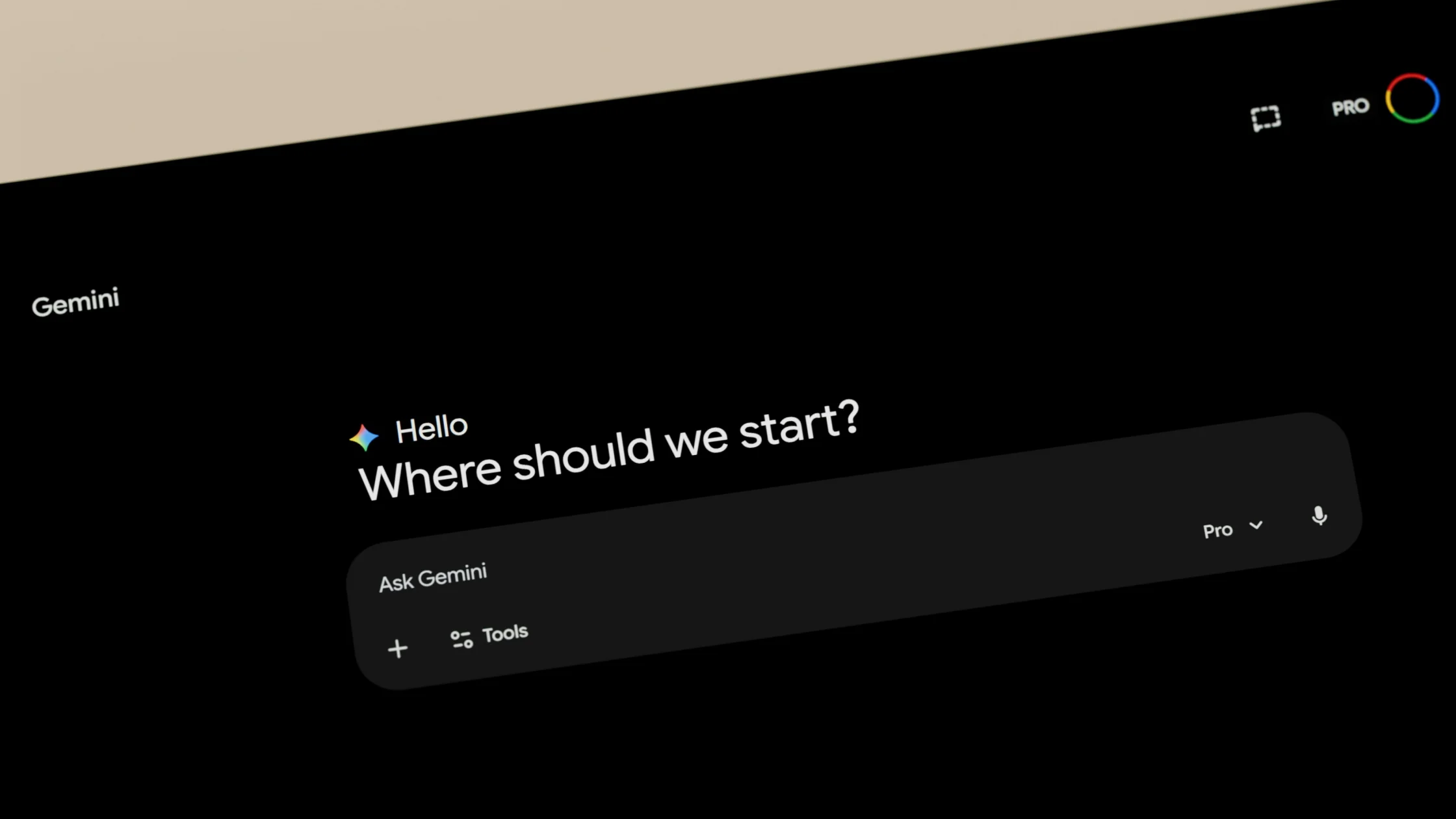
Gemini Live is Google's real-time voice mode for Gemini: you speak, it answers aloud, and you can interrupt it mid-reply. To use Gemini Live well, open it from the Gemini mobile app or Chrome, define one conversational task, begin with audio only, and share camera, screen, or browser-tab context only when it is necessary. Correct the assistant when its understanding drifts, then review the transcript and verify consequential information outside the session. Features and availability can vary by device, account, region, language, and rollout.[1][2]
This guide uses a low-risk example: comparing three layouts for a home study corner from de-identified notes and, only if useful, a cleared camera view. It is not a general Gemini account tour; that belongs in the Gemini beginner guide. The broader decision and verification pattern is covered in How to Use AI.
Key Takeaways
- Start with audio and add visual context only for a specific question.
- Check which Live surface is available before writing a workflow around it.
- Stop screen or camera sharing as soon as the visual step is complete.
- Correct misunderstood constraints immediately and ask for a one-sentence readback.
- Treat transcript, suggestions, and web-page interpretations as unverified drafts.
- Keep identity, account, customer, workplace, and confidential material out of the session.
Google documents Gemini Live in mobile apps and a Live experience in Chrome, but supported controls are not identical. On mobile, camera and device-screen sharing may be available; in Chrome, the current tab can be shared and the conversation can be interrupted.[1][2] Do not promise a control based on another device or an old screenshot.
| Surface | Useful context | Permission boundary | Good fit |
|---|---|---|---|
| Mobile audio | Spoken description | Microphone | Rehearsal, explanation, brainstorming |
| Mobile camera | A cleared physical scene | Camera plus microphone | Discussing visible arrangement or object |
| Mobile screen | Visible device screen | Screen capture plus microphone | Talking through a non-sensitive screen |
| Chrome Live | Current shared tab | Page content, URL, microphone | Discussing one reviewed web page |
Before starting, check the current official help page for your platform. If Live or a sharing control is unavailable, use ordinary Gemini text with a deliberately selected image or excerpt instead of trying to bypass the limitation.
Do a harmless capability check before the substantive conversation. Start Live, interrupt one answer, share a blank test page if sharing is available, stop sharing, and inspect the resulting activity or transcript. This confirms the current controls without revealing private work. If you cannot tell what is being shared, if the stop control is unclear, or if the transcript omits important context, do not compensate by sharing more. Switch to a narrower text prompt or describe only the minimum facts needed.
On an Android phone or tablet, open the Gemini app and tap Live at the bottom of the screen, or swipe left. Follow the first-run prompts, then start talking; on Android you can also say “Hey Google, let's talk Live.” The same help page keeps separate steps for iPhone and iPad, and Live is not offered in the Gemini web app.[1]
On a computer, open Chrome, click Ask Gemini at the top of the browser, then click Go Live in the text box. Chrome needs microphone access and Gemini in Chrome turned on before the button works.[2]
To finish on mobile, tap End or swipe right, and the transcript appears for review.[1] If none of these entry points shows up, treat it as an availability or account question, not a setting to force.
Create a short conversation card:
Task: compare three study-corner layouts
Outcome: questions and tradeoffs, not a purchase decision
Known facts: room measurements and a synthetic furniture list
Unknowns: outlet load, wall structure, local safety requirements
Allowed context: de-identified notes; cleared camera view if needed
Excluded context: people, messages, account pages, documents, addresses
Interaction: ask one question at a time; let me interrupt
Final output: options, assumptions, open checks, and owner
The card separates a conversational aid from an authority. Gemini may organize observations, but it cannot inspect hidden wiring, certify safety, or decide whether the information is legally or technically sufficient.
Describe the goal and known facts without showing the room or screen. Ask Gemini to repeat the task, exclusions, and expected output in one sentence. Correct any added assumption.
Do not switch on the camera because it is available. Ask: “Which single visible detail would change your questions?” If dimensions already answer the issue, keep the camera off.
Remove faces, photographs, addresses, notifications, calendars, badges, documents, reflections, and unrelated tabs. Close apps that might overlay messages. Ask permission from anyone whose image, voice, work, or private space could be included.
For example: “Compare whether the desk blocks the window in these two positions. Do not identify objects or people, and do not infer measurements.” When the question is answered, stop sharing before moving to the next part of the conversation.
Google notes that muting a Live conversation may mute the microphone while video or screen sharing continues.[1] Confirm each capture indicator instead of assuming mute ends every data stream.
Visual context increases usefulness and exposure at the same time. Treat the visible frame as an input package.
| Check | Before sharing | After sharing |
|---|---|---|
| Relevance | Only the required object, page, or area | Remove captured notes not needed |
| People | Consent obtained or no people visible | Confirm no identity claim was created |
| Accounts | Signed-out or non-sensitive surface | Close shared session and review activity |
| Accuracy | State what the image cannot prove | Verify measurements and claims separately |
| Retention | Review current activity settings | Apply organizational retention policy |
Gemini Apps may process prompts, recordings, transcripts, video, screenshares, page content, and device context under current privacy settings. Google advises users to manage Gemini Apps Activity and respect other people's rights.[3] Use the privacy hub for the current account rather than relying on a summary from a previous rollout.
In Chrome, sharing a tab can expose page content and its URL; some processed page content may not be visible in the viewport.[3] Share one reviewed tab, not an entire browsing session, and stop sharing when the page-specific question ends.
Interrupt when Gemini changes the task, invents a measurement, combines options, or skips an exclusion. Use a fixed correction pattern:
Short corrections are easier to audit than a long corrective monologue. If the conversation repeatedly drifts, end Live and restart from a smaller card. A fresh bounded session is often safer than carrying a confused context forward.
Run three passes.
Ask for missing information and contradictions only. Do not request recommendations yet. For the study corner, useful questions might concern glare, walking clearance, power access, accessibility, and what must be measured.
Ask for two or three options using only accepted facts. Require each option to show benefits, tradeoffs, assumptions, and a reversible next step. If Gemini introduces a new fact, label it as an open check.
Ask what could make each option wrong, what evidence is missing, and who should verify it. For factual verification patterns, use the AI answer fact-checking guide.
Finish with a compact record:
Accepted facts:
Visual context shared and stopped:
Options retained:
Assumptions rejected:
Open checks and owners:
Decisions made by a person:
End the session and inspect the transcript. Check names, negation, quantities, sequence, option labels, and whether a spoken correction was captured. A transcript supports recall; it is not proof of the exact audio or an approved meeting record.
Google documents controls for reviewing and deleting Gemini Apps Activity, including related Live data, subject to current settings and retention behavior.[3][4] Follow the policy that applies to your account and organization. Do not copy a transcript into a permanent system until you have removed unnecessary personal data and corrected substantive errors.
If camera, screen, or tab context was involved, record what was shared and when sharing ended. Do not infer that ending the spoken exchange automatically removed stored activity.
Stop when you notice an unintended person or private notification, a wrong shared tab, a sensitive account screen, a request to identify a person, an invented critical fact, or a task that requires licensed advice. End sharing first, then decide whether to delete activity or report an incident under your policy.
If availability differs from the documentation, do not improvise around account or regional controls. The Gemini access troubleshooting guide explains network and account boundaries; a network change does not grant feature eligibility or permission.
Google documents interruption in Live conversations, including Chrome. Use it to correct context, then ask for a readback so you know the latest constraint was understood.[2]
Only share camera context when the feature is available and you have enabled it, but confirm the on-screen indicator and stop control. Do not assume muting audio stops video sharing.[1]
It can provide the current tab's page content and URL to Gemini, subject to the current feature and settings. Share only a reviewed tab and stop when the question is complete.[2][3]
Treat it as a generated transcript that can contain errors or omissions. Check critical wording against an authorized original record.
Even if other voices are audible, obtain consent and avoid using Live as an official multi-person record. Separate speakers may be confused, and nearby speech can be captured unintentionally.
No. Replace it with de-identified text or a synthetic example. Screen-sharing convenience does not remove confidentiality duties.
Availability can vary by platform, language, account, region, app version, and rollout. Check the official help page for the exact surface you use.[1][2]
No. It lacks full physical, legal, organizational, and human context. Use it to form questions and options, then have the accountable person verify evidence and decide.
No. A VPN does not change account eligibility, workspace policy, device permissions, feature rollout, or the accuracy of Gemini's interpretation.
Sources checked 4 October 2026.
Sign up to experience all premium features at no cost.
*Available only to new users. Each user is limited to one trial.