Start your 3-day free trial
Sign up to experience all premium features at no cost.
*Available only to new users. Each user is limited to one trial.
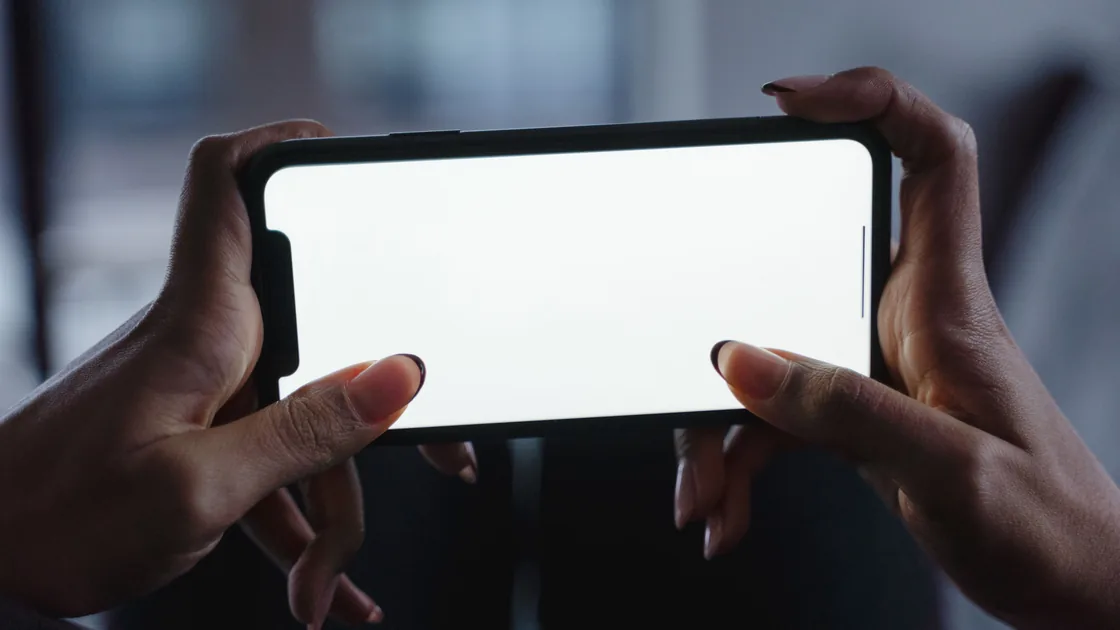

Auto-rotate not working? Turn off orientation lock, then test two apps that support landscape. One app staying in portrait is often normal.
Key Takeaways
- Test more than one app before treating fixed orientation as a device failure.
- Turn off Portrait Orientation Lock on iPhone or turn on Auto rotate on Android.
- Rotate the unlocked phone slowly through both directions while it is upright and unobstructed.
- Restart and update only after the controlled comparison is clear.
- Suspect a sensor or hardware problem only when several compatible apps fail in multiple directions.
Start with the exact place where rotation fails. Note the app, page, content type, current orientation, and whether the symptom began after an update. Then open two ordinary apps that normally offer both portrait and landscape views on your phone. A browser viewing a wide page, a video player with a landscape control, or the system calculator on a supported model can be useful comparisons.
If rotation is only one part of a broader symptom, use the device and app troubleshooting guide to separate app, system, and hardware layers.
Do not use the home screen as the only test. Some phones never rotate their home screen; others require a separate home-screen setting. Individual apps can also lock a login page, camera view, short-form video feed, reading mode, or game to one direction. Split-screen, picture-in-picture, accessibility layouts, and external displays may impose additional limits.
Apple explicitly notes that some apps do not support rotation and recommends testing another app such as Safari or Calculator after checking Portrait Orientation Lock.[1] If one app stays fixed while two other compatible apps rotate normally, the phone's global rotation system is working. Check that app's playback, reading, accessibility, or display settings and its current release notes. Reinstalling the operating system will not add an orientation the app does not provide.
Also distinguish a page that reflows from a phone that rotates. A responsive web page may look similar in both orientations even though browser controls move. Conversely, a video may rotate only after full-screen mode is entered. Observe a stable interface element rather than judging from the content alone.
On iPhone, open Control Center and confirm that Portrait Orientation Lock is off. Its icon shows a padlock surrounded by a curved arrow. Close Control Center, return to a compatible app, hold the phone upright, and turn it 90 degrees.
Test clockwise and counterclockwise. If the control is already off, toggle it on once, wait a moment, turn it off, and retest; do not repeatedly flip it during the same rotation.
On Android, open Quick Settings and look for Auto rotate, Portrait, or Landscape. A tile labeled Portrait or Landscape often means the current direction is locked; tap it to restore Auto rotate. Names and locations vary by manufacturer.
The system Display settings may also expose the control. Google's Pixel display guidance identifies Auto-rotate screen as the display setting that changes orientation when the phone turns.[2]
On Samsung Galaxy phones, a gray Portrait or Landscape icon in the Quick panel means the orientation is locked, and the Home screen does not rotate by default until you turn on Rotate to landscape mode in Home screen settings.[3] This is why a working app test is more reliable than testing only the launcher.
Keep the phone's display awake and unlocked during the test. Do not test while it lies flat on a table, because the system has less information about which vertical direction should become the top. Remove a stand or case only if it physically prevents you from turning the phone normally; an ordinary nonmagnetic case should not require a reset.
Use one short test sequence and write down the results:
Record whether the interface moves, whether it rotates only one way, and whether a second app behaves differently. If the first app fails but the second works, focus on the first app. If both fail only while a stand, display, accessibility feature, or multitasking mode is active, test that context separately. If every compatible app fails in both directions, continue with system checks.
Avoid vigorous shaking, tapping, or striking the phone. Motion sensors do not need a physical jolt to wake up, and impact can damage the display, camera stabilization, battery, or enclosure. There is normally no user calibration routine for auto-rotation; apps that promise to recalibrate every sensor may provide misleading readings or request unnecessary permissions.
Save work, close the affected app normally, and reopen it. If only that app fails, check for its update first. If several apps fail, restart the phone using the manufacturer's normal restart procedure. A restart clears a stuck app process or temporary system service without erasing settings or data.
Install stable operating-system updates after confirming you have a recent backup, sufficient charge, storage space, and a reliable connection. Review app updates as well. If the problem started immediately after a beta release, custom ROM, or device-management change, return to the responsible administrator or supported release path rather than stacking rotation utilities on top.
Accessibility features can change how an interface responds without breaking the sensor. Large text, display zoom, guided access, screen pinning, one-handed mode, desktop mode, and manufacturer-specific multitasking may restrict a particular layout. Turn off only the feature you can identify, record its original state, and retest. Do not remove a work or school management profile to investigate rotation.
A folio case, car mount, game controller, keyboard, or external display may make an app choose a different layout. Disconnect one accessory at a time. Magnets in supported covers usually control sleep or cover features, not a universal orientation lock, so treat accessory correlation as evidence rather than assuming magnetic damage.
Hardware becomes a reasonable suspicion when all of these are true: orientation lock is off, multiple known-compatible apps fail, both landscape directions fail, a restart and stable updates do not help, and the behavior is unchanged with accessories disconnected. Additional evidence includes motion-aware camera leveling, step detection, gaming motion, or compass-related features failing at the same time, although each feature may use a different combination of sensors.
Recent impact, liquid exposure, enclosure bending, a repair, or a swelling battery raises the urgency. Stop using the phone and seek qualified service if the case separates, the display lifts, the phone becomes unusually hot, or the battery appears swollen. Do not press the screen back into place.
Before service, make a current backup, confirm account-recovery access, and remove sensitive data only through the manufacturer's supported repair preparation. Describe the controlled tests instead of simply saying “rotation is broken”: list the apps, directions, lock state, restart and update status, other motion features, and any recent damage. This gives support evidence to distinguish a software defect from a sensor or board problem.
Do not factory-reset the device merely to prove a point. A reset erases evidence and personal data and still cannot make a portrait-only app rotate. Consider it only if official support recommends it for the exact model, you have a verified backup, and you understand how to restore accounts and authentication methods.
Treat auto-rotation as a scoped behavior, not a single switch. Confirm that the current app and page support the other orientation, disable the orientation lock or enable Auto rotate, and compare two known-compatible apps in both directions. Do not use a forced-rotation tool, developer options, or factory reset as a shortcut. Only a consistent failure across apps and directions makes a sensor or hardware fault a sensible next hypothesis.
The app may reserve landscape for its full-screen player. Test the player control and another compatible app before changing system settings.
Home-screen rotation is model- and launcher-specific and may have its own switch. Normal rotation inside apps shows that the global sensor path is working.
The current app may not support landscape, or a temporary app or system process may be stuck. Test Safari or another compatible app, then restart if several apps fail.
That label usually means the current orientation is locked. Tap the tile to switch back to Auto rotate, then test while holding the phone upright.
No. It can distort layouts, interfere with accessibility or security-sensitive screens, and conceal whether the app officially supports that orientation.
Most ordinary cases do not. Test without a mount, keyboard case, or unusual accessory only when the failure correlates with that accessory.
Not as a general user fix. Use supported system diagnostics or authorized service guidance for the exact model rather than secret codes or third-party calibration tools.
Arrange service when multiple compatible apps fail in both directions after restart and updates, especially if other motion features fail or the phone was dropped, wet, bent, or is swelling.
Sources checked 4 October 2026.
This article provides general troubleshooting information. Follow the current instructions for your phone model, operating system, and organization before changing settings or arranging service.
Sign up to experience all premium features at no cost.
*Available only to new users. Each user is limited to one trial.