Start your 3-day free trial
Sign up to experience all premium features at no cost.
*Available only to new users. Each user is limited to one trial.


When a battery percentage is stuck or wrong, the usual causes are an estimate that has stopped refreshing, an unstable charger connection, heat or a charge limit pausing charging, or a worn battery that no longer matches the estimate. To fix it, test a known-good charger under a light workload, restart once, install official updates, and check the battery health page before any calibration or reset. Stop using the device if the battery is swollen, leaking, unusually hot, or producing an odor.
Key Takeaways
- A percentage is an estimate, not a direct measurement of remaining minutes.
- Separate a frozen display from genuinely fast battery drain.
- Record the charger, time, workload, percentage, and shutdown behavior.
- Restart, update, and use official diagnostics before destructive resets.
- Do not use repeated deep-discharge cycles as a routine calibration method.
If the percentage falls normally but the phone runs out much sooner than expected, use the iPhone battery-drain guide or Android battery-drain guide. This article is for a display that freezes, jumps, contradicts charging, or no longer tracks real use plausibly.
Define the symptom before changing settings. Note the displayed percentage, whether a charging symbol is present, the charger and cable used, the device temperature, and the time. Then observe for 15 to 30 minutes under one ordinary, repeatable condition.
Use a simple classification:
| Pattern | More useful interpretation |
|---|---|
| Percentage does not move while charging, then jumps after restart | Display, reporting service, or estimate refresh problem |
| Percentage falls steadily but runtime is short | Real battery drain or reduced capacity |
| Device shuts down at 20% or another nonzero value | Estimate and usable battery voltage may disagree |
| Percentage rises while unplugged or falls while clearly charging | Reporting error, unstable connection, temperature, or battery fault |
| Percentage changes very slowly near full | Charging protection, temperature control, workload, or normal tapering may apply |
Do not judge from a one-minute interval. Charging can slow near full, and a busy device can consume much of the incoming power. Conversely, a frozen number for hours, a sudden large jump, or repeated shutdown at the same nonzero value deserves a structured check.
On a device with both a status-bar number and a battery settings page, compare them. If only one view is stale, close and reopen that view. If both remain frozen while the device behavior changes, continue to system and health checks.
The device and app troubleshooting guide can help when the percentage problem began alongside several unrelated system symptoms.
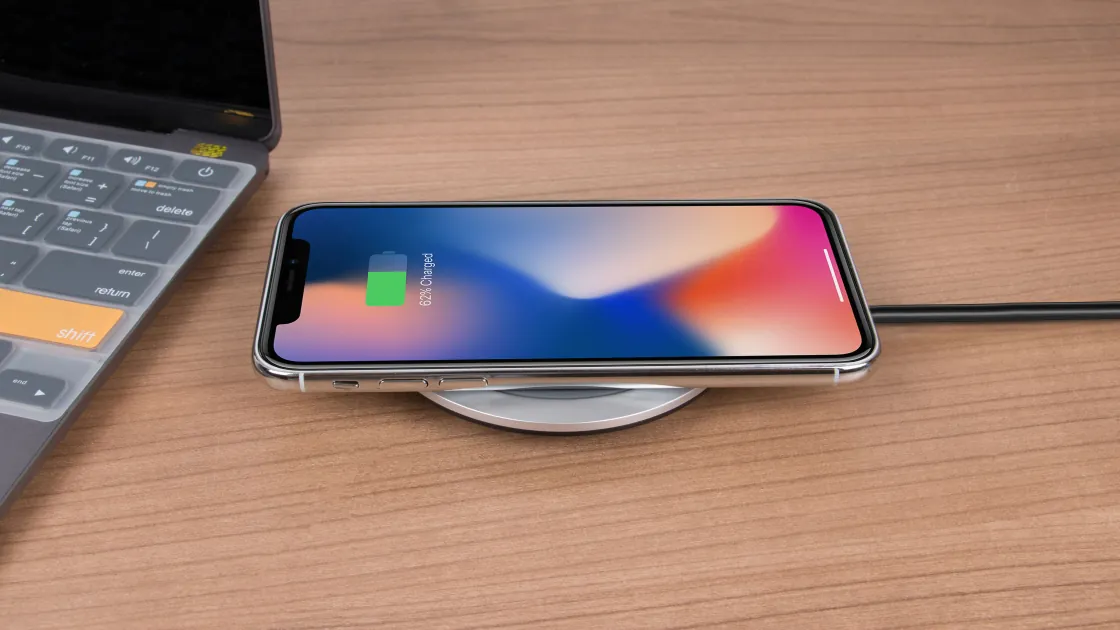
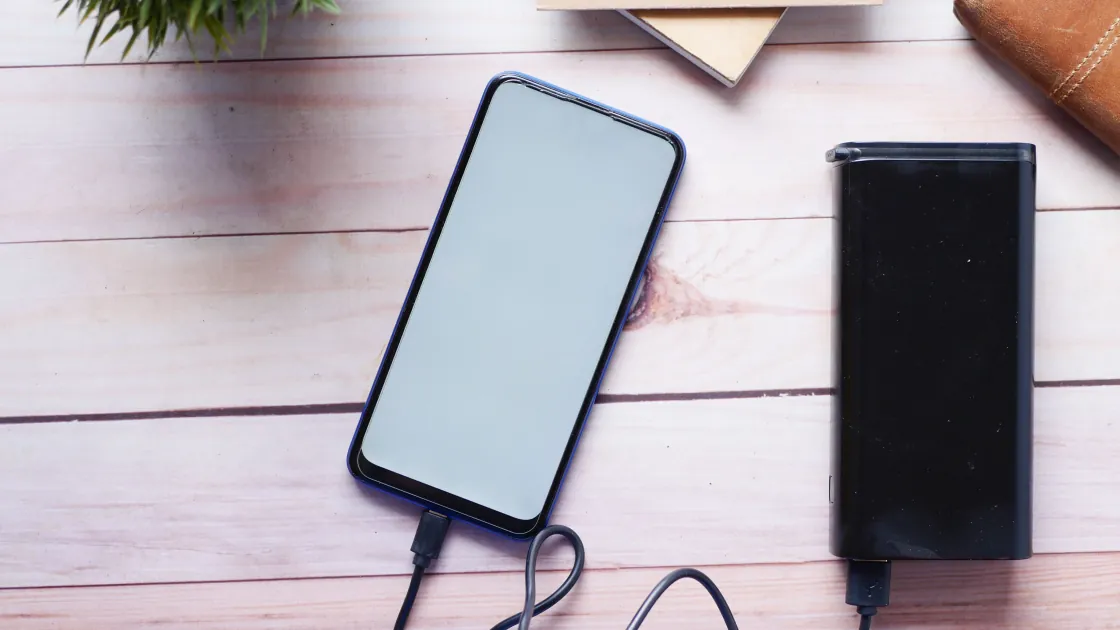
Confirm that the device is receiving power, not merely showing a cable icon. Use a supported charger, cable, port, and power source. A loose connector can alternate between charging and discharging quickly enough to make the estimate look erratic.
Reduce the test to a stable state: close a game, camera recording, navigation session, virtual machine, or other heavy workload; let an overheated device return to a safe room temperature; then observe again. Do not cool a hot device in a refrigerator or against ice, because condensation can cause damage.
Battery management may deliberately pause or slow charging based on temperature, usage patterns, or a charge-limit setting. Check the operating system’s battery page for a clear message before turning off protection. A limit near 80% is different from a display that never changes at any level. On Windows devices that support Smart charging, Microsoft recommends turning it on so the battery stays at the recommended level even when the device remains plugged in, so a laptop that stops below 100% may be working as designed.[3]
Google’s Pixel documentation shows the current battery level in Settings and separates battery percentage display from usage information.[1] Menu names vary by device maker, but the principle is the same: compare the headline number with the detailed battery page and recent use rather than relying on one icon.
If another supported charger produces a stable result, retire the questionable charger or cable. Do not keep flexing a damaged cable, cleaning a port with metal, or forcing a connector. Debris removal should follow the device maker’s instructions.
Save work and restart the device once. A restart reloads the status interface and battery-reporting services without erasing data. Record the percentage immediately before shutdown and after startup; a jump is evidence, not proof of a specific cause.
Install stable operating-system and firmware updates through the official update path. Battery reporting depends on system software, power-management firmware, and device-specific drivers. Avoid driver aggregators, modified kernels, battery-stat cleaners, or registry packages.
On Android, compare Settings battery level, usage, and charging status. On iPhone or iPad, compare the status-bar percentage with Battery settings and Battery Health when the model exposes it. On Windows, generate the battery report with powercfg /batteryreport and compare design capacity, recent usage, and current behavior. Microsoft documents this report and warns that a severely deteriorated battery may give very short battery life or visibly expand.[3]
On macOS, use Battery settings and System Information or the supported diagnostics for the exact model. On a managed device, some charge limits or reporting tools may be enforced by the organization. Ask the administrator instead of removing management profiles.
Do not delete battery statistics, reset all settings, or reinstall the operating system merely to refresh a number. Those actions remove context and may create new problems without testing the sensor, charging path, or battery condition.
Routine deep discharge is not a safe universal fix for modern lithium-ion devices. It consumes a full cycle, can leave an unstable device unable to restart, and does not repair a damaged cell, connector, sensor, or charging circuit.
Apple documented an automatic battery-health reporting recalibration for a limited set of iPhone 11 models and a particular software release. The process occurred during normal charge cycles and could take weeks; it was not an instruction to force repeated zero-to-full cycles.[2] Treat model-specific recalibration messages as support information for that model, not a general recipe.
If the device maker explicitly provides a calibration procedure for your exact model, follow its prerequisites: save work, use supported power, allow the specified uninterrupted time, and stop if the device overheats or swells. Do not substitute a forum procedure for the manufacturer’s steps.
A safer general comparison is one controlled cycle within ordinary use. Start from a recorded level, use the device for a known activity, note the time and end level, then charge under stable conditions. Repeating the same small observation once is more useful than deliberately exhausting the battery several times.
No single percentage proves battery health. Combine several observations:
A display problem becomes more likely when runtime remains normal and the number refreshes after a restart. Battery wear or a hardware problem becomes more likely when runtime is poor, shutdown is abrupt, charging is unstable, and official diagnostics also report degraded condition.
Software cannot safely distinguish every hardware fault. A battery pack, charge controller, connector, or board sensor can produce similar symptoms. Keep the record and let an authorized technician interpret model-specific diagnostics.
If the device is still usable, back it up before service. Do not postpone backup until the percentage becomes accurate; an unreliable estimate makes unexpected shutdown more likely.
Stop charging and using the device when safe if the battery is swollen, leaking, hissing, emitting an unusual smell, becoming abnormally hot, or separating the screen or case. Move it away from flammable material without puncturing or pressing it, and follow the manufacturer or local battery-safety service guidance.
Arrange support when:
Provide the model, operating-system version, charger details, time-stamped percentage observations, and diagnostic messages. Do not publish serial numbers, account details, or screenshots containing private notifications.
Replacing a battery may be the correct repair, but do not open a glued or sealed device unless the manufacturer’s service program explicitly supports your skill and tools. A punctured lithium-ion cell can cause fire or chemical exposure.
The status display may be stale, the charger may be unstable, the device may be using most incoming power, or temperature and charge protection may be limiting charging. Compare the detailed battery page and test a supported charger under a light workload.
The operating system may have refreshed an estimate that had become stale. Record whether the jump recurs and whether real runtime or shutdown behavior is also abnormal before assuming the battery needs replacement.
The displayed estimate may no longer match usable battery voltage, or a battery, connector, sensor, or power circuit may be unstable. Back up the phone and use official diagnostics or service.
Not as a generic remedy. Modern devices normally manage battery estimation automatically. Follow only an exact model’s official procedure and avoid repeated deep discharges.
It can fix reporting or power-management software, but it cannot repair a swollen, worn, disconnected, or electrically damaged battery. Install supported stable updates and keep physical safety signals separate.
No. A configured charge limit or optimized charging feature can intentionally stop or pause charging near a target. Check for a clear system message and the device’s battery settings.
Use 15 to 30 minutes under one stable condition, then compare the detailed battery page and restart once. Stop sooner if the device overheats, swells, leaks, smells unusual, or shuts down.
Seek service when jumps or nonzero shutdowns repeat, official diagnostics report a problem, a known-good charger does not help, or the device shows physical damage or abnormal heat.
Compare the frozen battery percentage with actual runtime to distinguish the displayed reading from the device's behavior. Network settings do not repair a charge sensor, and no VPN can make a swollen battery safe; treat physical battery damage separately from an incorrect percentage.
Sources checked 4 October 2026.
Sign up to experience all premium features at no cost.
*Available only to new users. Each user is limited to one trial.