Start your 3-day free trial
Sign up to experience all premium features at no cost.
*Available only to new users. Each user is limited to one trial.
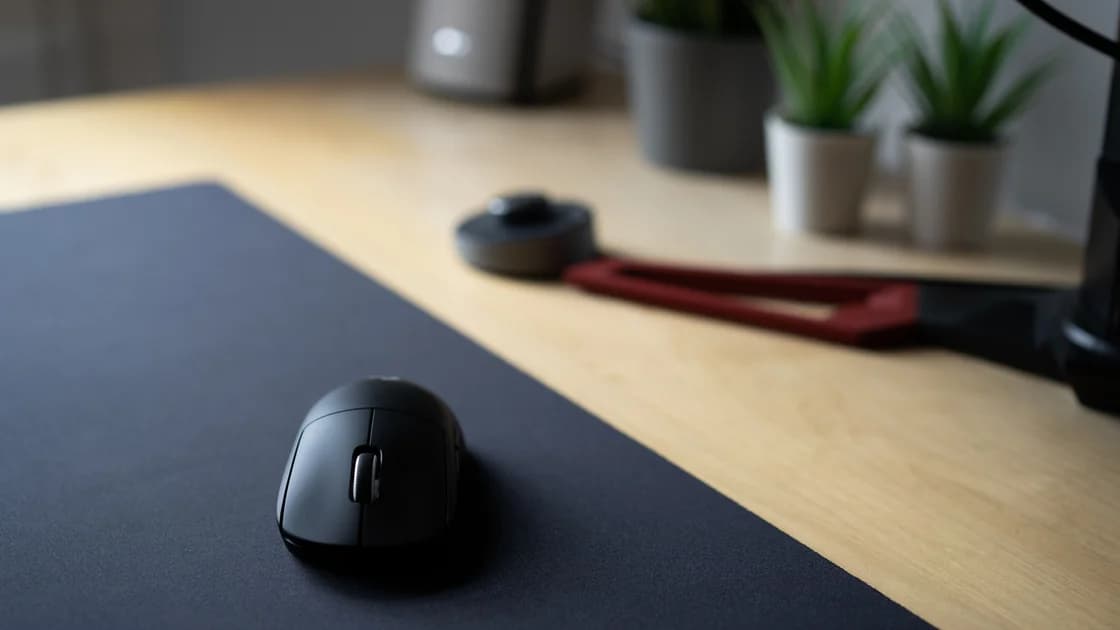

When a Bluetooth mouse lags or stutters but remains connected, first decide whether the sensor stops reporting movement, the Bluetooth path delays input, or the computer draws the pointer unevenly. Use a known-good surface, fresh power, a short unobstructed distance, and a second host comparison. If the device actually disconnects or will not pair, move to the dedicated connection guide instead.
Key Takeaways
- Confirm that clicks and movement still arrive; disconnects are a different symptom.
- Test fresh power and a plain matte surface before changing software.
- Shorten the radio path and remove one likely interference source at a time.
- Compare another mouse, another host, and a lighter display workload.
- Use official updates and supported pairing controls; avoid registry and generic-driver fixes.
The device and app troubleshooting guide provides the broader comparison method. Use the keyboard and mouse disconnection guide when the mouse vanishes, reports disconnected, or stops sending both clicks and movement.
Describe the symptom with a simple test. Move the pointer in slow circles for 30 seconds, click once every few seconds, and scroll a long page. Note whether the pointer pauses then jumps, moves continuously but behind your hand, skips only on one area of the desk, or stops together with clicks.
Pointer pauses with clicks still arriving suggest tracking surface, sensor, rendering, or motion-processing issues. Both movement and clicks stopping can point toward a radio interruption or disconnection. A pointer that is smooth on the desktop but rough only in one game, remote desktop, browser, or high-resolution canvas points toward that workload rather than the Bluetooth link alone.
Do not use vague labels such as “bad Bluetooth” before recording the boundary. Keep a short table of time, app, surface, distance, battery, connected peripherals, and whether the operating system showed a disconnect. Test for at least two minutes because a one-second observation can miss periodic interference or power saving.
If the mouse is paired but never becomes connected, use the Bluetooth paired but not connected guide. If the Bluetooth control or adapter is missing entirely, follow the Windows Bluetooth guide.
Replace disposable batteries with a fresh matched set, or fully charge the mouse using its documented charger. Check the system's battery indication only as supporting evidence; some accessories report in coarse steps or update slowly. A low-voltage mouse can conserve power or transmit less reliably before it disconnects.
Inspect the sensor opening with the mouse powered off. Remove loose dust using the manufacturer's cleaning guidance and a soft, dry method. Do not insert metal, apply liquid into the opening, or look directly into a bright optical source. Check the feet for debris that makes motion physically uneven.
Test on a clean, plain, matte mouse pad or sheet of paper. Glass, mirrors, glossy stone, transparent surfaces, repeated fine patterns, and highly reflective finishes can defeat some optical sensors. Apple specifically recommends checking the sensor and using a suitable surface when a wireless mouse pointer moves erratically.[1]
Keep pointer speed, acceleration, and accessibility settings unchanged during the surface test. If the problem disappears on the reference surface, the Bluetooth connection may have been fine. If it persists, continue with distance and host comparisons.
Move the mouse within 30–50 cm of the laptop for a short test with a clear line of sight. Remove metal objects directly between them. Do not operate the mouse on top of the laptop's antenna area, a metal enclosure, or a closed dock compartment.
Temporarily disconnect one nonessential wireless peripheral at a time through its normal control. Nearby Bluetooth audio, game controllers, keyboards, phones, wireless displays, and dense 2.4 GHz activity can compete for airtime. USB 3 devices, hubs, poorly shielded cables, and external drives close to a receiver or antenna can also create local noise. Move the SSD or hub away rather than unplugging storage during a transfer.
Compare Wi-Fi on another supported band only if your router and organization permit it; do not reset the router or disable security. The purpose is to see whether one crowded radio environment changes the result, not to claim that Wi-Fi is always the cause.
Turn the mouse off and on using its documented switch. If needed, remove and pair it again using the operating system's supported Bluetooth controls, but first make sure you have another input method. Microsoft recommends checking power, batteries, the Bluetooth connection, and updates when a mouse or keyboard misbehaves.[2]
Open the system resource monitor and watch CPU, memory, GPU, and disk activity while moving the pointer. A saturated computer can delay the entire interface even when the mouse reports normally. Compare an empty desktop after startup with the app that shows the problem.
Close a heavy game, video export, virtual machine, or browser workload normally and retest. Do not force-end unknown system processes. If all animation, typing, and window movement stutter together, diagnose system performance rather than replacing the mouse.
Display configuration can change how smooth pointer motion looks. Compare the built-in display alone, then the external display alone where practical. Keep resolution and refresh rate at documented supported values. A pointer may look less fluid at a lower refresh rate, while a graphics or dock problem can create uneven frames independent of Bluetooth input.
Remote desktop, game streaming, virtual machines, and cloud desktops add another input and display path. Test the local desktop first. If motion is smooth locally but delayed remotely, investigate the remote session, frame delivery, and host load without treating the mouse as faulty.
Test another known-good Bluetooth mouse on the original laptop under the same conditions. Then test the original mouse on another compatible phone, tablet, or computer. Keep the same surface and short distance.
Interpret the four-way pattern:
| Result | Stronger direction |
|---|---|
| Original mouse stutters on every host | Mouse power, sensor, firmware, or hardware |
| Every Bluetooth mouse stutters on one laptop | Host radio, driver, power management, interference, or system load |
| Only one app stutters | App, rendering, remote session, or workload |
| Only one desk position stutters | Surface, distance, obstruction, or local interference |
If the mouse supports both Bluetooth and a vendor receiver, test the alternative only as a diagnostic path using official hardware and instructions. Do not assume the receiver result proves Bluetooth hardware is broken; it changes the radio, driver, and sometimes polling path at the same time.
On a Surface accessory, Microsoft recommends current Windows updates and the Surface app for supported accessory updates and checks.[3] For other models, use the computer and mouse makers' official update paths. Avoid generic driver sites and utilities that promise to increase polling rates through undocumented settings.
Do not edit the registry, disable Bluetooth power management globally, replace system drivers with unsigned packages, or change hidden polling settings as first steps. Do not open a rechargeable mouse, puncture a swollen battery, or continue using a device that is hot, leaking, cracked, or smells unusual.
Before resetting Bluetooth or removing every paired accessory, record the result of the controlled tests and ensure another keyboard or pointing device is available. On a managed laptop, pairing and radio policies may be administrator-owned. Ask IT rather than removing management profiles or security controls.
Contact the mouse maker when the original mouse stutters on multiple hosts with fresh power and a suitable surface. Contact the laptop maker or IT when multiple known-good Bluetooth mice stutter only on that laptop after official updates and a short-distance test. Include device models, OS version, battery state, surface, distance, connected devices, display setup, affected apps, and the comparison matrix.
Seek hardware service sooner if Bluetooth also disappears from the operating system, the laptop has impact or liquid damage, or the mouse battery is swollen or overheating. Preserve work and use a safe alternative input device.
The sensor may miss the surface, the radio may delay reports, or the computer may draw frames late. Check whether clicks also stop, then compare surface, distance, and system load.
Yes. Some mice become unreliable or enter aggressive power saving before the system reports a full disconnect. Test fresh or fully charged power.
Local USB 3 equipment and cables can add noise near a 2.4 GHz radio path. Move them away and retest; safely stop transfers before disconnecting storage.
The display path, refresh rate, dock, graphics load, or scaling may make motion uneven. Compare the local built-in display and supported display modes before blaming Bluetooth.
It is a reasonable supported step after power, surface, and distance tests. Ensure another input method is available and use the operating system's normal Bluetooth controls.
No. It changes how far the pointer moves for each report but does not repair missing, delayed, or uneven reports. Keep it constant during diagnosis.
That app may be rendering slowly, capturing input, running remotely, or saturating the system. Compare a local lightweight app and inspect resource use.
The mouse becomes the stronger suspect when it stutters on multiple compatible hosts with fresh power, a suitable surface, a short distance, and current official firmware.
Sources checked 10 September 2026.
Sign up to experience all premium features at no cost.
*Available only to new users. Each user is limited to one trial.