Start your 3-day free trial
Sign up to experience all premium features at no cost.
*Available only to new users. Each user is limited to one trial.

Joplin sync error means you need to identify the failing target operation before changing the connection. Preserve unsynced notes, keep the destination fixed, and compare one permitted route only after checking credentials and storage. Recovery requires the same test edit to reach another device; a completed progress indicator does not settle a note conflict.
Key Takeaways:
- Export a recoverable copy before changing synchronization settings.
- Local filesystem targets, public services, and private WebDAV servers need different connection checks.
- A credential failure or conflict is not evidence that the Internet route is broken.
- Keep both disputed note versions and verify the intended edit on a second device.
Stop editing the affected note on other devices. Identify the computer holding the newest unsynced changes and make an independent recovery copy before you retry. A second device showing an older note is useful evidence, but it is not automatically the version you should restore over the first computer.
Use Joplin's export facility to save a JEX archive of the material you need to protect, including the relevant notebooks. Put the archive outside the active synchronization destination and confirm that it exists. The official FAQ recommends a JEX backup before a WebDAV destination change; here, the backup is protection while diagnosing the existing destination, not permission to migrate it.[1]
Do not test the archive by importing it into the active profile: that changes the notes you are diagnosing. Keep any recovery test separate from the original profile and sync target. Retain the profile and archive until the important changes have been verified.
Write down the application version, operating system, sync target type, first error, and approximate failure time. Record the target address privately if it identifies an organization or personal storage location. Never post passwords, authorization headers, full private paths, or note contents in a public troubleshooting request.
If several unrelated applications also fail, use the device-wide connection checklist to separate an overall connection problem from Joplin's target operations. Preserve the Joplin evidence even if the broader network begins working again.
Inspect the synchronization settings on the affected desktop. Confirm both the target type and its account or destination. Joplin supports several targets, including its cloud service, WebDAV-based services, other cloud providers, and a local filesystem; those options do not all use the same network path.[2]
A local filesystem target does not become an Internet service when you turn on a VPN. Check the configured folder, mount availability, permissions, and the separate mechanism that transfers that folder, if any. A NAS or organization-only server may require the original authorized network. A consumer VPN does not grant access to that private endpoint.
For a public target, verify that you still have permission to use the account and destination. Distinguish an expired sign-in from a removed folder, a revoked application authorization, and a storage limit. Use the provider's supported account process for the named error; do not switch to a different account while comparing routes.
Treat a WebDAV address change as a migration, not a harmless diagnostic experiment. Joplin warns that an empty replacement location can be interpreted as deletion and propagated locally. Do not append a new folder, change the target URL, or point another device at an empty destination just to see whether the error disappears.[1]
When proxy settings may have changed after leaving an office or campus, document them first. The Windows proxy inspection steps help you identify an obsolete setting without disabling an organization-required proxy. Check with the administrator before changing managed settings.
Keep the same profile, target, account, test note, application version, and synchronization options for the comparison. Record any deliberate change separately. If you change the account and route together, a successful attempt cannot tell you which change mattered, and it may send your notes to the wrong destination.
Trigger one manual synchronization and read the first relevant error, rather than repeatedly pressing the sync button. Joplin can synchronize automatically while the application is running and can also start a manual attempt. Record whether the error happens before any transfer or after some items have progressed.[2]
Use the message to identify the operation or object involved. Connection attempts, authentication, destination access, item upload, resource transfer, and conflict handling are different stages. A later error can be the consequence of an earlier failure, so keep a short sequence around the first error rather than copying one line without context.
| Observation | Investigate next | Stop doing |
|---|---|---|
| Wrong or rejected credentials | Account authorization and target identity | Cycling through VPN locations |
| Destination missing or inaccessible | Saved address, permissions, private-network requirement | Creating an empty replacement target |
| Storage or object limit | Provider allowance and the named item | Re-uploading the whole collection |
| Timeout or connection failure | Approved route, proxy, and timestamp | Resetting the profile |
| Notes arrive but an attachment does not | Resource-specific progress and the attachment | Assuming note transfer proves resource transfer |
| Conflicting note versions | Both versions and editing history | Choosing a winner by timestamp alone |
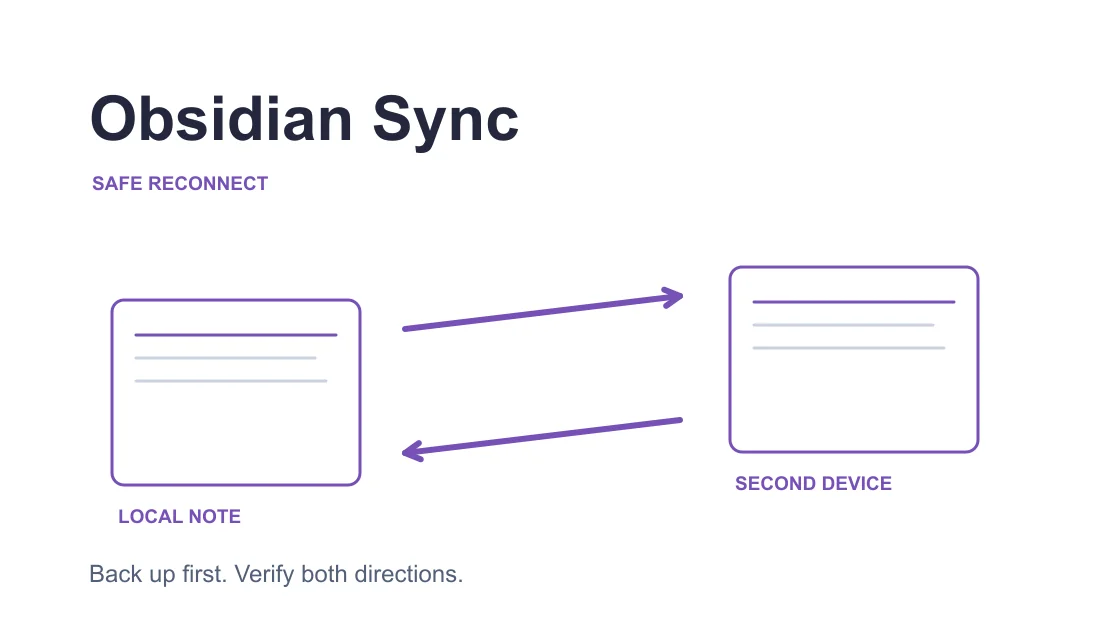
The Obsidian remote-vault diagnostic workflow is useful if you maintain a separate Obsidian vault. Its account and vault concepts do not replace Joplin's provider-specific target settings. Apply only the shared discipline of preserving work and verifying an actual edit.
Reproduce briefly, then stop collecting logs. Review the excerpt yourself before sending it through official support. Remove secrets and confidential content, but keep the stage, error wording, time, and non-sensitive test identifier. If redaction removes the clue support needs, ask how to share it privately rather than publishing the original log.
Only enter this branch when the target is a public service you are authorized to access and the evidence points to connection failure. Confirm that no announced provider incident already explains the result. Use an approved alternative network first if one is available; do not bypass an employer's policy or change a required certificate configuration.
Save the direct-route result with its time and error. Then retry the same operation on the same note through one permitted alternative path. Avoid simultaneous editing on the second device during this comparison. If the existing VPN appears to cause the failure, disconnect it where allowed and keep the direct result as the useful outcome.
On this desktop use the official Windows package, or the .deb package on supported Debian/Ubuntu x64. A Mac needs the website setup guide, a VPN-client configuration, and Pro or Premium; Standard is not a desktop option. Choose a currently available suitable nearby or home-country position where offered and enable global mode before the application retry.
Leave Joplin’s destination and notebook selected as they were. With AethoVPN connected, manually synchronize the protected marker note to that existing public target, then ask the second client to read the marker. Track the first target error separately from any conflicting text so a new outbound path is judged by the note it actually transfers.
Compare the first target error and the test note's transfer, not the server selector's appearance. This route test does not restore missing encryption keys, increase storage, reactivate a disabled object, or decide which conflicting text is correct. For an account to perform that comparison, start the 3-day free Pro trial; each user receives it once.
Record results in a small comparison log: route, time, unchanged target, first error, and whether the test edit reached the destination. A single successful alternative attempt suggests a route-sensitive problem; it does not prove a permanent repair or identify exactly which network component was responsible.
If you cannot establish that the VPN connection is active, use the VPN connection verification procedure before repeating the Joplin operation. Browser access to the provider's homepage is a separate check and cannot substitute for Joplin's transfer result.
Choose a harmless test note you control and add a short distinctive marker on the affected computer. Record its notebook and existing target. Synchronize once, then synchronize the other device against that same destination and open the actual note. Confirm the marker in its content, rather than relying on matching note titles.
Where the provider offers a supported view of the target, use it to confirm the expected destination without altering its stored objects. Some targets hold synchronization files rather than a human-readable notebook interface. In that case, the second Joplin client reading the same edit is the practical destination check; do not manually rename or delete remote files.
If an attachment is part of the failure, verify it separately. Open the exact resource from the receiving device and confirm that it corresponds to the test note. Text arriving while a resource remains unavailable is partial recovery, not evidence that the entire notebook is synchronized.
For a Joplin sync conflict, preserve both versions before editing either one. Compare actual text and decide which changes to retain. Do not assume that another network will merge the intended wording. Perform the content reconciliation separately after connection evidence is stable, and verify the retained text again on the other device.
Stop and use official support when the target is uncertain, the newest work is not protected, necessary credentials or encryption material are unavailable, or an object keeps failing on both permitted routes. Supply the sanitized first error, target type, application version, times, and test outcome. Keep the recovery archive while support investigates.
A JEX export is a separate recovery artifact when you save it outside the active target. Synchronization can propagate unwanted changes, so keep the export until the intended notes have been checked.[1]
Do not change it as a connection test. Joplin warns that an empty new destination can trigger deletion behavior; a planned migration needs a protected copy and correctly transferred target contents.[1]
The note's visible content does not prove that its associated resource transferred successfully. Inspect the resource-specific error and open the attachment on the receiving device before declaring recovery.
An Internet VPN cannot test a purely local folder operation. Check the folder or mount and the separate transfer process; private storage may need its authorized local or organizational network.
Keep that direct-route result where policy permits and record the failed VPN attempt. A useful diagnostic can identify the VPN as part of the failing path without requiring another VPN subscription.
The second device must read the distinctive edit from the same destination and note. If attachments were affected, opening the exact received resource is an additional check, not an optional assumption.
Stop when account or encryption requirements are unresolved, target identity is uncertain, or the same object fails on both permitted routes. Preserve work and send reviewed evidence rather than resetting the profile.
Sources checked 7 October 2026.
Sign up to experience all premium features at no cost.
*Available only to new users. Each user is limited to one trial.