Start your 3-day free trial
Sign up to experience all premium features at no cost.
*Available only to new users. Each user is limited to one trial.
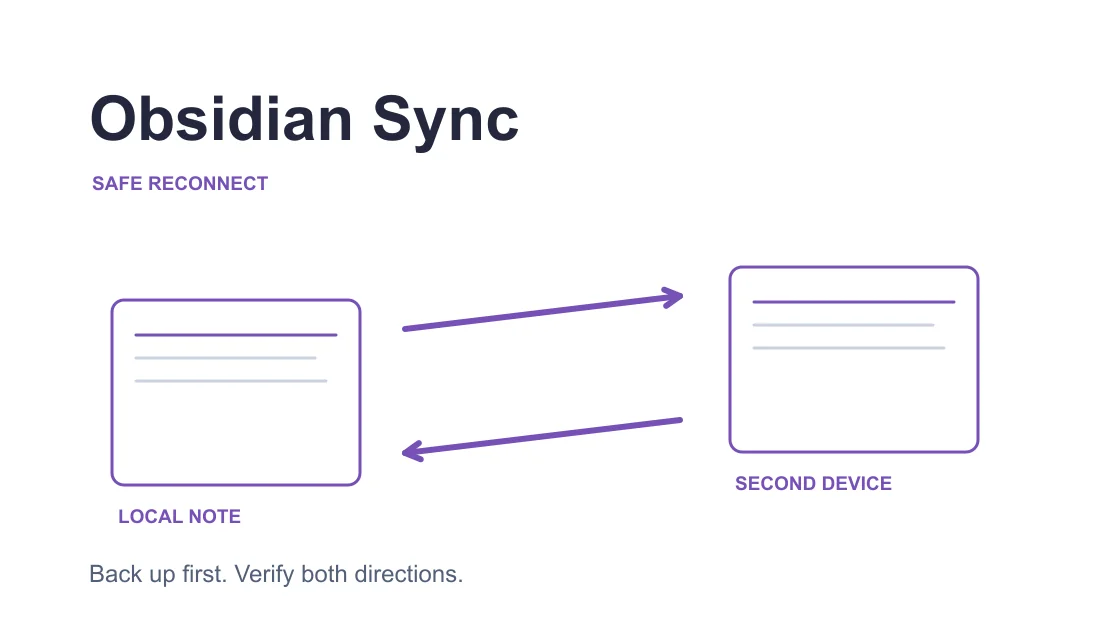

Obsidian Sync not connecting calls for a preserved local vault, a captured connection log, and a controlled retry against the same remote vault. Check account and vault errors before changing networks, then verify a harmless note in both directions. A connected icon alone does not prove that your latest edits reached another device.
Key Takeaways:
- Back up local notes before reconnecting a device with unsynced changes.
- Connection messages, account errors, skipped files, and conflicts need different responses.
- Keep the account and remote vault unchanged during a network comparison.
- Verify two-way transfer with a new test note instead of overwriting important notes.
Identify every device that may contain edits not yet visible elsewhere. Save the current notes and stop simultaneous editing while you diagnose the connection. A copy on another device may be older; do not choose it as the replacement simply because its Sync icon appears healthy.
Make an independent copy of the local vault outside the active synchronization location. Include the files and configuration you need to recover your work, and confirm that the copy exists before proceeding. Do not put that backup inside the same vault, where it could become another set of synchronized files.
Record the application version, operating system, account, remote-vault name, error, and time. Keep identifiers privately where necessary. Avoid screenshots containing confidential note titles, workplace folders, client names, or account details.
This workflow concerns the official Obsidian Sync service. It does not diagnose an iCloud folder, a Git repository, Syncthing, or a community synchronization plugin as though they were the same system. Confirm that the Sync core plugin is the service actually handling this vault.[1]
If other applications cannot connect either, start with the device-level troubleshooting sequence. Preserve the vault-specific evidence so a general network repair does not lead you to delete or rebuild notes unnecessarily.
Open the Sync activity log from the status control, Settings → Sync → Activity log, or the command palette's Sync log command. Copy the relevant entries before closing Obsidian: the official documentation says the activity log does not persist after the application closes. Save a short sequence around the failure rather than one isolated line.[2]
Read messages as stages. “Connecting to server” means an attempt is in progress; “Connected to server” means the connection was established, not that every selected file reached every device. File-level progress, skipped messages, and merge conflicts describe later work.[2]
| Message or observation | Check next | Avoid this shortcut |
|---|---|---|
| Connecting repeats without progress | Server connection and approved route | Rebuilding the vault |
| Unable to connect or disconnected | First connection error and timestamp | Treating the icon as file evidence |
| Authentication or subscription error | Account and service entitlement | Trying many server locations |
| Vault not found | Intended remote vault and its history | Replacing local notes immediately |
| Connected but a file is skipped | Selection, filename, and file limits | Repeating the whole connection setup |
| Merge or conflicting copy | Both versions and device edits | Overwriting the older-looking copy blindly |
For an Obsidian Sync unable to connect message, record whether it repeats after a controlled retry and whether any file progress occurs. If the connection succeeds but a note is still missing, switch to the file-selection or destination branch. Repeating network changes after a clear skipped-file message obscures the evidence.
The cloud-storage sync checklist can help you identify direction and device. Apply its general reasoning without treating a cloud drive's relinking operation as the correct command for an Obsidian remote vault.
Inspect account status and confirm that the Sync entitlement is active. Distinguish a login error from an expired subscription and from a vault that is no longer available. Use the supported account controls for the named condition rather than repeatedly signing out or disconnecting working devices.[2]
Verify the exact remote vault selected on each device. Two local folders with the same name can still be connected to different remote vaults. If the log says a vault cannot be found, investigate its ownership and availability before creating another destination; preserve the newest local material first.
Check the application's official service-status information and any institution-managed network policy. If a known outage explains the failure, keep working from the protected local copy as appropriate and wait for service recovery. An outage is not evidence that the vault's encryption or local file structure needs alteration.
When using a managed network, ask the administrator to examine the relevant connection and certificate policy. Keep security controls enabled. For a personal Mac with a stale proxy configuration, use the Mac proxy checks to document the setting before making an approved correction.
Do not change the account, remote vault, sync selection, and network in the same attempt. A stable comparison requires the original context. If you cannot identify the intended account or recover required encryption credentials, stop before any destructive reconnect action and use official support guidance.
Once account and vault selection are correct, compare the failing device's connection through one permitted alternative route. Keep the local vault and remote destination unchanged. Do not edit important notes during the comparison, and capture the current log before any restart.
AethoVPN can carry this device's Sync connection through a different network path while the vault identity remains fixed. On a supported Windows computer use the Windows package; on Mac obtain a client configuration through the setup guide, which requires Pro or Premium. Connect, turn on global mode, select a location currently offered in the app, and observe the Sync log for a new connection attempt to the same remote vault.
This test does not renew the Sync subscription, recover an encryption password, or guarantee a safe conflict merge. Preserve notes and handle those named conditions separately. If you need to set up the alternative path, start the 3-day free Pro trial; each user can receive it once.
Record whether connecting changes to an established connection and whether file progress follows. A different result on the second route is evidence about that device and attempt, not a promise that every note has arrived. If both attempts fail with the same account error, return to the account branch rather than cycling through locations.
If the VPN itself may be disconnected, follow the VPN connection checks, then repeat the original Sync observation. Internet access in a browser cannot substitute for a Sync log and a destination-file check.
Create one harmless Markdown note with a unique test name and a short non-sensitive marker on the source device. Confirm that this note is included in the device's sync selection. Wait for its upload evidence, then locate and open that exact note on the second device.
Do not begin by editing an existing important note on both devices. First verify the source marker on the destination. Then add a different harmless marker on that second device, allow it to synchronize, and confirm that the first device receives the additional line. Keep the test sequential so an accidental concurrent-edit conflict does not contaminate the result.
Record three outcomes: connection established, first marker received, and return marker received. Where a file is missing, inspect its selection and filename messages on the receiving device before concluding that the server connection failed. The activity log categorizes skipped and account messages separately from connection events.[2]
If a test note transfers but an attachment does not, examine the attachment's applicable file-type selection, storage allowance, and errors independently. A text note is a deliberately small first test, not evidence that every attachment or configuration file synchronizes. Preserve a failing attachment's original before investigating it.
After you have recorded both directions, remove the temporary test note only when you no longer need its evidence and understand that deletion can propagate. Keep the independent backup. Official Sync is a synchronization service, so a synchronized deletion or unwanted edit is not the same thing as an independent recoverable backup.[1]
Preserve both versions of any disputed note before deciding which content to retain. Obsidian documents different handling for Markdown and other file types, so do not assume a text-merge result applies to a canvas or attachment. Read the conflict message and compare content rather than relying only on timestamps.[3]
Conflict-resolution options can depend on the installed application version and are device-specific. If the documented option exists on your version, check it on each participating device rather than assuming one setting governs all devices. An automatic merge may still require human review of duplicated text or formatting.[3]
Avoid combining official Sync with another service acting on the same live vault during diagnosis. Multiple systems can propagate contradictory changes and deletions; Obsidian identifies double syncing as a possible cause of disappearing files. Plan any supported migration only after backups and ownership of the active sync path are clear.[3]
For support, send the application and system versions, a sanitized remote-vault identifier, timestamps, relevant copied log entries, and the two-way test results. Exclude note contents, account credentials, encryption passwords, private folder names, and customer information. State which stage failed: connection, account, selected-file transfer, or conflict resolution.
If a separate reference library also fails, use the Zotero data and attachment checks for that application. Its metadata and storage-provider model does not explain Obsidian's remote-vault selection.
Stop when you cannot establish the intended vault or protect unsynced edits. Creating a fresh remote vault, deleting the local folder, or disabling encryption is not a neutral connection test. After diagnosis, restore only recorded settings you changed, retain approved corrections, and keep recovery copies until the important material is verified.
The client may be trying to establish its server connection without completing it. Save the surrounding log and check account, vault, service, and permitted route conditions before rebuilding anything.[2]
An established connection does not prove that the note is selected or accepted on the receiving device. Check file-level progress, skipped messages, and the intended remote vault before changing the route again.
Local folder names do not establish remote-vault identity. Compare the selected destination and account on each device, especially when the log reports a missing vault.
A connection change does not renew service entitlement. Resolve the subscription condition through the official account flow while retaining the local vault and unsynced material.[2]
A different route does not reconstruct the credentials required for your vault. Preserve local readable files and follow official recovery guidance before changing the remote destination.
Avoid adding a second live synchronization system during diagnosis. Competing writers can propagate unexpected edits or deletions; back up and plan a supported transition instead.[3]
Recreating a vault changes the destination and can put unsynced notes at risk. Diagnose the existing connection first; any later rebuild needs verified recovery copies and a deliberate migration plan.
Sources checked 6 October 2026.
Sign up to experience all premium features at no cost.
*Available only to new users. Each user is limited to one trial.