Start your 3-day free trial
Sign up to experience all premium features at no cost.
*Available only to new users. Each user is limited to one trial.
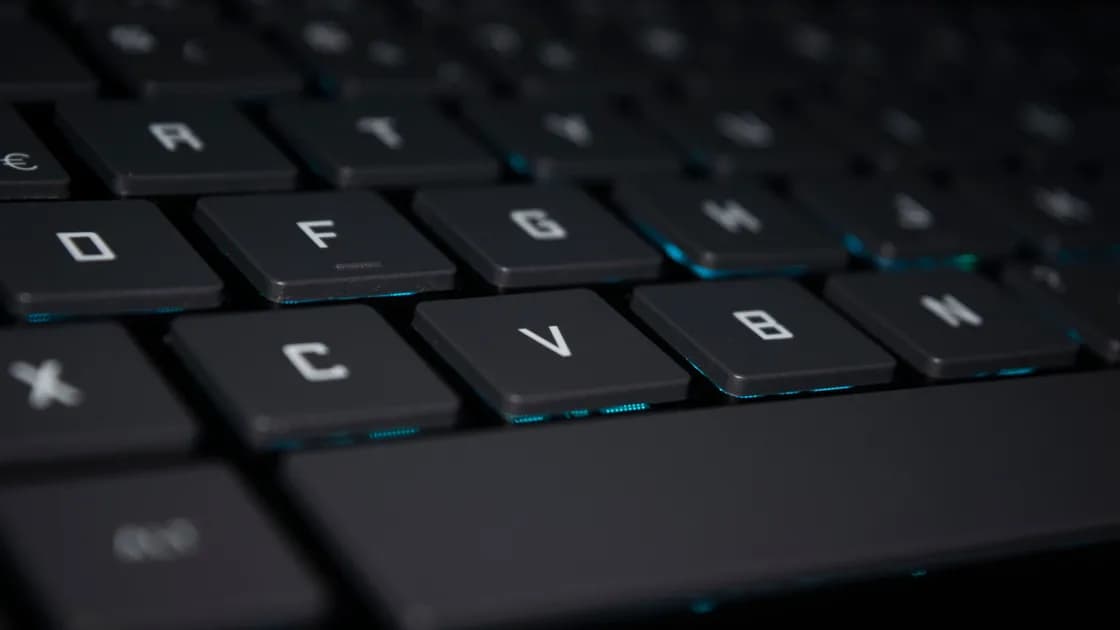

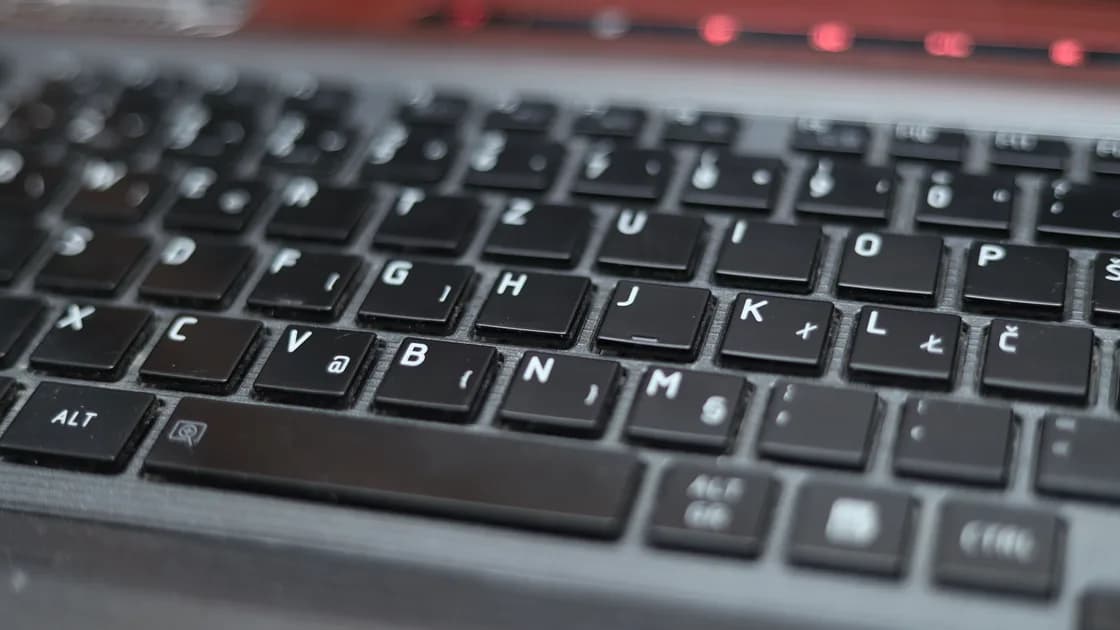
If a laptop keyboard backlight is not working, confirm that the exact model and keyboard configuration actually include illumination. Then cycle the documented brightness control, check Fn or Fn Lock behavior, test in a dim room, review idle timeout and power settings, and install only manufacturer-provided system or firmware updates. Separate lighting faults from keys that do not type.
Key Takeaways
- Verify the exact keyboard option from the model specification or service tag.
- Use the documented brightness cycle and test both Fn states.
- Shade the ambient-light sensor and wait for any idle timeout to reset.
- Compare battery, charging, startup, and signed-in behavior.
- Stop testing and seek service after liquid, impact, heat, or connector damage.
The device and app troubleshooting guide shows how to preserve evidence and change one variable at a time. This guide covers illumination only. If keys do not type, disconnect, or produce the wrong symbols, use the relevant keyboard connection guide or wrong-characters guide.
Similar-looking laptop models can ship with illuminated and non-illuminated keyboard options. Retail listings may describe a product family rather than the unit in front of you, and a replacement keyboard may differ from the original. Find the exact model, configuration code, or service tag, then check the manufacturer's specification, invoice, or parts list.
Look for the documented illumination symbol on a function key, arrow key, spacebar, or dedicated control, but do not treat the symbol as universal. Its appearance and location vary. Some keyboards have one brightness level, others cycle off, low, and high, and some offer color zones through an OEM application. A keyboard without the lighting assembly cannot gain it through a driver.
If the keyboard was recently replaced, ask whether the replacement part includes the backlight sheet and whether its separate ribbon cable was connected. Do not open a device under warranty or with a swollen battery. Record the part number and arrange qualified service.
External RGB keyboards are outside this workflow. They may require their own USB power, hardware profile, receiver, or vendor software. Test laptop-integrated illumination independently so two lighting systems do not obscure each other.
Apple documents keyboard-brightness controls in Control Center or System Settings on supported Mac keyboards and notes that automatic adjustment may depend on ambient light.[1] Google documents Chromebook keyboard brightness through the appropriate top-row brightness control combined with Alt on supported devices.[2] Dell notes that supported notebook models use a designated illumination key or combination and that available levels vary by model.[3] These instructions are not interchangeable; use the publisher guide for the exact computer.
Open the operating system or OEM keyboard settings and move the illumination slider if one is present. If the hardware key changes screen brightness, volume, or another feature, check top-row or action-key mode in firmware or the OEM utility. This is a shortcut-routing issue, not proof that the LEDs failed. The keyboard shortcuts guide covers broader shortcut behavior.
Use the on-screen indicator as evidence, but do not rely on it alone. An indicator that changes while the keys remain dark suggests a hardware, firmware, or sensor path after the command. No indicator may mean the shortcut was not recognized or that the model exposes no software overlay.
Test in a genuinely dim room. Bright ambient light can make low-level illumination difficult to see, and supported automatic controls may deliberately reduce or disable it. Locate the ambient-light sensor in the manufacturer diagram, clean it gently, and shade it without tape or pressure. Wait several seconds, then use the brightness control.
Move the pointer or press a harmless modifier key such as Shift to reset the keyboard-light timeout. Check settings for turn off after inactivity, adjust in low light, or conserve battery. Set a longer documented timeout for one test, then return to a practical value. Illumination turning off after a consistent idle interval is normal behavior, not an intermittent failure.
Compare four moments: firmware startup, sign-in screen, immediately after sign-in, and after the idle interval. Light at startup but not after sign-in points toward operating-system, user, or OEM settings. No light at any stage despite a confirmed backlit part points more strongly to firmware, connection, or hardware.
Camera exposure can exaggerate or hide keyboard light. Judge it directly in controlled lighting and compare all zones. One dark key may be a keycap or light-guide issue; an entire dark keyboard suggests the common power or control path.
Connect the correct charger and confirm the system reports normal charging. Battery saver, low charge, thermal protection, or OEM power profiles can reduce accessory lighting. Compare the same brightness command while plugged in and on battery, keeping room light constant.
Wake the laptop fully before testing. Backlight behavior during sleep, hibernate, shutdown, or lid closure can differ by design. Some systems illuminate briefly at startup, some wait until sign-in, and some turn off while video plays or after inactivity. Use the manual's expected behavior as the reference.
Disconnect unnecessary USB devices and external keyboards for one restart. This is mainly to simplify input and OEM-profile state, not because a normal mouse should consume the keyboard's internal lighting power. If a dock or external monitor changes the active power profile, compare a direct charger without the dock.
Do not disable battery safeguards or use an always-awake utility to keep the light on. Keyboard illumination is cosmetic and must not take priority over low-battery, sleep, or thermal protection.
Use the computer manufacturer's support page to identify the current BIOS or firmware, keyboard hotkey component, system-control interface, and OEM settings application. Record installed versions before changing anything. Apply one supported update at a time with stable power, then restart when instructed.
If the problem began after an update, inspect the publisher's known issues and recovery instructions. Do not download generic driver packages, copy firmware from a similar model, or interrupt a firmware update. A keyboard backlight is often controlled by embedded firmware rather than a standalone LED driver, so random driver reinstallations can add noise without addressing the controller.
Open firmware setup only if the manufacturer documents a keyboard-illumination option. Photograph the original setting, confirm whether illumination works inside the setup screen, and exit without unrelated changes. If it works in firmware but not in the operating system, focus on software and policy. If it fails in firmware too, service is more likely.
On managed devices, OEM utilities and firmware settings may be restricted. Do not remove management agents or alter protected services. Give support the model, firmware version, power state, shortcut tested, and whether lighting appears before sign-in.
Stop using the laptop and disconnect power after a recent liquid spill, burning smell, smoke, unusual heat, swelling, or electrical noise. Do not repeatedly press keys, apply heat, or charge a wet device. Follow the manufacturer's safety process and arrange inspection.
After a keyboard, palm-rest, battery, or mainboard repair, the backlight ribbon may be separate from the typing ribbon. Keys can type normally while illumination remains disconnected. That distinction is useful evidence for the repair provider. Do not open the case solely to reseat it unless the service manual permits user access and you have the required safety skill.
Localized darkness, flicker when the chassis moves, or light that works only under pressure suggests a physical connection or light-guide issue. Photograph the pattern in low light without including private screen content or labels. A whole-keyboard software symptom usually follows settings or power state instead of physical pressure.
Build a small result table:
| Check | Result | Likely direction |
|---|---|---|
| Confirmed backlit part | Yes or no | Capability versus fault |
| Brightness cycle in dim room | All levels or none | Control and sensor |
| Startup or firmware screen | Lit or dark | OS versus lower layer |
| Plugged in and on battery | Same or different | Power policy |
| Before and after sign-in | Same or different | User or OEM software |
| After idle timeout | Returns or stays dark | Expected timeout versus fault |
Restart normally rather than erasing settings. If the manufacturer provides hardware diagnostics that explicitly test the keyboard or lighting, use them and save the result code. A general keyboard test may prove key input only; it does not necessarily test illumination.
Create a temporary local account only if ordinary policy permits it and the symptom starts after sign-in. A different result can identify a user setting, but it does not justify deleting the original profile. Avoid factory reset or operating-system reinstall for a single lighting symptom unless the publisher's support path requires it after hardware tests.
Keep backlight diagnosis separate from key input and network behavior. Confirm the keyboard has lighting hardware, then follow the device's controls and repair path; a VPN cannot add absent lights, change embedded-controller policy, or repair a disconnected lighting ribbon.
Verify that the exact keyboard contains backlight hardware, then test the documented brightness cycle and both Fn states in controlled low light. Compare startup, sign-in, idle, battery, and charging behavior. Use only manufacturer settings, diagnostics, and firmware. Physical-event symptoms or failure at the firmware screen should go to qualified service rather than broader software resets.
Check the exact model configuration, service tag, invoice, or manufacturer parts list. A similar product photo or a symbol used elsewhere in the model family is not conclusive.
Fn Lock or action-key mode may be routing the top row differently. Use the exact model's documented shortcut or firmware setting.
Automatic ambient-light control may reduce it in bright conditions, and low brightness can be difficult to see. Test the documented control while gently shading the sensor.
An idle timeout is probably enabled. Press a modifier key and inspect the OEM or system timeout setting before treating it as a fault.
Yes, on some models. Compare plugged-in and battery behavior and consult the manufacturer's power-profile documentation.
Typing and lighting can use separate circuits or ribbon connections. This is especially relevant after a keyboard or palm-rest repair.
Not as a first step. Confirm hardware, controls, sensor, power, startup behavior, and publisher updates. The embedded controller often manages illumination.
Usually not for an isolated backlight symptom. Use supported diagnostics and service first; a reset costs time and may not affect hardware or firmware control.
Sources checked 8 September 2026.
Sign up to experience all premium features at no cost.
*Available only to new users. Each user is limited to one trial.