Start your 3-day free trial
Sign up to experience all premium features at no cost.
*Available only to new users. Each user is limited to one trial.
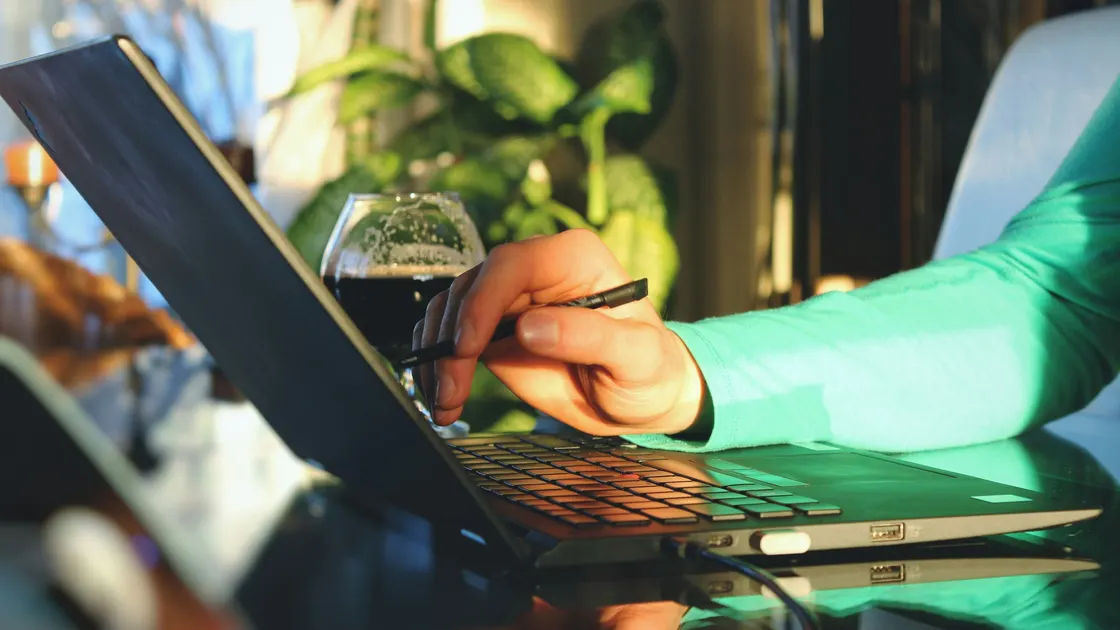

With a laptop touchscreen not working, the cause is usually one of five things: the exact model never had a touch panel, the touch device is disabled or lost its driver after an update, a protector or dirt is blocking the digitizer, one app is intercepting gestures, or the panel is physically damaged. Confirm touch support for your exact model first, then check whether the whole panel, one area, one app, or only pen input is affected. That scope prevents a software reset from hiding cracked glass, a failed digitizer, or a model that never included touch.
Keep a mouse and keyboard available while troubleshooting. Do not erase the laptop or repeatedly remove devices until you have checked the simpler, reversible layers.
Key Takeaways
- Verify touch support by exact model and configuration, not by product-family name.
- Separate display output, finger touch, pen input, touchpad input, and app response.
- Stop if the screen is cracked, lifting, hot, wet, or associated with a swollen battery.
- Use official Windows or ChromeOS repair paths and change one layer at a time.
- Back up data before recovery, powerwash, or factory-reset actions.
For a wider decision tree, start with the device and app troubleshooting guide.
Manufacturers often sell one laptop family with several display options. Two machines can share a marketing name while only one configuration has a touchscreen. Look up the full model or product number on the manufacturer's support page, invoice, or firmware information screen. Do not rely on a retailer's generic family description.
In Windows, system information may report a pen-and-touch capability, but the manufacturer's specification remains the best way to confirm the fitted panel. Microsoft's touchscreen guide applies to a device that already has compatible touch hardware; it does not turn a non-touch display into one.[1] If touch has never worked since purchase, configuration or assembly is more plausible than a recent driver change.
On a Chromebook, check the exact model's specification and the manufacturer's support material. Google's touchscreen help describes gestures and touchscreen controls for Chromebooks that provide the feature; those controls do not add touch hardware to a non-touch display.[2]
Also distinguish the built-in screen from an external monitor. A laptop may have a non-touch internal panel while a connected monitor supports touch only through an additional USB data connection. This article covers the laptop's built-in touchscreen, not a monitor's separate USB path.
Test with clean, dry hands and a simple system surface such as Settings or the app launcher. Do not begin with a game, drawing app, remote desktop, or website that may interpret gestures itself.
Record the result:
| Observation | Likely scope to check next |
|---|---|
| The picture is visible but no finger touches register | Touch controller, driver, disabled device, or digitizer |
| Only one strip or corner is dead | Protector, contamination, pressure, or digitizer hardware |
| Touch works in system UI but not one app | App gesture support, overlay, or app state |
| A pen works but fingers do not | Separate finger-touch setting or digitizer path |
| Fingers work but a pen does not | Pen battery, pairing, compatibility, or pen-specific driver |
| The touchpad fails but the screen works | Built-in pointing-device problem, not touchscreen failure |
| Touch points appear in the wrong location | Calibration, display rotation, multiple-display mapping, or hardware |
Rotate a convertible laptop through its supported modes and test again on a stable surface. A hinge sensor can change keyboard or tablet behavior, but do not repeatedly flex a damaged hinge. If the failure appears only at one lid angle, service is safer than forcing the mechanism.
If the touchpad is the only failed input, use the touchpad troubleshooting guide. If the display flickers or loses its image, use the laptop screen-flicker checks. A visible image and a working digitizer are separate paths.
Shut down the laptop and follow the manufacturer's cleaning instructions. Use a soft, lint-free cloth; do not spray liquid directly onto the screen or let cleaner run into the bezel. Remove gloves and disconnect unneeded external devices while testing.
A thick, cracked, bubbling, or poorly fitted screen protector can reduce touch sensitivity or create dead regions. Remove it only if it is designed to be removable and doing so will not worsen cracked glass. A magnetic case, privacy overlay, or accessory resting on the bezel can also interfere with a convertible's sensors.
Stop ordinary troubleshooting if you see any of these signs:
A lifting display or keyboard deck can indicate a swollen battery. Power down, disconnect charging when safe, avoid pressing the screen back into place, and use the manufacturer's service route.
Restart Windows once using the normal power menu. This reloads the touch controller and clears a stuck session without changing data. If touch still fails, Microsoft's current sequence is to open Windows Update's advanced options, turn on updates for other Microsoft products, install the available optional updates, run Check for updates, and restart even if no update asks for it.[1] Save work and use that supported interface rather than a third-party driver updater.
Next open Device Manager with a mouse or keyboard and inspect Human Interface Devices. A compatible touch panel commonly appears as an HID-compliant touch screen, but names can vary by manufacturer. If the device is disabled, enable that exact touch device. Do not enable or remove every HID entry: keyboards, pens, sensors, and other controls share that category.
Microsoft's touchscreen page now stops at restart and updates, then sends you to Surface support or the device manufacturer; it no longer lists a Device Manager reinstall.[1] If you still disable and re-enable the touch entry yourself, record the exact entry first and confirm you have another input method. Restart after the narrow change and retest the same system surface.
Check the laptop maker's support page for model-specific chipset, serial I/O, touch firmware, and BIOS guidance. Install only packages intended for the exact model and current operating system. If the device disappeared after an update, avoid random driver catalogs; compare the manufacturer's release notes and Windows update history.
Calibration is appropriate when touches register consistently but land in the wrong position. It is not a fix for a completely absent controller, cracked digitizer, or isolated dead strip. On a managed laptop, device settings and driver installation may be controlled by IT.
Restart the Chromebook and test in the launcher or Settings. Remove an interfering protector and disconnect accessories. Google's current fix order is short: wipe dust or dirt off the screen, reset the Chromebook hardware, then reset it to factory settings, and contact the manufacturer if none of those works, testing after each step.[2]
Check ChromeOS for updates through the normal Settings path. If the problem occurs only in one Android or web app, test the same gesture in ChromeOS system UI. A system-wide failure and an app-specific gesture conflict require different next steps.
A hardware reset can reinitialize some Chromebook hardware without deleting local data, but the exact key sequence and effect vary by model. Use Google's or the manufacturer's instructions for the exact Chromebook. Do not substitute a powerwash: powerwash removes local user data and account state and belongs near the end of the process.
If a powerwash is eventually considered, confirm that important Downloads files and other local-only data are backed up. Managed school or work Chromebooks may re-enroll automatically and may restrict recovery actions; contact the administrator rather than attempting to bypass management.
Before recovery, confirm four facts: the exact model supports touch, the failure is system-wide, official updates and the narrow controller restart did not help, and important data is backed up. Recovery cannot repair cracked glass, a loose cable, battery swelling, or a dead digitizer.
Use the platform's official recovery instructions only. Keep reliable power connected where the procedure requires it, and do not interrupt firmware or operating-system installation. If the laptop is covered by warranty, review the service terms before opening the chassis or removing bonded display parts.
Arrange service when:
Back up important files before service. Use the keyboard and mouse as a temporary accessibility path only when the device is physically safe.
The exact configuration may use a non-touch panel even if the laptop family offers touch on other models. Verify the product number and fitted display specification before changing software.
A protector, contamination, pressure, or damaged digitizer can affect a region. Test after safe cleaning and accessory removal; a stable dead strip across system screens is strong service evidence.
No. The screen digitizer and the keyboard-deck touchpad are different input paths. A working touchpad does not prove the screen controller works, and vice versa.
No. Human Interface Devices includes keyboards, sensors, pens, and other controls. Identify the exact touch entry and follow Microsoft or the laptop maker's supported steps.
It can reduce sensitivity or create a dead region if it is thick, damaged, bubbling, or badly fitted. Remove it only when safe and according to its instructions.
Not necessarily. A powerwash deletes local state but cannot repair a digitizer or damaged panel. Use it only after backup and after non-destructive, model-specific checks.
The app may not support that gesture, may have an overlay, or may be stuck. Update or restart that app and compare another account or document before changing system drivers.
Stop when the screen is cracked or lifting, the device is hot or swollen, liquid is present, or touch activates unpredictably after impact. Those are physical safety or service signals.
Sources checked 4 October 2026.
Sign up to experience all premium features at no cost.
*Available only to new users. Each user is limited to one trial.