Start your 3-day free trial
Sign up to experience all premium features at no cost.
*Available only to new users. Each user is limited to one trial.
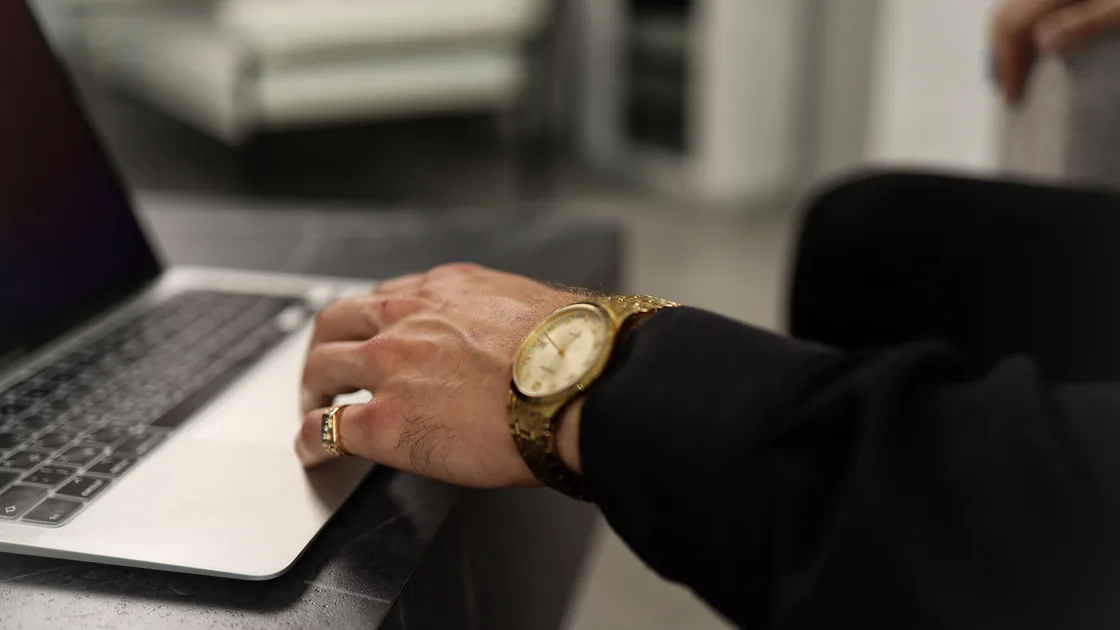

If you find the touchpad not working, protect your ability to control the computer before changing drivers or accounts. Prepare a working keyboard path, a supported wired or wireless mouse, or accessibility input that can reach login and settings. Do not remove the only usable input device or driver while you have no recovery method.
Then classify the failure. A pointer that never moves, a pointer that moves but will not click, missing tap-to-click, broken two-finger scrolling, a touchpad that fails only after sleep, and a problem limited to one user session are not the same issue. This guide covers the laptop's built-in touchpad or trackpad; external keyboards, mice, Bluetooth links, and USB receivers have separate paths.
Key Takeaways
- Establish backup input before removing a driver, account, or device record.
- Separate pointer movement, physical click, tap-to-click, scrolling, gestures, and after-sleep failures.
- Check the laptop's disable key, touchpad settings, external-mouse policy, and surface condition first.
- Use official Windows, ChromeOS, macOS, or Ubuntu steps for the exact platform.
- Keep driver reinstall, Chromebook hard reset, and account removal late because they can remove state or control.
Use the device and app troubleshooting guide when the touchpad is one part of a wider startup, display, power, or account problem.
Use backup input to test one simple local window. Do not test first in a password field, payment page, or document with unsaved work. Record the smallest failing function:
| Symptom | First distinction |
|---|---|
| Pointer does not move | Disabled input, surface, session, driver, or hardware |
| Pointer moves but physical click fails | Click mechanism, pressure, settings, or hardware |
| Tap-to-click fails | Tap setting may be off while movement still works |
| Scrolling or gestures fail | Gesture setting, finger count, app support, or driver |
| Touchpad fails after sleep | Resume, power, firmware, or session path |
| Touchpad fails only in one account or app | User setting, policy, accessibility, or application state |
Try one finger for pointer movement. Apple notes that two or more fingers are used for scrolling and cannot move the pointer in the same way on a Mac trackpad.[4] Use the gesture documented for your platform instead of assuming every laptop handles corners, taps, pressure, and finger counts identically.
If the laptop also fails to wake, the screen is black, or the keyboard is unresponsive, use the laptop wake guide. A nonresponsive system is not yet a touchpad-only fault.
Look for a touchpad icon on the function-key row or a dedicated hardware switch. Some laptops toggle it with Fn plus a function key; others use a double tap in a marked corner. Use the exact model manual because the symbol and key combination vary. Press the shortcut once and observe the result rather than repeatedly toggling an unknown control.
Open the platform's touchpad or trackpad settings with the keyboard or backup mouse. Confirm that the touchpad is enabled. Check whether an option disables the built-in pointing device when a mouse or receiver is connected. Disconnect the external mouse, USB receiver, dock, and nonessential USB devices for one test, but keep backup input available if possible.
Clean the surface gently with the laptop powered down when the manufacturer recommends it. Remove dust, moisture, grease, or a loose protective film. Dry your hands. Do not pour cleaner onto the touchpad, force liquid into its edges, scrape it, or press on a raised surface.
If the touchpad or palm rest is lifting, swollen, unusually stiff, cracked, hot, or deformed, stop pressing it and arrange qualified service. A battery beneath the touchpad can affect the surface. Do not treat a raised trackpad as a settings problem.
Restart the laptop once after saving work. If the failure began after sleep, compare a fresh startup with one later sleep-and-wake cycle. That distinguishes a general failure from a resume-specific one without changing drivers.
Check pointer speed first. An extremely low speed can look like no movement. Then test tap-to-click, physical click, two-finger scrolling, natural or reverse scrolling, and only the gestures your device supports. Change one setting at a time and record the original value.
On a managed laptop, accessibility, kiosk, exam, security, or device-management policy may control input settings. Do not remove profiles or use registry, terminal, or developer-mode workarounds to bypass those controls. Ask the administrator whether the setting is intentional.
Test another local account or a guest session only if the platform and organization allow it and you already have a safe login path. A touchpad that works at the login screen but fails after signing into one account points toward user settings or session software. A touchpad that fails in firmware diagnostics or before login is more likely to involve hardware, firmware, or a lower-level driver.
Do not install a “driver updater” or download a package based only on a generic touchpad name. Laptop makers can customize the controller, firmware, gestures, and power behavior. Use the operating system and exact laptop model as the source of truth.
Open Settings and confirm the touchpad is enabled. Microsoft recommends checking Windows Update first and, if the issue remains, updating or reinstalling the touchpad driver through Device Manager.[1] Keep a working keyboard or mouse and obtain the official laptop-manufacturer package before removing anything.
If the device appears in Device Manager with an error, record the device name, error code, driver provider, version, and date. Install Windows and exact-model OEM chipset, serial-I/O, input, and firmware updates through official channels. Do not remove both the touchpad and the only working external input device.
If the touchpad fails only after sleep, test a clean restart and one undocked wake. Do not permanently disable all power management as the first fix.
Open Device settings and review Touchpad or Touchpad and mouse options, including tap-to-click, acceleration, pointer speed, and scrolling. Google suggests cleaning the touchpad, pressing Esc several times, moving the fingers on it for ten seconds, restarting, then using a hard reset only later.[2]
A Chromebook hard reset restarts hardware components and is not the same as a Powerwash. Google warns that it might delete some files from the Downloads folder, so protect local data and read the exact model instructions first.[3] Google lists deleting and re-adding the affected account after the earlier touchpad steps; do that only after confirming synchronized data, local files, sign-in credentials, management policy, and backup input.[2]
Use one finger for pointer movement and connect the Mac to power in case a low-battery alert is present but not visible. Apple also suggests an external keyboard as a way to reveal the alert. If the pointer still does not move, Apple directs users toward hardware service.[4]
Review Trackpad settings for point-and-click, scrolling, and gestures. Install normal macOS updates. Do not apply old controller resets or terminal commands indiscriminately across Apple silicon and Intel models. A raised, stiff, or physically damaged trackpad should go directly to service.
Open Mouse & Touchpad settings and confirm the Touchpad switch is on. Ubuntu documents separate controls for tap-to-click, two-finger scrolling, edge scrolling, and natural scrolling, and notes that some gesture types are not supported by every touchpad.[5] A missing Touchpad section can mean the system is not detecting a touchpad.
Install supported Ubuntu and firmware updates and record the laptop model and session type. Avoid copying an unrelated input-driver configuration, removing packages, or editing boot parameters without a recovery console and exact hardware evidence.
Update after the enable key, settings, external-device comparison, cleaning, restart, and account/session distinction. Prefer the operating system's normal update channel and the laptop manufacturer's support page for the exact model. Check release notes when available and keep stable power during firmware updates.
Reinstall only when Windows detects the device, the evidence points to a damaged driver state, and you have backup input plus the correct official installer. Record the existing provider and version. Removing a driver can leave the pointer unusable until Windows redetects it or you install the package manually.
On ChromeOS, macOS, and Ubuntu, do not translate “reinstall the touchpad driver” into an unsupported package deletion. Their input stacks and recovery paths differ. Use the platform and manufacturer instructions instead.
If a system update immediately preceded the failure, record that timing. Use official rollback or support guidance where available; do not install an older package from an unknown mirror.
Escalate when the touchpad is absent before login or in built-in diagnostics, the surface is raised or damaged, liquid entered the laptop, the click mechanism is stuck, the device repeatedly disappears, or the problem remains across permitted accounts, restarts, and supported updates.
Give support the laptop model, operating system, firmware, the exact failed functions, whether it works at login or in another account, whether it fails after sleep, external mouse and dock results, enable-key state, settings, Device Manager or diagnostic evidence, and any physical change. Do not publish device serial numbers or account details.
For external mice, keyboards, Bluetooth accessories, or USB receivers, use the keyboard or mouse disconnection guide or the USB device not recognized guide. Do not keep modifying the built-in touchpad when the actual failure is in an external receiver.
Prepare backup input, then identify whether movement, click, tap, scroll, gestures, sleep resume, or one account is failing. Check the disable key, settings, external-mouse policy, clean surface, direct restart, and platform-specific controls before updating or reinstalling drivers. Keep Chromebook hard reset, account removal, and driver removal late, with recovery and data side effects understood. Stop and seek service for deformation, swelling, liquid damage, or failures below the user-session layer.
It may have been disabled by a key, affected by an external-mouse setting, left in a stale session after sleep, changed by an update, or developed a hardware problem.
Use the exact laptop's touchpad function key or keyboard navigation to open settings. The shortcut varies, so check the model manual instead of pressing random function keys.
Physical click, tap-to-click, pressure, and pointer movement are separate functions. Check the click and tap settings and test both without forcing the surface.
The gesture may be disabled, use a different finger count, be unsupported by the hardware, or depend on a platform driver. Test documented gestures only.
Yes, some systems have an option to disable the built-in touchpad while a mouse or receiver is connected. Check that setting and test with the external device disconnected.
No. Check the enable control, settings, surface, external devices, restart, and official updates first. Reinstall only with backup input and the exact official package.
No. It is not the same as a Powerwash, but Google warns that a hard reset might delete some files from Downloads. Back up local files, read the exact model instructions, and keep account removal even later.[3]
Seek service for a raised or deformed surface, swelling, liquid damage, stuck hardware, failure before login, diagnostic errors, or a problem that persists across supported software checks.
Sources checked 30 August 2026.
This article provides general troubleshooting information. Follow the current platform, laptop-manufacturer, accessibility, workplace, battery-safety, and repair instructions for the exact device involved.
Sign up to experience all premium features at no cost.
*Available only to new users. Each user is limited to one trial.