Start your 3-day free trial
Sign up to experience all premium features at no cost.
*Available only to new users. Each user is limited to one trial.
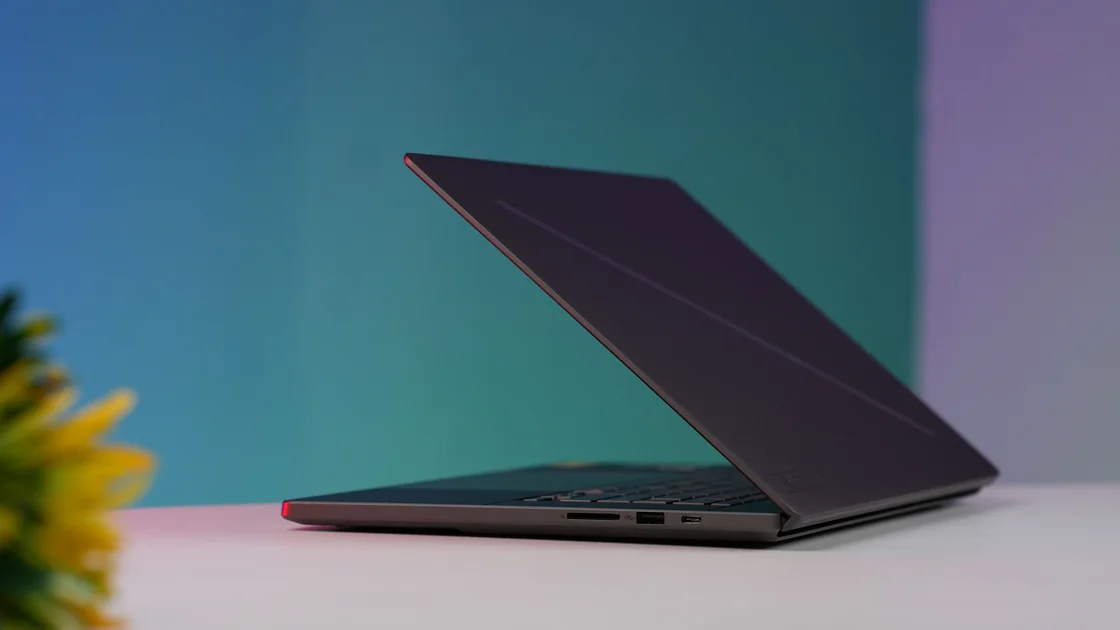

If your laptop screen keeps flickering, the cause is usually a display driver, an incompatible app, an unsupported refresh rate, a power or dock problem, or a fault in the panel or its internal cable. First determine whether the symptom belongs to the built-in panel, an external display, one app, the whole desktop, or the physical laptop; that distinction matters more than immediately reinstalling a driver or changing the refresh rate.
Stop using the laptop if the case is swelling, the screen has been crushed or exposed to liquid, the hinge changes the flicker sharply, or you notice smoke, a burning smell, or unusual heat. Those signs need inspection, not another software experiment.
Key Takeaways
- Compare the built-in panel with an external display and compare one app with the whole desktop.
- Note whether flicker starts before sign-in, after an update, on battery power, or at a particular lid angle.
- On Windows, Task Manager can help separate a display-driver problem from an incompatible app.
- Use only refresh rates offered for the selected display and supported at the current resolution.
- Do not press the panel, dismantle the lid, or install a driver from an unknown download site.
The device and app troubleshooting guide provides a wider method for separating one-app, one-device, and external-service failures.
Write down exactly what changes. Does the whole image pulse, do horizontal bands move across the panel, does brightness jump, or does only a video, browser tab, or game flash? A single app can have a rendering problem while the desktop and other apps remain stable. A loose display path or panel fault is more likely to affect everything shown on the built-in screen.
If an external monitor is available, connect it directly with a known-good cable and adapter. Do not add a dock unless the dock is part of the symptom. Use the external monitor guide if the second display is not detected at all.
| Observation | More useful next branch |
|---|---|
| Built-in screen flickers, external display is stable | Panel, internal display cable, hinge, panel power, or built-in display settings |
| Both displays flicker at the same time | Graphics driver, GPU, app, system update, power, or shared display setting |
| One app flickers but Task Manager and other apps are stable | App update, hardware acceleration, extension, or app compatibility |
| Flicker appears before the operating system sign-in screen | Firmware, panel, cable, graphics hardware, or power rather than a normal user app |
| Symptom changes with lid angle or light pressure | Stop moving or pressing it; arrange hardware inspection |
Record whether the problem appears on battery, while charging, after waking, only at low brightness, or after the device warms up. Test one condition at a time. Repeatedly opening and closing a damaged hinge can worsen a cable or panel fault.
“Twitching” and “jumping” can describe two different problems. If the picture itself shakes, shifts, or shows jittering lines, treat it as flicker and use the external-display, Task Manager, and refresh-rate checks in this article. If the image is steady but pages scroll, windows move, or the pointer jumps on its own, the input path is the more likely cause: a touchpad reacting to a palm or debris, touchscreen ghost touches, or a faulty mouse.
To separate them, unplug external mice and keyboards and keep your hands away from the touchpad for a minute. If the movement stops, or happens only when you touch the touchpad, follow the touchpad troubleshooting guide before changing display drivers. If the image itself stays unstable with no input involved, continue with the display checks.
Disconnect nonessential docks, display adapters, capture devices, and external monitors. Then test the laptop with its normal supported power adapter and, if safe, briefly on battery. If flicker occurs only through a dock, follow the USB-C dock troubleshooting guide and test the display path directly.
Inspect the charging cable, video cable, ports, lid, bezel, and chassis without opening the computer. A damaged adapter or unstable wall outlet can cause broader power symptoms. A swollen battery can lift the trackpad, keyboard, or case and place pressure on internal parts. Stop charging and using the laptop if the case separates, the battery area swells, a port discolors, or the device produces smoke, a burning smell, or abnormal heat.
Do not squeeze, tap, twist, or press the screen to “find” a loose connection. Do not insert tools around the bezel or hinge. A temporary image change under pressure is not a repair and can crack the panel or damage the cable further.
Microsoft says Windows screen flickering is usually caused by a display-driver issue or an incompatible app. Its diagnostic comparison is simple: open Task Manager and observe whether Task Manager flickers with the rest of the screen. If it does, the display driver is more likely; if Task Manager stays stable while everything behind it flickers, an incompatible app is more likely. Microsoft also lists the Windows logo key + Ctrl + Shift + B shortcut, which resets the graphics driver, as a quick step before you update, roll back, or remove anything.[1]
Before changing anything, save work and record when the symptom began. If it followed a Windows or graphics update, check the computer or graphics manufacturer’s current support instructions. Use Windows Update and the laptop or GPU manufacturer’s official site; avoid “driver updater” utilities and mirror sites.
Update one suspect app at a time if Task Manager remains stable. For browsers, video tools, meeting apps, and games, compare the app with hardware acceleration on and off only if the app exposes that supported setting. Also test a clean app window without optional extensions or overlays. Removing several apps together destroys the comparison evidence.
If Task Manager flickers too, follow the official driver path: update the supported display driver, or consider a rollback when the problem started directly after a driver update and the rollback option is available. Driver removal affects the whole display stack and may require administrator access, so it belongs after the observation test and a saved recovery path.
A refresh-rate mismatch can make a display appear unstable, but a higher number is not automatically better. Windows lists rates according to the selected display and its capabilities; some rates can require a resolution change. Choose a rate actually offered for that display at the intended resolution, and change only one display at a time. Windows 11 can also offer Dynamic refresh rate, which adjusts the rate automatically based on what you are doing; if your laptop shows that option, turn it off for one controlled comparison.[2]
If the screen becomes black or less stable after a rate change, return to the previous supported combination. Do not force a custom rate with an unofficial utility as a first-line fix. Gaming panels, variable-refresh displays, external monitors, and laptop panels can expose different choices, so a value that works on one screen is not proof that it is safe on another.
On macOS, open the currently available Displays settings and select the affected display. Apple notes that a rate that is too low may appear to flicker, while a rate the display does not support can produce a black screen; it advises checking the display documentation for the best rate. The refresh-rate control appears only when the connected display supports it.[3]
Do not copy a menu path from another Mac model if the control is absent. Note the Mac model, macOS version, display model, cable or adapter, and which options are actually shown.
Install supported operating-system and app updates after saving work and confirming a recovery path. If the symptom began after an update, record the update name and time before changing more components. A precise sequence helps support distinguish an app regression, graphics-driver change, firmware update, or coincidental hardware fault.
Temporarily close screen recorders, color tools, remote-desktop clients, game overlays, display managers, and apps that add visual filters. Test a normal desktop and one built-in app. On a managed computer, do not remove required security, accessibility, or display software; provide the comparison result to the administrator.
Brightness adaptation, HDR, variable refresh, and content-specific rendering can look different from a constant electrical flicker. Change only a setting that is visible and supported on the exact device, then restore it if the comparison does not help. Do not disable safety or accessibility features broadly just to make the symptom disappear.
Arrange hardware service when the flicker appears before sign-in, follows lid movement, affects only the built-in panel while an external display is consistently stable, or appears with lines, black areas, image retention, impact damage, liquid exposure, or chassis swelling. Intermittent faults still deserve evidence: record a short video of the screen with another device if doing so is safe and does not expose private information.
Collect the laptop model, operating-system version, graphics adapter and driver version, power state, connected devices, first failing time, update history, external-display comparison, Task Manager result, and whether lid angle changes the symptom. Do not send account details, private desktop content, or full diagnostic archives to a public forum.
Back up important files while the laptop is stable enough to use. A display repair should not normally require deleting data, but a current backup protects against a wider hardware failure. Do not keep stressing a hot, swollen, liquid-damaged, or electrically unstable computer just to finish a backup; ask a repair provider about safe data recovery.
When a laptop screen keeps flickering, classify the symptom before applying a fix. Compare the built-in and external displays, one app and the whole desktop, pre-login and post-login behavior, battery and charger power, and different lid angles. Use Task Manager on Windows to separate driver and app branches, and use only refresh rates supported by the selected display. Physical damage, swelling, heat, odor, or hinge-dependent flicker should go to repair without pressure, dismantling, or unknown drivers.
A startup app, display driver, user-specific setting, overlay, or background utility may load after sign-in. Compare Task Manager and a clean built-in app before removing anything.
That comparison points toward the built-in panel, internal display path, hinge, or panel-specific setting. It does not prove which part is faulty, so record the result and seek model-specific support.
Power or grounding problems can correlate with flicker. Test only with the supported adapter and a known-safe outlet, and stop if the adapter, port, or laptop becomes abnormally hot, damaged, or smells burnt.
Only as a controlled test using a rate the selected display supports. Restore the previous rate if the image becomes black or less stable, and do not force custom timings first.
No. It is a useful Windows branch test, not a final diagnosis. Hardware faults and unusual graphics paths can produce mixed results.
No. Use Windows Update and the laptop or graphics manufacturer’s official support channel. Unknown packages can be incompatible or malicious.
No. Pressure can crack the panel, worsen a cable fault, or damage a swollen battery. A symptom that changes under pressure needs service.
Provide the model, operating-system and driver versions, first failing time, power state, connected displays, Task Manager result, lid-angle behavior, and a privacy-safe video when safe.
Sources checked 4 October 2026.
This article provides general troubleshooting information. Follow the current safety and service instructions for the exact laptop, display, and operating system.
Sign up to experience all premium features at no cost.
*Available only to new users. Each user is limited to one trial.