Start your 3-day free trial
Sign up to experience all premium features at no cost.
*Available only to new users. Each user is limited to one trial.
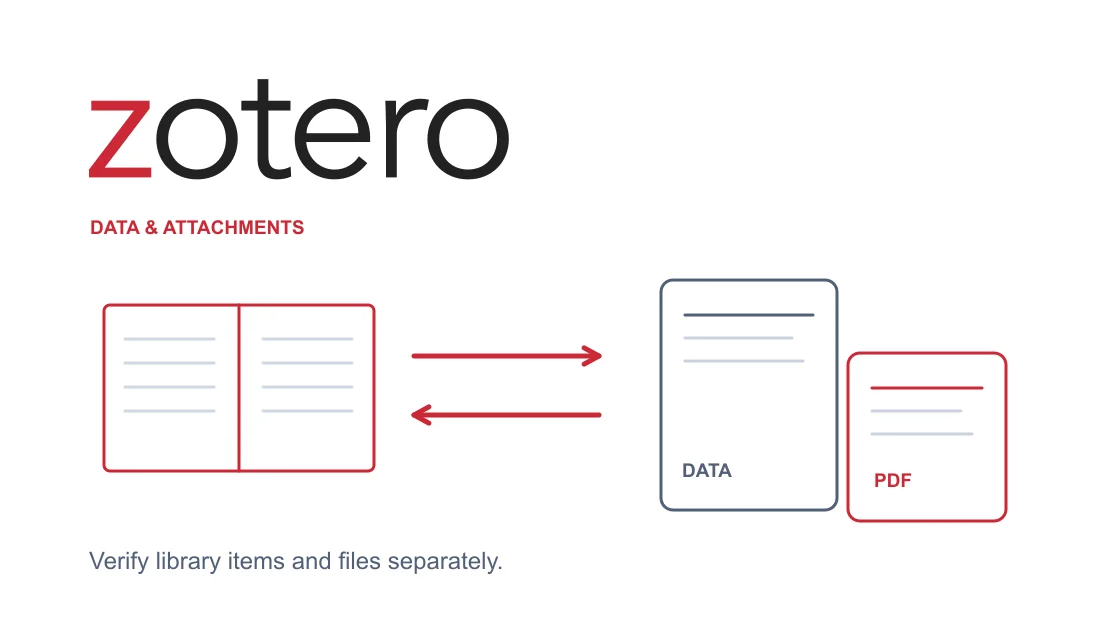

A Zotero connection error needs two separate checks: can your library data reach the service, and can attachment files reach their configured storage? Save unsynced work before changing settings, identify the first failed request, and verify both results on another device. A visible citation record does not prove that its PDF transferred.
Key Takeaways:
- Library data and attachment files have different sync paths.
- Zotero Storage, WebDAV, and local Connector communication are distinct cases.
- Use a harmless test item and a small authorized attachment to verify results.
- Protect the local library; do not delete it or reset all sync data to test a connection.
Finish or save current edits, then identify the computer that contains the newest unsynced items and attachments. Make an independent backup of the local Zotero data directory using Zotero's documented backup approach, with the application closed during the copy. Store that copy outside the active sync location and confirm that it exists before proceeding.
Record the Zotero version, operating system, affected library, error text, timestamp, and configured file storage. Note whether this is your personal library or a group library. Do not paste research titles, collaborator names, credentials, or private document contents into public notes about the problem.
Prepare a small, non-sensitive test item that you are allowed to sync. If you need an attachment test, use a short file you created yourself or otherwise have permission to upload. Do not test with an unpublished manuscript, participant data, restricted institutional document, or a newly retrieved subscription PDF.
Zotero stores library data locally and can synchronize it separately from attachment files. Its data sync includes items, notes, tags, and links; file sync handles attachment contents. This separation is why a backup and a two-part check matter.[1]
If the entire device is losing connectivity, follow the general device and application checks first. Keep your preserved library and error record so a system diagnosis does not become an excuse to recreate the database.
Open the sync error details and read the earliest meaningful message. Compare it with what actually arrived at the destination: the item record, the attachment entry, and the attachment's contents are three different observations. An attachment entry can exist even when its file is unavailable on that device.
| Observation | Likely branch to investigate | Evidence to collect |
|---|---|---|
| A new item does not appear elsewhere | Data sync or account/library selection | Error, account identity, affected library |
| Item appears but its attachment will not open | File sync, download policy, or missing file | Storage type, file error, local availability |
| WebDAV verification fails | Third-party storage connection or credentials | HTTPS endpoint and sanitized verification error |
| Browser Connector cannot reach the desktop app | Local communication | Desktop app state and Connector error |
| Files progress, with occasional errors | Partial transfer or transient failure | Progress between attempts and specific file |
| Every attempt fails immediately with no progress | Persistent connection/configuration problem | First request, proxy context, repeated error |
Choose the storage branch from settings, not from a guess based on the PDF's origin. Zotero Storage and WebDAV are alternative file-sync mechanisms. WebDAV applies to a personal library; Zotero's documentation says group-library file syncing does not use WebDAV.[1]
A Zotero file sync error during an initial large transfer is different from the same immediate failure on every attempt. The official guidance distinguishes intermittent errors with continued progress from persistent errors without progress. Compare successive counts rather than repeatedly resetting the task.[2]
If your question is broader than Zotero, the cloud file synchronization checklist helps identify direction, account, device, and file selection. Return here for Zotero's data-versus-attachment distinction instead of copying a generic cloud-storage repair.
Confirm that the account in Zotero belongs to the intended library and that the second device uses that account or has access to the same group. Check the service's current incident information before attempting local changes. An outage affecting many users is not proof that your database is damaged.
For attachment failures, inspect the selected storage mechanism, storage allowance, relevant sync selection, and local file availability. For WebDAV, check the provider's supported HTTPS address and credentials, then use Zotero's server-verification control. Save its exact response; authentication, storage capacity, and connectivity are different outcomes.[1]
Zotero normally follows manually entered system proxies or a PAC URL, but does not automatically follow WPAD in the same way. This can explain why a browser connects while the desktop application fails. Prefer inspecting the supported default and required system configuration over copying advanced configuration values from another user's setup.[3]
On Windows, use the system proxy inspection steps to document an obsolete setting. If the network requires that proxy, ask its administrator to validate the route and authentication instead of removing it. Preserve the old values before any approved correction.
Do not disable security software, the firewall, or TLS verification. A certificate error needs examination of the real trust chain or network inspection policy. Likewise, a failed account sign-in should go to the account owner; it does not justify changing the file-storage endpoint or deleting saved library information.
Only test a different route when your network and institution permit it. Keep the Zotero account, library, storage provider, and test file unchanged. Save any error details before restarting the application, and do not make concurrent edits on several devices while comparing paths.
For the computer holding the test item, AethoVPN lets you compare Zotero's server requests through another route. Use the Windows installer or the supported Debian/Ubuntu x64 package; on Mac, obtain the client configuration through the setup guide with Pro or Premium. Connect on the computer that actually runs Zotero, enable global mode, select a currently available location, and repeat the same sync attempt.
This comparison changes the connection path, not the library's storage quota, WebDAV password, paper subscription, or Connector's local communication. Keep those separate from the server test. If you need an account for this route comparison, start the 3-day free Pro trial, available once per user.
Record the first error and whether progress resumes, then verify the item and attachment separately. A successful browser visit to zotero.org is not enough. The VPN verification sequence can check an uncertain VPN connection, but this task ends with Zotero's own sync evidence.
If the identical operation succeeds only through the alternative route, record that limited finding: same library and file, different path, different result at the stated time. If both paths produce an authentication or quota error, stop route changes and resolve that service condition.
First confirm that the non-sensitive test item appears in the intended destination library with its identifying test title and expected fields. Check the actual library, not a search result that could refer to an older duplicate. This validates data sync for the chosen item rather than every existing item.
Next test the attachment. Confirm it exists locally on the source, is an attachment type eligible for the configured file-sync method, and opens there. At the destination, deliberately request or open the file according to that device's download settings. A visible attachment name or an unchanged progress icon does not establish that its contents downloaded.
Separate “waiting to download on demand” from “file transfer failed.” If only one older attachment is absent while the new test works, investigate that attachment's path and availability instead of restarting the whole library. Linked local files also need their own handling; do not assume every attachment entry represents a file uploaded by Zotero.[1]
Record the results in two lines: test item received, and test attachment opened on the destination. If either fails, retain the exact symptom and stop expanding the test. Avoid using an entire research collection as a sample because it creates unnecessary privacy and recovery risk.
For intermittent file errors with clear progress, another ordinary sync attempt may be reasonable under the official guidance. For immediate repeated failure with no progress, capture diagnostics and escalate rather than retrying endlessly.[2]
Use Help → Debug Output Logging → Enable, reproduce briefly, then select Disable to stop recording. Select View Output, save locally via File → Save… with Format: Text Files, and close the viewer. Review this fixed file for account names, private hosts, paths, tokens, and research metadata; keep the original privately. A harmless attachment does not exclude existing library metadata.
The viewer can receive new output; stopping recording does not freeze everything displayed. For a fixed or redacted submission, agree a channel with support and send only the reviewed file or excerpt. Submit Output instead uploads original diagnostic output to zotero.org to generate a Debug ID; it does not upload your edited file. Use that button only with permission for the complete original diagnostics. If uncertain, do not upload.[4]
If generated, provide the Debug ID alongside sanitized context identifying data sync, file sync, server verification, or local Connector failure. A reviewed file does not itself generate an ID. Send an attachment only if support needs it and you have checked permission.[2]
For a WebDAV server issue, involve the storage provider with its verification error. For organization-managed network or certificate policy, involve the administrator. A connector-to-desktop issue stays in the local communication branch, even if internet syncing works.
If you also use a separate notebook service, diagnose Obsidian's own Sync connection independently. Its remote vault and account model do not replace Zotero's library and attachment-storage settings.
Do not remove the backup, reset all sync data, or erase the local library just because one comparison succeeded. Preserve unsynced material until you have verified the intended destination. Restore only the settings you deliberately changed and retain any approved correction with the evidence that supports it.
Item metadata and attachment contents use separate sync mechanisms. Check file-sync settings, storage, and destination download behavior before assuming that the library record's appearance proves the PDF transferred.[1]
They are different attachment-storage choices. Check the configured provider and credentials; WebDAV is for personal-library file syncing and does not provide group-library file sync.[1]
A route change does not increase the provider's allowance. Resolve the named storage limit or approved storage arrangement before retrying the same file transfer.
The clients may use different proxy behavior or sessions. Inspect Zotero's system-proxy context and first request error; do not infer that desktop syncing works from a browser visit.[3]
Local browser-to-desktop communication is a separate connection. Confirm that the desktop application is running and follow the Connector's specific diagnostic path rather than resetting remote sync.
Syncing transfers files you are entitled to use; it does not supply a publisher subscription or institutional authorization. Test with your own harmless attachment instead of acquiring restricted material.
Preserve the library, stop logging after a short reproduction, and review a saved text file. Send a reviewed excerpt through an agreed support channel; generate a Debug ID only when complete original diagnostics are permitted. Broad resets and full-library uploads create privacy and recovery risks.
Sources checked 7 October 2026.
Sign up to experience all premium features at no cost.
*Available only to new users. Each user is limited to one trial.