Start your 3-day free trial
Sign up to experience all premium features at no cost.
*Available only to new users. Each user is limited to one trial.
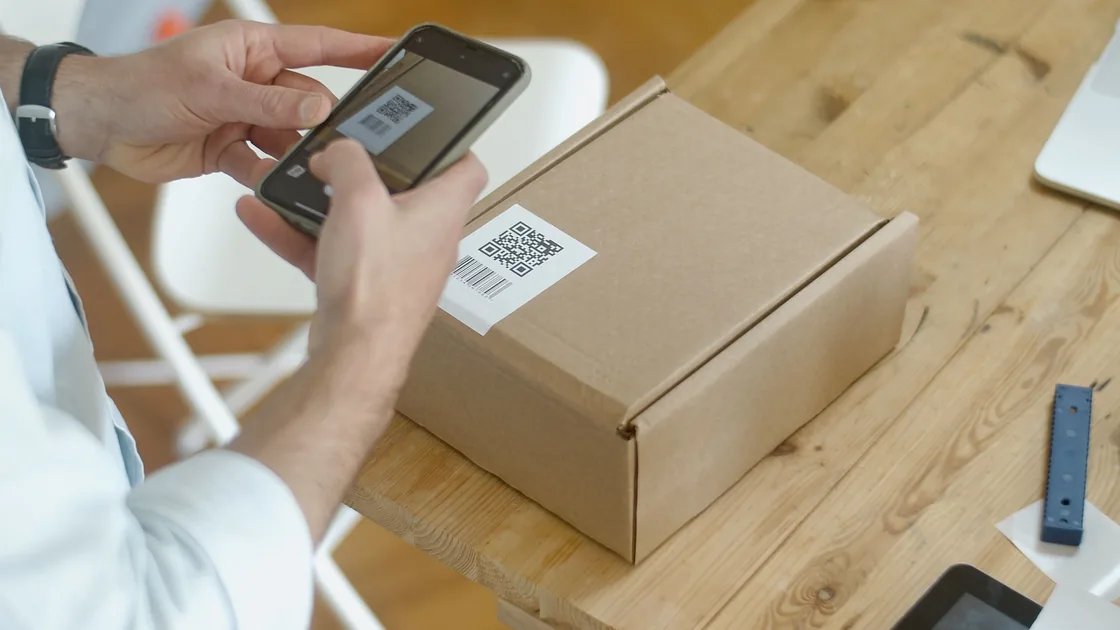

When a QR code won’t scan, scan a trusted known-good code first: if it works, the original code’s print, screen, validity, or format is the problem; if nothing scans, check camera mode, focus, light, and the lens. A damaged print, expired ticket, rotating login code, reflective screen, unsupported payload, disabled camera feature, or dirty lens can all leave you without a usable banner. Once a code does scan, verify the previewed link before opening it.
Use a trusted, non-sensitive, known-good QR code as the control. A code from the phone or camera manufacturer's official help page, a locally generated test containing harmless text, or another code you have already verified is safer than a random poster or unsolicited message. Do not follow an unknown link merely to prove that scanning works.
Key Takeaways
- Compare the failing code with a trusted known-good code before changing phone settings.
- Keep the whole square in frame, hold steady, adjust distance, remove glare, add light, and clean the lens.
- Treat paper and screen codes differently; screen brightness, scaling, reflections, and moiré can interfere.
- Separate camera recognition from an expired, dynamic, damaged, or unsupported QR payload.
- Never upload a private login, payment, contact, medical, travel, or account QR code to a random online decoder.
Use the device and app troubleshooting guide if the camera, permissions, storage, or several apps are failing more broadly. This guide addresses legitimate QR scanning, not bypassing access controls or decoding secret credentials.
Open the phone's built-in camera or official scanner and try one trusted known-good code. Keep the test harmless. If that code works but the original does not, the phone's camera and scanner are probably capable; investigate the original code's print, display, validity, or content. If no known-good code works, focus on camera mode, device support, permissions, lens condition, and software state.
Record the exact result:
| Result | Likely next branch |
|---|---|
| No outline, banner, vibration, or link | Framing, focus, light, feature, or device support |
| Code is recognized but the link or app fails | Destination, network, app, account, or expired payload |
| One printed code fails | Damage, low contrast, size, quiet zone, fold, or reflection |
| Codes on another screen fail | Brightness, scaling, pixels, refresh, glare, or moiré |
| Dynamic ticket or login code fails after delay | Expiration, rotation, account session, or server validity |
Do not photograph and share the failing code in a public support post if it contains a ticket, Wi-Fi credential, contact card, account enrollment, payment request, or sign-in token. Describe the type of code and the recognition result without exposing the payload.
Place the full QR square inside the camera frame. Pixel Camera Help says the entire code should remain visible and no photo needs to be taken.[2] If the code fills the screen so tightly that an edge or corner disappears, move back. If it is tiny, move closer while keeping the whole square sharp.
Hold the phone steady for a moment so autofocus can settle. Tap near the code only if the camera normally supports focus there. Avoid digital zoom at first; it can enlarge blur and compression artifacts. Keep the camera approximately square to the code rather than using a steep angle that turns the square into a narrow trapezoid.
Improve the light without creating glare. Move a glossy label away from a direct lamp, tilt the paper slightly, or shade a bright reflection while keeping the code flat. Apple provides a flashlight control in its dedicated scanner for additional light.[1] Google recommends steady handling, good lighting without shadows or glare, a clean lens, and a closer position that still keeps the entire square visible.[2]
Clean the camera lens gently with a soft, suitable cloth. Remove a case or lens protector only if it visibly obstructs or fogs the camera and you can do so safely. Check whether the ordinary camera can focus on nearby printed text. If every close subject is blurred, the issue is broader than QR recognition.
Inspect the code itself. Creases, tears, dirt, missing corners, ink spread, low contrast, extreme curvature, or a sticker placed over part of the pattern can make it unreadable. Do not redraw squares or use an image editor to “repair” a payment, ticket, access, or identity code; request a fresh code from the legitimate issuer.
For paper, flatten the surface and ensure the entire code and the blank margin around it are visible. Move away from glossy lamination reflections. If the code is very small, use the main rear camera and adequate light rather than extreme zoom. Try a fresh official print or display if the issuer provides one.
For a code on a monitor, tablet, kiosk, or another phone, change the source screen rather than the scanning phone first:
Do not use a screenshot of a rotating login or payment code after it expires. If the code changes periodically, refresh the official app or site and scan the current version promptly. If you are trying to scan a code displayed on the same phone, use the platform or app's supported image-import or link workflow when available; pointing the camera at its own screen is impossible.
On iPhone, Apple says you can use Camera in Photo mode or the Scan Code control in Control Center; the code should be inside the frame, after which a link appears.[1] If the Camera view works but no QR result appears, try the official Scan Code control rather than installing a random scanner.
On Pixel, confirm Camera scan suggestions is enabled, use the Camera app or the Scan QR code Quick Settings tile, and wait briefly for recognition. Google Lens is another official path on supported devices.[2] Menu labels can change, so use the current help for the exact device.
Camera from Google supports QR scanning only on selected devices. Its QR mode or default photo mode can scan, but portrait and video modes cannot.[3] A phone or camera app that lacks built-in QR support may require the manufacturer's supported scanner, not an arbitrary app requesting excessive permissions.
If you use a third-party app for a legitimate workflow, check that it has camera permission and came from the official app store or organization. Grant only the needed permission. A scanner does not normally need contacts, SMS, accessibility control, device administration, or full file access just to read a public menu code.
Restart the camera app and then the phone if every known-good code fails despite correct mode, clean focus, and support. Install normal operating-system and camera updates from official channels. Do not factory-reset the phone for one scanning symptom.
Recognition and use are separate stages. A banner proves that the camera decoded something; it does not prove the destination is safe, active, compatible, or authorized. If tapping the result opens an error, record the exact domain or app without sharing private parameters.
Tickets, login approvals, device enrollment, two-factor setup, payment requests, Wi-Fi onboarding, and identity checks may use dynamic or single-use codes. They can expire, rotate, become invalid after one attempt, or be bound to a particular session or account. Request a new code through the legitimate issuer instead of trying to extract or edit the old payload.
Some payloads require a particular app or capability. A code may contain plain text, a web link, contact data, Wi-Fi details, an app deep link, or a format understood only by the issuer's application. If the built-in camera recognizes it but cannot complete the action, verify the required app, account, region, and device support with the issuer.
Do not upload the code to an online decoder. A private QR code can contain the very secret needed to sign in, enroll an authenticator, join a network, claim a ticket, or authorize a payment. A third-party decoder receives the image and may log the payload. Ask the issuer to generate a new code or use an approved offline or organization tool.
A message such as “unrecognized QR code” or “unsupported format” usually means the scanner found a code but cannot interpret what it holds. The wording varies by app, but the usual causes are:
Try the issuer’s official app first, then ask for a fresh copy of the code. Do not switch between random scanner apps until one accepts it.
Scanning a code and opening its destination are different decisions. To verify a QR code, read the previewed domain or action before tapping. Be cautious if the code was placed over another label, arrived unexpectedly, requests urgent payment or credentials, or leads to a shortened or lookalike domain.
The quishing guide explains phishing delivered through QR codes. Travelers can use the fake QR code travel guide for parking, menus, transit, rentals, and payment stickers. Those articles handle trust and fraud; this article handles the technical scan path.
If an unknown code prompts an app install, configuration profile, accessibility permission, payment, or account sign-in, stop and reach the organization through a known official channel. A successful scan is not a safety verdict.
Test a trusted known-good QR code first. If all codes fail, improve framing, distance, focus, lighting, glare, and lens condition, then verify the built-in camera or official scanner mode and device support. Treat screen-displayed codes as a separate optical problem and adjust the source display. If recognition succeeds but the action fails or the format is unrecognized, investigate expiration, session, the issuer’s app, account, and payload support. Keep private codes off public posts and random online decoders.
The whole code may not be in frame, focus may be soft, light or glare may interfere, the lens may be dirty, the wrong camera mode may be active, or the device may not support built-in scanning.
There is no single distance. Move close enough for detail but far enough to keep all four corners and the surrounding blank margin visible and sharp.
Screen brightness, reflections, scaling, pixel structure, refresh behavior, or moiré can interfere. Adjust the source screen's brightness, size, angle, and zoom.
The code was recognized, but its destination may be offline, expired, blocked, unsupported, or tied to another app, account, or session.
Often no. iPhone, Pixel, and some Camera from Google devices include official scanning paths. Use the manufacturer option before installing an unknown scanner.
Minor damage may still be readable, but do not edit sensitive codes. Request a fresh ticket, login, payment, access, or enrollment code from the legitimate issuer.
Not for private codes. Uploading can expose login, payment, contact, Wi-Fi, ticket, medical, or account data to the decoder operator.
No. It only means the payload was decoded. Review the domain or action and verify unexpected requests through an official channel before continuing.
Sources checked 4 October 2026.
This article provides general troubleshooting and safety information. Follow the current device, app, issuer, payment, workplace, and account instructions for the exact QR code involved.
Sign up to experience all premium features at no cost.
*Available only to new users. Each user is limited to one trial.