Start your 3-day free trial
Sign up to experience all premium features at no cost.
*Available only to new users. Each user is limited to one trial.
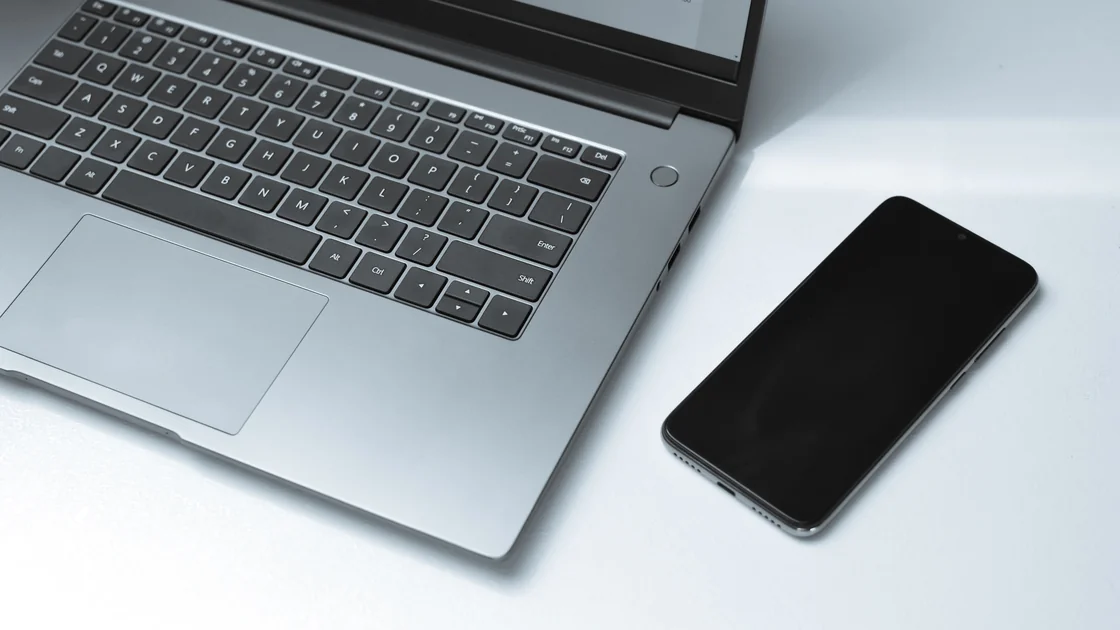

With Quick Share or Nearby Share not working, first confirm the basics Google lists for sharing between Android and Windows: Bluetooth on at both ends, Wi-Fi or Ethernet on the same network, receiving visibility that includes the sender, and both devices within about 5 meters.[2] If those hold, identify the failed stage before reinstalling anything: the feature may be unavailable, the other device may not appear, the receiver may not get a confirmation, the transfer may stall, or the file may arrive somewhere unexpected. Nearby Share is the former name of Google’s Quick Share, not a second product that must be configured alongside it.
This guide covers supported Android devices, Chromebooks, and Windows PCs using the official Quick Share path. It does not cover Apple AirDrop, Windows Nearby Sharing, or every manufacturer’s separate sharing feature.
Key Takeaways
- Confirm the platform and official app before changing Bluetooth, Wi-Fi, or firewall settings.
- Keep both devices nearby, awake, and unlocked, with receiving visibility set narrowly for the test.
- Check Bluetooth plus Wi-Fi or Ethernet and account visibility, not just a single radio icon.
- Use Samsung’s Quick Share app on supported Samsung PCs rather than installing competing Windows implementations.
- Do not keep Everyone visibility enabled indefinitely, disable the firewall, or install an unofficial APK.
The device and app troubleshooting guide helps classify broader one-device or one-network failures.
First identify both endpoints. Record whether the sender and receiver are Android phones or tablets, Chromebooks, ordinary Windows PCs, or Samsung PCs. Also record the operating-system versions and where the Windows app came from.
Google’s current Android documentation calls the feature Quick Share. Visibility choices include Your devices, Contacts, and a temporary Everyone option; Your devices uses the same Google Account, while receiving from contacts requires the relevant visibility and an unlocked screen.[1] If instructions say Nearby Share, they may describe the earlier name of the same Google feature.
For Windows, use Google’s official Quick Share download on a supported non-Samsung PC. Google’s Windows requirements list 64-bit Windows 10 or later, Windows 11 for ARM-based PCs, and Android 6 or later, with Bluetooth and Wi-Fi or Ethernet available. Samsung PCs use Samsung’s Quick Share app from Microsoft Store.[2]
| Endpoint pair | Appropriate branch |
|---|---|
| Android to Android | Built-in Quick Share, account and receiving visibility |
| Android to Chromebook | ChromeOS and Android Quick Share support, account and device management |
| Android to ordinary Windows PC | Google’s official Quick Share for Windows and supported hardware |
| Android to supported Samsung PC | Samsung’s Quick Share Windows path |
| iPhone, iPad, or Mac | AirDrop or another supported Apple workflow, not this guide |
| Two Windows PCs using Windows Nearby Sharing | Windows Nearby Sharing documentation, not Google Quick Share |
Do not install both Google and Samsung implementations merely to see which one responds. Remove unofficial packages only after recording their source and confirming they are not required by the device manufacturer or organization.
Place both devices within about 5 meters, then move them closer for the first test. Wake and unlock them. Open Quick Share on the sending side and make the receiving side temporarily visible to the intended sender. A locked screen, expired temporary visibility, or No one setting can make a healthy device disappear. On Android, Contacts visibility needs the screen on and unlocked, and Everyone reverts to the previous choice after 10 minutes.[1]
If both devices belong to you, sign in with the same Google Account where supported and test Your devices. If another person is sending, use Contacts when the account/contact conditions are satisfied, or use Everyone only for the short receiving window. Restore the narrower setting after the test.
Turn on Bluetooth on both devices. On the Windows path, also turn on Wi-Fi or connect Ethernet as required by the supported setup. Google notes that some discovery depends on Bluetooth Low Energy Extended Advertising and that certain networks can affect discoverability. Keep the official app open and check whether Windows notifications are allowed. If the devices still do not see each other, Google suggests moving them within about 30 centimeters and turning Airplane mode on and off on the phone.[2]
If Bluetooth itself is missing or several unrelated accessories fail, use the Windows Bluetooth guide rather than repeatedly changing Quick Share. A radio or driver problem belongs below the sharing app.
Many Windows-only failures come from setup details in Google’s Windows guide rather than from the phone.[2]
Windows also has its own Nearby sharing setting. It is a separate Microsoft feature, so a “nearby sharing driver” update does not repair Google’s app unless Bluetooth itself is failing.
Confirm that the sender selected the intended device name. Similar default names can lead to a request going to another nearby phone or PC. Change the visible device name only through the supported settings and avoid exposing a full personal name on a public network.
On the receiver, inspect the notification area and the open Quick Share window. Check system focus or do-not-disturb modes without disabling them permanently. A managed device can suppress notifications or prohibit nearby sharing; do not bypass the policy.
If the devices use different accounts, review the receiving visibility again. Your devices is for devices associated with the same Google Account. Contacts and Everyone have different exposure and screen-state rules. Do not interpret “visible on the sender” as proof that the receiver accepted the file.
Cancel an old pending request before sending one small, non-sensitive test file. Multiple repeated requests can leave unclear prompts or make the user accept the wrong item.
Keep both devices awake, close together, and connected while the progress indicator is active. Do not switch Wi-Fi networks, close the Windows app, lock the receiver, or move out of range during the test. Test a short text file or small photo whose contents are not private.
Check available storage on the receiving device and whether the destination folder can be written. A nearly full disk can allow discovery and acceptance but fail during transfer. Record the exact progress point and error rather than assuming the radios are the cause.
Guest Wi-Fi, client isolation, enterprise segmentation, or a restrictive local network can interfere even when both devices have internet access. Compare a trusted, simple local network if organization rules permit. Do not turn off the firewall, endpoint protection, or router isolation globally. Ask the administrator whether Quick Share traffic and discovery are allowed.
If screen casting or other local discovery also fails, the screen-casting guide can help distinguish same-network discovery from a single sharing app.
Wait for an explicit completion message on both devices. Then open the system notification or the official Quick Share history when available. On Windows, Google’s app saves accepted files to a Quick Share folder inside Downloads; check there before searching the entire drive or repeating the transfer.[2]
Use the operating system’s file search with the known filename and recent modification time. Be careful with duplicate names such as photo (1) or files saved under a Downloads location managed by another account. Open the file only after confirming its sender and expected type.
On Android or ChromeOS, check the standard received/download location through the system file manager. A file received successfully but not visible in a gallery may still be in storage and may need media indexing; do not resend it repeatedly or grant a third-party file manager broad access.
If the file opens but is incomplete or corrupted, compare its size with the sender and transfer a small known-good item. Keep the original on the sending device until the received copy is verified.
Update Android, ChromeOS, Windows, Google Play system components, and the official Quick Share app through their supported channels. Google publishes release notes for the Windows Quick Share app, so version-specific fixes and changes should be checked there rather than inferred from an old Nearby Share tutorial.[3]
Restart the Quick Share app and then the two devices after preserving any pending work. Sign out or reinstall only after confirming the correct account, installer source, destination folder, and organization policy. Reinstallation should not be the first discovery test.
For Samsung PCs, stay on Samsung’s supported app path. For managed Windows PCs or Chromebooks, provide the administrator with the device models, operating-system and app versions, accounts relationship, visibility setting, radio state, network type, distance, failed stage, exact error, and small-file result.
Do not upload logs containing account identifiers, nearby-device lists, private filenames, or transferred contents to a public forum. Use the official support channel and review diagnostic bundles before sharing them.
Quick Share separates nearby discovery from transferring the selected file. Bluetooth visibility, receiver consent and local reachability still need to work; an internet connection does not prove all three. VPN routes or local-access filtering can affect a transfer path, but a full tunnel does not automatically block every local address.
If AethoVPN is already connected when the problem occurs, record its state and, only on a device and network you may manage, pause that connection for one comparison. Keep both endpoints, receiving visibility, account relationship and the same small non-sensitive file unchanged. Record whether discovery, confirmation or transfer changes, then restore the original VPN state. If the result is unchanged, return to the failed stage above instead of switching countries. A VPN cannot add missing Bluetooth support, accept a file for the receiver or free destination storage. Keep the firewall and organization policy in place.
When Quick Share or the older Nearby Share name is not working, identify whether support, discovery, acceptance, transfer, or file location is failing. Use the correct official implementation for Android, Chromebook, ordinary Windows, or Samsung PC; keep both devices awake, unlocked, nearby, and narrowly visible; and verify Bluetooth plus Wi-Fi or Ethernet. Preserve firewalls and managed policy, avoid unofficial APKs, and keep Everyone visibility temporary.
No. Nearby Share was the earlier Google name. Current Google documentation uses Quick Share; old instructions may still use the former name.
Some receiving modes require the screen to be on and unlocked. Check the selected visibility mode and use a short test window.
No. Use it only temporarily when necessary, then return to Contacts, Your devices, or No one according to your needs.
It uses nearby radios and local connectivity, but account setup, app updates, and network conditions can still matter. Internet access alone does not prove local discovery works.
Google directs Samsung PCs to Samsung’s Quick Share app from Microsoft Store. Do not mix implementations without model-specific support guidance.
Open the completion notification or official app history, check the configured destination, and search by exact filename and recent time before sending another copy.
No. That changes the security boundary for the whole computer. Check the official app, supported network, notifications, and administrator policy instead.
No. Use the built-in Android component, Google’s official Windows download, or Samsung’s Microsoft Store path for supported Samsung PCs.
Sources checked 4 October 2026.
This article covers Google Quick Share and the supported Samsung PC path. Follow the current instructions for the exact device and organization.
Sign up to experience all premium features at no cost.
*Available only to new users. Each user is limited to one trial.