Start your 3-day free trial
Sign up to experience all premium features at no cost.
*Available only to new users. Each user is limited to one trial.
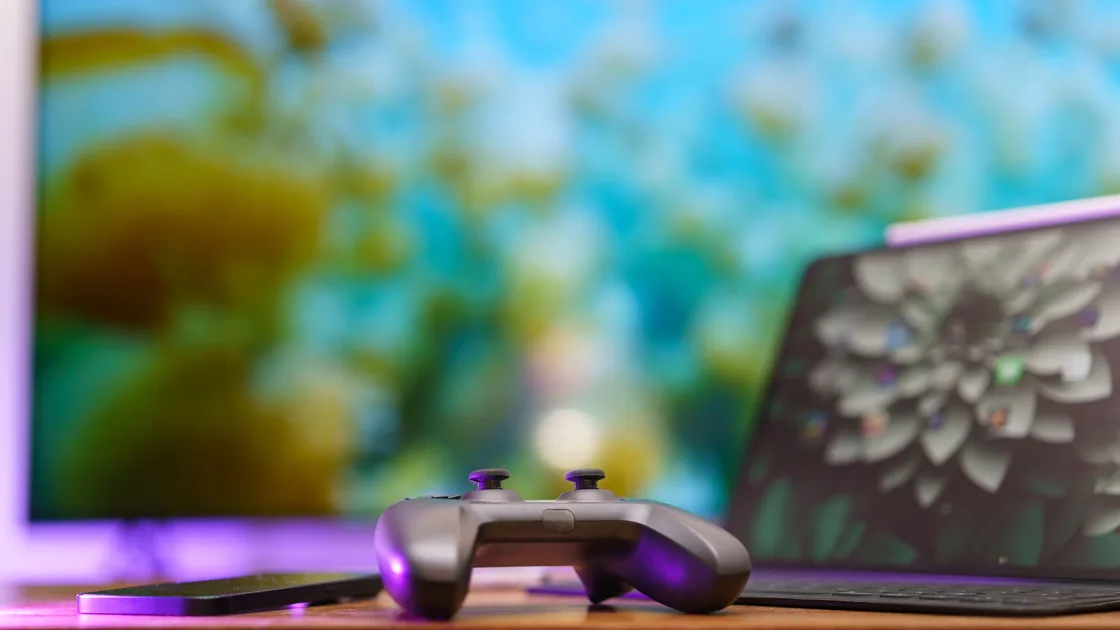

When cloud gaming looks blurry, start with the fixes that cost no bandwidth: match the stream resolution to your display's native resolution and remove extra scaling or sharpening. Then raise quality one step at a time, keeping only settings that add no frame loss in the service's statistics. To find the failing stage, check whether the image is always soft or breaks into blocks only during motion: fixed softness usually points to source resolution or display scaling, while changing pixelation more often points to bitrate adaptation, codec trouble, or a delivery path that cannot sustain the selected stream.
Key Takeaways
- Separate a low-resolution source from compression artifacts and display scaling.
- Keep the same game scene, device, display, service region, and frame rate while testing.
- A quality setting can be unavailable because of the plan, client, browser, GPU, or display—not just bandwidth.
- Codec changes are a troubleshooting comparison, not an automatic upgrade.
- Input delay, jitter, and packet loss belong to a separate cloud-gaming latency diagnosis.
The cloud-gaming lag guide covers responsiveness and unstable delivery. This guide follows the picture itself through five stages: service render, encoded stream, network delivery, local decode, and display scaling.
Use a repeatable scene with small text, distant detail, and camera motion. Then choose the closest symptom:
| Symptom | Likely stage to test first | Useful clue |
|---|---|---|
| Menus and text are always soft | Stream resolution or display scaling | Softness remains when the scene stops moving |
| Grass, smoke, or fast turns become blocks | Bitrate or adaptive quality | Still scenes recover after a few seconds |
| Colored squares, tearing, or corrupted regions | Codec, decoder, driver, or client | Artifacts may persist at adequate bitrate |
| Only the TV or external monitor looks soft | Output resolution, overscan, scaling, or picture processing | The laptop or handheld screen looks normal |
| The whole session drops resolution during congestion | Network adaptation | The service reports a lower stream resolution |
Do not judge from a game's motion blur, depth of field, film grain, or upscaling preset alone. First compare a static menu and a paused camera. If the game's local rendering options change the same detail before it is encoded, the cloud stream may be faithfully transmitting an already softened image.
The distinction matters because more bandwidth cannot restore detail that was never rendered, and display sharpening cannot reconstruct texture lost to heavy compression. A good diagnosis identifies the earliest stage where the image is already wrong.
Check the service's current plan, client, device, and display requirements before tuning the network. Available resolution and frame-rate combinations may differ between a native app, browser, television, phone, or handheld.
NVIDIA's current GeForce NOW requirements illustrate the dependency: it publishes different supported modes and bandwidth examples by device class, and higher resolutions or frame rates can require a supported native client, display, hardware, and membership.[1] Those values describe GeForce NOW, not every cloud-gaming service.
Record these fields:
If the requested resolution is absent, check the service's official requirements rather than forcing a configuration file or unofficial flag. A browser may have a lower ceiling than a native app, while a television may support only specific combinations. Testing an unsupported mode creates noise and can introduce compatibility problems without improving the source.
For ordinary video capacity planning, the HD and 4K streaming article explains why service-specific numbers should not be averaged into a universal rule. Cloud gaming adds real-time encoding, input, and frame-rate constraints on top.
Automatic modes are useful for normal play, but they can hide which variable changed. For one short diagnostic session, fix the variables the service allows you to control.
NVIDIA recommends matching stream resolution to the monitor or notebook maximum and states that a low maximum bitrate degrades game-streaming quality, although it can reduce data use or system overhead. Its “Adjust for network conditions” option can automatically reduce streaming resolution to preserve playability during temporary network trouble.[2]
That behavior explains a common pattern: the game remains responsive, but text or texture detail becomes soft because the client deliberately traded resolution for continuity. Do not disable adaptation permanently merely to make a test look sharper. First learn whether the fixed quality is sustainable; then restore a setting that fails safely under real conditions.
Run three short comparisons and change only one variable each time:
Use the service's statistics overlay to note stream resolution, frame rate, bitrate, frame loss, and decode time where available. Do not combine values from an internet speed test with the service overlay as if they measure the same interval or path.
If blocks appear mainly during rapid camera turns, foliage, particles, rain, or smoke, the encoder may not have enough bits for that amount of changing detail. If the reported resolution or bitrate falls at the same time, adaptation is the stronger clue. If statistics remain stable but colored corruption appears, move to the codec and decoder branch.
An Ethernet baseline or a close-range, uncongested Wi-Fi test can show whether the access link is driving adaptation. NVIDIA currently recommends wired Ethernet or 5 GHz Wi-Fi for its service and publishes service-specific capacity examples.[1] This does not mean every blurry session is a Wi-Fi problem; it gives you a controlled comparison.
If the session also has input delay, freezes, uneven pacing, or loss, stop expanding this article's branch and use the dedicated latency, jitter, and packet-loss workflow. Image quality and responsiveness can fail together, but they require different evidence.
The codec determines how the service compresses video and what the local device must decode. A newer codec can deliver better efficiency on supported hardware, but an unsupported or unstable decode path can create corruption, high decode time, or reduced mode availability.
GeForce NOW currently supports AV1, H.265, and H.264 on supported systems. It normally chooses a codec based on the device, operating system, browser, stream settings, and server availability. NVIDIA says manual selection can be used when investigating video corruption, visual artifacts, performance, or compatibility problems.[3]
Use codec selection as a controlled test:
If the native client is clear but the browser is soft, compare the service's documented browser ceiling and codec support. If both are soft at the same reported stream resolution, inspect the game render and display chain. Do not install unofficial codec packs or disable browser security controls to force a mode.
Driver and operating-system updates can matter because hardware decoding support belongs to that stack. Use the device or GPU manufacturer's official update path, restart, and repeat the same baseline. A successful change proves compatibility improved for that setup; it does not establish that one codec is universally best.
A sharp stream can still look soft if it is scaled more than once. Trace the output:
Do not assume maximum sharpening equals maximum detail. Sharpening can add halos around text and exaggerate compression blocks. Noise reduction may smear fine texture, while overscan can rescale an otherwise correct 1080p or 4K output.
Compare a native-resolution screenshot from the service, if it provides one, with what the display shows. If the screenshot is already soft, the problem is upstream of the panel. If the screenshot is clear but the photographed display is soft, focus on output resolution, scaling, and picture processing.
Work from the changes that cost nothing in responsiveness toward the ones that can:
On a console, TV, or handheld client that offers few stream controls, the console's output resolution and the TV's picture settings are often the only levers. If the picture is still soft after those checks, compare it with the mode the service documents for that device, as in Step 1. If sharper settings bring delay or stutter, return to the lighter setting and use the latency workflow rather than trading responsiveness for detail.
Write one line for each stage:
This five-stage record is the article's main practical advantage. It prevents “looks bad” from turning into random changes across the router, game, browser, driver, and television at once.
For broader gaming capacity rather than picture diagnosis, see the internet speed for gaming guide. Keep service-specific cloud-stream requirements separate from game downloads and conventional online play.
A speed test may use another server, route, and interval. The service may also be sending a lower resolution because of plan, client, device, codec, or adaptation rules. Check the session's actual stream statistics.
Fast motion changes more pixels between frames and can expose limited bitrate or aggressive compression. Compare the reported bitrate and resolution during motion before changing the display.
Usually, matching the display's native resolution avoids unnecessary scaling when the service and device support that mode. An unsupported high setting can reduce stability or simply remain unavailable.
No. Efficiency depends on the encoder and settings, while successful playback also requires supported, stable decoding. Use the service's automatic choice by default and manual codec selection only as a controlled troubleshooting comparison.[3]
Sharpening can make edges more pronounced, but it cannot restore texture discarded by compression. Too much sharpening can emphasize blocks and add halos.
The browser may have different resolution, frame-rate, HDR, or codec limits. Compare the service's current requirements for both clients while keeping the device, display, and scene unchanged.
It does not add service resolution, codec support, decoder capability, or display detail. Route conditions can influence adaptation, but diagnose the service statistics and underlying path without promising that a VPN will improve it. The streaming connection guide covers where a VPN fits in streaming setups and where it does not.
Contact it when the same supported setup repeatedly receives a lower mode than documented, one game is uniquely affected, or visual corruption persists across a supported codec and current client. Include the five-stage record without account secrets. AethoVPN may change the route used by cloud gaming, but blurry video can also come from codec choice, device decoding, service bitrate, or display settings.
Sources checked 4 October 2026.
Sign up to experience all premium features at no cost.
*Available only to new users. Each user is limited to one trial.