Start your 3-day free trial
Sign up to experience all premium features at no cost.
*Available only to new users. Each user is limited to one trial.
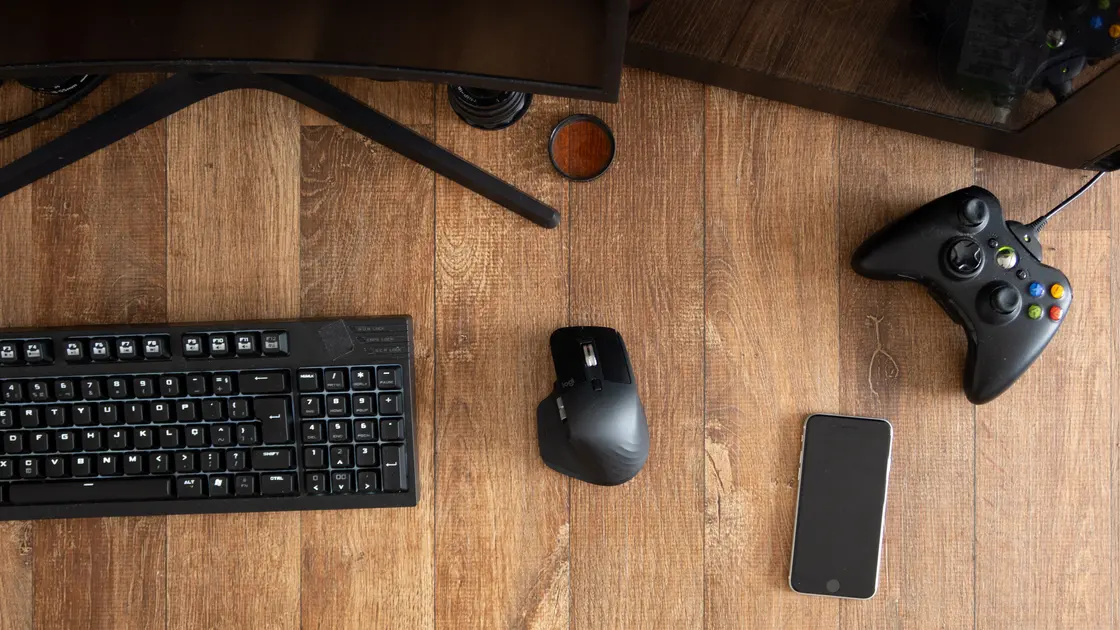

Cloud gaming controller not detected or not recognized? The fix is to find the first layer that loses its input: the local operating system, the browser or native client (focus, support, or a capturing app), the cloud service, or the game session. Test local button input first and prove each handoff with one supported connection before resetting accounts or networks. Input delay after successful detection has a different diagnostic path.
Key Takeaways
- Confirm that the local device sees button input before opening the cloud session.
- Use a known data-capable USB cable as a clean baseline when the controller supports it.
- Check the service’s controller list for your exact client platform, not only the controller model.
- In a browser, focus the game page and press a button so the controller can be exposed to the page.
- Separate “not listed,” “listed but no buttons,” and “works in the service menu but not one game.”
The Entertainment troubleshooting hub groups cloud play with related device and network checks. If the controller is detected but actions feel late, use the controller input-lag guide. If video quality, latency, jitter, or packet loss is the problem, use the cloud-gaming network guide.
Use a simple four-layer map:
| Layer | Quick observation | What failure means |
|---|---|---|
| Operating system | Controller appears and buttons register locally | Cable, Bluetooth, power, driver, or OS issue if absent |
| Browser or native client | Service menu responds or client reports a controller | Client permission, compatibility, focus, or stale session if absent |
| Cloud service | Session accepts navigation or input | Service platform or mapping issue if menus ignore it |
| Individual game | Game responds after launch | Game-specific controller mode or session issue if only one title fails |
Write down the controller model, connection type, client device, operating-system version, browser or app version, service, and affected game. “Connected” in Bluetooth settings proves a radio link, not that every button is mapped or that the cloud client supports the device.
Do not begin by changing router, DNS, or region settings. Those can affect session delivery but rarely explain why the local operating system cannot see a connected gamepad.
Disconnect the controller from other nearby hosts so it does not reconnect elsewhere. Charge it, then use the platform’s controller or input settings to verify that the device appears. If the manufacturer provides an official test or accessories app, check button and stick input there.
For a wireless controller, remove only the stale pairing for this controller, put it into the documented pairing mode, and pair it again. Apple’s support instructions distinguish making the controller discoverable, selecting it in Bluetooth settings, and using a data-capable USB cable for models that support wired connection. It also notes that button and feature support can vary by controller and app.[1]
Try a known data-capable USB cable and a direct port if the controller supports USB. A charge-only cable can power the controller without carrying input. Avoid an unpowered hub for the baseline, then restore the normal connection after the test.
If local input does not register, stop before troubleshooting the cloud service. Update the operating system and controller firmware through official tools, test one supported port or cable, and escalate to the controller or device vendor with the local result.
Support is a combination of controller, client operating system, app or browser, and service. A controller supported on Windows may have different limits on a television, mobile browser, streaming stick, or headset.
Read the current service requirements for the exact client. NVIDIA’s GeForce NOW requirements, for example, list supported gamepad families by platform and state that additional controllers may require drivers or software updates; television clients may require a supported gamepad for gameplay even when a keyboard can navigate the app.[2] That is service-specific evidence, not a universal compatibility list.
Check:
Do not install an unofficial mapper or driver merely because the controller is absent from the service list. It can create duplicate virtual devices, change button order, conflict with anti-cheat, or expose broad input permissions.
For browser-based cloud gaming, open only one game page, click inside it, then press a controller button. The W3C Gamepad specification says a browser may return an empty gamepad list before it observes a gamepad user gesture, as a fingerprinting mitigation. It also requires the document to be active and allowed to use the gamepad permission.[3]
Use a clean comparison:
Do not grant broad site permissions to unrelated pages. If the service works in a supported native app but not in one browser profile, inspect browser version, site permissions, extensions, and enterprise policy rather than repairing the controller again.
An embedded frame can also be restricted by page policy. Use the service’s official launch URL instead of an embedded third-party portal.
Close one nonessential controller tool at a time: game launchers, remappers, virtual-controller drivers, remote-desktop clients, emulators, accessibility layers, or overlay software. Then reopen the cloud client and test.
Watch for duplicate devices. A physical controller plus a virtual copy can cause the service to select the wrong index or receive conflicting inputs. Likewise, a platform launcher may translate the controller for local games but not pass that translation into a browser.
Do not uninstall drivers or delete mappings before recording the current state. Prefer each application’s normal disable or exit control. If closing one tool resolves detection, update it or configure a scoped exception rather than leaving all input software disabled.
This pattern proves that the operating system, client, and at least part of the cloud service can see input. Focus on the session and title:
Some games switch between keyboard/mouse and controller prompts based on the last input. A changed icon does not prove every control works. Test directional input, one face button, and one trigger without remapping first.
If only one title fails, capture the title, session region, and game build. Do not keep changing the local Bluetooth pairing when the service menu and other titles work.
Use the smallest reversible action for the failing layer. Restart the browser or native client after a permission or mapping change. Power-cycle the controller after a firmware update. Reboot the client device only when a driver or operating-system update requires it.
Clear a site permission or app cache only when the official support path recommends it and after preserving sign-in and downloaded data. Reinstalling the cloud app does not fix a controller that fails the operating-system input test. Factory-resetting a controller is a last resort because it removes pairings and profiles without proving the cause.
Keep firmware from the controller manufacturer and client software from the official store or service. Avoid packages that ask to disable security controls or install unsigned kernel drivers.
Prepare a layer-by-layer record:
Redact account IDs, device serial numbers, Bluetooth addresses, and session tokens.
Bluetooth confirms a link, not button mapping or client compatibility. Verify local input, then check whether the browser or native client and service support that connection mode.
Yes. It can power the controller without carrying data. Use a known data-capable cable and a direct port for the baseline.
Browsers may wait for a gamepad gesture before exposing connected devices to a page. Focus the official game tab and interact with the controller.
Only when the service or controller vendor explicitly supports it. Unofficial mappers can create duplicate devices, incorrect layouts, security risks, or anti-cheat conflicts.
The client and service can see it, so the remaining issue is likely session focus, game input mode, mapping, or title-specific support. End the session and compare another supported game.
Poor connectivity can interrupt a cloud session, but it does not usually explain failure in the local operating-system input test. Diagnose detection before latency or stream quality.
No. Remove only the stale entry for the affected controller after recording it. Deleting unrelated pairings increases disruption without improving the evidence.
Audio jacks, touchpads, motion, adaptive triggers, vibration, and button customization may have narrower support than basic input. Check the service and client platform documentation.
Sources checked 4 October 2026.
Sign up to experience all premium features at no cost.
*Available only to new users. Each user is limited to one trial.