Start your 3-day free trial
Sign up to experience all premium features at no cost.
*Available only to new users. Each user is limited to one trial.
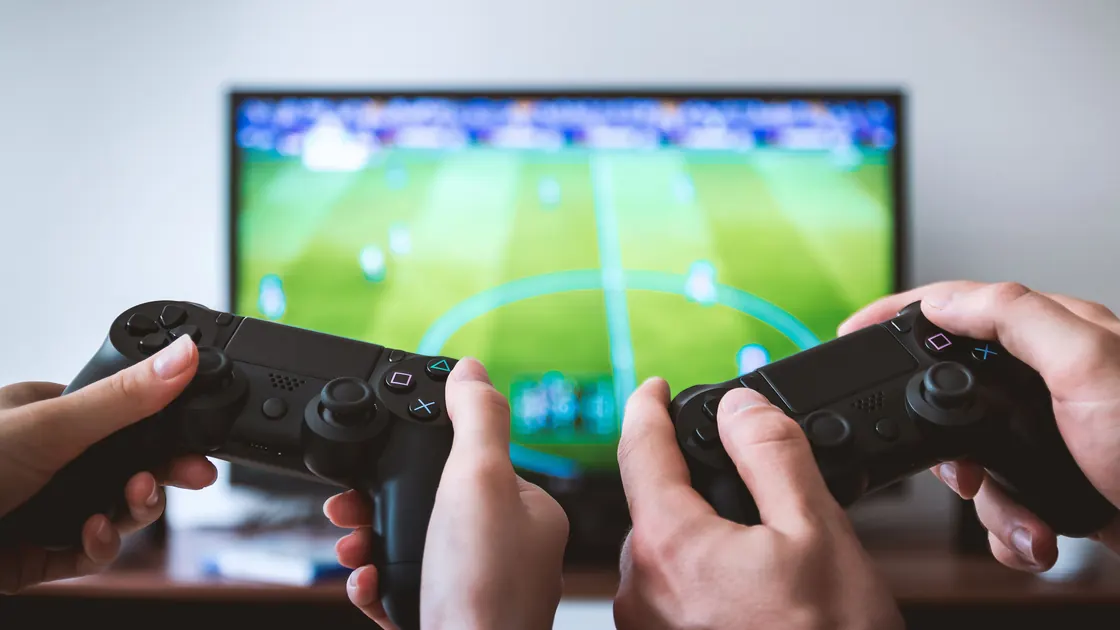

For a quick controller latency test, film the button press and the screen together in slow motion, count the frames between them, and repeat the same offline scene several times. Game controller input lag is the delay between your action and the visible response, but the controller is only one link: separate the controller connection, console or PC, game processing, display processing, and—only for online or cloud play—the network path, changing one link at a time.
Key Takeaways
- First decide whether the delay exists in an offline menu or local game.
- Compare one controller over a supported wired connection before changing wireless settings.
- Firmware, pairing state, interference, game frame rate, and television processing can feel identical at the controls.
- A low network ping cannot remove delay created before a packet leaves or after a frame reaches the display.
- Keep a short slow-motion recording or repeatable input sequence instead of relying only on feel.
This guide focuses on the local input-to-display chain. If controls feel normal offline but late only in a streamed session, use the cloud gaming latency diagnosis; for conventional online games, compare the separate guides to lowering ping and gaming bandwidth needs.
Treat one button press as a sequence:
A symptom at step five can feel like step two. That is why replacing the controller before testing the display is weak evidence. Establish a repeatable action—such as moving through a local menu one item at a time—and note whether audio, animation, and the selection highlight are delayed together.
Disconnect the game from online matchmaking without disabling the device's security controls. Use a local system menu, controller test panel, training mode, or offline game. If the delay remains, stop changing router, VPN, or server settings; the fault is in the local chain.
Compare patterns:
| Observation | Likely branch to isolate next |
|---|---|
| System menu and every game feel late | Controller link, host load, or display |
| One game feels late, menus are immediate | Game frame rate, input settings, or game-specific issue |
| Offline is immediate, online match is late | Network/server path or game netcode |
| Local game is immediate, cloud session is late | Full cloud input-upload/render/video-download path |
| Delay appears only on one TV input | Display mode or per-input processing |
Do not compare a 30-frame-per-second cinematic game with a 120-frame-per-second training tool and call the difference a controller defect. Keep the same game scene, camera, frame-rate mode, and display input while testing the connection.
If the symptom is intermittent, repeat the same sequence for several minutes and note whether it follows heat, battery level, a busy scene, or a particular distance from the host. A one-off good result is not a stable baseline. The useful comparison is the same action under controlled conditions, with only one variable changed between runs.
Connect one controller with a known-good data cable using a connection mode the platform officially supports. Some USB cables provide power only, so confirm that the host reports a wired data connection rather than silently keeping the wireless link. Remove extra controllers and adapters for the test.
If the lag disappears, the evidence points toward wireless pairing, interference, battery state, or the controller radio path. If it remains, the controller can still be faulty, but the host, game, and display remain equally plausible. Repeat the same input sequence twice before drawing a conclusion.
PlayStation's DualSense support documents USB and Bluetooth pairing as well as controller software updates, so those are separate variables rather than interchangeable connection states.[1] Use the platform's supported cable and port; do not assume a charging indicator proves input is traveling over USB.
Charge the controller enough to remove low-power behavior from the test. Update the console or PC and then update the controller through the official platform path. Xbox, for example, provides a dedicated controller firmware update flow rather than treating controller software as part of every game update.[2]
After updating, power-cycle the host and test before re-pairing. If the problem persists only wirelessly, remove the controller from the host's saved devices and pair it again using the official procedure. Reset the controller only after recording custom mappings, accessibility settings, and pairing state.
PlayStation's troubleshooting flow includes reset and reconnection steps for a DualSense that still has connection problems.[3] A reset is not proof of a hardware fault and should not be repeated between every test, because it changes several settings at once.
Move the controller and host into clear line of sight and temporarily remove nearby USB hubs, wireless dongles, and unnecessary Bluetooth accessories. Do not disable security features or change the entire router configuration; controller wireless is often a local radio link, not ordinary Wi-Fi traffic.
Test distance in small increments. A controller that is stable at one meter but erratic across the room suggests a radio, obstruction, or power issue. A controller that lags identically beside the host and over USB points away from interference.
If two wireless controllers are connected, test each alone. Do not compare different games or display modes while swapping controllers. A second controller that works in the same scene is useful evidence, but it does not prove the first controller is defective until firmware, mappings, and connection type match.
Check frame rate, frame pacing, CPU/GPU load, background capture, overlays, and controller-specific settings. A frame rate drop increases the time until a processed input can appear. Heavy shader compilation or storage stalls can produce irregular delay that resembles a wireless dropout.
Restore default controller dead zones and response curves only after recording the current values. A large dead zone makes small stick motion appear unresponsive without delaying button events. Conversely, smoothing or acceleration can make movement feel heavy even when the input arrives on time.
Use the host's controller test panel where available. If the panel reports button changes immediately but the game responds late, keep the controller link unchanged and investigate the game. If the panel itself updates late, compare another port, cable, and controller before reinstalling drivers.
Televisions may apply motion interpolation, noise reduction, scaling, image enhancement, or frame buffering. Enable the TV's game or low-latency mode for the exact HDMI input, then repeat the same offline scene. Samsung says Game Mode reduces input lag and that the option may be unavailable if the console uses the wrong HDMI port; menu locations vary by model.[4]
Check whether the console passes through an AV receiver, capture device, splitter, or sound system. Bypass one intermediate device at a time. Keep resolution, refresh rate, HDR, and game frame-rate mode fixed so a changed video format does not contaminate the comparison.
If a monitor feels immediate and the TV feels late with the same host and controller, the display path is the strongest branch. Do not replace the controller to solve a delay that follows the display.
Also check whether the television stores picture settings per input and per signal type. Game mode enabled for an SDR console menu may not remain active when the game switches to HDR or a different refresh rate. Recheck the on-screen mode indicator after the signal changes rather than assuming the earlier setting still applies.
The network matters only after the local baseline is responsive. In a conventional online game, remote player state may arrive late even while your local camera or menu reacts immediately. In cloud gaming, your input must travel to the service, the game must render remotely, and video must return and decode locally.
Compare offline, online, and cloud scenarios without changing the controller or display. If only online play is affected, record the game region, server, time, packet loss, jitter, and ping. The broader streaming guide is useful context for video delivery, but it does not replace the local input baseline.
Do not claim that a faster internet plan or a VPN can fix a controller, frame-rate, or display-processing delay. Likewise, do not call every late remote action controller lag when local menus remain immediate.
Not in every setup. Protocol, polling, firmware, interference, host scheduling, and the specific wired implementation all matter. Use a supported wired data connection as a diagnostic baseline rather than a universal ranking.
The television may be applying extra image processing or the affected HDMI input may not use game mode. Compare the same host and controller on another display before changing controller hardware.
On a PC, input can pass through USB, Bluetooth, or a vendor wireless adapter, the operating system driver, and sometimes a launcher remapping layer such as Steam Input before the game reads it. Check the system controller test panel, use a port on the computer rather than a hub, close overlays and capture tools, and confirm a stable frame rate. If the panel reacts immediately but the game does not, investigate the game and remapping settings.
Low power can contribute to unstable wireless behavior on some devices, but it is not the only cause. Charge the controller, repeat the same scene, and keep the result as one variable in the evidence log.
Yes. Platform vendors publish controller updates and troubleshooting paths for connection and behavior issues. Update through the official host or supported application, then retest before resetting pairings.
Games can differ in frame rate, dead zones, response curves, buffering, and engine load. If system menus and another game respond immediately, investigate the affected game's settings and performance first.
High ping can delay the remote result in online play, but it does not delay an offline menu. Separate local response from server-confirmed actions before diagnosing the network.
No. Record the pairing and mappings, test a supported wired connection, update firmware, and compare another controller first. Reset only when the official troubleshooting path calls for it.
To measure input lag, record the controller and screen together with a phone's slow-motion mode, then step through the video frame by frame. Count frames from the first visible button movement to the first screen change and multiply by the frame time: at 240 frames per second, each frame is about 4.2 ms. Repeat at least ten presses in the same offline scene, use the median, and change only one link between runs, such as wired versus wireless or TV versus monitor. The result is not laboratory-grade, but it is more reliable than memory.
Sources checked 4 October 2026.
Sign up to experience all premium features at no cost.
*Available only to new users. Each user is limited to one trial.