Start your 3-day free trial
Sign up to experience all premium features at no cost.
*Available only to new users. Each user is limited to one trial.

Disney+ Error Code 42 usually means the app or website cannot maintain a usable connection to the service. Disney identifies slow or unstable internet and a weak Wi-Fi signal as likely causes, so diagnose the path in layers instead of changing account or region settings.[1]
Key Takeaways
- Record where Error 42 appears before restarting anything.
- A strong Wi-Fi icon does not prove that the modem has a stable internet connection.
- Compare one device and one network at a time to locate the failing layer.
- Restart the modem, router, device, and Disney+ app in a deliberate order.
- Escalate with exact evidence if the error survives supported-device and connection checks.
The Entertainment troubleshooting hub covers broader streaming decisions. This guide is specifically for Error 42; if Disney+ says the device itself is unsupported, use the device compatibility checklist instead.
Preserve the original symptom before changing the network. Note the exact wording and code, whether it appeared while launching the app, opening DisneyPlus.com, selecting a profile, or starting a title, and the local time. Record the device model, operating-system version, Disney+ app or browser version, connection type, and whether other services load.
Do not reduce the record to “Disney+ is down.” Error 42 describes a failed connection from your session, but it does not identify which link failed. A short observation table keeps the later tests interpretable:
| Observation | What it suggests | Useful next test |
|---|---|---|
| One device fails; another works on the same Wi-Fi | Device, app, or local session | Test the failing device in a browser or after an app relaunch |
| Every device fails on one home network | Router, modem, ISP, or service path | Try one device on a different authorized network |
| Wi-Fi looks strong but video services fail | Internet path beyond the router | Check modem state and run a connection test |
| Disney+ opens but one title alone fails | Title-specific or playback issue | Compare two unrelated titles |
| The error began after an outage | Stale modem or router session | Power-cycle network equipment |
If possible, keep one working device or network unchanged as a control. Changing the password, DNS, router, app, and account together may hide which action mattered.
Disney’s Error 42 guidance first asks users to run the app on a supported device or DisneyPlus.com in a supported computer browser.[1] Confirm that you installed the official app from the device’s normal store and that the operating system has not fallen outside the current support range. Do not rely on an old sideloaded package or an unofficial television client.
For a browser, close private test windows and extensions only if they are part of the failing setup, then compare a normal supported browser profile. Check whether JavaScript and cookies are enabled, because a page that cannot complete its normal session may resemble a network failure. Avoid clearing all browser data at this stage; first save the exact error and test another supported browser without altering the original profile.
If the app does not install, will not open, or reports an explicit compatibility message, Error 42 is no longer the most useful diagnosis. Follow the dedicated compatibility path rather than spending time on router changes. A compatible client does not prove the network is healthy, but it removes one major uncertainty.
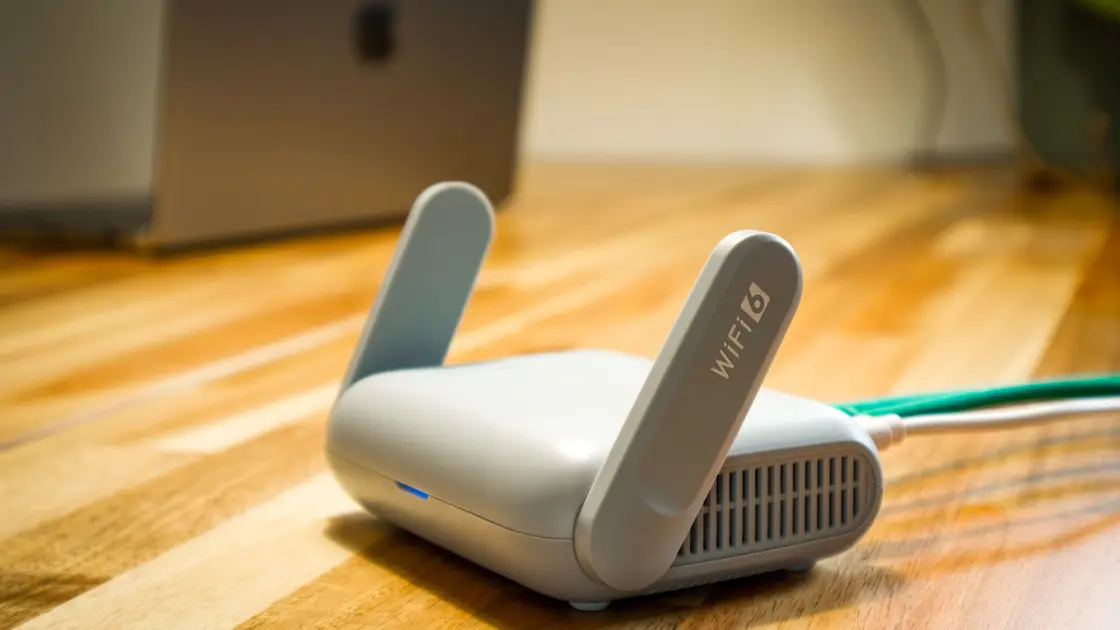
Separate the local wireless link from the router’s upstream connection. Disney notes that a device can show a strong Wi-Fi connection to the router while the modem-to-internet connection remains slow or unstable.[1] That distinction explains why the Wi-Fi icon alone cannot clear the network.
Stand near the router and repeat one test without moving anything else. If Error 42 disappears, signal strength, interference, or a weak mesh hop is plausible. If the device supports Ethernet, a temporary wired comparison is stronger evidence than repeatedly reconnecting Wi-Fi. Disney’s connection guidance recommends moving closer to the Wi-Fi source or using Ethernet when possible.[2]
Then open a neutral webpage or run the device’s supported connection test. A successful speed result is useful, but it is only a snapshot; packet loss, brief disconnections, or a modem that is repeatedly reacquiring service can still interrupt authentication and playback. If several unrelated apps fail at the same time, focus on the local network or ISP before reinstalling Disney+.
Use a two-by-two comparison rather than random retries. Test the same Disney+ account on a second supported device over the original network. Then, if permitted and safe, test the original device on a different trusted connection such as a personal mobile hotspot. Do not use an unknown public hotspot for an account-recovery experiment.
Interpret the smallest stable pattern:
This comparison is more informative than one speed-test number. If the only symptom is recurring buffering after playback begins, move to the streaming buffering diagnostic, which separates Wi-Fi, device, and VPN effects in more detail.
Disney recommends relaunching the app and power-cycling the modem and router for Error 42.[1] Use a controlled order so each component receives a clean upstream connection. First close Disney+ completely, then shut down the streaming device. Power off the router and modem according to their normal controls.
Wait long enough for the equipment to stop showing an active session. Start the modem first and wait until its normal internet indicators stabilize. Start the router next and wait for its Wi-Fi and uplink indicators. Finally start the streaming device, reconnect it to the expected network, and open Disney+ once.
Do not press reset pins or restore factory settings. A power cycle preserves the configuration; a reset may erase ISP credentials, Wi-Fi names, parental controls, mesh membership, and other settings. If the modem is owned by the ISP and never returns to its normal state, record the lights and contact the provider rather than repeatedly cycling it.
Install normal operating-system, firmware, browser, and Disney+ updates after the network comparison. Close background applications that are consuming bandwidth or memory, then relaunch Disney+. Disney’s broader streaming guidance includes app/system updates, cache clearing, reinstalling, and a device–modem–router power cycle, but these actions should remain ordered from least to most disruptive.[2]
Clear a documented cache only when the platform distinguishes cache from account data and downloads. Removing all app data can sign you out, delete downloads, or erase useful evidence. Before reinstalling, confirm the login method, recovery access, download consequences, and that the official app remains available for the device.
A reinstall can replace damaged local files. It cannot repair an ISP outage, weak Wi-Fi coverage, or a service-side problem. If every supported device fails on the same connection, reinstalling each app is the wrong branch.
Only test this branch if such a tool or rule is already active. Pause AethoVPN, another VPN, a proxy, private DNS override, ad-blocking gateway, or custom router filter for one controlled attempt, then restore the previous state after recording the result. This is isolation, not a claim that the tool caused the error or that changing location can fix catalog rights.
Do not rotate through countries or servers while diagnosing Error 42. That changes the network exit, latency, service routing, and sometimes the platform’s risk signals at once. Compare the ordinary connection with exactly one existing configured path, using the same device and title.
If disabling a network layer changes the result, update or correct that layer rather than leaving all protections disabled. If the result does not change, restore it and continue with the stronger device/network evidence. The Disney+ travel guide explains legal availability boundaries separately; Error 42 is not permission to bypass regional licensing.
Contact the ISP when multiple services fail on the same network, the modem will not stabilize, or the connection test shows persistent loss or insufficient service. Contact Disney+ when supported clients fail across otherwise working connections, the Error 42 message is reproducible, or the app and website disagree without a broader internet fault.
Send a compact, privacy-safe evidence packet:
Never send a password, one-time code, session cookie, full payment record, or router administrator credential. Ask the support owner to confirm the failing layer instead of simply requesting a generic reset.
Disney says Error 42 is likely an internet or network connection issue. Slow or unstable internet and weak Wi-Fi are listed as possible causes, but the code alone does not reveal whether the device, router, modem, ISP, or service path failed.
Yes. The device may have a strong radio link to the router while the router or modem has an unstable upstream connection. Check both layers rather than treating the Wi-Fi icon as an end-to-end test.
No. Relaunch the app, compare another supported device or network, and restart the connection path first. Reinstall only when the failure stays on one device and you can recover the account and downloads.
No. Disney describes Error Code 83 as an unknown error while streaming to your device, usually linked to device compatibility, the connection, or the account, so its first checks focus on whether the device and app are supported.[3] Error 42 is the narrower connection case covered here. Note the exact number and follow the official guidance for the code you actually see.
No. A speed test is a short sample and may miss packet loss, brief outages, Wi-Fi interference, or unstable service routing. Compare repeated behavior on another device and trusted network as well.
Not for the first response. A normal power cycle preserves settings, while a factory reset can erase ISP, Wi-Fi, mesh, and parental-control configuration. Reset only under the router or ISP owner’s documented recovery plan.
Provide the exact code, time, device and software versions, trigger, and the results of device/network comparisons. Redact account and payment data, and never send passwords or one-time codes.
Sources checked 4 October 2026.
Sign up to experience all premium features at no cost.
*Available only to new users. Each user is limited to one trial.