Start your 3-day free trial
Sign up to experience all premium features at no cost.
*Available only to new users. Each user is limited to one trial.

A game download shows a disk write error when the launcher cannot save downloaded data to storage: “write” is the step where it creates, extends, renames, or replaces files on a drive. The message does not by itself prove that the drive is damaged. Note the exact destination, temporary location, and failure stage, then start with reversible checks and protect personal data before running repair tools.
Key Takeaways
- Record the launcher, path, drive, file name, percentage, and exact write error.
- Check free space on both the game volume and the system or temporary volume.
- Test a small new folder and file without changing permissions across the entire library.
- Review security history and controlled-folder rules without disabling protection.
- Back up irreplaceable files before file-system repair, formatting, or hardware diagnosis.
The Entertainment troubleshooting hub organizes related game and playback problems. This guide is limited to an explicit write failure while downloading. Use the update-failure guide for patch-stage errors that do not identify a disk write, and the corrupted-installation guide when download completes but verification or launch reports damaged files.
Copy the full error before retrying. Record:
The failed operation matters. Creating a new temporary file suggests a path, quota, permission, or security-control issue. Extending an existing file can point to space or a file-size limit. Renaming a completed temporary file can fail because another process holds it, the target already exists in an unexpected state, or the launcher cannot replace it.
Do not assume that a displayed install path is the only volume involved. Launchers commonly use the system temporary directory, a cache, or a staging area before moving data into the selected library. EA’s troubleshooting guide lists drive format and external-drive write access among the checks for downloads that stall or fail to install.[1]
Check free space on the game volume and the system volume. A game advertised as a certain final size may temporarily require space for compressed chunks, unpacked files, a replacement copy, or rollback data. A nearly full system volume can therefore break a download aimed at another drive.
Confirm any user quota, managed-device limit, cloud-storage placeholder behavior, and removable-drive capacity. The visible free-space number should belong to the actual mounted volume, not an old shortcut or disconnected library path.
Use this distinction:
| Observation | Likely next check | Unsafe leap |
|---|---|---|
| Destination is nearly full | Free working space and retry once | Delete unrelated personal files blindly |
| System volume is full | Clear approved temporary data | Move system folders manually |
| Failure repeats at a large file boundary | File-system format and single-file limit | Declare the drive physically damaged |
| Free space changes unexpectedly | Another download, snapshot, backup, or quota | Grant broad administrator access |
Remove only data you recognize and can recover. Empty the launcher’s documented cache only after closing it normally, and do not delete an entire game library to create space unless you have verified what it contains.
Create a new empty folder in the intended parent location using your normal user account. Create a small text file inside it, rename the file once, and delete only that test file. This checks basic create, rename, and delete operations without touching downloaded data.
If the test fails, inspect the parent folder’s ownership, access mode, read-only state, mount state, and available quota. Use the operating system’s normal permission interface. Do not run recursive ownership or permission commands over a whole drive, and do not grant every user full access.
If the test succeeds but the launcher fails, compare the launcher process identity, library configuration, temporary path, and security history. Running the launcher once with elevated privileges can hide a broken ownership model and create files your normal account cannot later update. Prefer repairing the narrow folder or using the launcher’s official library-management function.
For a removable drive, safely reconnect it and confirm the same mount point or drive letter. If the device disappears, disconnects, or becomes read-only, stop repeated downloads and use the external-drive detection guide.
Open the operating system’s protection history and look for an event at the exact failure time. Microsoft documents Controlled Folder Access as a ransomware-protection control that can prevent untrusted applications from changing protected folders.[2] A block event is evidence to review the app identity and target path, not a reason to turn protection off.
Use the narrowest documented option:
Never exclude the whole drive, Downloads folder, user profile, or all executables. Do not restore a quarantined file merely because the launcher wants it; verify the publisher and use official repair or support guidance.
On a managed computer, organizational policy may intentionally block the path. Ask the administrator for an approved library location rather than trying to bypass the policy.
Check the volume’s file-system format and write state. A legacy format can impose a single-file limit even when the volume has plenty of total free space. EA, for example, notes that a PC download stuck at 4 GB can point to a FAT32 drive, which cannot hold files larger than 4 GB, and that macOS has no write access to an NTFS-formatted external drive.[1] A volume mounted read-only after an unsafe disconnect can allow browsing but reject new data.
Also check whether the library path includes a network share, cloud-synced folder, case-sensitive volume, encrypted container, or compatibility layer unsupported by the launcher. Do not infer support from the fact that another small game once worked there.
If a format change is necessary, stop. Formatting erases data and is not a troubleshooting toggle. Back up and verify every needed file, confirm the publisher supports the proposed destination, and follow the operating system vendor’s instructions. Moving the library to a known-supported volume is often safer than converting a populated drive.
Close the game, launcher, and any helper process normally. Reopen the launcher and use its documented resume, clear-cache, repair-library, or move-library command if available. Keep the operation limited to the affected title or cache.
Do not manually delete a random numbered folder while the launcher is running. It may be an active staging directory, shared package cache, or rollback copy. Do not remove manifests unless official instructions identify them and you can restore them.
If the error names a file held by another process, a clean operating-system restart can release a stale handle. After restart, launch only the platform client and retry once. If the same file fails at the same offset, save that pattern for the storage check rather than repeating the download many times.
An antivirus scan, backup, search indexer, mod manager, synchronization client, or another launcher can legitimately touch the same library. Pause only the specific verified process for one test; do not disable all background protection.
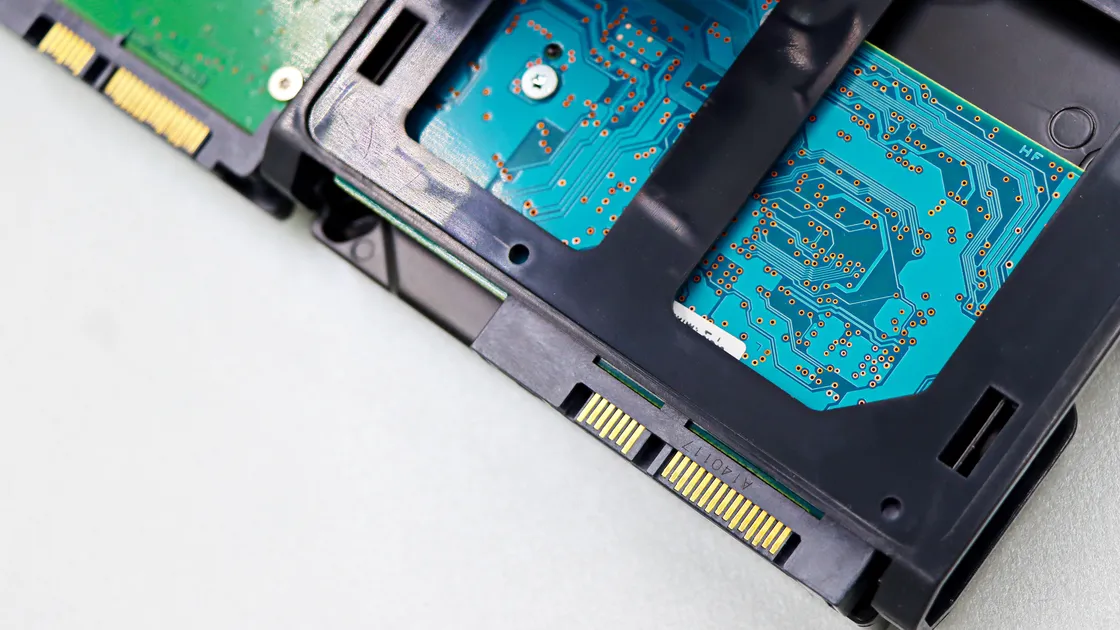
Escalate to storage health when different downloads fail to write, the same block fails repeatedly after a clean cache and supported path, ordinary file copies return I/O errors, the drive disconnects, or the operating system reports file-system problems.
Before repair:
Apple’s Disk Utility guidance explicitly tells users to maintain a current backup and explains that First Aid checks and repairs storage formatting and directory structure.[3] The same safety principle applies on other systems: a repair tool is not a substitute for a verified backup.
If the drive makes unusual mechanical sounds, disappears repeatedly, reports serious health warnings, or contains the only copy of important data, stop do-it-yourself write testing and seek qualified recovery help. Reinstalling the launcher will not repair failing storage.
Return to the original launcher and run one controlled retry. Keep the same library and network unless your evidence identified the path as unsupported. Note whether the download passes the previous percentage or file.
If it fails again, send support:
Redact account identifiers, personal paths, serial numbers, and unrelated security events. Do not upload an entire home-directory log bundle unless the official support channel asks for a defined diagnostic package and explains its contents.
Writing is the launcher saving what it downloads to your storage: it creates temporary files, fills them with downloaded pieces, then unpacks or moves them into the game library. A write error means one of those save steps failed, so check storage, permissions, and security controls before blaming the connection.
The system volume, temporary directory, quota, or staging area may be full even when the selected library has space. The launcher may also need a temporary replacement copy larger than the final changed data.
Yes. A format may limit individual file size or be unsupported by the launcher, and a damaged or read-only mount can reject writes. Confirm the actual format and publisher support before moving or formatting data.
Not as a permanent fix. Elevation can create files that your normal account cannot update later and can hide the real ownership problem. Repair the narrow library path or use the launcher’s documented library tool.
Do not disable protection broadly. Check whether a specific block happened at the failure time, verify the official launcher, and use the narrow application-approval or folder-location option allowed by your system.
Only use the launcher’s documented cache action, with the launcher closed as instructed. Random deletion can remove shared packages, manifests, or rollback data and make diagnosis harder.
It is useful evidence but not proof. The same source chunk, file-size boundary, security rule, or bad storage area could produce that pattern. Combine it with ordinary write tests, logs, and health warnings.
Formatting may change an incompatible file system, but it erases data and does not repair failing hardware. Treat it as a planned migration after verified backups, not as an early troubleshooting step.
Back up irreplaceable saves, documents, configuration, screenshots, creations, and recovery information to another healthy device. Verify that important files open before running repair or erase operations.
Sources checked 4 October 2026.
Sign up to experience all premium features at no cost.
*Available only to new users. Each user is limited to one trial.