Start your 3-day free trial
Sign up to experience all premium features at no cost.
*Available only to new users. Each user is limited to one trial.
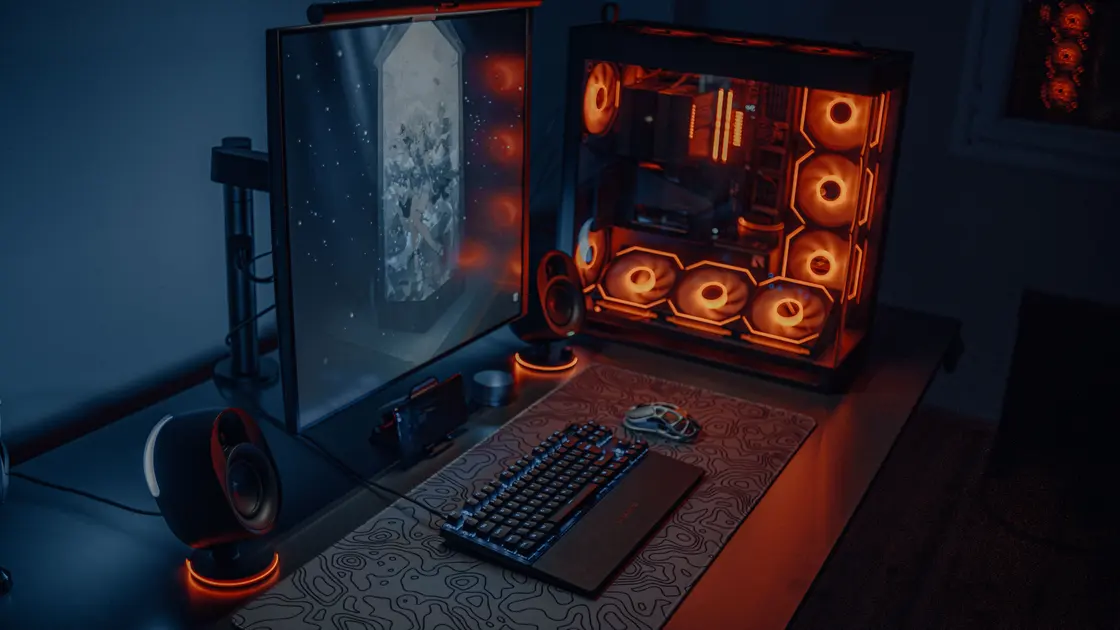

Does internet affect FPS? In a locally installed game, almost never: if a game runs at low FPS even though the internet is fast, the connection is usually not the limiting resource, because your CPU, GPU, memory, storage, power, and cooling draw each frame. A slow connection shows up as lag, high ping, or rubber-banding instead; only cloud gaming renders frames remotely and streams them to you. First establish whether the game is local or cloud streamed, then measure one repeatable scene and change one variable at a time.
Key Takeaways
- A fast speed test cannot prove that local graphics hardware has enough rendering capacity.
- Cloud gaming is different because the remote service renders the image and streams it to you.
- Compare the same scene, resolution, preset, frame cap, and power state before and after each change.
- Sustained low FPS points to a continuing workload or limit; occasional hitches belong in a frame-time diagnosis.
- Keep evidence about utilization, memory, clocks, temperature, and settings before updating or reinstalling anything.
The Entertainment troubleshooting hub separates game rendering from network and account problems. If the average FPS is healthy but motion pauses, use the frame-time stutter guide. If the picture comes from a remote cloud machine, use the cloud-gaming latency guide. If monitoring shows the game on an integrated GPU, continue with the wrong graphics card checklist.
Start with the delivery model because the same symptom can have different owners.
| What you are playing | Where frames are rendered | What internet quality can change | What usually controls FPS |
|---|---|---|---|
| Installed PC or console game | Your device | Login, matchmaking, downloads, remote state | CPU, GPU, memory, settings, power, cooling |
| Cloud gaming session | Provider data center | Stream quality, latency, loss, session stability | Remote tier and server, plus stream decode on your device |
| Remote-play session from your own console or PC | Your host device | Video delivery and control path | Host rendering, encoder, client decoder, and network |
Disconnecting the network from a single-player local test can be useful only if the title officially supports offline play. Do not bypass required sign-in or anti-cheat. If the local scene stays at the same low FPS while network use is minimal, stop treating broadband speed as the main variable.
For a cloud session, distinguish a low-resolution or blocky stream from a genuinely low frame cadence. Network problems can damage the delivered stream, but local graphics-menu changes may not affect rendering performed on the provider’s machine.
Choose a built-in benchmark or a route you can repeat for 60 to 90 seconds. Record the game build, display resolution, render scale, graphics preset, ray tracing, upscaling mode, frame-generation state, VSync, frame cap, refresh rate, and whether the laptop is connected to its intended power adapter.
Use one supported monitoring tool rather than stacking several overlays. Intel’s PresentMon capture application exposes per-frame and hardware metrics including displayed FPS, CPU and GPU timing, utilization, temperature, power limits, frequency, and GPU-memory use.[1] NVIDIA’s FrameView guide describes average FPS, 1% low FPS, frame-time, clocks, utilization, temperature, and power capture for PC graphics workloads.[2] Availability varies by operating system and hardware, so missing metrics are not proof that a component is healthy.
Keep these baseline observations:
Do not compare a quiet tutorial room with a crowded battle and label the difference a fix. Preserve the original preset so every experiment is reversible.
Before reducing quality, look for an intentional ceiling. The game, launcher, driver, battery utility, overlay, or console mode may impose a cap. A stable 30, 40, 60, or 120 FPS plateau is often more suggestive of a limiter than of random network behavior.
Check the operating system’s active refresh rate and the game’s selected display. Then review VSync, in-game caps, driver caps, battery-saving frame limits, and borderless versus exclusive modes. Change only one control, fully relaunch the game if the vendor requires it, and repeat the same route.
Do not disable every synchronization feature at once. A higher counter can introduce tearing, unstable pacing, more heat, or shorter battery life. The goal is to identify an unintended cap, not to maximize one number regardless of the display.
A GPU that remains near its workload limit while frame rate stays low usually needs less rendering work. Reduce one GPU-heavy setting and measure again. Resolution or render scale is a useful first comparison because it changes the number of pixels without rewriting every visual option.
Use this sequence:
If a large resolution reduction produces little change and GPU utilization is not sustained, the limit may be elsewhere. If the game is using the wrong adapter, solve that selection problem before tuning dozens of settings.
Frame generation can raise a displayed counter but does not remove every CPU limit or improve all input response. Record whether generated frames are enabled so you do not compare unlike measurements.
A game can be CPU limited while the overall CPU percentage looks modest. One main thread may be saturated while other cores are idle. Reduce a CPU-heavy option such as crowd density, simulation distance, physics detail, or view distance and compare the same scene.
Look for relationships rather than isolated peaks:
| Observation | Plausible direction | Controlled check |
|---|---|---|
| One core remains busy and GPU use is below its usual load | Main-thread or simulation limit | Reduce one CPU-heavy option |
| Memory pressure grows and storage activity rises | Paging or competing applications | Close one known large application |
| FPS falls when entering dense areas | Simulation, draw-call, or asset workload | Compare the same location after warm-up |
| Storage remains busy during play | Asset streaming, scanning, or paging | Wait for known background work to finish |
Do not terminate unfamiliar system or security processes. Pause only software you recognize through its normal controls, then restore it if the result is unchanged. Keep enough free storage for official updates and caches, but do not assume an SSD upgrade fixes a CPU or GPU limit.
On a laptop, confirm the intended charger is connected and recognized. Compare supported operating-system and vendor power modes. A quiet or battery profile can deliberately reduce CPU and GPU clocks even when the internet connection is excellent.
Watch whether clocks fall after several minutes as temperature or power-limit indicators rise. Restore unobstructed ventilation, use the device on a firm surface, and clean only through manufacturer-supported procedures. Do not open hardware, overclock, undervolt, or defeat thermal protection as a diagnostic shortcut.
Disable one nonessential overlay, recorder, browser workload, synchronization tool, or RGB utility for one repeat. Multiple monitoring overlays can interfere with each other or add enough work to distort the baseline. Leave security controls intact unless their vendor documents a safe, temporary diagnostic method.
Write down the last known-good date and compare it with game, driver, operating-system, firmware, and graphics-profile changes. Read official release notes for a matching issue before changing versions.
If you update a driver, use the hardware vendor’s supported path and retest the same scene. Do not combine a driver update, game-file verification, cache deletion, BIOS change, and graphics-preset reset in one pass. That destroys causal evidence and can introduce a second problem.
Test a fresh in-game graphics profile only after saving or photographing the current values. Use the launcher’s official file-verification function when there is evidence of damaged or incomplete assets; repeated reinstallations are not a general FPS remedy.
Stop after you can reproduce the problem and show which class of change affects it. Save a short baseline capture and one controlled comparison, plus:
Remove account names, machine names, serial numbers, and unrelated process details before posting logs publicly.
Normally no. Internet quality can affect online state, downloads, or matchmaking, while local FPS depends mainly on rendering and system resources. It can matter indirectly for cloud gaming because the rendered video is streamed.
Not directly in a local game. A slow or unstable connection usually causes lag, delayed hits, or rubber-banding while the FPS counter stays steady. It can lower frames indirectly when a launcher update, game patch, or cloud-save sync downloads in the background and competes for storage and CPU, or when a cloud-gaming stream drops quality to fit the connection. Pause known downloads and repeat the same scene before changing graphics settings.
Check the game and driver frame caps, VSync, battery-saving limits, console performance modes, and the display’s active refresh rate. Change one control and relaunch before comparing.
Not by itself. The GPU may be waiting for a CPU thread, data, synchronization, a cap, or another adapter. Read utilization together with clocks, timing, memory, and the active GPU.
No. Lower one setting category at a time. Resolution is a useful GPU-load comparison, while crowd or simulation settings can reveal a CPU limit.
Memory pressure can cause paging, asset delays, and lower or less stable performance. Confirm actual pressure and competing applications rather than assuming capacity from one symptom.
No. Record a baseline and check whether a known issue matches. A supported update may help, but it also changes caches and behavior, so keep it as one controlled step.
Falling clocks alongside rising temperature or power-limit indicators can point to a thermal or power constraint. Restore normal cooling and supported power settings before retesting.
Only when file verification, update history, or corrupted assets provide a reason. Reinstallation does not fix an undersized GPU, a CPU bottleneck, an unintended cap, or thermal throttling.
Sources checked 4 October 2026.
Sign up to experience all premium features at no cost.
*Available only to new users. Each user is limited to one trial.