Start your 3-day free trial
Sign up to experience all premium features at no cost.
*Available only to new users. Each user is limited to one trial.

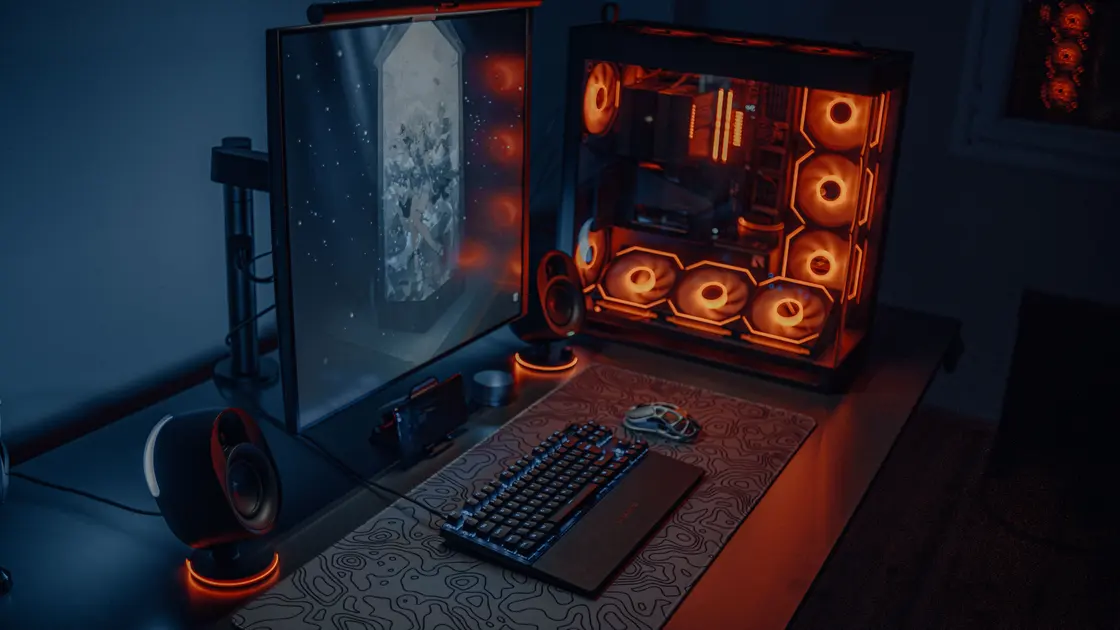
To change which graphics card a game uses on Windows, open Display settings, then Graphics settings, add the game's real executable, choose the high-performance GPU in its options, save, and fully relaunch the game.[1][2] If the game uses the wrong graphics card after that, prove which GPU renders the game process instead of inferring it from low FPS or fan noise, then check the display route, power state, and hybrid-graphics design. Once the correct GPU is confirmed, treat any remaining performance problem separately.
Key Takeaways
- Low performance alone does not prove that the integrated GPU is active.
- Verify the game process and GPU engine while the problem is occurring.
- Select the real rendering executable, not only the launcher or updater.
- Graphics preferences usually apply after the application is restarted.
- Some display outputs and laptop designs determine which GPU owns the final display path.
The Entertainment troubleshooting hub keeps hardware selection separate from network issues. If the intended GPU is already active but frame rate remains low, use the low-FPS checklist. If average FPS is healthy and only individual frames hitch, use the frame-time guide.
Launch the game, reproduce the issue, and inspect the operating system or vendor tool while the actual game scene is rendering. Match the process name and path, then look for the GPU engine, adapter name, utilization, memory activity, or per-process metrics.
Record:
Do not rely on the desktop, browser, launcher, or video-decoder process. A launcher may run on an integrated GPU while a separate game executable uses the discrete GPU correctly. Conversely, assigning the launcher may leave the real renderer unchanged.
Monitoring tools can also label engines differently. Confirm with at least one supported per-process view and a repeatable workload. Avoid running several overlays together because they can add overhead or attach to the wrong process.
Games can use separate binaries for a launcher, updater, anti-cheat bootstrap, DirectX version, Vulkan version, or the game itself. Open the process properties or the official install directory and identify the executable that remains active during gameplay.
Use this map:
| Process type | Should it receive the graphics preference? | Why |
|---|---|---|
| Store or launcher shell | Usually not sufficient alone | It may only start another process |
| Game renderer | Yes | This process submits the graphics workload |
| Updater or crash reporter | No | It does not render normal play |
| Alternate renderer executable | Only if you use that mode | DirectX and Vulkan variants may be separate files |
| Anti-cheat bootstrap | Follow official guidance | It may hand off to a protected game process |
Do not rename, copy, or replace protected executables to force a match. That can break signatures, updates, or anti-cheat. Add the supported executable through the operating system’s normal graphics settings.
On supported Windows laptops, the operating system can assign a per-application graphics preference. AMD documents that Windows 10 version 1803 and later provide this control and recommends selecting the desired desktop or Store application in Windows Graphics settings; its examples distinguish power-saving integrated graphics from high-performance discrete graphics.[1]
Use the current Windows Settings labels shown on your system:
Do not assume an old vendor-control-panel screenshot matches a current driver. The operating system may own the preference on newer configurations. If Windows lists only one adapter or no high-performance option, confirm driver installation and hardware design rather than editing the registry.
An already running application normally keeps the graphics device it created at startup. NVIDIA’s hybrid-graphics documentation states that a running program continues using the same processor after a preferred-processor change and must be restarted for the preference to take effect; it also notes that a driver may override a choice when an application requires a specific processor.[2]
Fully exit the game, including launchers that keep it suspended or resident. Verify in the process list that the renderer has ended, then reopen it and repeat the same scene. A system restart is reasonable after a driver installation, but it should not substitute for confirming the process and adapter.
If the setting reverts, preserve a screenshot of the selected application and adapter before troubleshooting drivers. Do not keep toggling global GPU defaults; a per-app rule has a smaller blast radius.
On desktops, confirm that the monitor cable is connected to the intended graphics card rather than a motherboard video output when the hardware documentation requires that arrangement. On laptops, USB-C, HDMI, DisplayPort, docks, and internal panels may be wired to different adapters or pass through a hybrid path.
The GPU that renders a frame and the GPU that owns the display output are not always the same. A hybrid system can render on the discrete GPU and copy the result through the integrated display path. Seeing activity on both adapters is therefore not automatic proof of a fault.
Test without an optional dock or adapter only as a reversible comparison. Use manufacturer documentation for port routing, supported display modes, and any hardware multiplexer. Do not open the device or move internal cables.
Connect the intended power adapter and confirm that the operating system recognizes it. Battery-saver, quiet, eco, thermal, or vendor performance profiles can favor integrated graphics or constrain the discrete adapter.
Check one policy at a time:
Do not disable thermal protection or apply an unofficial firmware setting. A discrete GPU may be unavailable in some power states by design. Preserve the original mode and restart only when the manufacturer says a change requires it.
First check Device Manager or the platform’s hardware view for missing adapters, warning states, or a generic display driver. Then compare the issue date with operating-system, firmware, and graphics-driver updates.
Use the laptop or GPU vendor’s supported installer. Hybrid laptops may depend on an OEM-tested combination of integrated and discrete drivers. Do not use random driver-download sites, device-ID utilities, or registry cleaners.
Change one driver layer per pass and keep the installer version. If a supported update does not alter the active GPU, return to executable selection, power policy, and display routing. Reinstalling drivers cannot make unsupported hardware appear or override a game that intentionally selects a particular adapter.
Prepare a compact support record:
Redact usernames and directory names that reveal personal information. Do not upload registry exports or a full system inventory unless official support specifically requests a limited field.
They are separate processes with different workloads and preferences. Verify the renderer process; the launcher’s adapter does not determine the game’s result by itself.
Add the desktop application by browsing to its real executable, or choose the packaged app when Windows presents that category. Avoid adding only a shortcut.
Usually Windows labels the higher-performance adapter that way, but read the adapter name shown in the options and confirm it during gameplay. Hardware and driver design can differ.
The application creates its graphics device when it starts. A preference change normally affects the next launch, not the already running process.
No. Hybrid systems can render on one GPU and present through another. Use per-process rendering evidence and the device’s display-routing documentation.
It can change the display path on some systems. Check the manufacturer’s port-routing documentation and use a reversible test rather than assuming every port connects to the same GPU.
Prefer a per-application rule. A global change can increase power use and affect unrelated software without proving which executable needed the override.
Stop changing GPU selection. Measure the same scene for GPU load, CPU limits, memory, power, heat, resolution, and frame caps using the separate performance checklist.
Sources checked 4 October 2026.
Sign up to experience all premium features at no cost.
*Available only to new users. Each user is limited to one trial.