Start your 3-day free trial
Sign up to experience all premium features at no cost.
*Available only to new users. Each user is limited to one trial.

If music streaming stops when the screen locks on an iPhone or Android phone, the app has usually lost the conditions it needs to keep playing in the background: the plan lacks background play, the app's own setting is off, or a battery or data rule suspends it. Work through these checks in order: whether the service and plan permit background playback, the app's own background setting, per-app battery and background-data restrictions, then audio-device or audio-focus changes, and only after that Wi-Fi or cellular transitions and a downloaded-track control. A plan limitation is not a phone fault, while a downloaded track that also stops points away from the network.
Key Takeaways
- Compare screen lock with merely switching to another app; they are not the same event.
- Confirm background-play entitlement before changing system settings.
- Change only the affected app's battery or data rule, briefly and reversibly.
- Test phone speaker, Bluetooth, Wi-Fi, cellular, and one downloaded item separately.
- Do not globally disable power-saving or security controls as a permanent workaround.
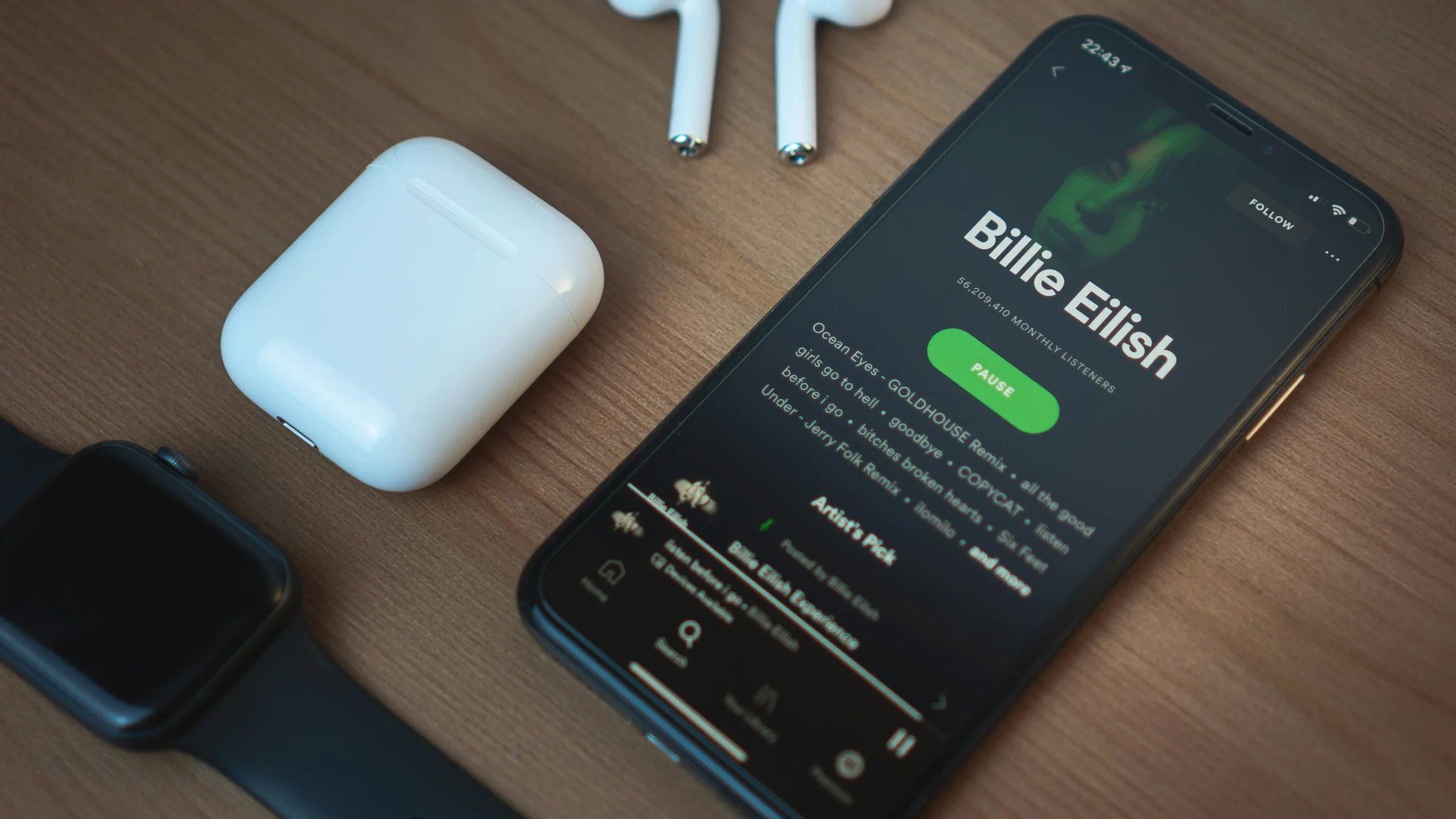
This guide applies to legitimate music or audio playback in an official mobile app. Platform rights differ, so consult the service's current support page rather than an old price or plan list. For service access context, see the streaming guide, Spotify guide, or SoundCloud guide.
Start a known track and record the first event that pauses it.
| Test | Result | Likely layer |
|---|---|---|
| Switch to another app, screen stays on | Audio stops | Entitlement or app background behavior |
| Lock the screen, same app remains active | Audio stops | OS background/power rule or entitlement |
| Screen locks and Bluetooth disconnects | Audio stops or reroutes | Audio-device transition |
| Wi-Fi drops at lock but download plays | Stream stops only online | Network/background data path |
| Downloaded track also stops | Network not required | App, OS, entitlement, or audio route |
Keep the same track and volume for every comparison. Wait at least a minute because some systems allow a short grace period before suspending background work. Also note whether the app remains visible on the lock-screen media controls, whether the timer advances, and whether pressing Play resumes immediately.
Do not force-close the app during this test. On both Android and iOS, swiping an app away or using a force-stop control is different from simply locking the screen and can intentionally end playback.
Some services make background playback a plan benefit, limit it to particular content, or require the official app. Verify the signed-in account, membership status, trial expiration, and content type on the provider's current support page. Avoid relying on a remembered price or a benefit list from another country.
YouTube, for example, documents background play as a YouTube Premium mobile-app feature, notes that some videos do not support it, and recommends confirming membership, the correct account, and the background-play setting.[1] This is a platform example, not a universal rule for every music service.
Run these controls:
If the service says the current tier does not permit background playback, stop system troubleshooting. Battery settings cannot grant an account entitlement. Use a supported plan or playback mode rather than trying to circumvent the restriction with browser tricks, modified clients, or account-location changes.
Open the app's playback or background settings. Look for options such as Background play, Allow background activity, Audio only, or Playback in background. Names vary; change only a setting documented by the service.
YouTube's troubleshooting page advises making sure background playback has not been disabled in the app's settings, updating the app, and closing other apps, because background play does not work while another app is playing audio.[1] If the setting offers a headphones-only choice, compare it with an always-on option, and record the original value before changing it.
Then refresh the session without erasing downloads:
Do not reinstall yet. Reinstallation can remove downloaded music, queues, equalizer settings, and sign-in state. If only one playlist fails, try a track outside that playlist before touching the application.
Modern phones can restrict background work and background data separately. Android's Battery Saver can limit or turn off background activity and delay network connections and apps; manufacturers may add per-app battery or data controls.[2] Apple says Low Power Mode reduces background activity and turns off Background App Refresh while active.[3] These controls are diagnostic clues, not instructions to leave global power or data saving disabled.
Use a narrow test:
On Android, avoid Force stop, do not choose an unrestricted mode for every app, and do not disable Data Saver globally for this test. On iPhone, Low Power Mode itself is global, so disable it only briefly for the comparison and turn it back on afterward if you rely on it. Managed devices may enforce settings; ask the administrator rather than bypassing management.
If playback works only when the app is unrestricted, update the app and OS before keeping that exception. A properly designed music app should use the platform's supported audio session; an exception can increase battery usage.
Locking the screen can coincide with Bluetooth power management, earbuds returning to their case, a car system disconnecting, or another app taking audio focus. Test the phone speaker first, with Bluetooth turned off. Then reconnect one audio device and repeat.
Check the following:
If the timer continues but no sound is heard, audio routing is more likely than app suspension. If the timer stops and Play resumes instantly, focus on audio focus or background rules. If the app restarts from the beginning, the operating system may be reclaiming it or the app may be crashing.
Update the audio device firmware only through its official app and do not reset paired devices until a speaker-versus-Bluetooth comparison implicates them. A global Bluetooth reset can remove unrelated accessories.
After confirming the app's background-data permission in Step 3, check whether the phone disconnects from Wi-Fi or switches networks at lock time. A stream still needs a stable route after the display turns off.
Build a controlled comparison:
| Test | If it works | What it suggests |
|---|---|---|
| Same track downloaded offline | Live network path | App audio session is probably alive |
| Wi-Fi with cellular disabled | Stable only here | Cellular permission, signal, or handoff |
| Cellular with Wi-Fi disabled | Stable only here | Wi-Fi sleep, captive portal, or router path |
| Different trusted Wi-Fi | Stable there | Original network or router |
Downloading one control track is especially useful because it removes the live network while keeping the same app, account, and audio route. Do not assume that a download which fails after entitlement expiry proves a network fault; first confirm the item is playable offline under the service's rules.
If a VPN or proxy is normally active, compare once without it. Only after the fault is isolated to one network route should a VPN be used as a reversible A/B test. It cannot grant background-play rights or override OS suspension, and its tunnel may itself be paused by battery restrictions.
After entitlement, app settings, per-app battery and data restrictions, audio-route, and then network-handoff and download tests, update the phone OS and app. Check the service status if several devices fail simultaneously. Then clear only cache where the platform separates cache from data.
Before signing out, clearing data, or reinstalling, record downloaded items, login method, queue, playback quality, and offline-storage location. Confirm that the account recovery method works. These actions can erase downloads and may not be reversible without using data again.
Reinstall only when the same account and network work on another device, the affected app fails with both online and downloaded controls, and simpler state refreshes did not help. If several audio apps stop at lock, the problem belongs to the OS, device management, battery policy, or audio route rather than one streaming app.
Before contacting support, record the phone model, OS and app versions, plan state, track type, battery level, power mode, audio output, and exact stop time. Include the four controlled comparisons: screen on versus locked, speaker versus Bluetooth, streaming versus downloaded playback, and Wi-Fi versus cellular. Do not share listening history, session identifiers, or payment details outside a secure official channel.
If the app closes, disappears from lock-screen controls, and opens at its start screen, capture the crash report and exact action. That differs from a normal pause where the Play control remains available.
After a change appears to work, repeat a five-minute test at a normal battery level and with the usual audio output. Restore temporary modes, close the test hotspot, and remove exceptions that did not affect the result. Keep only the smallest setting confirmed by the repeated comparison.
The app may lose background permission, network access, audio focus, or a plan entitlement when it leaves the foreground. Compare switching apps, screen lock, downloaded playback, and the phone speaker to isolate the layer.
No. Rules vary by service, content, country, and app. Check the provider's current account and support pages. Do not assume one platform's Premium rule applies to another.
No. Test briefly, preferably with a per-app exception. Restore the setting if it does not help. Permanent global disabling increases power use and can undermine device policy.
That points to background data, Wi-Fi/cellular handoff, a proxy/VPN, or the network path. The app's background audio session is working because the local file continues.
Yes. Audio may reroute or pause when the headset disconnects, detects removal, or loses focus. Watch the playback timer and test the phone speaker.
Not a plan restriction, app setting, OS suspension, or Bluetooth issue. It is only a route comparison after downloaded playback works and the fault follows one network.
Calls, recordings, navigation, video, voice assistants, and other audio apps can request audio focus. Close them for one test and review their permissions or settings.
A stop at the same interval usually points to a timer rather than the screen lock. Check the music app's sleep timer, any phone clock timer set to stop playback when it ends, and automations you created to pause media. Turn off the timer you find, then repeat the locked-screen test with no timer running.
Last, after you confirm credentials and accept losing downloads. Reinstalling is most defensible when the same account works elsewhere and the affected app fails both online and offline.
Sources:
Sources checked 4 October 2026.
Sign up to experience all premium features at no cost.
*Available only to new users. Each user is limited to one trial.