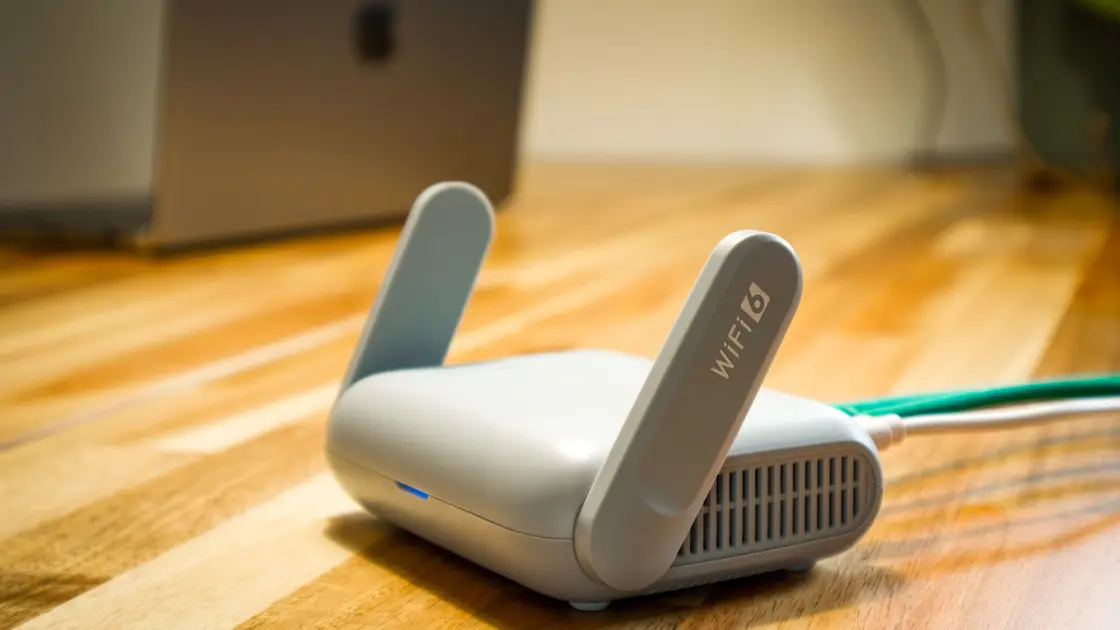
Start your 3-day free trial
Sign up to experience all premium features at no cost.
*Available only to new users. Each user is limited to one trial.

When a streaming app freezes after ads, whether the break ends on its own or you press the service's Skip button on a skippable ad, verify that the failure happens at the ad-to-content transition rather than during ordinary buffering. Record one repeatable example, compare another title and device, then test blockers, app state, device resources, and the network path one variable at a time. Do not use the failure as a reason to bypass ads or install a modified client.
Key Takeaways
- Record whether the player freezes before the last ad ends, on a black frame, or when the program resumes.
- Compare the same title with a control title before deleting app data or reinstalling.
- Browser extensions, DNS filters, and privacy tools can interrupt an ad request or its return path.
- Restart and update before clearing data; preserve downloads and sign-in recovery.
- Report the ad-break timestamp, title, device, app version, and control results to support.
The Entertainment troubleshooting hub provides the broader context. Use the general buffering diagnostic if playback pauses throughout the program, not specifically when ads end.
Reproduce once without skipping around. Note the title, episode or live channel, local time and time zone, device, app or browser version, account plan, and the exact transition. A useful observation is “the final ad finished, the timer disappeared, and the player held a black frame for 45 seconds,” not simply “it froze.”
Classify the visible state:
| Transition symptom | Possible layer | Evidence to keep |
|---|---|---|
| Spinner appears during an ad | Ad delivery or general network | Ad position and whether audio continues |
| Last ad ends, then black frame | Ad-to-content handoff or player state | Player controls, timestamp, and duration |
| Program resumes with frozen controls | App rendering or device resources | Whether audio and subtitles move |
| App closes at the break | App crash or operating-system issue | Crash message and free storage |
| Only one episode fails after the same break | Title or manifest issue | Exact episode and another title result |
| Every video buffers at random points | General connection or device delivery | Speed, Wi-Fi, and non-ad timestamps |
Do not run ten retries. Repeated ad sessions can vary, and the service may choose a different ad sequence. One clean failure plus one controlled comparison is more useful than a long sequence with changing conditions.
Test a control title on the same service, device, profile, and connection. Choose something with ads if possible. Then test the original title once more at a different break or restart point. If the issue affects one episode only, move to the single-title playback guide after recording the handoff evidence.
Check the service's official status and support channels for a current playback or advertising incident. A status page may not identify one ad campaign or regional break, so absence of a notice is not proof that the service is healthy. It is only a reason to continue controlled diagnosis.
Use scope to guide the next step:
Do not change profiles, devices, titles, and networks in the same attempt. A successful result would not tell you which variable mattered.
Keep the account, title, break, and network as similar as possible. If the TV app fails, try the provider's official browser player or mobile app. If the browser fails, try a clean supported browser. The purpose is to identify a client boundary, not to declare the alternate device a permanent fix.
Interpret the comparison carefully:
| Comparison | Stronger hypothesis | Still unproven |
|---|---|---|
| TV app fails; official browser works | TV app state, decoder, or device resources | That the network is perfect |
| All clients fail on one account | Account or service-side ad state | That every device is broken |
| One browser profile fails; clean profile works | Extension, cookies, storage, or browser policy | Which specific setting caused it |
| Same device fails in several streaming apps | Device, operating system, memory, or network | A service-specific advertising bug |
If the app closes, reboots the TV, or freezes outside advertisements too, use the Smart TV app crash checklist. This article stays focused on a player that reaches the ad break and then cannot resume content.
Advertising playback can involve requests that differ from the program stream. A browser extension, DNS filter, router blocklist, security product, or privacy setting may block an ad asset, measurement call, or state transition that the player expects. YouTube warns that ad-blocking extensions can affect video playback and may cause playback to be blocked under its current policy.[1] That statement is specific to YouTube, but it demonstrates why extensions belong in the diagnostic tree.
Inventory the filters before disabling anything:
For a browser, use a temporary clean profile or private window only if it actually starts without the relevant extensions. YouTube recommends checking extensions and trying an incognito window with extensions disabled when diagnosing video errors.[2] Do not permanently allow every site, turn off endpoint protection, or remove household filtering. Make the narrowest service-specific test allowed by your policy, then restore the original protection.
If a managed network controls the filter, do not attempt to bypass it. Provide the administrator with the service, time, and blocked-transition evidence.
Test the network only after scope, filters, and client state have been checked. Keep the device, account, title, app version, and playback operation fixed. Use one trusted alternate connection, such as a phone hotspot with adequate data, for one ad-to-content transition.
A temporary AethoVPN connection can be used only as a single-variable route comparison after content blockers and app checks: it may show that the normal network path treats an ad or program endpoint differently, but it cannot skip ads, repair the service's ad state, or prove which endpoint failed. Restore the original route after the test and follow the service's terms.
Read the result conservatively:
Do not factory-reset the router, disable its firewall, use an unknown public proxy, or forward ports. These actions add risk and do not isolate an HTTP video handoff cleanly.
Start with the smallest reversible action. Exit playback, fully close the app, reopen it, and retest one control title. Then restart the device normally. YouTube lists restarting the app or device, updating the browser, and clearing browser cache and cookies among its general playback checks.[2]
Install ordinary app and operating-system updates. On Google TV, Google's device guidance starts with a restart, closing background apps, and checking app and system updates for a slow or freezing device.[3] Apply those menu names only to Google TV; another television platform has its own path.
Check available storage and close unusually heavy background applications where the platform permits it. Low memory can leave the player unable to swap from the ad decoder state to the program stream even though the initial video opened.
Clear a documented cache before clearing all app data. Full data removal can delete offline downloads, profiles, consent state, device registration, and sign-in information. Record the account and recovery method before any destructive local reset.
Reinstall only when the account works on another client, the network and filters are no longer the differentiator, and the failure remains tied to one installation. Before removal, save the app version, operating system version, account identity, download consequences, and sign-in recovery path.
Confirm that the official app remains available for the device. A discontinued or unsupported client may not reinstall. Also check whether removing it consumes a limited device-registration slot or requires a household verification step afterward.
A reinstall can replace damaged local files and storage. It cannot correct a broken title manifest, service outage, account-side advertising state, or managed-network block. After reinstalling, run one control title before returning to the original break.
Report the transition, not just the word “freeze.” Include:
Remove account IDs, IP addresses, session cookies, advertising identifiers, and private network names from screenshots or logs. Ask support whether it can correlate the title, ad-break time, region, and client version with a known handoff error.
The ad and program can use different media requests, authorization state, or player transitions. A blocked request, stale app state, title problem, or service-side handoff error can therefore appear only when the ad ends.
No. General buffering happens at unrelated points and often follows bandwidth or Wi-Fi conditions. This diagnosis requires a repeatable failure at the advertising boundary.
No. Inventory the blocker first, then use a narrow temporary service-specific test if policy permits. Restore your normal protection afterward and do not bypass controls on a managed network.
Use only controls the service officially provides, such as the Skip button on a skippable ad. If the player freezes right after you press it, record that as the same handoff failure, with the ad position and time. Modified clients, forced skipping, or request manipulation can violate platform rules and hide the actual transition failure.
That points toward the original app, browser profile, decoder, device resources, or device-level filtering. It does not prove the service or network is healthy in every path.
It depends on the platform. A documented cache-only action may preserve data, while clearing all app storage commonly removes downloads and sign-in state. Check the device's current wording before confirming.
No. Reinstalling destroys local evidence and may remove downloads or device trust. Compare a control title, filters, another client, updates, and a restart before using it as a last local step.
Record the channel, program, break time, and another channel result. A single-channel pattern is more useful to the service than a full device reset and may identify a regional ad-insertion incident.
Sources checked 4 October 2026.
Sign up to experience all premium features at no cost.
*Available only to new users. Each user is limited to one trial.