Start your 3-day free trial
Sign up to experience all premium features at no cost.
*Available only to new users. Each user is limited to one trial.
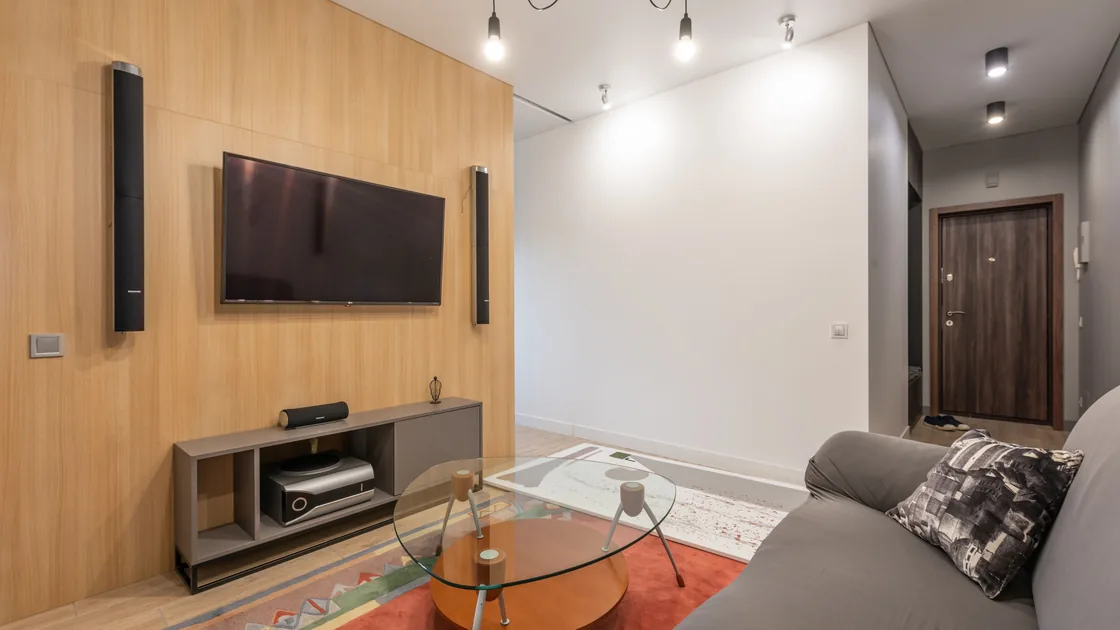

Streaming audio and video out of sync usually comes from one layer: a single title or app (for example, only HBO Max drifts while Netflix stays aligned), the playback device and TV picture processing, or the soundbar, receiver, and HDMI ARC/eARC path. To fix it, first decide whether the offset is fixed, grows over time, or jumps after a playback event, then compare another title, the TV speakers, and a local file. Adjust AV Sync only after the faulty layer is isolated, and record the original value before moving it.
Key Takeaways
- A fixed offset, gradual drift, and intermittent jump are three different diagnostic signals.
- One bad title should be tested on another device before changing a television-wide setting.
- TV speakers provide the shortest useful comparison against a soundbar or receiver chain.
- HDMI ARC/eARC, audio format conversion, and display processing can each add delay.
- A global sync adjustment that fixes one app can break every source that was already correct.
The streaming overview covers wider service and connection choices. This article focuses on lip sync in the player, television, HDMI, soundbar, or receiver path. If Bluetooth headphones or speakers are involved, use the dedicated Bluetooth audio delay guide, because the wireless codec and buffer require a different fault tree.
Choose a scene with clear speech and a visible mouth, clap, door close, or object impact. Replay the same ten seconds and describe the pattern:
| Pattern | What to record | First suspicion |
|---|---|---|
| Fixed offset from the start | Whether sound is early or late, and by roughly how much | Constant processing delay or stored sync value |
| Starts correct, then drifts | Time until the error is obvious | Clock, decoder, app, stream, or long-session problem |
| Jumps after pause, seek, ad, or quality change | Exact trigger | Player timeline or stream transition |
| Only one title or episode | Timestamp and audio track | Content-specific encode or track |
| Only one app | App version and another app result | App/player path |
| Only external audio | TV-speaker result and connection type | Soundbar, receiver, cable, return channel, or format |
Do not rely on a vague impression from music or dubbed dialogue. A dubbed track may intentionally differ from mouth movement. Test the original-language track when possible and compare a second known-good program. Netflix's current troubleshooting separates a problem affecting one title from one affecting the device or many titles.[1]
Start with non-destructive comparisons and change one variable at a time:
If only one title fails at the same timestamp on two devices, record the title, episode, track, and time and report it to the service. If every title in one app fails but another app is synchronized, update or restart the affected app before touching a television-wide delay. If streaming drifts but a local file remains aligned, the network player or app path deserves attention; this does not automatically mean raw internet speed is too low.
When playback also freezes, buffers, or skips frames, solve that delivery problem first with the streaming buffering guide. A timeline discontinuity caused by repeated stalls can sound like a sync fault even when the audio hardware is behaving correctly.
Switch temporarily to the television's built-in speakers without changing any sync control. Re-run the same scene.
Next simplify the path. Connect the playback device directly to the television, then return audio to the sound system using the documented ARC/eARC route. Alternatively, test the playback device directly through the receiver if that is the supported baseline for the equipment. Do not hot-swap cables unless the manufacturer says it is safe; power devices down when required.
Apple's HDR and 4K troubleshooting also calls out receivers, soundbars, HDMI cables, and direct-to-TV testing when audio or video behavior is wrong.[2] The purpose of a direct connection is not to declare the middle device defective. It asks whether the offset disappears when that processing stage is bypassed.
Confirm that the cable uses the TV port labeled ARC or eARC and the corresponding port on the soundbar or receiver. Open the manuals for the exact models and record the current settings for ARC/eARC, CEC, digital audio output, pass-through, and audio format. Apple notes that ARC/eARC and HDMI-CEC settings may need to be enabled on the television and that cables should be reseated on the correct ports.[3] Names vary by manufacturer, so do not copy a menu path from another television.
Test one supported audio format change. For example, compare the current automatic or bitstream setting with a documented PCM or pass-through option. A device may decode audio itself, send compressed audio onward, or convert it in the television. Each path can have a different processing delay. Restore the original format if the comparison does not improve alignment or removes required surround channels.
Inspect the HDMI cable for damage and reconnect it fully. A different certified cable can be a useful control, but an expensive cable is not a general lip-sync cure. Also remove splitters, capture devices, and switches for one direct test. Add each component back one at a time so the result remains attributable.
Exit the app, power down the playback device, TV, and sound system, then restart them in the order recommended by their manufacturers. A television's remote power button may enter standby rather than perform a cold restart, so use the documented restart method. Reopen the same scene before changing settings.
Check app, playback-device, television, soundbar, and receiver updates through official settings. Record versions first. Updating every device at once is sometimes unavoidable, but it weakens the comparison; if possible, retest after each layer. Do not install unofficial firmware or interrupt power during an update.
If the offset appears only after hours of playback, time the test. Note whether a restart clears it and whether it returns after the same duration. That pattern is useful evidence of accumulating drift. If the jump happens after an advertisement, subtitle change, seek, or frame-rate switch, report the trigger rather than applying a permanent delay that masks only the later segment.
Audio may be correct while the picture is delayed by scaling, motion interpolation, noise reduction, or another display process. Record the active picture mode for the exact input, because TVs often store different settings for each HDMI port and built-in app.
Temporarily compare a low-processing or game picture mode, then restore the original. If lip sync improves, disable individual processing features one at a time to find the actual contributor. A game mode can be a diagnostic tool, but it may change color, brightness, or motion behavior and is not automatically the preferred film setting.
Also check the playback device's documented frame-rate matching option. Switching output rates can cause a brief resynchronization at the start of a title; forcing one global rate may avoid a switch but introduce judder elsewhere. Preserve the original value and judge several sources, not one clip.
Use a sync control only for a repeatable fixed offset that affects the intended sources. Before changing it:
Some televisions delay audio, some soundbars delay audio, and some receivers offer separate values per input. If sound already arrives late, a control that can only add more audio delay cannot solve the root problem; reducing video processing or changing the chain may be required. If sound arrives early, a small audio delay may align it.
Never stack unknown offsets at the player, TV, and receiver. Return all three to their recorded baseline, then tune the single layer that applies to the affected path. A slowly growing drift or intermittent jump should not be hidden with a fixed number because the correct offset will change during playback.
Write down four outcomes: affected title and timestamp, app and device versions, TV-speaker result, and external-chain result. Add the HDMI route and audio format. This compact record tells support whether to investigate a content track, app player, firmware, or particular device combination.
Stop escalating when a reversible comparison isolates the layer. Factory reset is not a sensible first response to lip sync: it removes calibration, inputs, accounts, and other settings without proving which component caused the offset. If a reset is recommended by the manufacturer, preserve settings and account access first and understand what will be erased.
Treat it as an app-scope problem first. Play a different show in HBO Max, then a similar title in another app on the same device. If only one HBO Max title is off, record the episode, audio track, and timestamp and report it to HBO Max support. If every HBO Max title drifts while other apps stay aligned, update the app, restart the device, and briefly switch the audio track before touching the TV's AV Sync.
The video path may be doing more processing than the audio path, or an old compensation value may delay the wrong side. Compare a low-processing picture mode and return sync controls to their recorded baseline before adding delay.
Gradual drift suggests clocks, decoding, the app timeline, or a long-session software problem rather than one constant hardware delay. Time how long it takes, restart, and compare another app and a local file.
That episode or audio track may be encoded incorrectly. Confirm the same timestamp on another device and track, then report the exact title, episode, language, and time to the service.
No. First compare TV speakers and the external path. A global setting can make correct apps and inputs wrong. Adjust only after you identify a stable offset and record the original value.
The return-channel configuration, port, format conversion, cable, television, or sound system can affect the path. Confirm documented ports and settings, then perform a direct comparison before blaming one component.
Ordinary low throughput more often causes quality reduction or buffering. Stalls and timeline jumps can create apparent sync events, but a stable fixed offset usually points to content or processing rather than headline speed.
Use the Bluetooth audio delay guide. Bluetooth encoding, radio delivery, headset buffering, and microphone modes need tests that are outside this TV/HDMI article.
Compare the TV's speakers with the external audio path before adjusting AV Sync. HDMI ARC or eARC delay, Bluetooth latency, and a bad audio mix in one title are different lip-sync causes; changing VPN routing cannot correct those timing or media faults.
Sources checked 4 October 2026.
Sign up to experience all premium features at no cost.
*Available only to new users. Each user is limited to one trial.